 Your PC in instalments (up to 12x)
By the FlowUP team, gaming PC builder in Genappe (Belgium) · Updated 29 September 2026
In short: in 2026, a hard drive (HDD) is no longer the main drive in a gaming PC: Windows and games go on an NVMe SSD. The HDD remains, however, the best choice for storing lots for cheap: archives, videos, backups, NAS. To choose well, four criteria: the recording technology (CMR rather than SMR), the form factor (3.5-inch for a desktop PC, 2.5-inch externally), the spindle speed (7,200 RPM if you often copy large files) and the capacity (4 to 8 TB for most players).
Is the HDD still useful in 2026?
Yes, but no longer for the same reasons as before. A hard drive reads at about 200 MB/s, whereas a recent NVMe SSD runs at several thousand: for booting Windows and games, there’s no contest. Some games, like Call of Duty Black Ops 7, even require an SSD in their minimum configuration. The details of the figures are in our comparison SSD or HDD in 2026.
Where the hard drive remains unbeatable is on the price per terabyte. With the rise in flash memory prices in 2026, the gap has even widened. For everything that doesn’t need speed, it remains the most logical solution.
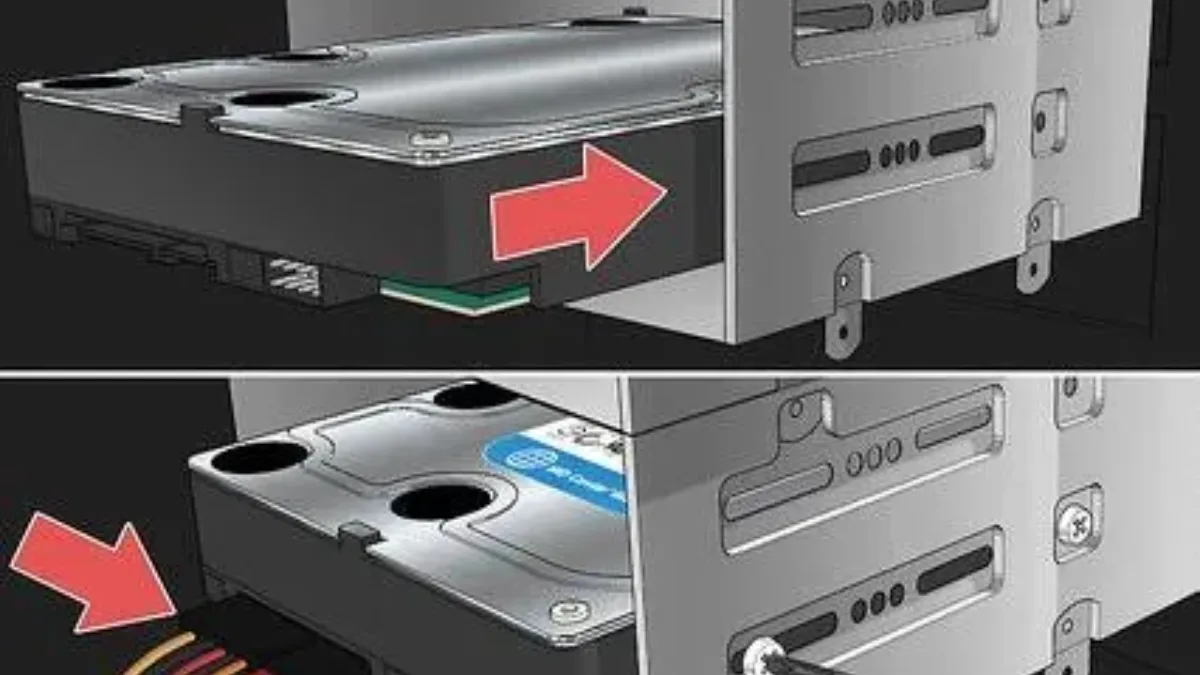
A 3.5-inch hard drive connects via SATA, with a data cable and a power cable.
| Use | Is an HDD suitable? |
|---|---|
| Photo and video archives, rushes, exports | Yes |
| A large library of films, music, ISO files | Yes |
| Local backup (in addition to the cloud) | Yes |
| NAS (network storage, Plex, automatic backups) | Yes, with CMR NAS drives |
| Windows and software | No, SSD required |
| Recent games, especially open-world | No, risk of stuttering when loading scenery |
CMR or SMR: the criterion you forget most
Not all hard drives write data the same way. With CMR (conventional recording), tracks sit side by side. With SMR ("shingled" recording), they overlap to gain capacity, but any rewrite forces the drive to reorganise neighbouring tracks. Result: throughput that collapses during large transfers, and well-known problems in NAS or RAID setups.
The issue caused quite a stir in April 2020, when Western Digital admitted to having slipped SMR into certain WD Red drives intended for NAS without clearly stating it. Since then, the brand distinguishes WD Red (SMR on some capacities) from WD Red Plus and Red Pro (CMR). At Seagate, several 3.5-inch BarraCuda models (2, 4 and 8 TB) are SMR, while the company claims it uses no SMR in IronWolf and IronWolf Pro.
| Technology | Features | Ideal for |
|---|---|---|
| CMR | Stable speeds, good for continuous writing | Desktop PC, NAS, frequent backups, video editing |
| SMR | More capacity for the price, slow during rewrites | "Cold" archiving (write once, rarely read) |
Sources: Western Digital (April and June 2020), Seagate via Blocks & Files (April 2020). Always check the datasheet of the exact model, as product lines evolve.
Simple rule: if in doubt, choose CMR.
Hugo Fortier explains in a video how CMR and SMR work, and what impact they have on a NAS:
Hugo Fortier, “SMR/PMR/CMR drives: how does it work? What impact on NAS performance?”, November 2021.
3.5 or 2.5 inches, 5,400 or 7,200 RPM
| Form factor | Advantages | Ideal for |
|---|---|---|
| 3.5 inches | More capacity, better €/TB, often faster | Desktop PC, NAS, large storage |
| 2.5 inches | Compact, powered by USB externally | Laptop, portable external drive |
When it comes to spindle speed, a drive with 7,200 RPM delivers better throughput and faster access: it’s the right choice if you frequently copy large files or work on videos. A 5,400 RPM drive is quieter and runs cooler, perfect for archives and backups.
Which capacity should you choose?
| Profile | Recommended capacity |
|---|---|
| Light documents and backups | 2 to 4 TB |
| Gamer with a video library and captures | 4 TB in CMR at 7,200 RPM |
| Gamer with a large game library and backups | 8 TB in CMR |
| Streamer or creator (4K rushes, large projects) | 8 to 16 TB in CMR, plus an external backup |
| NAS at home | Dedicated NAS drives in CMR, capacity based on your needs |
On a hard drive, between “faster” and “bigger”, capacity is often the best investment: that’s why you buy it.
Reliability: what can you expect?
Backblaze publishes every year the failures affecting its tens of thousands of drives. In 2025, the annual failure rate for its fleet (344,196 drives, 30 models) was 1.36%, down from 1.55% in 2024. In other words, the vast majority of drives last for years, but a failure can always happen: a hard drive is never a backup on its own. On the warranty side, count on 2 years for a Seagate BarraCuda and 3 years for an IronWolf, according to the manufacturer’s datasheets.
Internal or external? And why not an external SSD?
A internal hard drive (SATA) is installed in a desktop PC and simply acts as a storage drive. A external hard drive (USB) is handy for backups and for transporting data, as long as you protect it from shocks: an HDD really does not like that, especially when it’s running.
For storage that travels in a bag, an external SSD is often a better choice: much faster, more drop-resistant, and more compact. The external hard drive still has the advantage of price per terabyte for large-scale archiving, something you only plug in from time to time.
Our formula: an external SSD from 1 to 2 TB for frequent backups and ongoing projects, and an external hard drive for the archive.
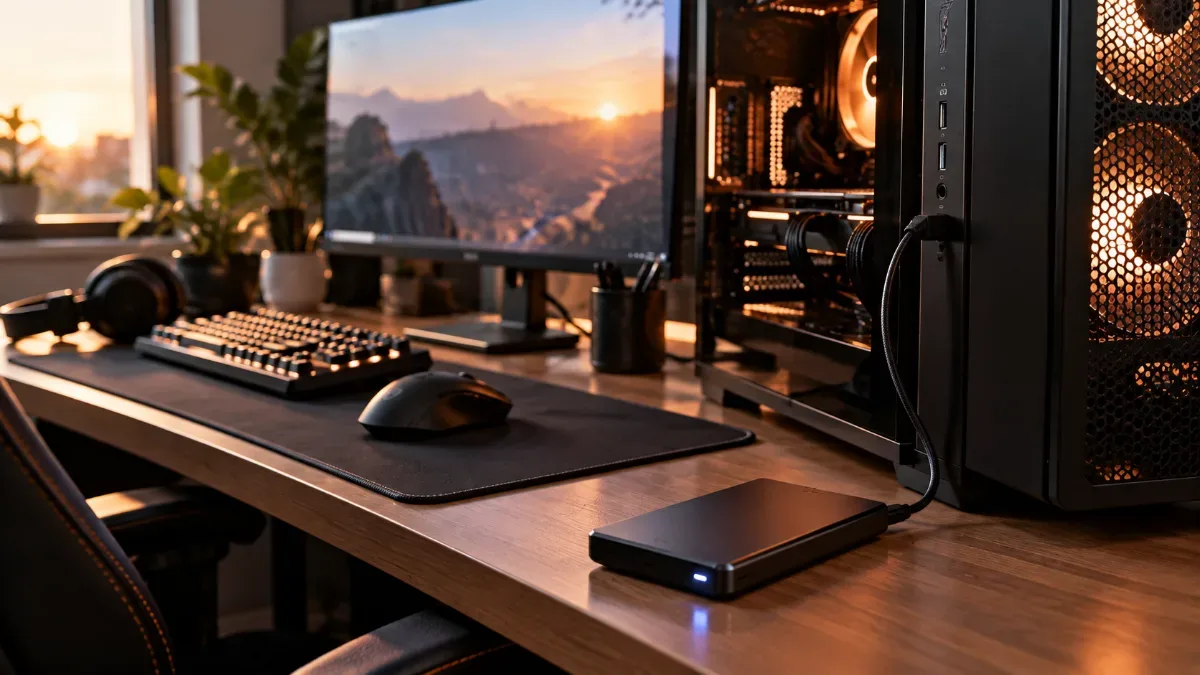
An external drive for backups, next to the PC.
And what about games?
You can store games on an HDD, but loading times increase significantly: recent open-world titles may stutter while loading environments, and updates take longer. The right strategy: Windows and the games of the moment on the SSD; games you rarely launch, and your archives and gameplay recordings on the hard drive.
Our gaming PCs, ready to take a hard drive
The PCs below boot from an M.2 SSD. If you need additional storage, a 3.5-inch hard drive can be added in most cases, or used externally. A few configurations:
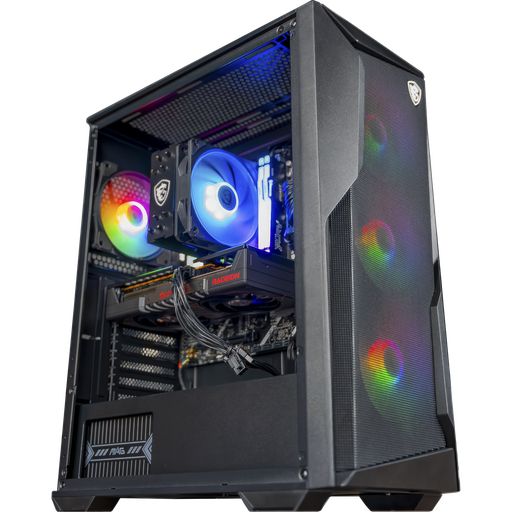
Rift PC: 1 TB M.2 SSD
Ryzen 5 7500F, RX 9060 XT 16 GB, DDR5 and 1 TB M.2 SSD: a solid base for gaming at 1080p and 1440p.
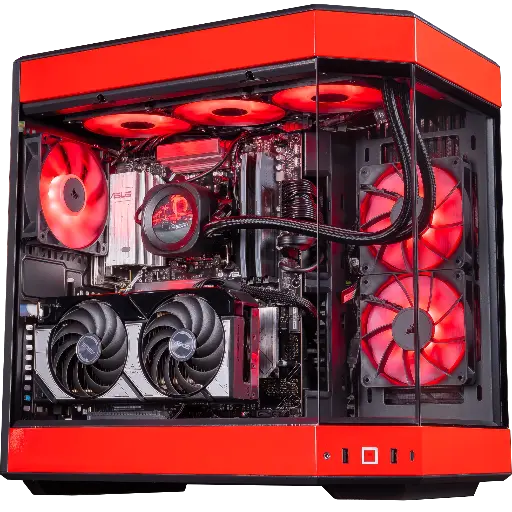
Rivals PC: 1 TB NVMe PCIe 4.0 SSD
Ryzen 7 9800X3D, RTX 5070, 32 GB DDR5 and 1 TB Kingston NV3 SSD.
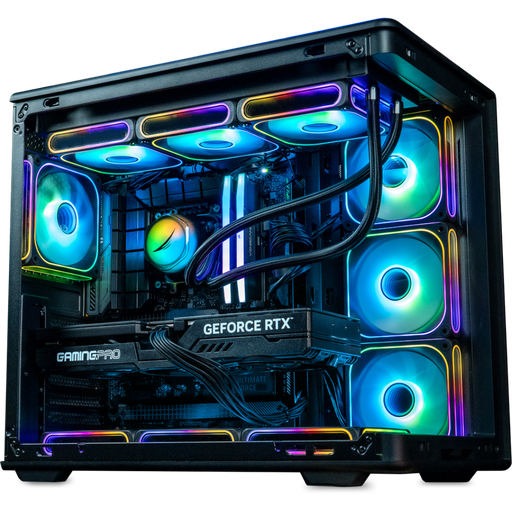
Rainbow V2 PC: up to 2 TB of SSD storage
RTX 5070 Ti, up to 32 GB DDR5 and 1 or 2 TB M.2 SSD: room for a large game library.
FAQ: hard drives in 2026
Is a hard drive still useful in 2026?
Yes, for storing a lot of data at low cost: archives, videos, backups, NAS. Not for Windows or games, which should be on an SSD.
Can you play with a hard drive?
For older games or lighter titles, yes. For recent games, no: long loading times, stuttering in open worlds, and some games require an SSD.
CMR or SMR, which one should you choose?
CMR in almost all cases, and mandatory for a NAS or frequent backups. SMR only has an advantage for archiving that is rarely rewritten.
5,400 or 7,200 RPM?
7,200 RPM if you often copy large files; 5,400 RPM for archives and backups, quieter.
What hard drive capacity for a gamer?
4 TB is enough for most gamers for captures and games you don’t use often; 8 TB if you keep a large library and your backups.
Sources
- Western Digital, WD Red, Red Plus and Red Pro (2020)
- Blocks & Files, SMR with Seagate (April 2020)
- Backblaze, hard drive reliability statistics for 2025 (February 2026)
- Seagate, BarraCuda datasheet
- Seagate, IronWolf datasheet
- TrendForce, price of NAND flash memory in Q1 2026
- Activision, Black Ops 7 system requirements
