 Your PC in instalments (up to 12x)
Choosing the right PC monitor (especially for gaming): understanding the jargon, no nonsense
You want to buy a monitor. Or you want to understand why yours tires your eyes, makes games look blurry, or makes you miss every one of your headshots. But every time you read a product spec sheet, you’re hit with a flood of technical terms. Hz, G-Sync, VA, HDR400. A right jumble. Come on—let’s put some order into it. We explain what those words actually mean.
And above all, how to make the right choice. Without selling a kidney.
screen resolution: it’s not just a question of pixels
Full HD. QHD. 4K. OK, but what does that mean in practice?
Resolution is simply the number of pixels displayed on the screen. The more you have, the sharper the image. A Full HD panel (1920 x 1080) is fine for office work or games that aren’t too demanding. But if you spend your days on an MMO, or you work in graphics, it can feel a bit painful. That’s when you should level up: QHD (2560 x 1440), 4K (3840 x 2160).
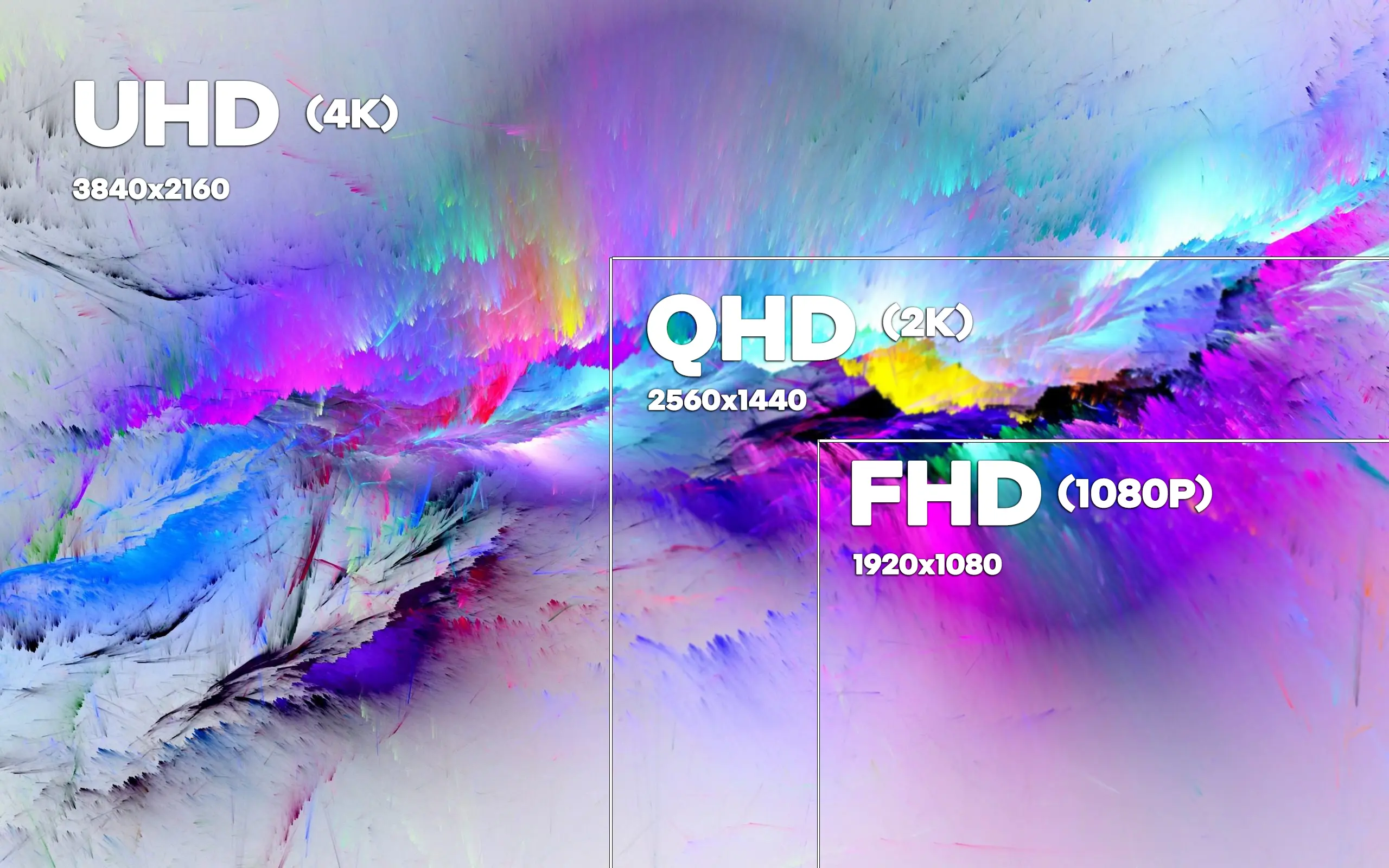
And take note: the larger the diagonal, the more pixels you need to keep the image looking clean. Otherwise it’ll look blurry.
👉 Another thing: if you play in 4K, you’ll want a graphics card that can keep up. Otherwise, you’ll turn your game into a slideshow.
size and aspect ratio: it’s got to fit on your desk
Have you noticed that nobody sells 22-inch monitors anymore? The standard now is 24 or 27. Or even 32.
But bigger doesn’t necessarily mean better. If you’re close to the screen, a 32-inch monitor is too much—you end up turning your head every couple of seconds. It’s unbearable.
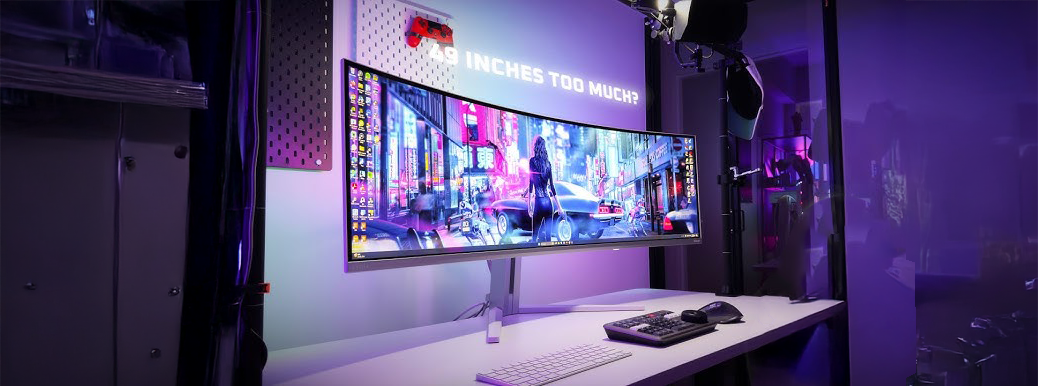
And then there’s the aspect ratio. The usual 16:9 works for everything: films, games, Netflix—no problem.
The 21:9 (ultrawide) is a different story altogether. Either a real hit, or a big miss. For single-player games, it’s brilliant. Even on a long spreadsheet in Excel. But some competitive games handle it poorly. And it costs more, too.
refresh rate: that’s where the magic happens
60 Hz is the baseline—your image updates 60 times per second.
And you know what? That’s not enough—not for fast-paced gaming. Not for FPS. Not if you want real comfort.
If you play Valorant, Fortnite, or even Rocket League: aim for at least 144 Hz. The difference is obvious—you can feel the smoothness. It feels like everything responds better. And it’s not just in your head.
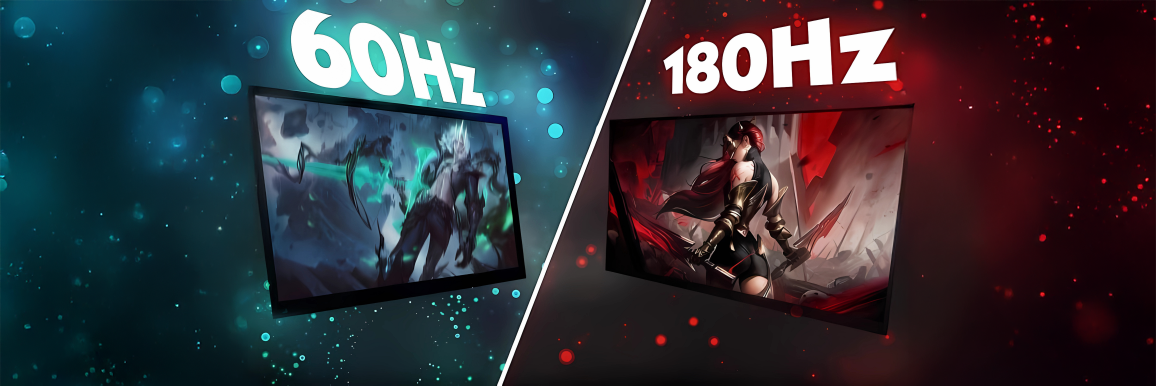
If you’re more the type to play Baldur’s Gate, 60 Hz might be enough. But if you’re going to buy a monitor anyway, you might as well aim higher. 180 Hz has become the standard. 240 Hz is the luxury option. 360 Hz is for esports. And even then, you need the eye for it.
response time: all about milliseconds
1 ms, 5 ms… yeah. It’s not the end of the world. But on certain monitors, it makes a real difference.
The response time is how long it takes a pixel to change colour. The faster it is, the less blur you get when things move quickly. Less ghosting, too. And if you’ve ever seen a blurry halo behind a moving object… you know exactly what we’re talking about.
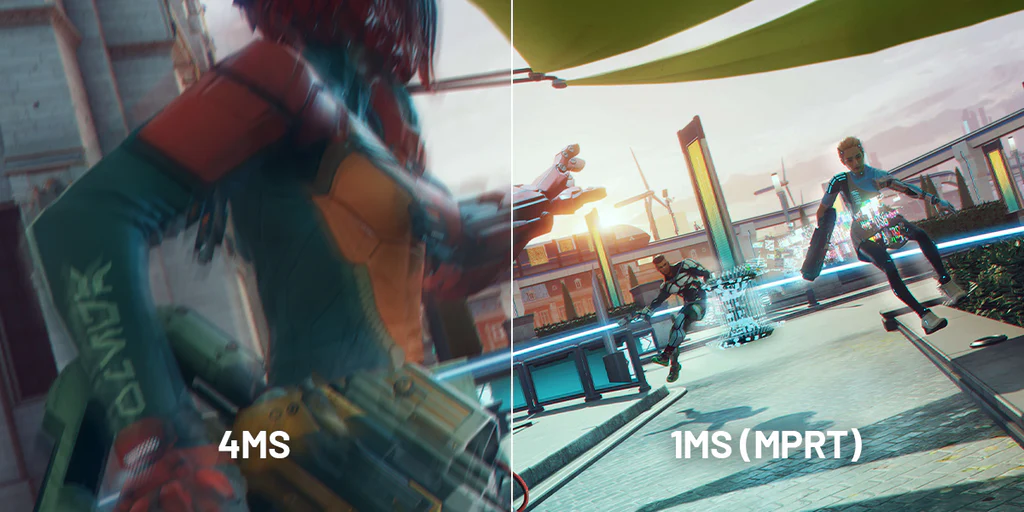
👉 Generally speaking: for gaming, 1 to 3 ms is good. For everything else, you can go up to 5 ms without any worries.
panel type: TN, IPS, VA, OLED… what do you want?
This is the hot spot, though. Because each type has its strengths—and its downsides.
- TN: fast. Cheap. But ugly colours and nasty viewing angles.
- IPS: great colours, wide viewing angles. A bit slower, but it’s fine. Perfect for working or gaming in a relaxed way.
- VA: very good contrast. Sometimes slow. Often a little blurry when moving.
- OLED: deep blacks. Crazy colour. But… there’s a risk of burn-in. And the price. That’s it.
👉 For versatile gaming: IPS. If you want a visual wow factor, go OLED. But get ready for your wallet.
the extras (not so “extras”): G-Sync, FreeSync, HDR
Do you see terms like G-Sync (NVIDIA) or FreeSync (AMD)? This isn’t just marketing.
These technologies let your monitor sync up with your graphics card’s refresh rate. Result: less tearing—that tearing, splitting effect in the image. And the game is much more stable.
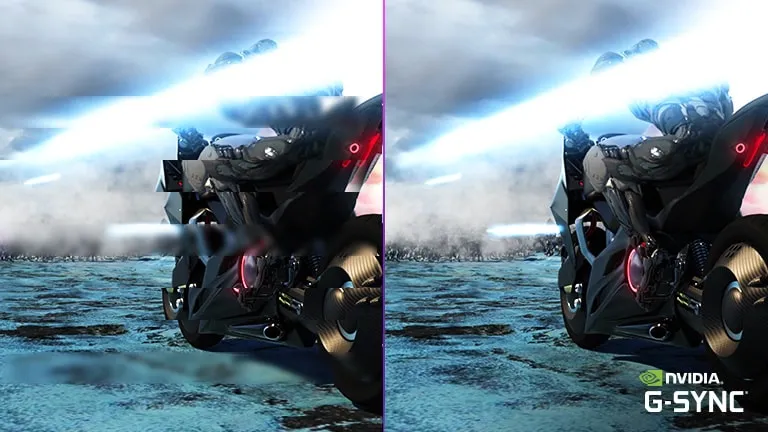
You just need to make sure your graphics card is compatible. Otherwise, it’s pointless.
And what about HDR, then?
Well, it depends. Real HDR (like HDR600 or HDR1000) is worth it. You get better contrast, better lighting, and more depth. But on a screen for 250 quid with “HDR400” written in big letters? Forget it. It’s just a marketing label. Nothing more.
the ports: HDMI? DisplayPort? USB-C? watch the version
A small detail that’s annoying. You can have a 240 Hz monitor… but if you plug it in via HDMI 1.4, you won’t get more than 120 Hz.
Better go for DisplayPort 1.4, especially for QHD or 4K.
HDMI 2.1 is good too. Especially for next-gen consoles.
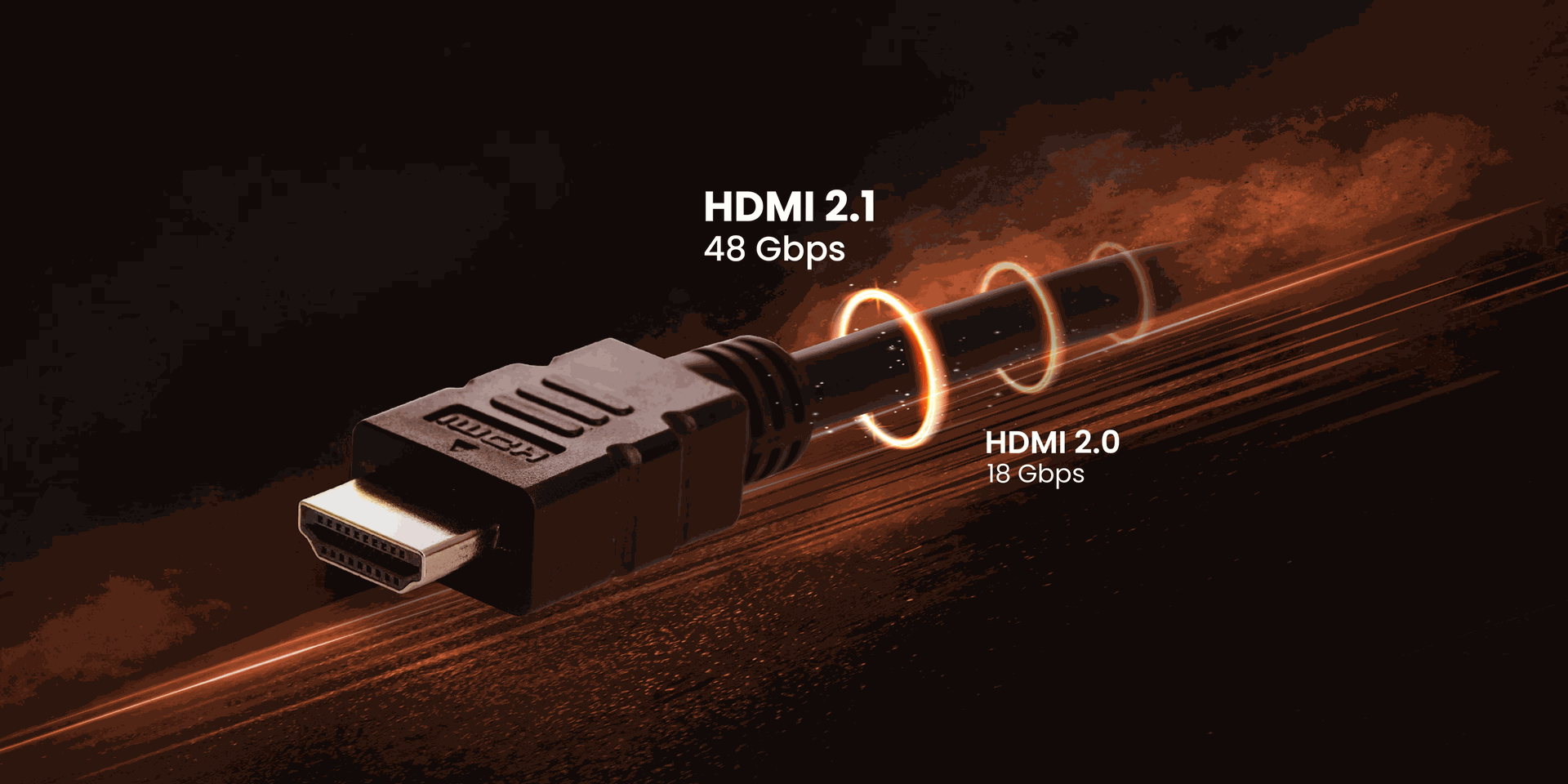
And what about USB-C? Handy with a MacBook or a laptop. You plug in just one cable and you get the picture plus power. Sorted.
and what about ergonomics, then?
You don’t want to wreck your back or your neck. Choose a height-adjustable monitor, at least.
The tilt too. Even the rotation (handy for coding or reading long documents). And check whether it’s VESA compatible. That’ll let you mount it on the wall or on an articulated arm. Your desk will thank you.
so… what do you pick?
If you just want a quick recommendation, here you go:
- Fast FPS gaming: 24 or 27", minimum 144 Hz, 1 ms, IPS or TN panel, FreeSync or G-Sync.
- Immersive single-player games: 27 to 32", QHD or 4K, 120 or 144 Hz, VA or OLED panel, HDR600+.
- Graphic / video creation: 27 or 32", 4K, IPS or OLED panel, 100% sRGB/AdobeRGB coverage.
- Office work: 24 to 27", minimum 60 Hz, Full HD or QHD, IPS panel, good ergonomics.
But most importantly. Ask yourself what you do in front of your screen. And choose accordingly. Not based on the latest promo or the YouTuber of the moment.
❓FAQ – How to choose the right PC monitor
How do you choose a PC monitor?
Ask yourself one question: what are you going to use it for?
If all you want to do is watch Netflix and work in Word, a 24-inch IPS monitor in Full HD is enough. If you play fast-paced FPS games or do video editing, that’s a different story. Look at the resolution, the refresh rate, the panel type and the connectors. And don’t forget comfort: adjustable height, blue-light filter mode—no, it’s not a luxury.
Which panel should you choose for a gaming monitor?
Want fast gaming? Go for TN or an IPS with a 1 ms response time.
Want better contrast and deep blacks? VA or OLED.
TN is more responsive, but the colours are awful.
IPS is the right balance for 90% of players.
VA is top for RPGs or single-player games.
OLED is the Rolls-Royce, but you need the budget (and avoid static images for too long… burn-in).
What’s the difference between 144Hz and 240Hz?
Basically: the smoothness.
A 144Hz monitor refreshes the image 144 times per second. A 240Hz one? Well, 240 times.
In competitive games, you can clearly feel it. But for most players, 144Hz is already super smooth. 240Hz or 360Hz is for purists—people who play esports or want zero compromise. And of course your graphics card has to keep up.
Does HDR really do anything?
Yes… if you’ve got a good monitor.
HDR on a budget monitor (like “HDR400”) is nonsense. But if you go up to HDR600 or HDR1000, then you can see the difference: dark scenes are deeper, colours really pop, and games and films take on a whole new dimension. Provided the content is HDR too, of course.
Curved or flat for gaming?
It’s a matter of taste.
An incurved monitor, especially at 32 inches or in an ultrawide format, pulls you further into the image. Perfect for immersive games.
But for FPS games or competitive titles, many people prefer a flat monitor for accuracy. If you’ve never tried a curved one, don’t buy it with your eyes closed. It can be surprising. And not always in the right way.
What resolution for a 27-inch monitor?
On a 27-inch screen, Full HD starts to look blurry.
Better to go for QHD (2560 x 1440)—it’s the right compromise. You get sharper detail without using up too much performance.
4K on a 27-inch display is magnificent… but sometimes it’s pointless—unless you work in photo/video or you just love tiny fonts.
G-Sync or FreeSync—what’s the difference?
Both are used for the same purpose: synchronising the image between the monitor and the graphics card, to avoid tearing (torn image) and stuttering (micro-stutters).
- G-Sync = NVIDIA
- FreeSync = AMD (but some FreeSync monitors are compatible with NVIDIA)
If you’ve got an NVIDIA graphics card, you’re better off with a G-Sync Compatible monitor. If you’re on AMD, FreeSync will work perfectly.
