
By the FlowUP team, gaming PC assembler in Genappe (Belgium) · Updated 28 September 2026
A blue screen, or BSOD (blue screen of death), is Windows that stops instantly because it has encountered a critical error: a crashing driver, an unstable memory stick, a disk that drops out, or damaged system files. The good news is that the message shown already gives you a clue. Here’s the method we use in FlowUP’s after-sales service to find the cause and fix it, without guessing.
In brief
- Take a photo of the stop code (e.g. MEMORY_MANAGEMENT) and, if it’s shown, the name of the file at fault.
- Undo what changed just before: update, driver, new component, BIOS setting.
- Reinstall the graphics driver properly, disable XMP or EXPO on the memory, and run SFC and DISM.
- If Windows won’t boot anymore, use Safe Mode or the recovery environment.
- Since 2025, Windows 11 shows this error on a black background: the method stays the same.
Contents
- Why does a blue screen appear?
- The most common error codes
- Step 1: note the code and retrieve the minidumps
- Step 2: take control back with Safe Mode
- Step 3: fix it, from most likely to most serious
- Step 4: hardware diagnostics
- FAQ about the blue screen
Why does a blue screen appear?
A blue screen doesn’t mean Windows is “broken”. In the vast majority of cases we see, the cause is one of these:
- An unstable or incompatible driver: graphics card, chipset, Wi‑Fi, audio, storage.
- Unstable RAM: XMP or EXPO set too aggressively, worn-out memory stick or not properly seated.
- A storage drive that drops out: SSD at end of life, missing up-to-date firmware, SATA cable not properly connected.
- Corrupted system files: after a power cut or an interrupted update.
- Heat or power supply: overheating, overclock or undervolt pushed too far, power supply that’s on the edge.

A blue screen stops everything, but its stop code already tells you where to look.
Good to know: since the summer of 2025, Windows 11 replaces the blue screen with a simpler black screen that still shows the stop code (Tom's Hardware, June 2025). This whole guide also applies to this new screen.
The most common error codes
The stop code in uppercase is the most useful clue. Here are the ones we encounter most often, and what you should check first as the likely cause:
| Stop code | Most likely cause | First thing to do |
|---|---|---|
| MEMORY MANAGEMENT | RAM | Disable XMP/EXPO, test the RAM |
| IRQL_NOT_LESS_OR_EQUAL | Driver or memory | Update or roll back to the previous driver |
| PAGE FAULT IN NONPAGED AREA | Memory, driver or disk | Test the RAM, run SFC |
| VIDEO_TDR_FAILURE (nvlddmkm.sys, atikmpag.sys) | Driver or graphics card | Reinstall the graphics driver properly |
| SYSTEM_SERVICE_EXCEPTION | Driver or software | Uninstall the last driver or software you added |
| KMODE_EXCEPTION_NOT_HANDLED | Driver | Identify the indicated .sys file |
| DPC_WATCHDOG_VIOLATION | Storage driver or SSD firmware | Update the chipset and SSD firmware |
| CRITICAL_PROCESS_DIED | System files or disk | Run SFC, DISM, then check the disk |
| WHEA_UNCORRECTABLE_ERROR | Hardware error (CPU, voltage, overclock) | Reset the BIOS to default, monitor temperatures |
| INACCESSIBLE_BOOT_DEVICE | Boot drive not found | Check the BIOS and the SSD connection |
Source: Microsoft, reference for bug check codes.
Step 1: note the code and retrieve the minidumps
On the error screen, take a photo of the stop code and, if it appears, the file at fault (for example nvlddmkm.sys for the NVIDIA driver). The displayed QR code also links to Microsoft help.
After restarting, check whether Windows has saved an error report (“minidump”) in the C:\Windows\Minidump folder. Free tools such as BlueScreenView (simple) or Microsoft WinDbg (more complete) read these files and often point to the faulty driver. Also note when the blue screen appears: at startup, while gaming, at idle, or after a system update.
Step 2: take control back with Safe Mode
Safe Mode starts Windows with the absolute minimum, allowing you to uninstall a driver or update that is causing the PC to crash.
- If Windows boots: hold down the Shift key while clicking Restart, then Troubleshoot, Advanced options, Settings, Restart, and choose Safe Mode (key 4 or F4).
- If your PC gets stuck in a boot loop on the blue screen: after two or three interrupted starts, Windows automatically opens Automatic Repair. Go through Advanced options to reach Safe Mode, System Restore, or uninstall updates.
Step 3: fix it, from most likely to most serious
1. Undo the last change. Did the blue screen appear right after a Windows update, a new driver, a component you added, or a BIOS setting? Go back: uninstall the update, restore the previous driver (Device Manager, Properties, Driver, Roll Back Driver) or use a restore point.
2. Reinstall the important drivers properly. Download the graphics driver from NVIDIA, AMD or Intel, and the chipset driver from the motherboard manufacturer. Avoid software that promises to “update everything”. Our guide: how to update your drivers.
3. Check the RAM. This is a very common cause of “random” blue screens while gaming. Disable the XMP or EXPO profile in the BIOS to test, then run the Windows Memory Diagnostic tool (type mdsched in the search). If the problem disappears without XMP, the profile was too ambitious for your memory sticks or your processor.
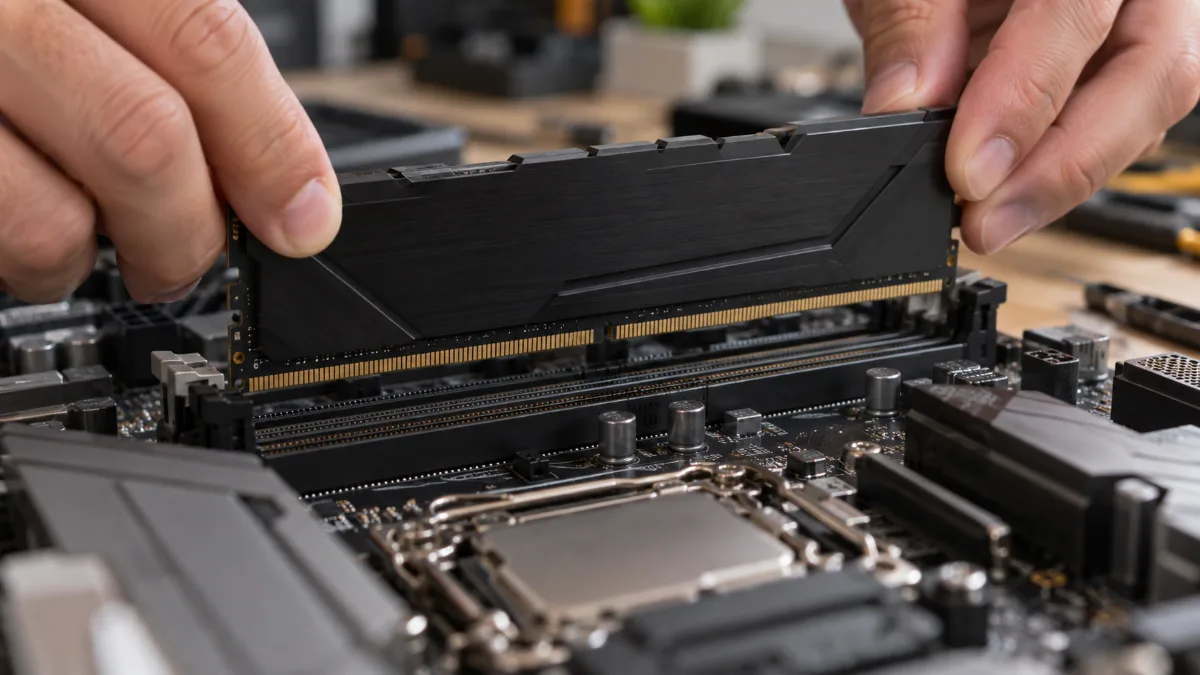
A memory stick that isn’t seated properly or an XMP profile that’s too ambitious is enough to cause blue screens.
4. Repair system files. Open Command Prompt as administrator and run sfc /scannow, then DISM /Online /Cleanup-Image /RestoreHealth. Also check that there’s enough space on the system drive and that your SSD firmware is up to date.
5. Go back to a baseline system. Remove any overclocking or undervolting, load the default BIOS settings, and monitor temperatures during gaming. A processor or graphics card that overheats can cause blue screens: see our guide Overheating PC.
6. As a last resort, reset Windows (Settings, System, Recovery) while keeping your files. If the blue screen comes back on a freshly installed Windows, it’s a hardware issue.
Mon Ami Geek’s channel shows the first steps in the video when you see the message “Your computer ran into a problem”:
Step 4: hardware diagnostics
If the blue screens keep happening, you’ll need a complete report of the components. A tool like UserDiag records temperatures, frequencies, memory and storage under load, and generates a report you can share. The step-by-step procedure is in our guide lag in games on a PC, in the diagnostics section.
Is your PC a FlowUP? Send to our After-Sales Service a photo of the error code, the UserDiag report, and what changed recently: with these three items, we find the cause much faster.

Error code, diagnostic report and recent changes: the three pieces of information that speed up customer service.
Our PCs are stress-tested under load before shipping. Two examples of current configurations:
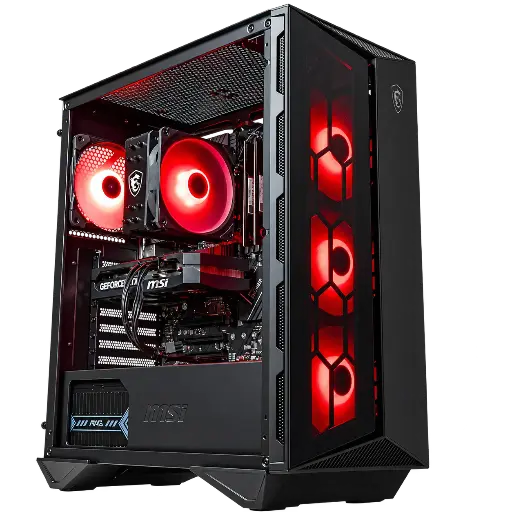
PC Banger GeForce RTX 5060
RTX 5060, Intel Core i5-12400F and 16 GB of RAM, assembled and tested in our workshop before shipping.
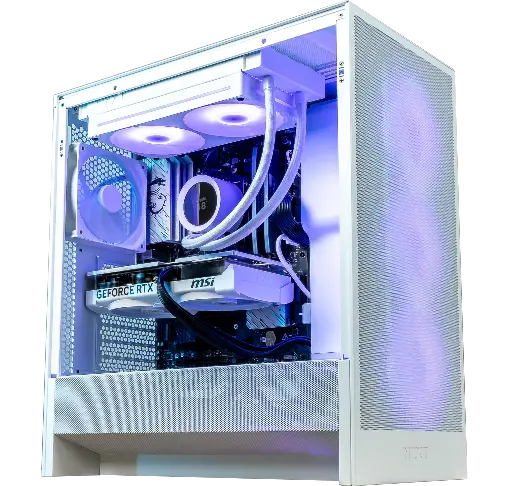
PC Novara GeForce RTX 5070 12GB
RTX 5070 12 GB, Ryzen 5 7500X3D, 16 GB DDR5 and 240 mm water cooling for 1440p.
FAQ about the blue screen
How do you unfreeze a PC stuck on a blue screen?
Let it restart. If it gets stuck again, interrupt two or three boot attempts to open Automatic Repair, then boot in Safe Mode and undo the last change.
A blue screen at startup, is it serious?
Not necessarily. When it boots, think first about the drive (INACCESSIBLE_BOOT_DEVICE), a failed update, or a BIOS setting. Automatic Repair or System Restore often fixes the issue.
Can a blue screen damage my PC?
No, it’s a protection feature: Windows stops to prevent things from going further. On the other hand, any unsaved work is lost, and repeated blue screens point to a problem that needs fixing.
Blue screen on Windows 10 and Windows 11: does the method change?
No. The stop codes, Safe Mode and the SFC and DISM tools are the same. Only the screen colour changes on recent versions of Windows 11.
