 Your PC in instalments (up to 12x)
By the FlowUP team, PC gaming system builder in Genappe (Belgium) · Updated 28 September 2026
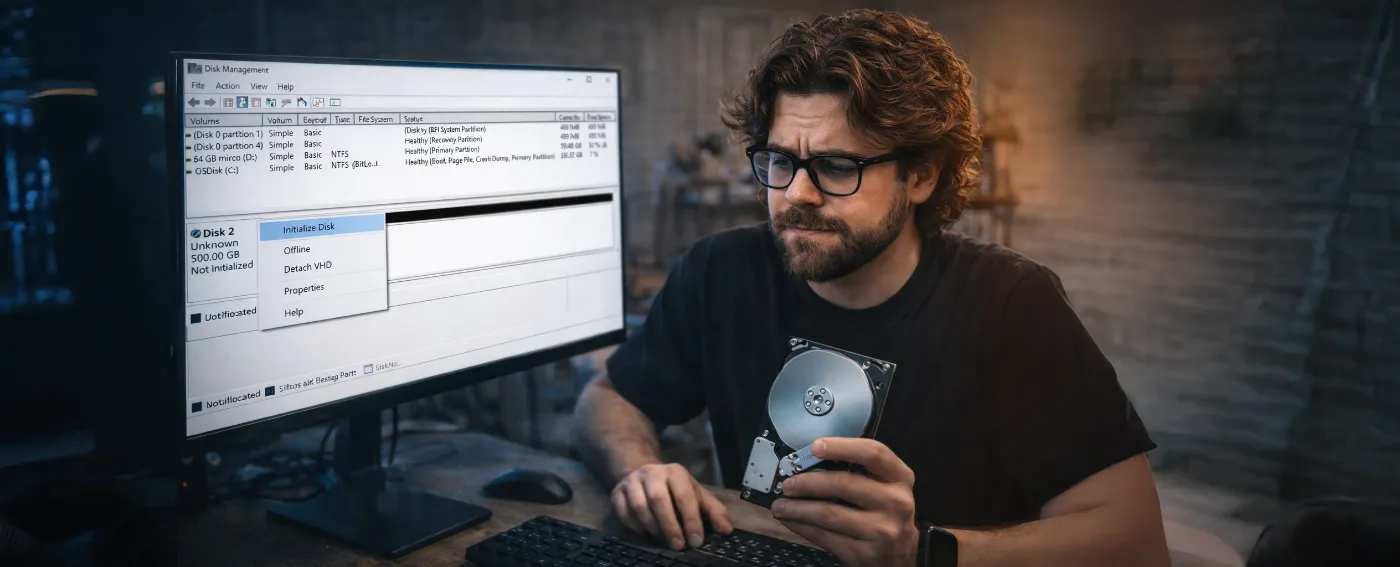
Quick answer: to initialise a hard drive or SSD in Windows 10 and 11, right-click the Start menu, open Disk Management, choose GPT in the “Initialise disk” window, then right-click the unallocated space and create a new simple volume formatted as NTFS. The drive appears right away in File Explorer.
You’ve just added an SSD or a hard drive, and it doesn’t show up in File Explorer? That’s normal: a new drive arrives blank, without a partition table. Windows can see it, but it can’t use it yet. Here’s what to do, for an HDD, a SATA SSD, an NVMe SSD or an external drive.
Warning: a drive that already contains data doesn’t need to be initialised. If Windows asks you to initialise a drive you’re already using, stop: it’s often a sign of a damaged partition table, and it’s better to try data recovery before doing anything else.
What does initialising a disk mean?
Initialising a disk means writing a partition table (MBR or GPT) to it: the “contents” that tells Windows how the space is organised. Then, only afterwards, you create a partition and format it with a file system (usually NTFS). Until that’s done, the drive stays invisible in File Explorer.
You need to do this when you install a new drive, when you replace a drive, when all partitions have been deleted, or for certain blank external drives that are sold empty.
Step 1: open Disk Management
- Right-click the Start menu (or Windows + X).
- Select Disk Management. You can also type
diskmgmt.mscin the search box. - Wait a few seconds for the list to load.
The new drive appears with the label Not initialised or with a black Unallocated space.
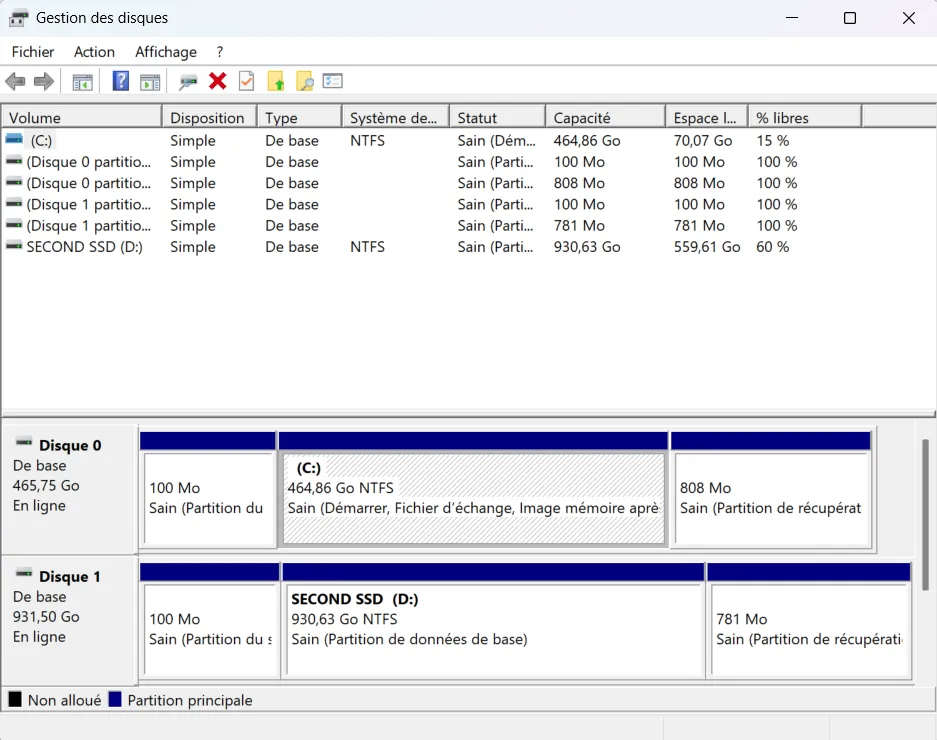
Step 2: initialise the disk as GPT
In general, Windows opens the “Initialise disk” window by itself. Otherwise, right-click the drive name (“Disk 1”, for example) and then Initialise the disk.
- Tick the disk to be initialised.
- Choose the partition style: GPT in almost all cases.
- Click OK
Step 3: create a partition and format
- Right-click the Unallocated space, then New simple volume.
- Keep the maximum size unless you want multiple partitions.
- Choose a drive letter.
- Format as NTFS, give the volume a name, and leave “Quick format” checked.
- Click Finish.
The drive is ready: you can install your games, backups or projects on it. If you’re unsure what each drive is for, our HDD vs SSD comparison helps you split games and files.
Initialise a new drive in Windows 10 or 11, in a video by the Clank&Geek channel.
MBR or GPT: which should you choose?
GPT, unless it’s a very special case. It’s the standard for modern PCs with UEFI, and the only one that supports drives larger than 2 TB.
| Criteria | MBR | GPT |
|---|---|---|
| Maximum disk size | 2 TB | No practical limit |
| Number of partitions | 4 primary | Up to 128 in Windows |
| Boot / Startup | Old BIOS (Legacy) | UEFI, required to boot Windows 11 |
| Reliability | One table | Duplicated table at the end of the disk |
| To choose if… | Old PC or a very old system | All other cases |
Initialise an external hard drive or a USB stick
Most external drives are sold already formatted (often in exFAT) and work as soon as you plug them in, there’s no need to initialise them. If yours doesn’t show up, open Disk Management and follow the same steps.
- NTFS if the drive is only used with Windows PCs.
- exFAT if you also connect it to a Mac, a console or a TV.
- Preferably plug it into a USB port on the back of the motherboard, directly, without a hub: 2.5-inch drives powered via USB sometimes don’t get enough power on the front.
NVMe SSD not detected: checks to make
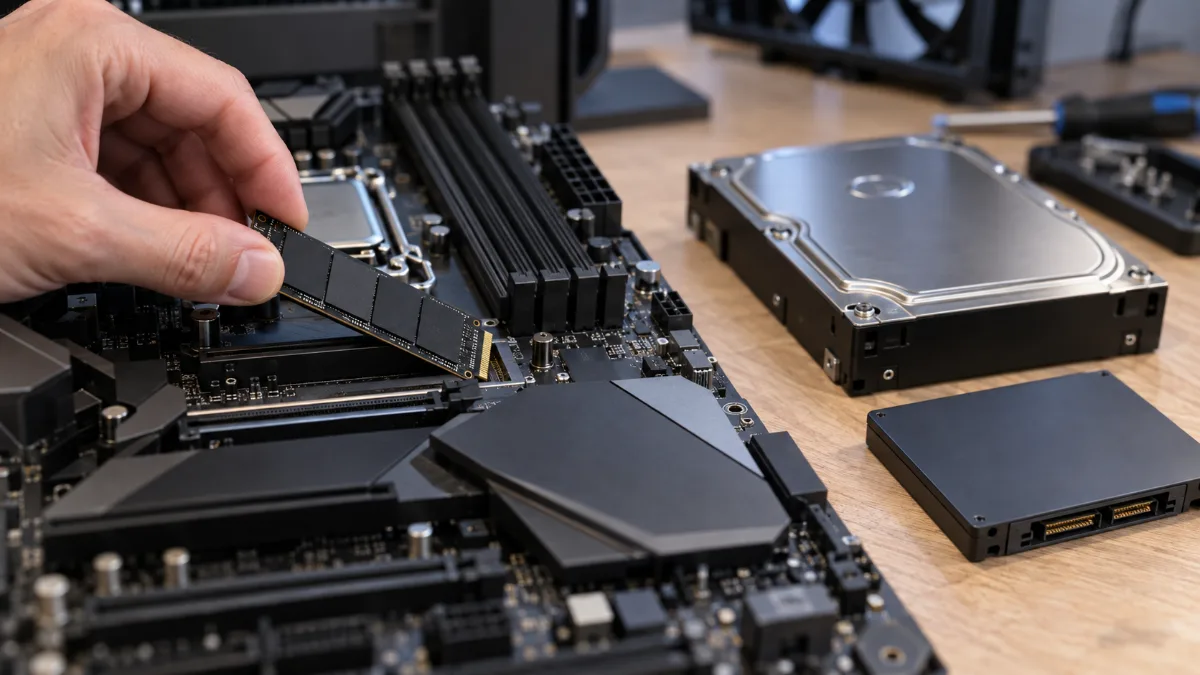
An M.2 NVMe SSD that shows up nowhere, even in Disk Management, is generally not an initialisation problem. Check in this order:
- BIOS/UEFI: is the SSD listed in the storage section?
- The M.2 slot: on some motherboards, a slot is disabled when certain SATA ports are in use. The manual states this.
- The mounting: the SSD must be seated properly and screwed down flat.
- Updates: Keep your BIOS and chipset drivers up to date.
Unable to initialise a hard drive: what should you do?
If Windows shows an error when initialising, the message points you to the cause:
| Message or symptom | Likely cause | Solution |
|---|---|---|
| “I/O device error” | Faulty cable, port or power supply, or a failing drive | Try a different cable and port, and test the drive in another PC or enclosure |
| Drive “Offline” | Drive disabled by Windows | Right-click the drive, then choose “Online” |
| “The media is write-protected” | Read-only attribute enabled | Run attributes disk clear readonly in diskpart |
| “Initialise” option greyed out or missing | Drive already initialised or not recognised | Check whether it already has partitions; if not, go via diskpart |
| “Incorrect parameter” | Damaged partition table | Clean the drive with diskpart (erases everything) |
| Drive missing everywhere | Hardware or connection problem | Check the BIOS, SATA cables, and power cable |
Reset a drive with diskpart
Destructive command: clean deletes the partition table of the selected drive. Verify the disk number three times (size in GB) before confirming: selecting the wrong disk can erase your system drive.
- Open the Command Prompt or the Terminal as an administrator.
- Type
diskpartand press Enter. - Type
list diskand identify your drive by its size. - Type
select disk X(X = the drive number). - If needed:
online diskandattributes disk clear readonly. - Type
clean, thenexit. - Go back to Disk Management and continue from step 2.
If the drive remains inaccessible after all this, it’s probably failing. If it’s under warranty, contact the seller rather than insisting.
Frequently asked questions
Do I need to initialise a new SSD?
Yes, a new internal SSD arrives blank. You need to initialise it to GPT, then create a volume before you can use it. The procedure is the same as for a hard drive.
Do I need to format a new external hard drive?
Usually not: it’s already formatted as exFAT or NTFS and works as soon as you plug it in. Format it only if you want to change the file system, for example, to NTFS for use on Windows only.
Does initialising a drive erase data?
Initialising a blank drive erases nothing, because there’s nothing on it. However, initialising a drive that contained data, or using diskpart’s clean command, makes that data inaccessible.
Why doesn’t my drive show up in File Explorer?
Most often because it isn’t initialised, it has no partition, or its partition has no drive letter. Disk Management can fix all three cases.
MBR or GPT for a gaming drive?
GPT. There’s no reason to choose MBR on a recent PC, and GPT is required for drives larger than 2 TB.
A PC ready to play straight from delivery
Our gaming PCs are assembled and tested before shipping, storage included: all you have to do is install your games. First boot? Follow our first boot guide.
