
By the FlowUP team, gaming PC builder in Genappe (Belgium) · Updated 28 September 2026
In brief: to find out whether your PC power supply is sufficient, add up the maximum power draw of the processor and the graphics card, add around 100 W for the rest of the PC, then a buffer of 20-30%, and compare the result with the power rating on the label. To test it, monitor the 12 V line with HWiNFO (the ATX standard allows ±5%, i.e. 11.40 to 12.60 V), run OCCT’s PSU test which loads the processor and the graphics card at the same time, and if you’re unsure, have it checked with a multimeter or a PSU tester.
Sufficient PC power supply: the short answer
The power supply (or PSU, for Power Supply Unit) converts the mains power from the socket into DC power for the motherboard, processor, graphics card and storage. It’s the component people look at the least, yet it’s the one that can cause a PC to crash even though everything else is very well equipped.
A sufficient power supply starts with a power rating that matches the graphics card and the processor, with some headroom. It should also be a quality power supply: a low-end 750 W unit may perform worse than a good 650 W model.
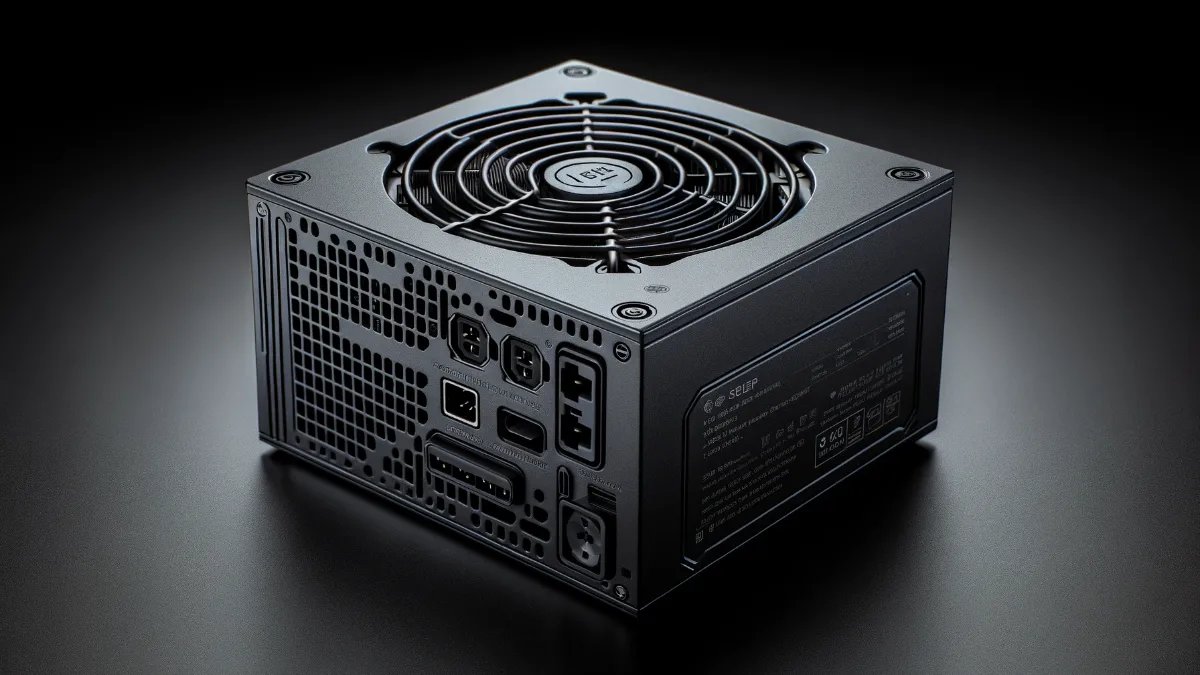
Power matters, and so does build quality.
Signs of an insufficient or tired power supply
- The PC shuts down or restarts abruptly during gameplay or while rendering, without a blue screen.
- It refuses to start after adding a new graphics card.
- The power supply fan spins very loudly, or you hear a whining or clicking sound.
- Crashes appear only when the processor and graphics card are loaded together.
- A smell of hot plastic or burnt odour, if so, unplug the PC immediately.
These symptoms can also come from overheating or another component. Before blaming the power supply, read why does my computer shut off by itself, and if the PC won’t turn on at all, my computer won’t start.
Calculate the power you need for your PC
The graphics card is almost always the most power-hungry component. Here is the stated power draw of GeForce RTX 50 cards and the recommended PSU wattage for a typical gaming setup:
| Graphics card | Power consumption (TGP) | Recommended power supply |
|---|---|---|
| GeForce RTX 5060 | 145 W | 550 to 650 W |
| GeForce RTX 5070 | 250 W | 650 to 750 W |
| GeForce RTX 5070 Ti | 300 W | 750 W and up |
| GeForce RTX 5080 | 360 W | 850 W and up |
| GeForce RTX 5090 | 575 W | 1000 W and up |
Source: MSI, “What Power Supply Do You Need for RTX 5090, 5080, 5070, and 5060?” (September 2026). Plan for more if you use a very high-end processor or overclocking.
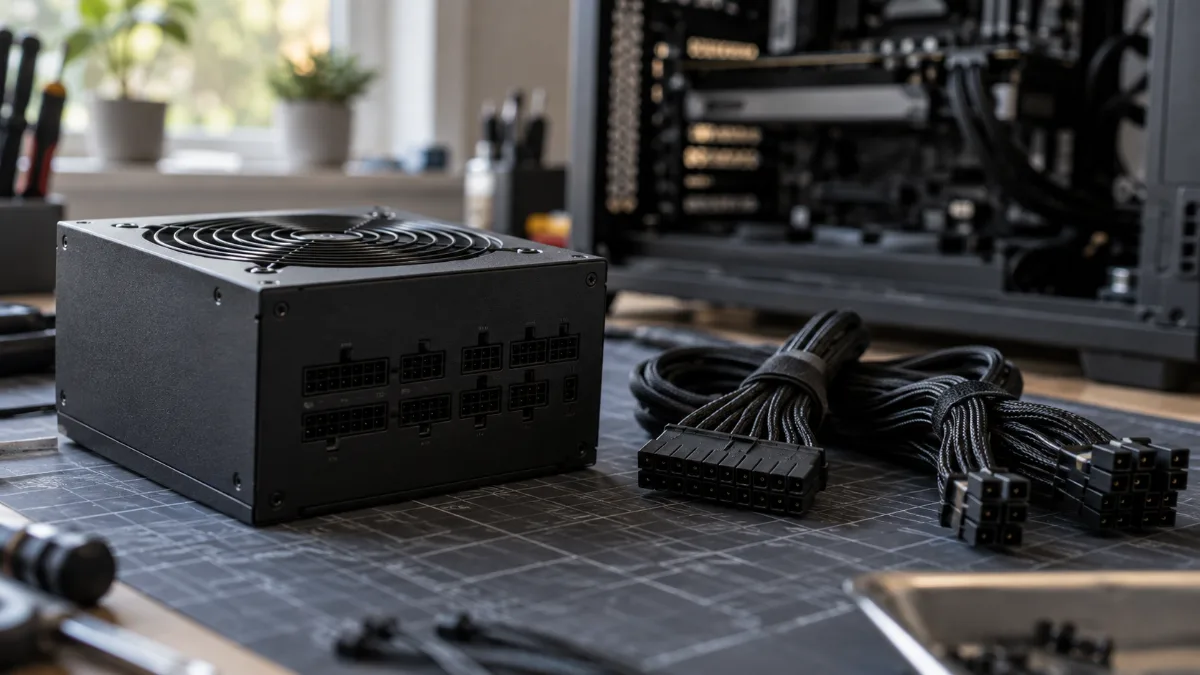
A modular power supply: you only connect the cables you actually need, and the airflow benefits.
For a precise calculation of your setup, the manufacturers’ calculators do the work: be quiet! PSU Calculator, Cooler Master Power Supply Calculator or MSI Power Supply Calculator. Enter the processor, graphics card, storage and fans, then leave a 20-30% buffer above the result: the power supply then operates in its best-efficiency zone and can handle consumption spikes.
How to test your PC power supply
1. Read the voltages with software
HWiNFO (or HWMonitor) displays the voltage of the 12 V rail reported by the motherboard. The ATX standard allows ±5%, i.e. from 11.40 to 12.60 V. A reading that drops sharply when you start a game is a bad sign. Keep in mind that these sensors remain approximate: it’s an indicator, not a measurement.
2. Run a load test with OCCT
OCCT’s Power Supply test loads the processor and the graphics card at the same time, the most demanding scenario for the PSU. If the PC shuts down during this test while it stays stable on a processor-only or graphics-card-only test, the power supply is the number-one suspect. Monitor the temperatures during the test and stop at the first sign of any abnormal behaviour.
3. Measure with a multimeter or a tester
A power supply tester or a multimeter provides a reliable measurement of the voltages at the connectors. This is an operation to reserve for people who are comfortable with electronics, PC unplugged from the mains for any work inside the case. And never open the power supply itself: its capacitors remain charged even after unplugging.
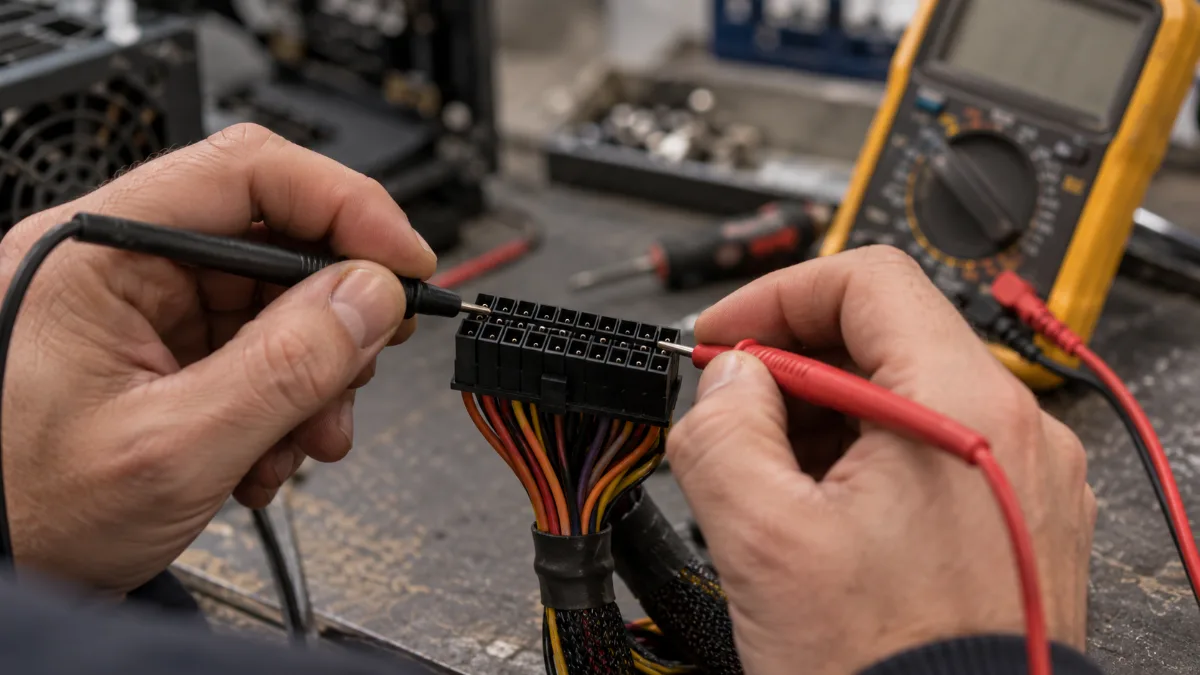
The multimeter provides the most reliable reading, provided you know how to use it.
Choosing the right PC power supply
Beyond the wattage, four criteria make the difference:
- 80 PLUS certification: it guarantees a minimum efficiency. Aim for at least Bronze, and Gold for a high-end build.
- ATX 3.1 standard and the 12V-2x6 connector: useful for the latest, most power-hungry graphics cards, powered by a single cable.
- Modularity: a modular or semi-modular power supply makes cable management and airflow easier.
- Warranty: quality models are often backed by 5 to 10 years, sometimes 12. It’s a good indicator of the manufacturer’s confidence.
| Certification | Minimum efficiency at 50% load |
|---|---|
| 80 PLUS Bronze | 85% |
| 80 PLUS Silver | 88% |
| 80 PLUS Gold | 90% |
| 80 PLUS Platinum | 92% |
| 80 PLUS Titanium | 94% |
Source: Seasonic, “What Does 80 PLUS Mean?”
To get a close look at a recent power supply, Mathis and Gauthier show one in a video:
Mathis and Gauthier, “The PC power supply of the future!”, May 2025.
The risks of an underpowered power supply
An undersized power supply doesn’t just keep the PC from turning on. If you use it permanently close to its limit, it runs hotter, ages faster, and its voltages become less stable. In the worst case, a poor-quality model without serious protections can damage the motherboard or graphics card by failing.
It also blocks any upgrade: changing the graphics card then means you have to change the power supply too. It’s better to plan some headroom when you buy.
A low-end, too-tight power supply puts everything else in the PC at risk.
How long does a PC power supply last?
It depends mainly on the quality of the model, the load, and the heat. A good power supply, used with some headroom in a well-ventilated case, typically lasts for several years and often as long as its warranty. After that, if the PC becomes unstable or if you switch to a more power-hungry graphics card, that’s the right time to replace it.
Our gaming PCs, ready to play
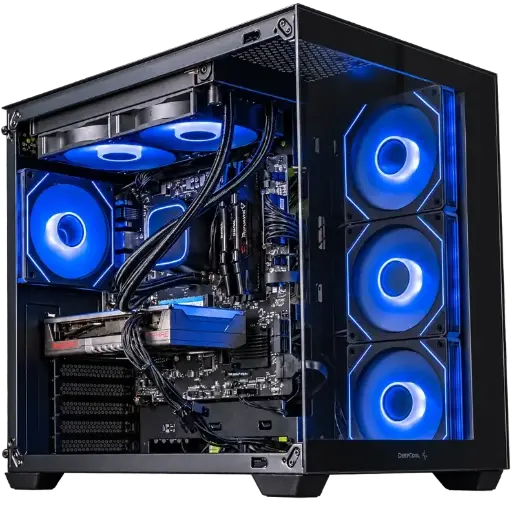
PC Spike, Radeon RX 9060 XT
Ryzen 7 5700X, Radeon RX 9060 XT and 16 GB of DDR4: a balanced setup for gaming at 1080p with high settings.
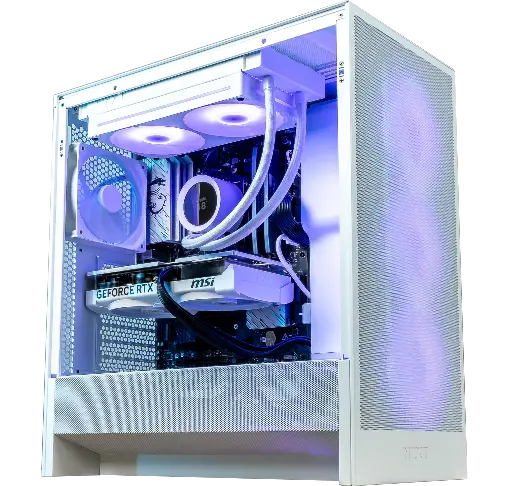
PC Novara GeForce RTX 5070 12GB
Ryzen 5 7500X3D, RTX 5070 12GB, 16 GB DDR5 and 1 TB M.2 SSD: a plug-and-play gaming-ready configuration.
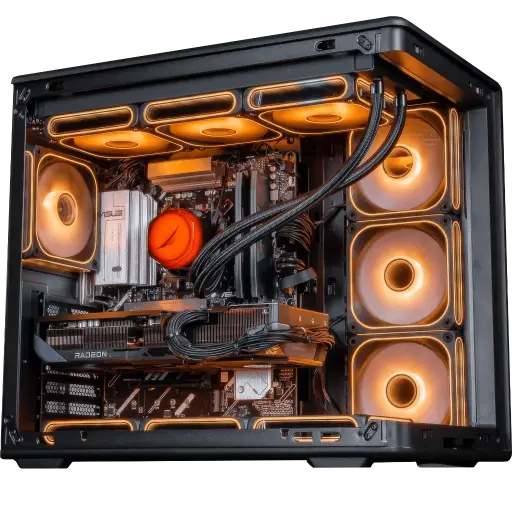
PC Apex V2, Radeon RX 9070 XT
RX 9070 XT 16 GB, Ryzen 7 7800X3D and 32 GB of DDR5: for demanding 1440p and big AAA titles.
To convert watts into euros and estimate what your PC costs in electricity each year, read our guide on the power consumption of a gaming PC.
PC power supply FAQ
How do I know if my PC power supply is enough?
Add up the maximum power draw of the processor and the graphics card, add about 100 W for the rest, then add 20-30% headroom. If the power on the label is less than the total, the power supply is too tight.
How do I test my PC power supply with software?
Monitor the 12 V voltage with HWiNFO, then run OCCT’s power supply test, which loads the processor and graphics card together. A PC that shuts down during this test points to the power supply.
Will my power supply be enough for a new graphics card?
Compare with the recommended power for the graphics card (see the table above) and check the available connectors: 8-pin PCIe or 12V-2x6 depending on the model.
What is the normal 12 V voltage?
The ATX standard allows ±5%, i.e. between 11.40 and 12.60 V. Software readings are approximate: only a multimeter measurement is reliable.
Is an 80 PLUS Gold power supply essential?
No, quality Bronze is enough for an entry-level or mid-range build. Gold runs cooler and uses a bit less power, which becomes interesting for a high-end build.
Can I keep my old power supply for a new PC?
Only if it has the required wattage, connectors and condition. A power supply older than five years that you pair with a much more power-hungry graphics card is worth replacing.
