 Your PC in instalments (up to 12x)
By the FlowUP team, gaming PC builder in Genappe (Belgium) · Updated 30 September 2026
In short: to connect a PS5 controller to a PC, the easiest way is to plug it in using a USB-C cable: Windows recognises it straight away. For wireless, hold down the PS and Create buttons until the light bar starts flashing, then add it in Windows’ Bluetooth settings. Steam handles it directly, and via USB you also get haptic feedback in supported games.
What you need to play with a PS5 controller on PC
The PS5 DualSense works really well on PC, as long as you have the right hardware:
- a USB-C cable that transmits data (some cables only charge);
- or a Bluetooth connection: most Wi‑Fi motherboards include it, otherwise a small USB adapter is enough;
- Windows 10 or 11, and ideally Steam to configure the buttons.
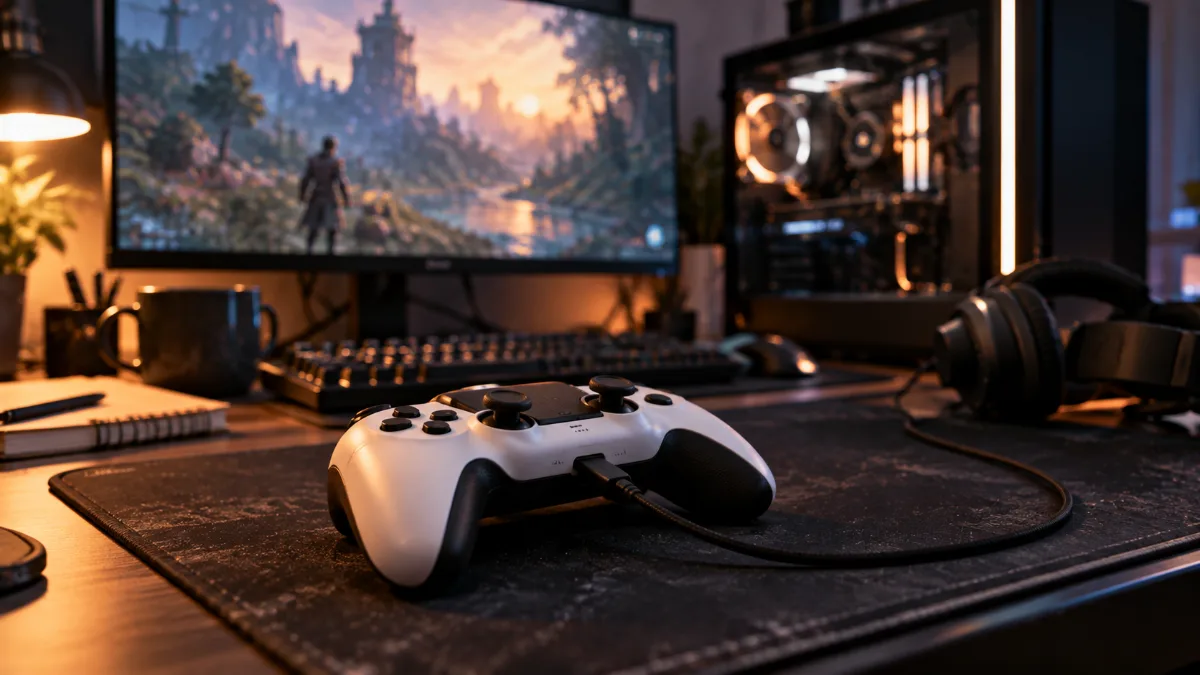
The PS5 controller connects to a gaming PC in just a few seconds.
Method 1: connect the PS5 controller via USB
This is the most reliable method, and the only one that gives access to all DualSense features on PC.
- Plug the USB-C cable into the controller, then into a USB port on the PC.
- Wait a few seconds: Windows installs the driver automatically and the controller lights up.
- Launch your game or Steam: the controller is ready.
Sony states this: on PC, haptic feedback requires a USB connection. The adaptive triggers, the controller’s microphone and speaker work in supported games.
Method 2: connect the PS5 controller via Bluetooth
- Make sure the controller’s player indicator light is off.
- Press and hold the PS button and the Create button at the same time (to the left of the touchpad) until the light bar starts flashing.
- On the PC, open Settings, then Bluetooth & devices, then Add a device and Bluetooth.
- Select DualSense Wireless Controller from the list.
- The light bar flashes and then the player indicator light turns on: it’s connected.
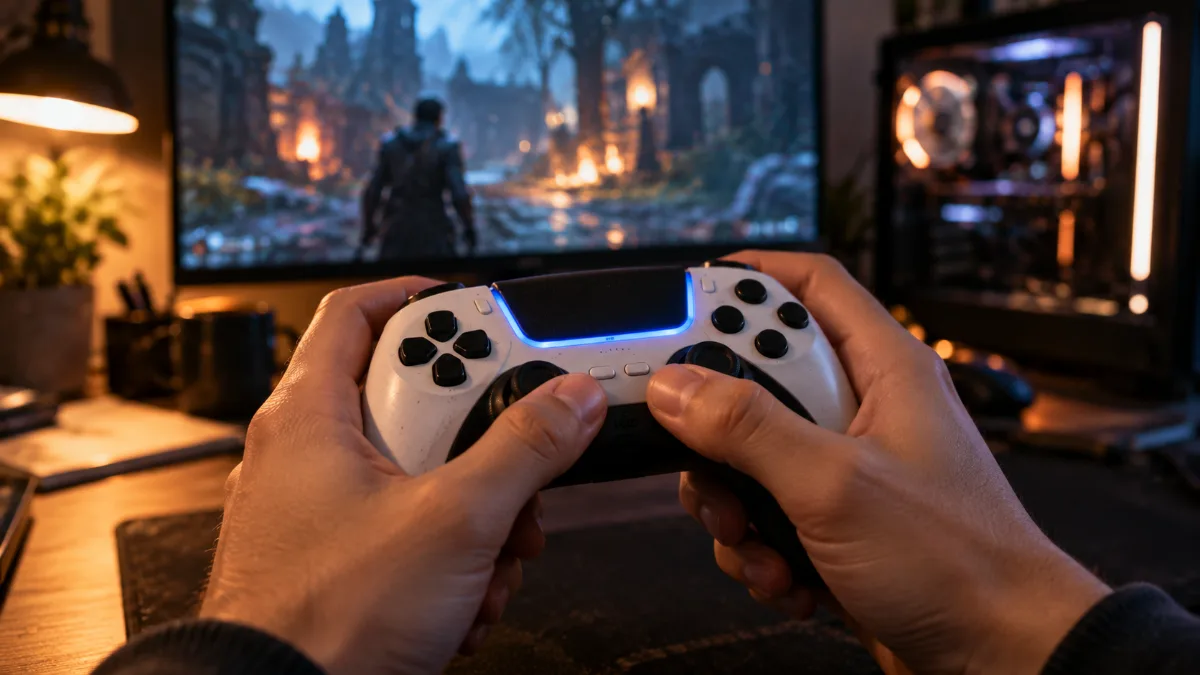
PS button and Create button together: the light bar flashes, and the controller is ready to pair.
Our builder’s tip: if the connection drops, move the controller closer to the PC and check that the Wi‑Fi antenna is properly screwed onto the back of the tower. On a Wi‑Fi motherboard, it’s usually the one that also carries the Bluetooth signal.
Configure the PS5 controller in Steam
Steam recognises the DualSense and shows the correct button symbols (cross, circle, square, triangle) in supported games. For other games, it translates the controller into an Xbox controller, something all PC games understand.
- Open Steam, then Settings and Controller.
- Enable PlayStation controller support (Steam Input).
- In your library, right-click a game, then Manage and Controller Layout to change the button mapping.
For a game outside Steam that only recognises Xbox controllers, add it to Steam as a “non‑Steam game”: Steam Input will then handle the translation.
The PS5 controller won’t connect: what to do?
| Problem | Solution |
|---|---|
| Nothing happens over USB | The cable only transmits power, try another USB-C cable. |
| The controller doesn’t appear in Bluetooth | Re-pair it by holding PS and Create until it flashes quickly. |
| The controller disconnects in-game | Move it closer to the PC, check the Wi‑Fi antenna, or switch to USB. |
| The game doesn’t respond | Enable Steam Input, or launch the game from Steam. |
| No haptic vibrations | Connect the controller via USB: on PC, haptic feedback doesn’t work over Bluetooth. |
And if your PC itself plays tricks on you at first startup, our first start guide covers everything.
Our gaming PCs with built-in Bluetooth
All these PCs have a Wi‑Fi motherboard with Bluetooth: the PS5 controller connects without an adapter.
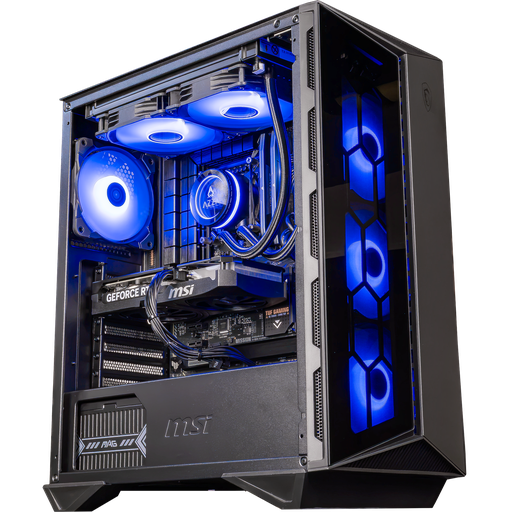
Swift PC: Wi‑Fi 6 and Bluetooth 5.2
Core i5 14400F and RTX 5060 Ti 16 GB: enough to play with a controller in 1080p and 1440p.
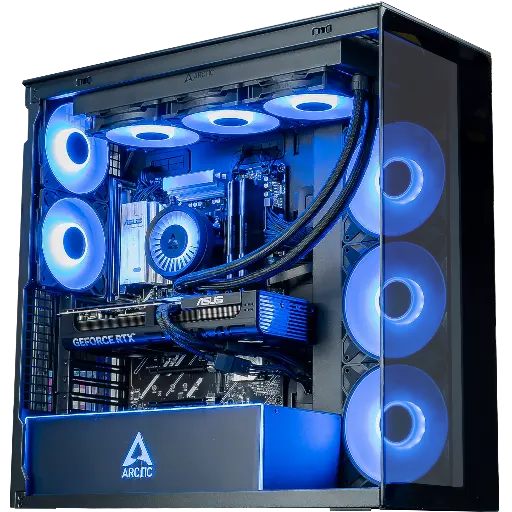
Cheetoh PC: Wi‑Fi 6E and Bluetooth 5.3
Ryzen 7 7800X3D and RTX 5070: action games in 1440p, controller in hand.
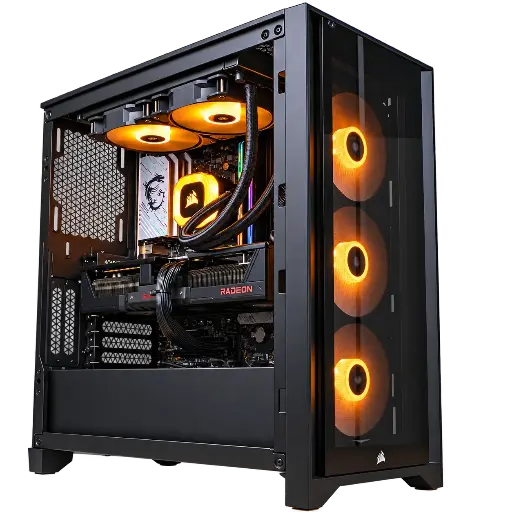
Prism PC: Wi‑Fi 7 and Bluetooth 5.4
RX 9070 XT 16 GB and 32 GB DDR5: ultra 1440p, wireless.
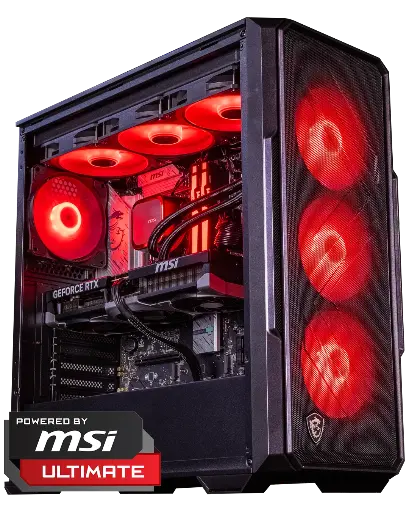
Abyssin PC: Wi‑Fi 6E and Bluetooth
RTX 5070 Ti 16 GB and Ryzen 5 7500X3D: PlayStation games on PC in 1440p and 4K.
Controller dropping out over Bluetooth and no built-in Wi-Fi on your PC? Our guide Wi-Fi card or USB Wi-Fi adapter for a gaming PC helps you pick the right option.
FAQ: the PS5 controller on PC
Can you use a PS5 controller on PC?
Yes, via USB-C or Bluetooth on Windows 10 and 11. Steam manages it directly.
How do I put the PS5 controller into pairing mode?
Press and hold the PS button and the Create button at the same time until the light bar starts flashing.
Does haptic feedback work on PC?
Yes, in compatible games, but only via USB: Sony states that haptic feedback requires a USB connection on PC.
Do you need a Bluetooth adapter?
Only if your PC doesn’t have Bluetooth. The FlowUP PCs shown in this article already include it.
My PS5 controller isn’t recognised in a game, what should I do?
Enable Steam Input in Steam’s settings, or add the game to Steam as a non-Steam game so that the controller is translated to an Xbox controller.
