
By the FlowUP team, gaming PC builder in Genappe (Belgium) · Updated on 28 September 2026
In brief: there are four ways to control a PC’s RGB: the RGB button on the front panel (often next to the Power button), the controller or remote control supplied with the fans, the motherboard software (Armoury Crate, MSI Center, Gigabyte Control Center, ASRock Polychrome) and the universal software such as SignalRGB or OpenRGB, which synchronise all brands. If the RGB won’t light up, first check the controller’s cables.
RGB LEDs (Red, Green, Blue) have become one of the most visible elements of a gaming PC. When set up properly, they give your setup real identity; when they aren’t synchronised, each one blinks away on its own. Here’s how to take back control, from the simple button to the software that controls everything.
RGB or ARGB: what you need to know before you plug anything in
| Type | Connector | Possible effects | Where to plug it in |
|---|---|---|---|
| RGB (12 V) | 4 pins | All LEDs have the same colour at the same time | Motherboard socket “RGB_HEADER” or “JRGB” |
| ARGB (5 V) | 3 pins (one pin is empty) | Each LED can have its own colour: rainbow effects, waves | Socket “ADD_HEADER”, “JRAINBOW” or “D_LED” |
Warning: never plug a 5 V ARGB fan into a 12 V RGB socket. The voltage is too high and can burn out the LEDs within a few seconds. The connectors are different, but some adapters make it possible.
Method 1: the RGB button on the front panel
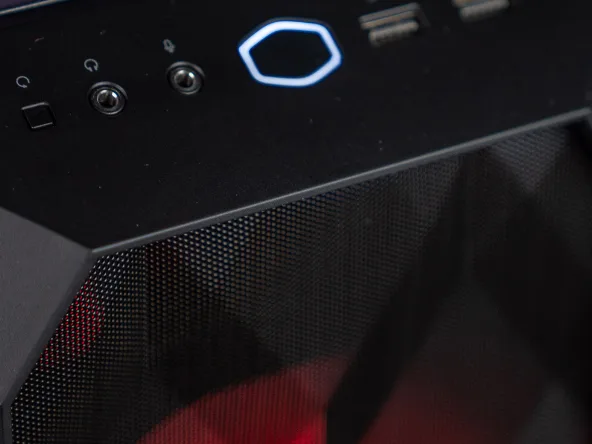
This is the simplest method. On many cases, a button next to the power button cycles through effects and colours. Press a few times until you find the atmosphere you like; a long press sometimes turns the lighting off, depending on the model.
This button controls the case’s controller: it therefore only manages the fans and LED strips connected to that controller, not necessarily the RAM or the graphics card.
Method 2: the RGB controller or the remote control
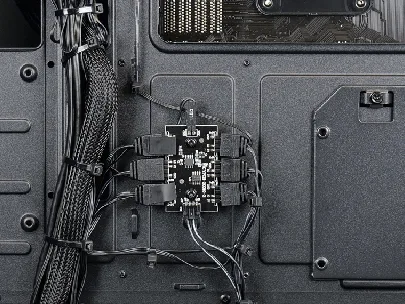
Behind the rear panel of many PCs you’ll find a small box: the RGB controller (or “hub”), to which the fans and sometimes the watercooling are connected. Some fan kits come with a remote control that works directly on this controller.
If your controller is connected to the motherboard via an ARGB cable, you can also control it from the motherboard’s software (method 3).
Method 3: motherboard software
Each motherboard manufacturer provides its own software to adjust the LEDs connected to the motherboard and, often, those on compatible RAM and graphics cards:
| Motherboard brand | RGB software |
|---|---|
| ASUS | Armoury Crate (Aura Sync) |
| MSI | MSI Center (Mystic Light module) |
| Gigabyte / Aorus | Gigabyte Control Center (RGB Fusion) |
| ASRock | Polychrome Sync |
Fan and watercooling brands also have their own software: Corsair iCUE, NZXT CAM, Lian Li L-Connect. Tip: install only one RGB software at a time. Multiple programmes trying to control the same LEDs cause conflicts, colours that skip, or effects that don’t save.
Method 4: universal software (SignalRGB, OpenRGB)
To synchronise all brands together (motherboard, RAM, fans, keyboard, mouse), universal software is the most practical solution:
- SignalRGB: free for the most part, with a paid version for advanced effects. It recognises a very large number of components and offers spectacular animated effects.
- OpenRGB: free and open-source software, more austere, but light and without an account to create.
Good to know: Windows 11 also includes Dynamic Lighting (Settings > Personalisation > Dynamic lighting), which controls compatible keyboards, mice and other peripherals without needing extra software.
The RGB won’t light up: what to check?
1. The controller connections
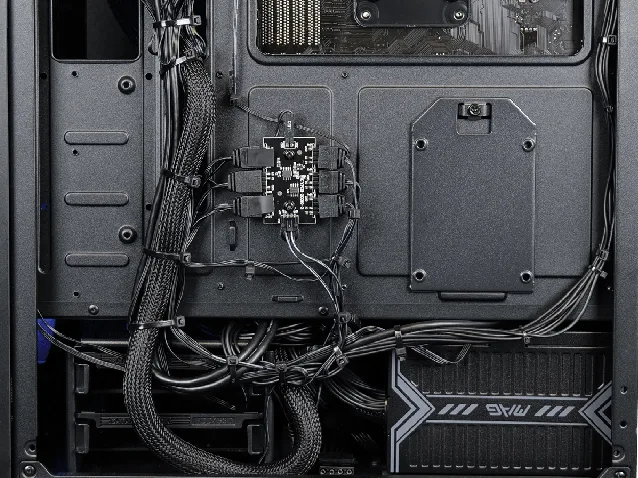
A cable can come loose during transport. Trace each RGB cable to the controller (the small box where most fans and the watercooling are connected) and check that it’s firmly seated. Also check that the controller is powered: it’s often connected to the power supply via a SATA power connector.
If needed, cut the cable-management ties to access the cables, and reattach them afterwards.
2. The graphics card
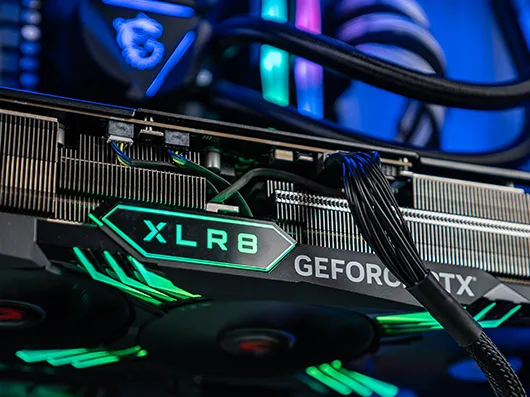
The graphics card lighting sometimes runs via a small cable connected to the motherboard or the controller. Unplug, then plug the graphics card cables back in, with the PC turned off and unplugged.
3. The front panel and the RGB button
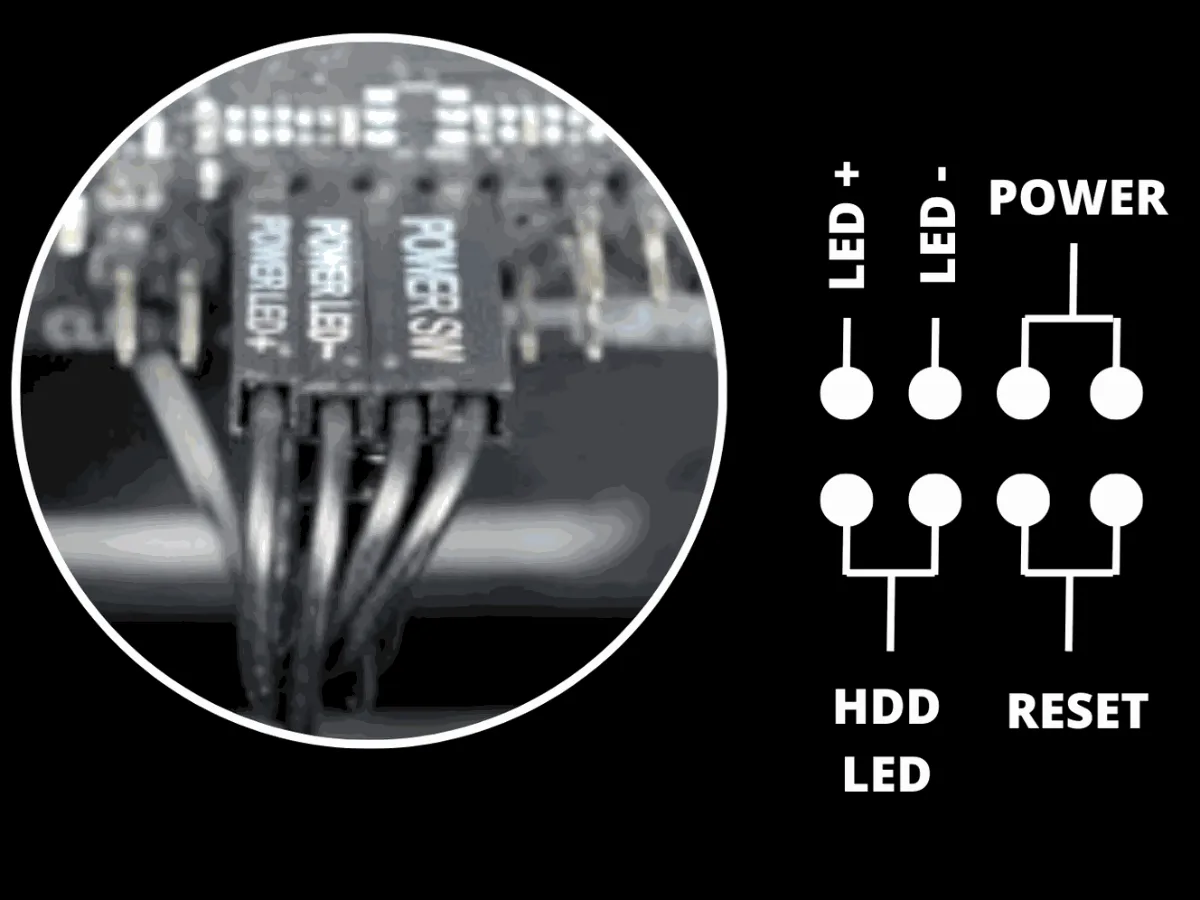
If the RGB button on the front won’t respond, its cable may be disconnected. Depending on the case, it’s connected to the RGB controller or to the motherboard’s front panel connector (often instead of the Reset button). Check the connections by following the diagram for your motherboard.
For more details on the connectors, also see our guide my computer won’t start, front panel section.
4. The software
If an RGB software was installed and then uninstalled, it may have left the lighting switched off or stuck. Reinstall the motherboard software, set a default effect, then uninstall any duplicate software.
Thoughtful RGB from the moment you buy it
Well-placed fans matter as much as their colours: for the position and the mounting direction, read our guide how to choose PC fans. And if you’re looking for a pre-built PC with carefully set up lighting, discover our gaming PCs :
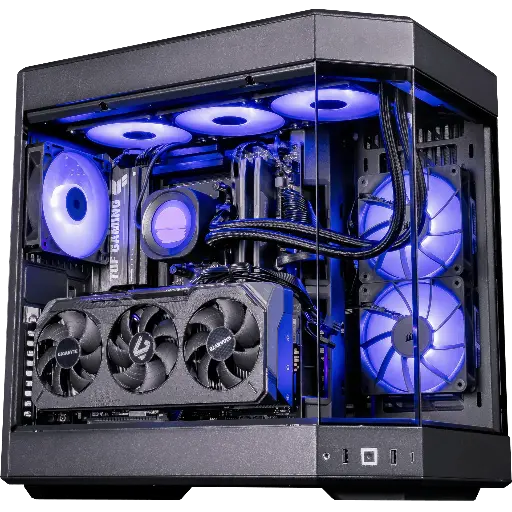
PC Shadow V2 : Radeon RX 9070 XT 16 GB
Ryzen 7 9800X3D, Radeon RX 9070 XT 16 GB and 32 GB of DDR5: XT power for 1440p and 4K.
A question about the lighting on your FlowUP PC? Join us on Discord or contact our support.
FAQ: control the RGB on your PC
How do I change the colour of the fans on my PC?
Use the RGB button on the front, the remote control of the fan kit, or the software of your motherboard if the fans are connected to it. To synchronise everything, SignalRGB or OpenRGB will do the job regardless of the brand.
Which software to control all the RGB on your PC?
SignalRGB (free for the most part) and OpenRGB (open-source and free) control most brands at the same time. Otherwise, the motherboard software manages the components connected to it.
Can you completely turn off the RGB?
Yes: via the front button (long press or an “off” effect), the RGB software, or in the BIOS of certain motherboards, which allows the motherboard lighting to be cut when the PC is turned off or in standby.
Does RGB reduce performance?
No, not the lighting itself. However, some heavy RGB software runs in the background: if your PC is mainly for performance, choose a light software like OpenRGB, or set the lighting once and then close the software.
Why won’t my RGB fans light up anymore?
Most of the time, a cable has come loose from the controller or the controller no longer has power. Check the connections described above. If only one fan stays off, test it on another power socket on the controller.
