
By the FlowUP team, a gaming PC builder in Genappe (Belgium) · Updated 28 September 2026
In brief: when a keyboard, mouse, headset or USB stick isn’t detected, start with the simplest step: unplug it and plug it back into a USB port on the back of the PC (directly into the motherboard), restart, then check in the Device Manager to see whether it appears with an exclamation mark. In most cases, it’s a cable, a wrongly connected front port, a driver issue, or Windows’ USB power management.
Quick diagnosis: symptom and solution
| Symptom | Possible cause | What to do |
|---|---|---|
| Nothing lights up; no Windows sound | Faulty cable, port or device | Test another port, another cable, then the device on another PC |
| “USB device not recognised” | Corrupted driver or faulty port | Uninstall the device in Device Manager, then restart |
| “The device is no longer responding or has been disconnected.” | USB sleep mode or insufficient power | Disable USB power saving, avoid unpowered hubs |
| Front ports don’t work | USB connector from the case not plugged into the motherboard | Check the front panel USB cable |
| The PC turns on, but the keyboard and mouse don’t respond | Quick boot, BIOS or USB 3 port not initialised | Plug into a USB 2 port at the back, disable Fast Boot |
1. Check the connection and change port
This seems obvious, but it’s the number-one cause. Unplug the device, check the cable, and plug it back in firmly. Then test a USB port on the back of the PC: these ports are soldered to the motherboard, whereas the front ones go via an internal cable.
If the device works at the back but not in front, the problem is with the case’s ports, not the device. Also avoid unpowered USB hubs for headsets and webcams, which need more power.
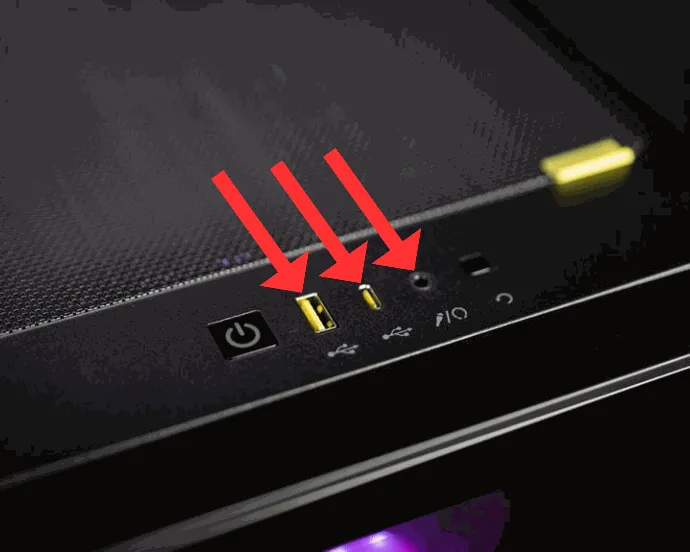
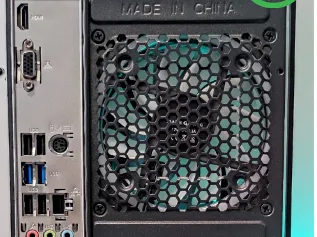
The ports on the back of a desktop PC are the most reliable. USB 2.0 ports (often black) are also the most compatible with older keyboards and mice, and they respond first during startup, even before Windows finishes loading.
2. Restart the computer
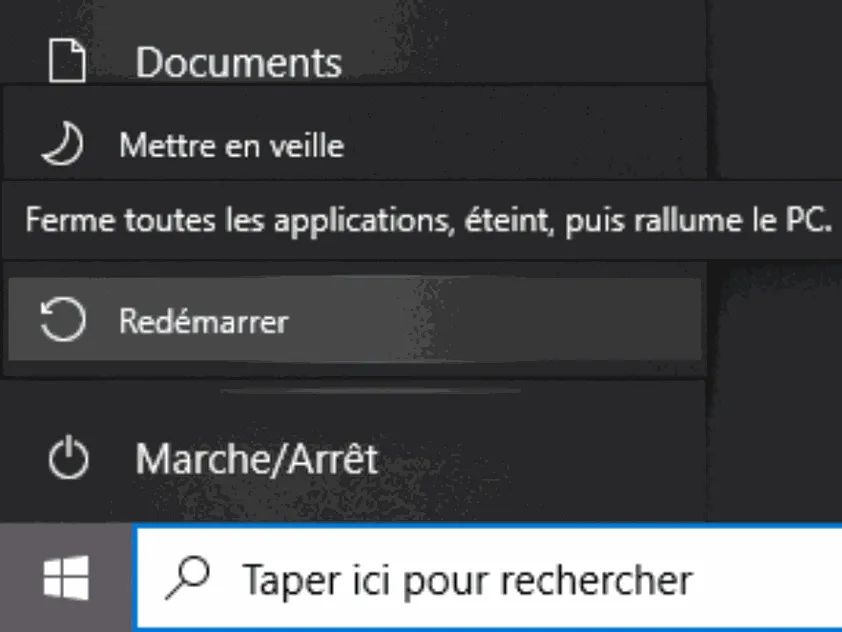
A full reboot (Start, Power/On > Restart) resets the USB controllers and reloads the drivers. Avoid a simple shutdown: with Windows Fast Startup, a shutdown doesn’t reset everything. A restart does, though.
3. Check the front panel cable (front ports)
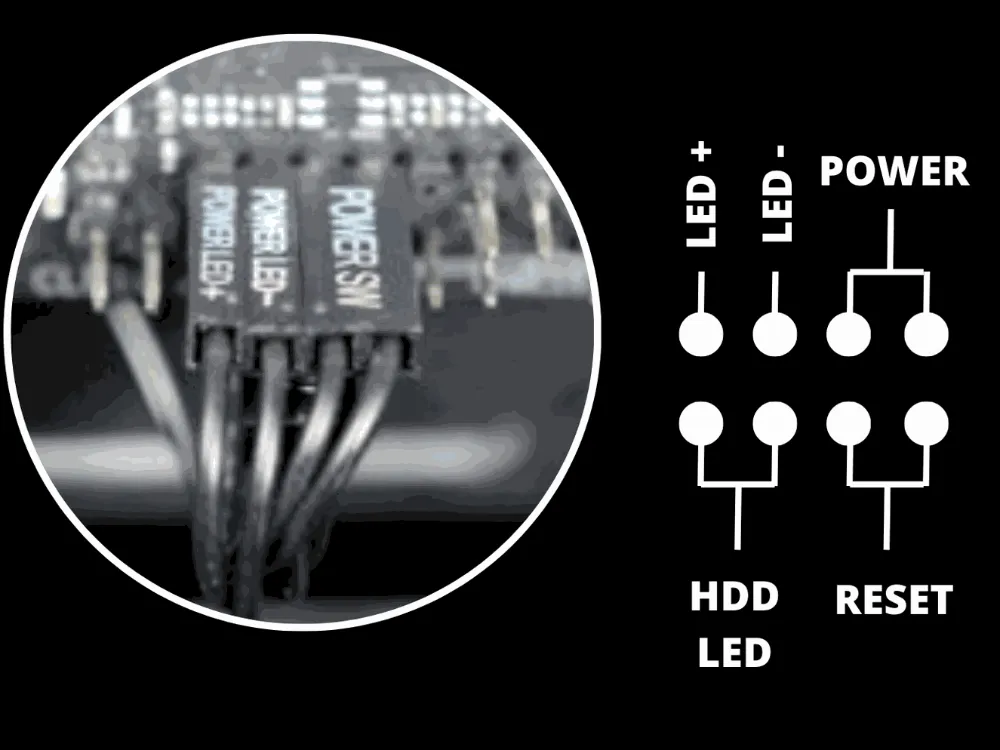
If only the front ports don’t respond, open the side panel and check the connectors that connect the case to the motherboard. The case’s USB 3 connector is a large blue 19-pin connector; USB-C is a small rectangular connector. They must be pushed all the way in, with no bent pins.
The diagram next to this also shows the front panel (buttons and indicator lights), which is usually at the bottom of the motherboard, under the graphics card. Do this check with the PC powered off and unplugged.
4. Look in Device Manager
Right-click the Start button, then open Device Manager. Plug the device in and unplug it: if a line appears and disappears, Windows can see it. A yellow icon with an exclamation mark indicates a driver problem.
The most effective solution: right-click the affected line, Uninstall device, then restart. Windows will reinstall a clean driver on startup. Under the USB Bus Controllers section, you can do the same for the “USB Root Hubs”.
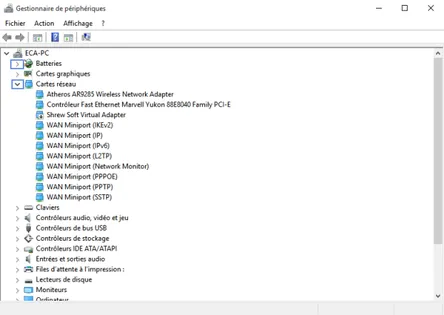
5. Disable USB port sleep
The message “The device is no longer responding or has been disconnected” often comes from power management. Windows sometimes turns off a USB port to save energy, and the device disconnects. Two settings to check:
- In Device Manager, open each “USB Root Hub” and go to the Power Management tab, then uncheck “Allow the computer to turn off this device to save power”.
- In the advanced power options of Windows, disable “USB selective suspend”.
The video by WayToLearnX explains the procedure when Windows shows “Unknown USB device (device descriptor request failed)”, a common error under Windows 10 and 11.
6. Update the motherboard drivers
USB controllers depend on the motherboard chipset drivers. Installing them from the manufacturer’s website solves many detection problems. Our guide to update your drivers covers the method for each component.
Find your motherboard model
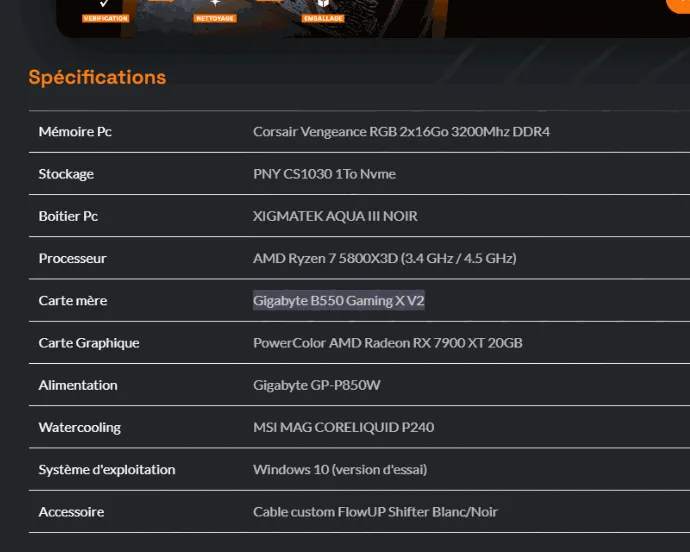
If you bought your PC from FlowUP, the motherboard reference is listed in the specifications on the product page. In our example, it’s a Gigabyte B550 Gaming X V2. Otherwise, type “msinfo32” into the Windows search: the “BaseBoard product” line tells you the model.
Example with a Gigabyte motherboard
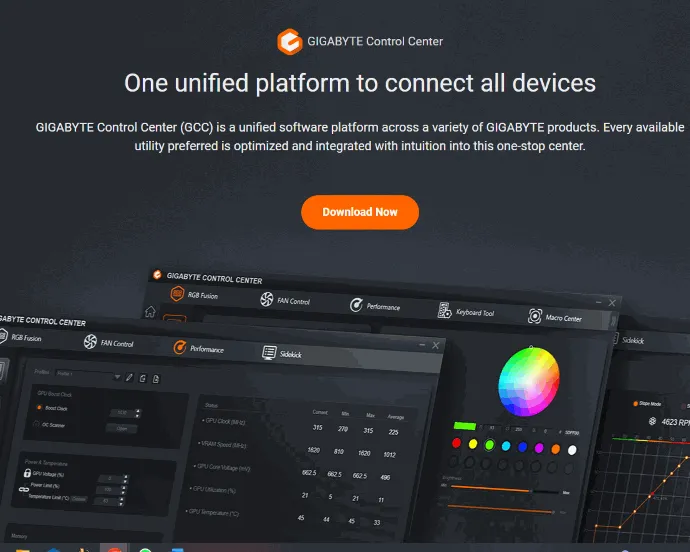
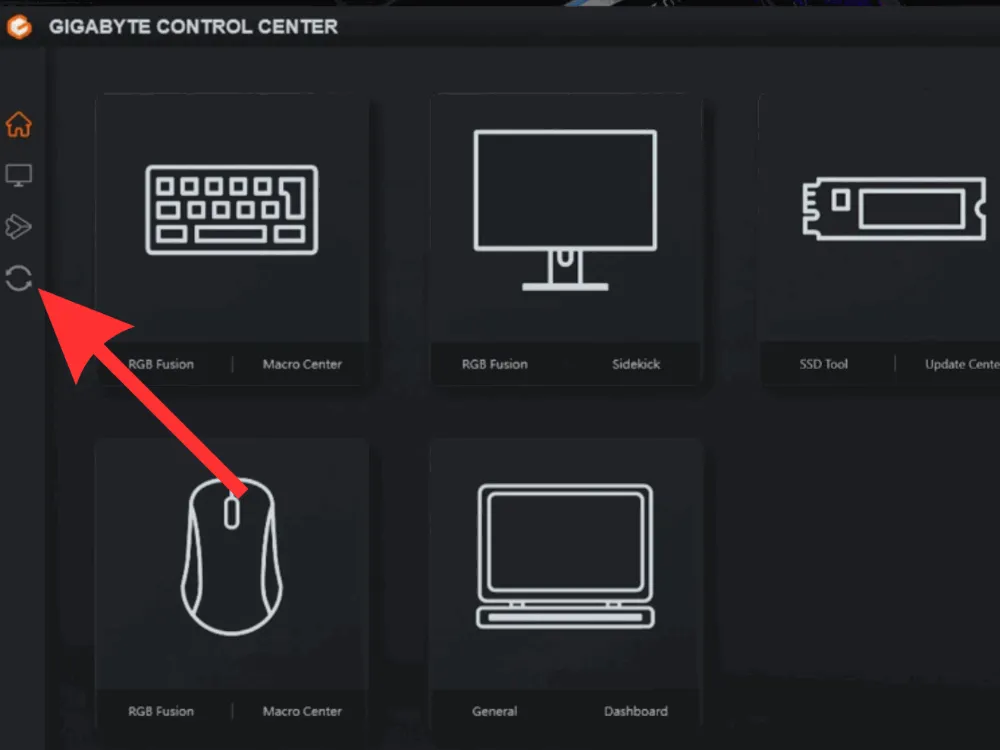
At Gigabyte, the official tool is called Gigabyte Control Center. Download it and install it. Other manufacturers have their equivalent: MSI Center, Armoury Crate for ASUS, ASRock Motherboard Utility.
In the software menu, click the update icon: Gigabyte Control Center lists the drivers and the BIOS available for your motherboard. Install them, then restart your PC.
7. Check the BIOS
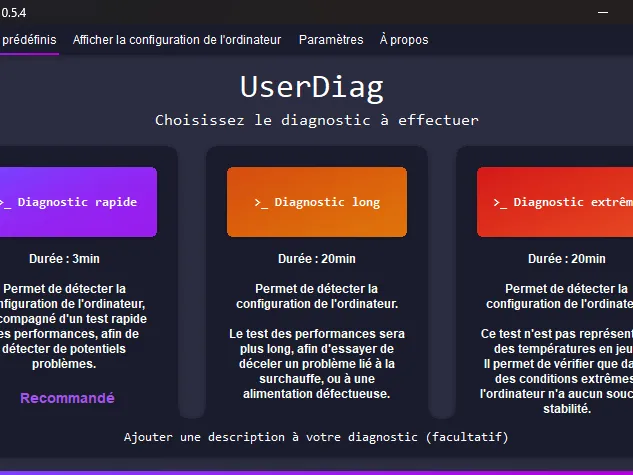
For internal devices (sound card, network card, SSD), check in the BIOS that they’re enabled. An up-to-date BIOS also fixes USB compatibility bugs. To find your version, the free tool UserDiag gathers your PC’s specifications and tests your components.
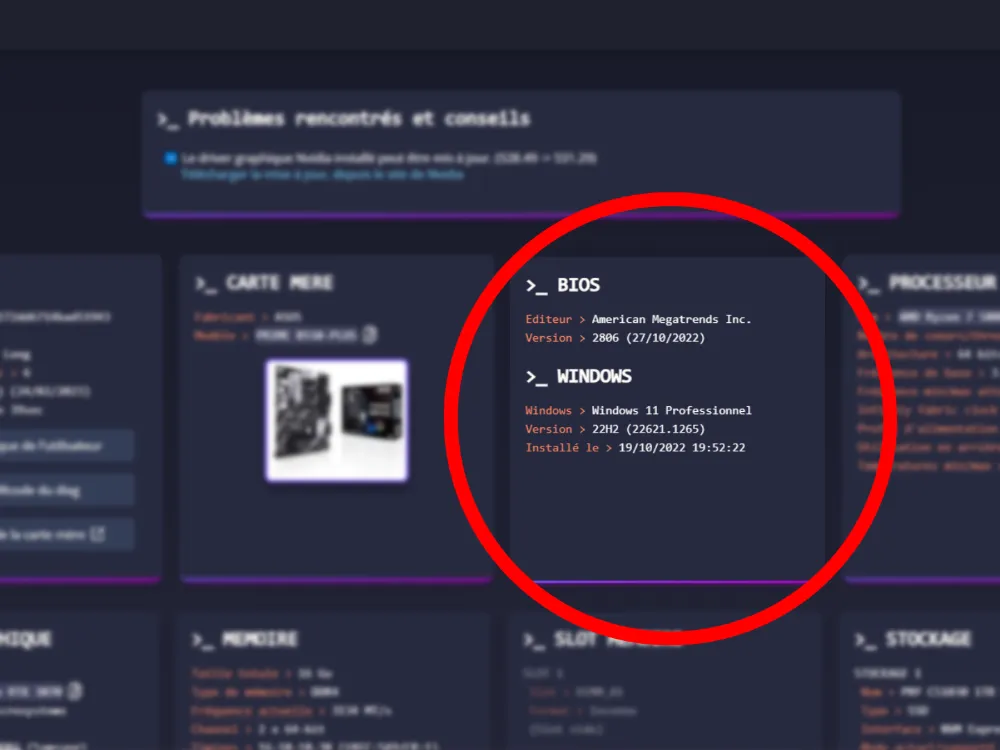
In the UserDiag report, find the BIOS version and compare it with the latest one available on your motherboard manufacturer’s website. UserDiag also indicates the graphics drivers that need updating. Update the BIOS using the manufacturer’s tool, and never cut the power during the operation.
The PC powers on, but the keyboard and mouse don’t respond
This is a special case: the PC boots, the fans spin, but no device responds, sometimes not even the screen. Try, in this order:
- Plug the keyboard and mouse into the rear USB 2.0 ports.
- If the screen also stays black, the problem isn’t USB: check that the screen is connected to the graphics card, not to the motherboard.
- At startup, if you can’t enter the BIOS, “Fast Boot” may be skipping USB: resetting the BIOS to default settings (via the button or the Clear CMOS jumper on the motherboard) often fixes the problem.
If nothing works
Test the device on another computer. If it doesn’t work anywhere, it’s probably faulty. If it works elsewhere, the issue is with the PC: a tired USB controller, a power problem, or an end-of-life motherboard. Our articles Why is my PC performing worse? and How can I tell if my computer is too old? will help you see things more clearly. If your FlowUP PC is under warranty, contact our customer service before opening the machine.
And if your keyboard has really given up the ghost, take a look at our gaming keyboards.
Frequently asked questions
Why doesn’t my PC detect my mouse or keyboard anymore?
Most of the time: a faulty cable or port, corrupted drivers, or Windows’ USB power saving mode. Change ports (on the back), restart, then uninstall the device in Device Manager to force the driver to reinstall.
What does “The device is no longer responding or has been disconnected” mean?
Windows lost connection with the device while it was in use, often due to USB power saving or insufficient power. Disable USB selective suspend and avoid unpowered hubs.
Why don’t my front USB ports work?
The cable that connects the front panel of the case to the motherboard is probably not plugged in properly or is damaged. Check the internal USB connector with the PC turned off.
How do I add a device to my PC?
For a USB device, simply plug it in: Windows installs the driver automatically. For a Bluetooth device, go to Settings, Bluetooth & devices, then Add a device.
My headset isn’t detected, what should I do?
Check that it’s selected as the output device in Windows Sound settings. For a USB headset, change the port and install the manufacturer’s software if needed.
