Your PC in instalments (up to 12x)
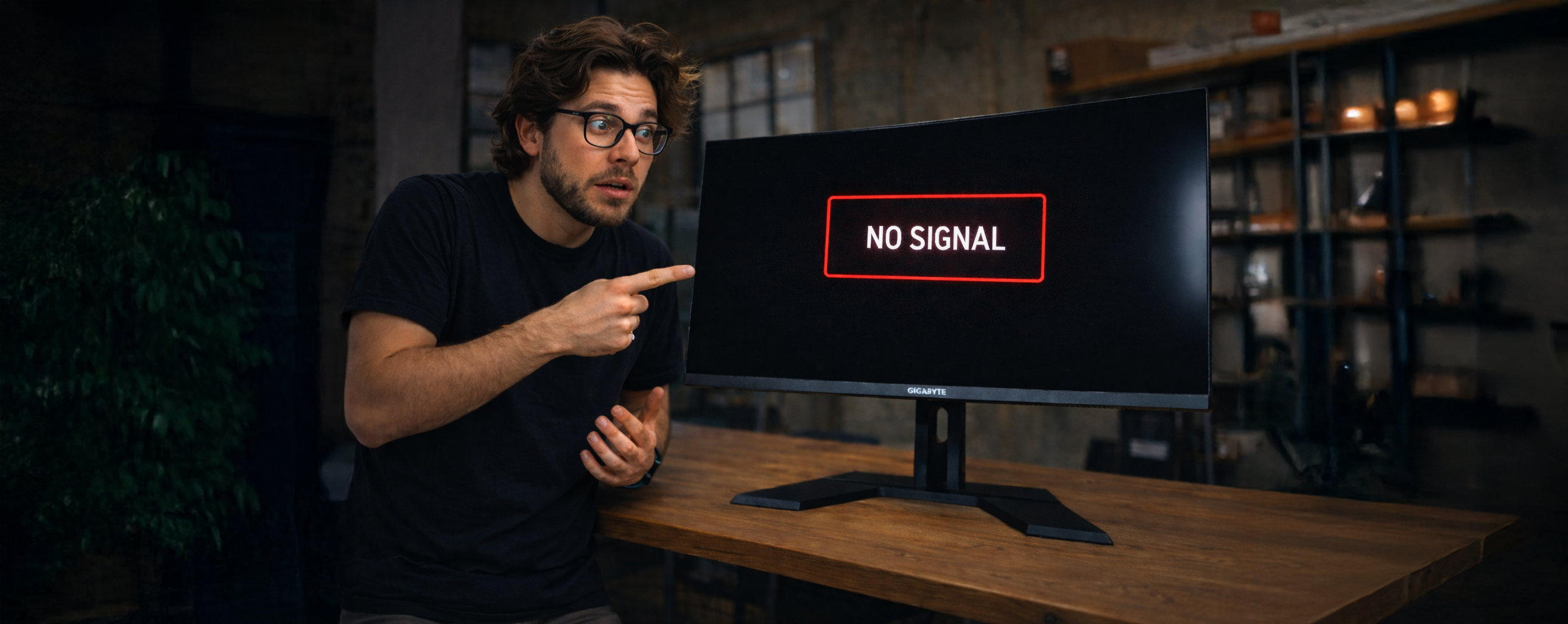
You turn on your PC… but the screen stays black.
This is one of the most frustrating situations, especially when everything seems to be working fine (fans, lights, noise).
This guide shows you, step by step, how to understand what’s happening and what to do next.
Don’t panic — it’s not necessarily a serious fault.
First things first: check the basics
Before jumping into technical diagnostics, start with simple, quick checks:
-
Is the monitor definitely switched on?
Sometimes the screen is just in standby mode or set to the wrong input. -
Is the cable in the right port?
The HDMI or DisplayPort cable must be plugged into the graphics card, not the motherboard. -
Is the correct cable being used?
Try another cable or another port (HDMI ↔ DisplayPort). -
Is the monitor set to the right input?
Manually select the source (HDMI1, HDMI2, DisplayPort).
👉 If you get absolutely nothing on the screen, these points fix the vast majority of cases.
The PC makes noise but nothing displays
If the PC is running (fans, lighting, noise) but the screen stays black, we can narrow it down further.
Common case: monitor connected to the wrong place
This is the most frequent cause.
Even if the monitor seems to be connected correctly, it may be plugged into the motherboard’s video output while your PC is using a dedicated graphics card.
👉 Unplug the cable and plug it directly into the graphics card, then restart.
solution: quickly test the monitor and cable
To isolate the source of the problem:
-
Connect the monitor to another device (laptop, console).
If it works, the monitor isn’t the issue. -
Connect another monitor or a TV to your PC.
If the image appears, the problem is the cable or the original monitor.
When the PC doesn’t detect the graphics card
If you’ve tried multiple monitors and cables without success:
- Check that the graphics card is firmly seated in the PCI-Express slot.
- Make sure all PCIe power connectors are properly plugged in.
A graphics card that isn’t powered correctly or isn’t seated properly can prevent any display.
Access the BIOS / UEFI
If you see a very brief display or artefacts, try accessing the BIOS:
👉 Press DEL or F2 as soon as you power on.
If the BIOS appears:
- the screen works
- the problem is probably related to the system or Windows
If nothing displays, even the BIOS, then it points to a hardware or connection issue.
Resolution or refresh-rate problems
In some cases, the graphics card sends a signal that the monitor doesn’t support (resolution or refresh rate is too high).
Recommended solution:
- Boot into Safe Mode
- Set the resolution to a standard value (1080p at 60 Hz).
- Restart normally
👉 This often fixes a black screen after installing drivers.
Dedicated graphics card or integrated graphics
If your processor has an integrated GPU:
- To use the dedicated graphics card, the screen must be plugged into it.
- To test the integrated GPU, temporarily plug the monitor into the motherboard.
This helps determine whether the issue is coming from the dedicated graphics card.
Fans spin but the screen is black
When the PC seems to start up without displaying an image, several causes are possible:
- Graphics card not powered properly
- RAM stick not seated correctly
- Processor not detected properly
- BIOS setting blocking the display
solution: test the RAM
- Completely shut down the PC.
- Remove and reinsert the RAM sticks one by one.
- Restart after each test.
Incorrectly positioned RAM can prevent the display from working.
Reset the BIOS
If you manage to access the BIOS or get an unstable display:
- Reset the settings to default values
- Save
- Restart
👉 This often fixes a bad setting inherited from a previous configuration.
Graphics drivers and Windows
If the display works but:
- the resolution is incorrect
- the image is blurry
- the refresh rate isn’t correct
Then you need to:
- install the official graphics drivers (NVIDIA or AMD)
- check the display settings in Windows
- run Windows Update
When to ask for help
You can consider getting assistance if:
- no display appears, even after several tests
- the BIOS is never shown
- multiple screens and cables give the same result
In this case, note down precisely:
- what turns on
- what doesn’t display
- the tests you’ve already carried out
👉 This enables a much faster diagnosis.
Best practices to avoid a black screen
- Always connect the monitor to the main graphics card
- Use high-quality HDMI or DisplayPort cables
- Check the internal power connectors
- Avoid faulty power strips
Key takeaways
A black screen on startup is common and rarely serious.
In most cases, the problem is due to a connection, a cable, or a simple setting.
By working methodically, you can identify the cause without unnecessarily dismantling your PC and get back on a solid footing.