 Your PC in instalments (up to 12x)
By the FlowUP team, gaming PC builder in Genappe (Belgium) · Updated 28 September 2026
In short: a PC that stutters in games is almost always down to one of these causes: overheating (dust, thermal paste), outdated graphics drivers, background applications, graphics settings set too high, RAM maxed out or misconfigured (XMP/EXPO profile disabled), game installed on a hard drive, or hardware below the game’s minimum requirements. Start by displaying the FPS and temperatures during a match: the symptom points to the cause.
Why does my PC lag in games: the short answer
A PC that lags in games doesn’t always need to be replaced. Very often, the problem comes from a setting, a driver, or dust, and it can be fixed within an hour.
The method is always the same: first observe when it lags (right at launch, after twenty minutes, only online), then test the causes in order, from the simplest to the most costly. This guide covers the PC itself. If your issue seems more like high ping or a mouse that responds late, read our article on gaming lag.
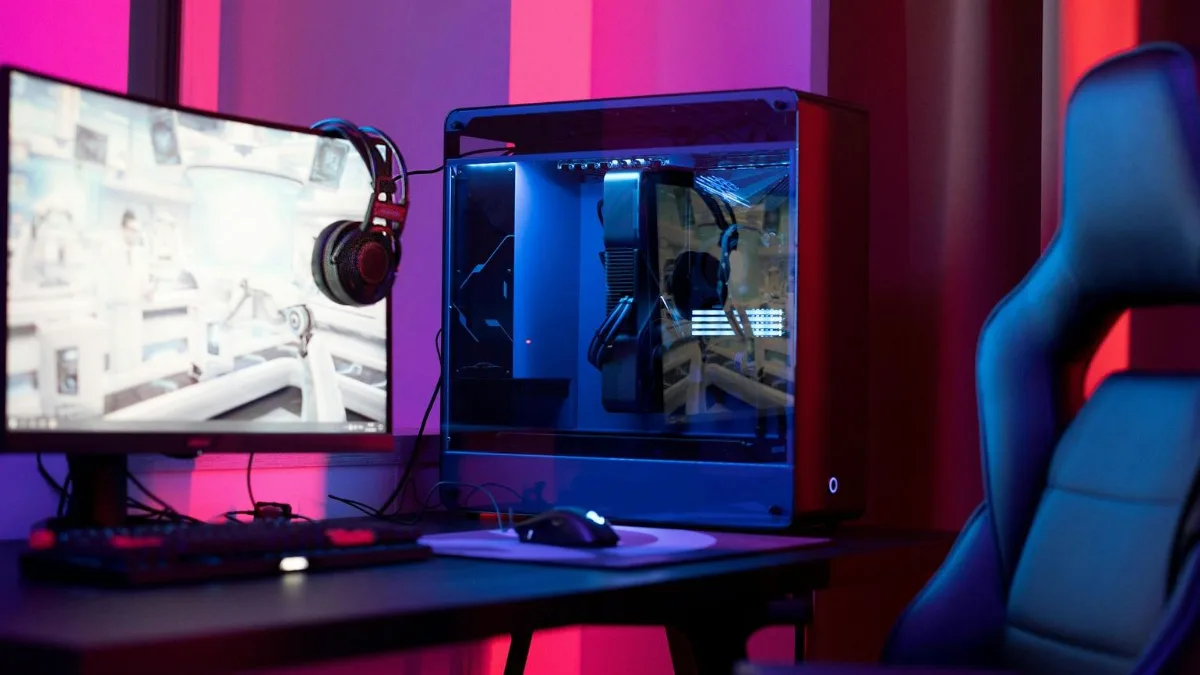
Before changing anything, note when the PC starts to lag: that’s the best clue.
Identify the symptom before looking for the cause
Enable an FPS counter (Steam’s, the NVIDIA app, or AMD software, or MSI Afterburner) and keep an eye on the temperatures. Then compare with this table:
| What you see | Likely cause | First step |
|---|---|---|
| Low FPS from the moment you launch, in all games | Graphics settings too high, outdated driver, hardware too weak | Lower the graphics preset, update the driver |
| Good at first, then it drops after 10 to 30 minutes | Overheating and frequency drop (throttling) | Monitor temperatures, clean out the dust |
| Regular micro-stutters, average FPS is fine | RAM maxed out, game on a hard drive, shader compilation | Task Manager, move the game to an SSD |
| Random slowdowns | Background application (update, antivirus, browser) | Close applications, check startup |
| The game is smooth, but players teleport | Internet connection, not the PC | Ethernet cable, run a ping test |
1. The PC overheats and lowers its frequency
This is a very common cause on PCs that are more than a year old. Dust clogs the filters and heatsinks, airflow is worse, and the processor or graphics card reduces its frequency to protect itself: that’s throttling. Result: the game runs well for ten minutes, then the FPS collapses.
A high temperature isn’t a problem by itself: AMD says its Ryzen 7000 are designed to run up to 95 °C. The issue is when that limit is reached constantly and frequencies drop. Clean the filters and fans, check that everything is spinning, and if the PC is several years old, get the thermal paste replaced. A PC that actually shuts off while gaming calls for a different diagnosis: see why my computer turns off by itself.
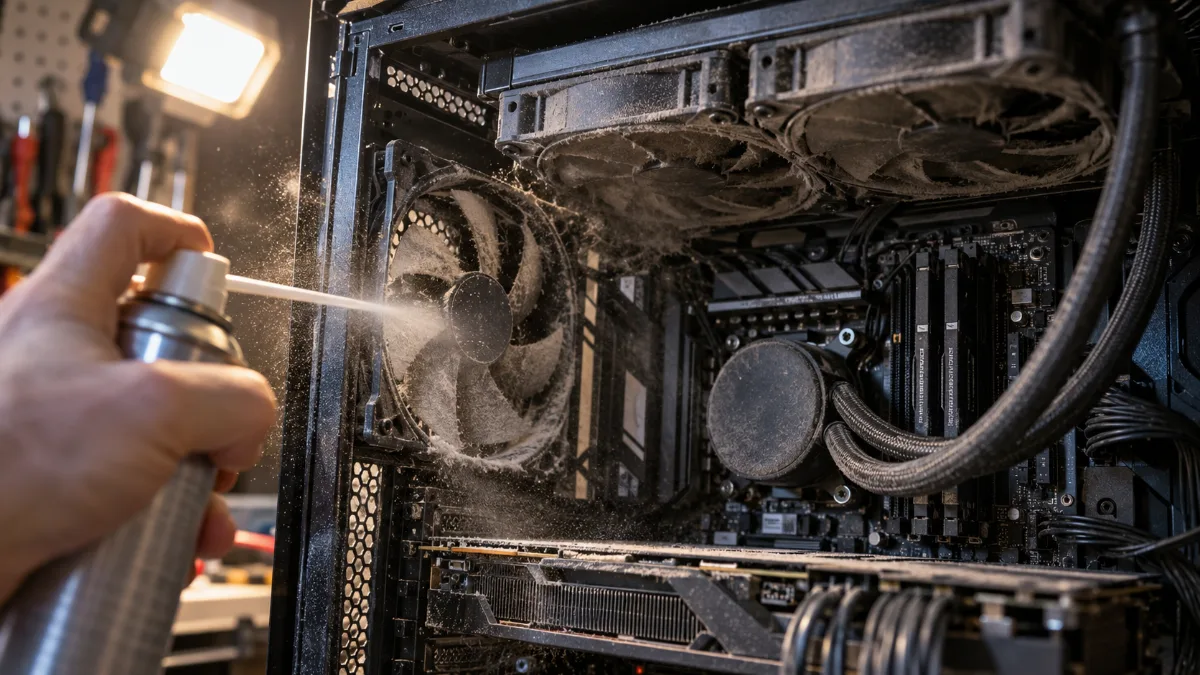
Clogged filters are enough to make temperatures rise by several degrees.
2. The graphics drivers aren’t up to date
NVIDIA, AMD and Intel drivers regularly include fixes for recent games. A driver that’s only a few months old can be enough to cause stuttering or crashes in a game that has been released since then. Always download the driver from the graphics card manufacturer’s website or via its app, never via a third-party “automatic update” software. The procedure is detailed in how to update your drivers in Windows 10 and 11.
3. Applications are running in the background
Open Task Manager (Ctrl + Shift + Esc) while the game is running, then sort by processor, memory and disk. A browser with twenty tabs, a Windows update, file syncing, or a poorly optimised RGB software can cost a lot of FPS. In the Startup apps tab, disable anything that doesn’t need to start with Windows, and check that Windows’ Game Mode is enabled.
On a laptop, always plug in the charger to play and choose the highest performance mode: on battery, the graphics card is throttled. Our FrenchHardware channel shows the Windows settings that really matter in this video:
FrenchHardware, “Optimise your gaming PC/Windows in 2025!”.
4. The graphics settings are too ambitious
Start with the game’s recommended preset, keep your screen’s native resolution, and enable upscaling (DLSS, FSR or XeSS) on Quality mode: you gain a lot of FPS for very little image loss. Next, lower first the heaviest settings:
| Setting | FPS impact | Our advice |
|---|---|---|
| Ray tracing | Very high | Disable it or limit it to reflections |
| Shadows | High | Go from Ultra to High, the difference is barely noticeable |
| Global illumination, ambient occlusion | High | One step lower |
| View distance, crowd density | Medium to high (CPU) | Lower it if the CPU is at 100% |
| Texture quality | Low if your video memory is sufficient | Keep it high, except with a graphics card with 8 GB at 1440p |
5. RAM or storage is limiting the PC
With 8 GB of RAM, most recent games stutter: Windows moves data to the disk while you’re in the middle of a session. 16 GB in dual-channel is the baseline in 2026 (16 or 32 GB of RAM). Also check that the XMP or EXPO profile is enabled in the BIOS: without it, the memory runs at its base frequency (enable the XMP profile).
Finally, a game installed on a hard drive causes delayed texture loading and stuttering in open-world areas. Move it to an SSD. There’s no point defragmenting an SSD: Windows optimises it automatically.
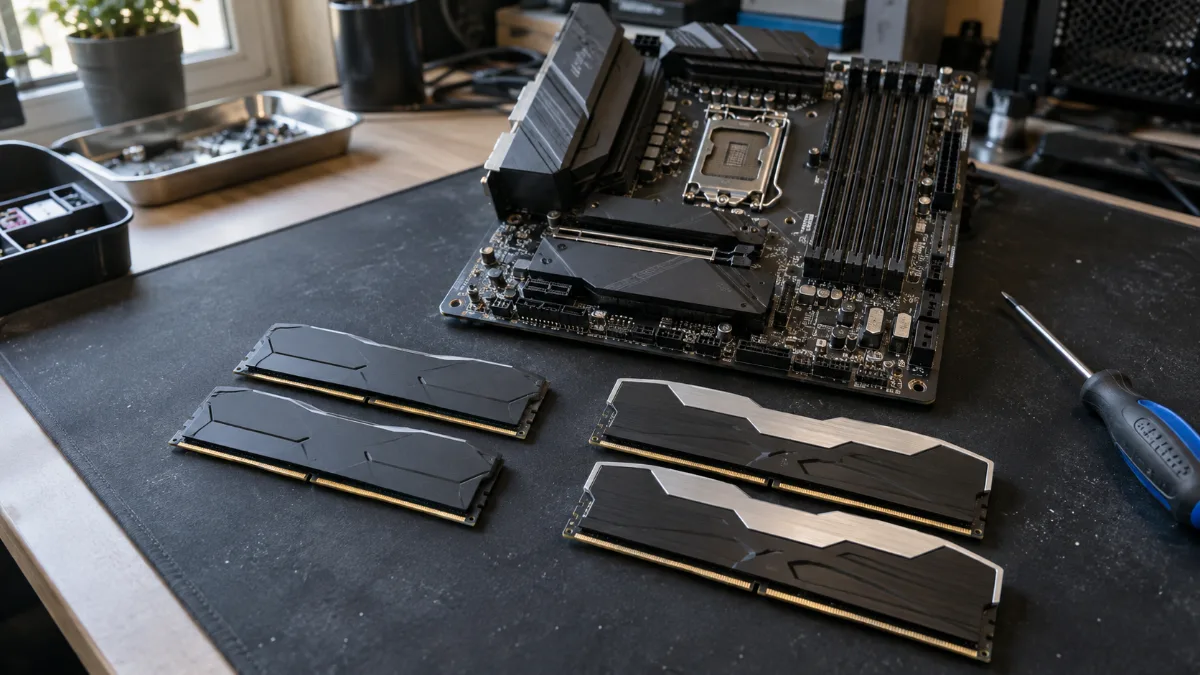
Two identical sticks for dual-channel, with the XMP or EXPO profile enabled.
6. The hardware is simply outdated
If your CPU or graphics card is below the game’s minimum configuration, no setting will work miracles. Compare your hardware with the requirements published on the Steam page or the publisher’s website. A 4-core processor or a graphics card that’s more than six years old quickly hits its limits in recent games.
Upgrading a graphics card may be enough if the rest keeps up. But if the CPU, motherboard and RAM have also aged, a complete PC upgrade often ends up cheaper than a series of upgrades.
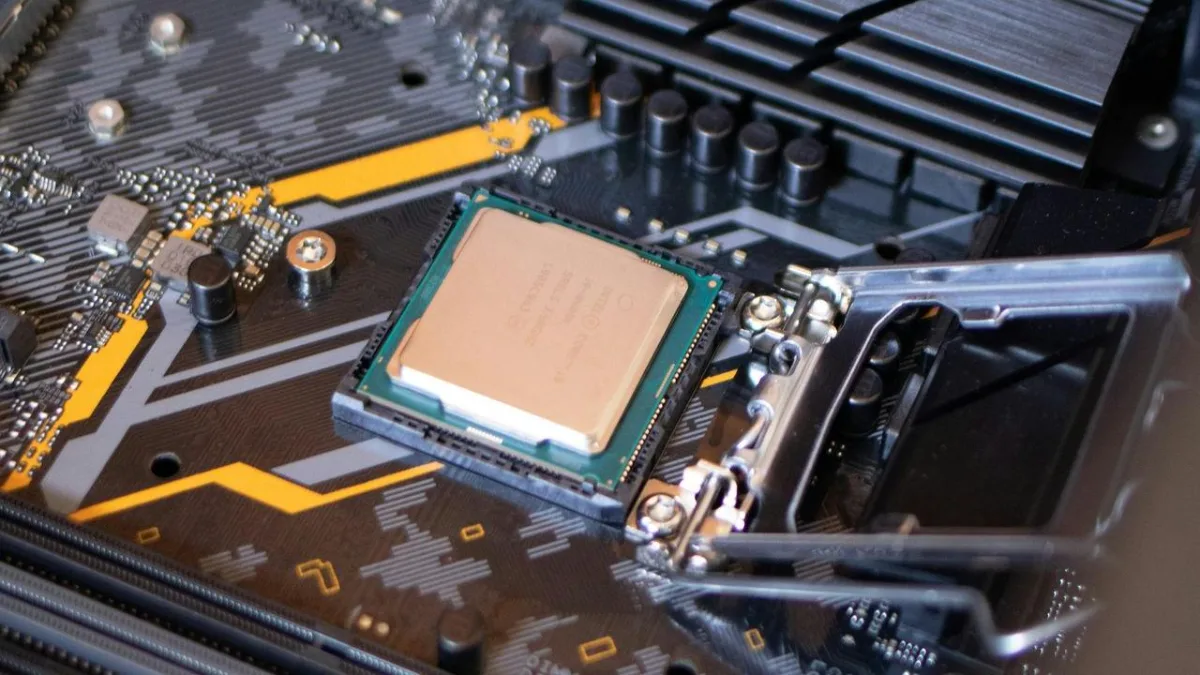
An overly old processor bottlenecks even a recent graphics card.
Our gaming PCs to play without stuttering
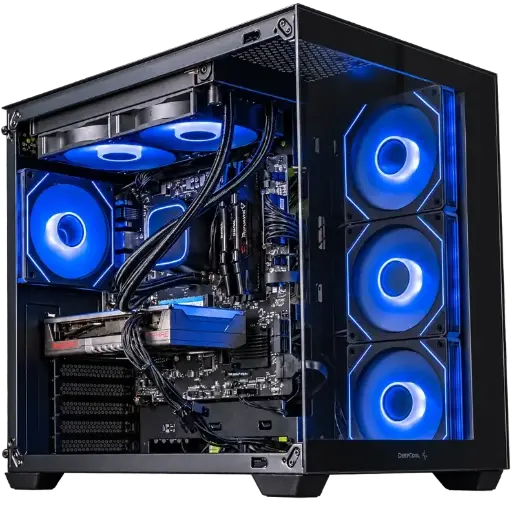
Spike PC, Radeon RX 9060 XT
Ryzen 7 5700X, Radeon RX 9060 XT and 16 GB of DDR4: enough for smooth 1080p gaming with high settings.
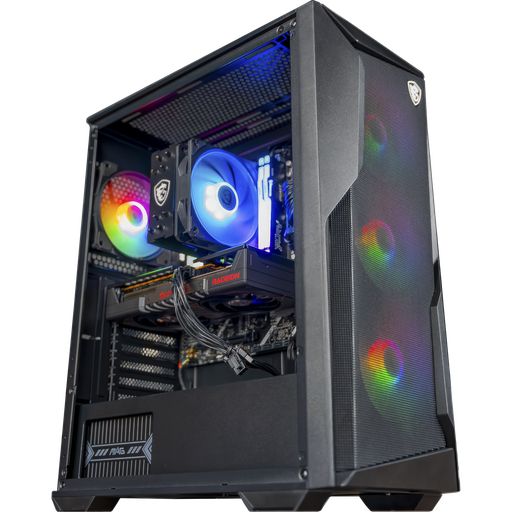
Rift PC, Radeon RX 9060 XT 16 GB
Ryzen 5 7500F, RX 9060 XT 16 GB and 16 GB of DDR5: the AM5 platform, ready for 1440p and future upgrades.
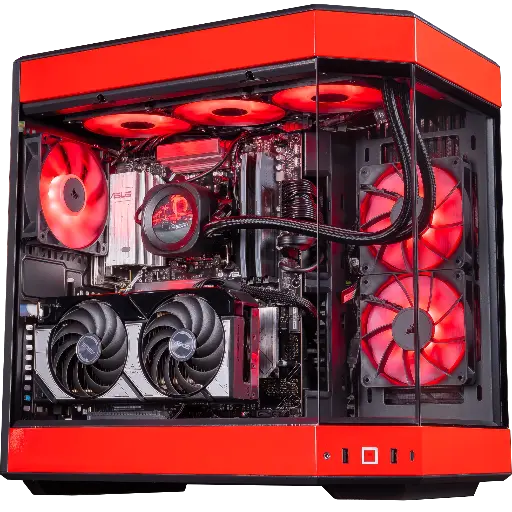
Rivals PC, GeForce RTX 5070
RTX 5070, Ryzen 7 9800X3D and 32 GB of DDR5: plenty of headroom for 1440p at high frame rates and streaming.
FAQ: my PC stutters when I game
Why does my PC stutter when I game even though it’s powerful?
Most often it’s due to overheating, an outdated graphics driver, a disabled XMP or EXPO profile, or an application running in the background. Monitor temperatures and the Task Manager during a session.
Why does my PC stutter when I game all of a sudden?
A sudden drop is often caused by an update (Windows, driver or game), a program added to startup, or dust buildup. Roll back to the previous driver if the issue started right after an update.
My PC stutters after a few minutes of gaming, why?
That’s the typical sign of overheating: the CPU or graphics card lowers its frequency to protect itself. Clean out the dust and check the fans.
What’s the difference between low FPS and lag?
Low FPS come from the PC: the image stutters even offline. Lag comes from the connection: the image looks smooth, but other players teleport. See our article on gaming lag this second case.
Should you defragment your SSD to gain FPS?
No. Windows automatically optimises SSDs. Defragmentation only concerns hard drives, and a game on a hard drive will benefit far more from being moved to an SSD.
Are “game booster” software tools useful?
Rarely. Closing the unnecessary apps yourself and enabling Windows’ Game Mode gives the same result, without installing extra software that runs in the background.
