
By the FlowUP team, gaming PC builder in Genappe (Belgium) · Updated 28 September 2026
In short: “Windows 11 trial version” simply means that Windows isn’t activated with a licence. The PC works normally, with no time limit for a standard installation: you can play, work and install your software. The only differences are the “Activate Windows” watermark in the bottom-right corner and personalisation (wallpaper, themes, colours) being blocked. To activate, go to Settings > System > Activation and enter a valid Windows 11 key, or sign in with the Microsoft account that holds the licence.
Windows 11 trial version: what does it mean?
“Trial version” is the common way of saying that Windows 11 is installed but not yet activated: no valid licence is associated with the PC. Microsoft lets the system run, but reminds you regularly to activate it.
To check, open Settings > System > Activation. You’ll see “Windows isn’t activated” and, most of the time, a message saying that no product key was found. The “Activate Windows” watermark in the bottom-right corner of the screen confirms the diagnosis.
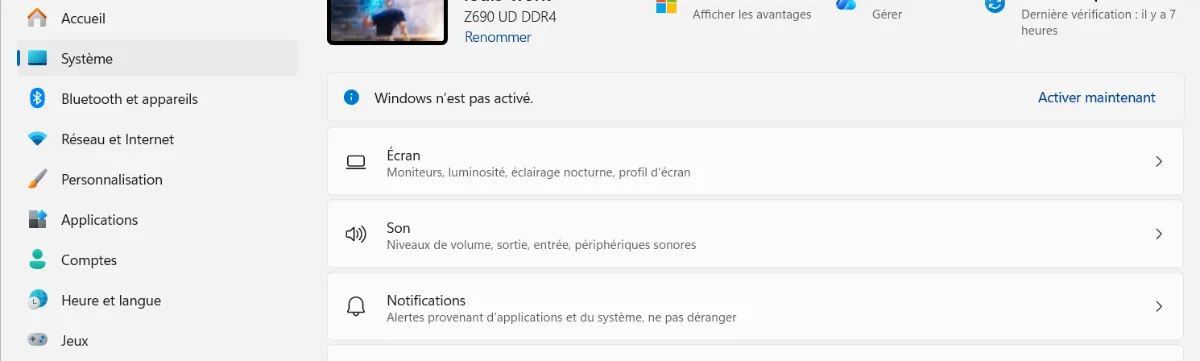
Settings > System > Activation: activation status at a glance.
Is it a problem to use unactivated Windows 11?
No, it’s neither dangerous nor blocking on a day-to-day basis. Here’s what changes in practice:
| Function | Windows 11 not activated | Windows 11 activated |
|---|---|---|
| Games, software, browsing | Work normally | Work normally |
| Windows updates and security | Yes | Yes |
| Personalisation (wallpaper, themes, colours) | Blocked in Settings | Available |
| “Activate Windows” watermark | Shown bottom-right | Not shown |
| Activation reminders | Regular | None |
The most noticeable limit is personalisation: the Personalisation section in Settings is greyed out until Windows is activated. It’s more annoying than truly disabling, but a valid licence sorts everything out at once.
Watch out for a special case, especially in business: Evaluation editions of Windows 11 Enterprise, downloaded from Microsoft’s website for testing, expire after their trial period. They don’t apply to PCs sold to consumers.
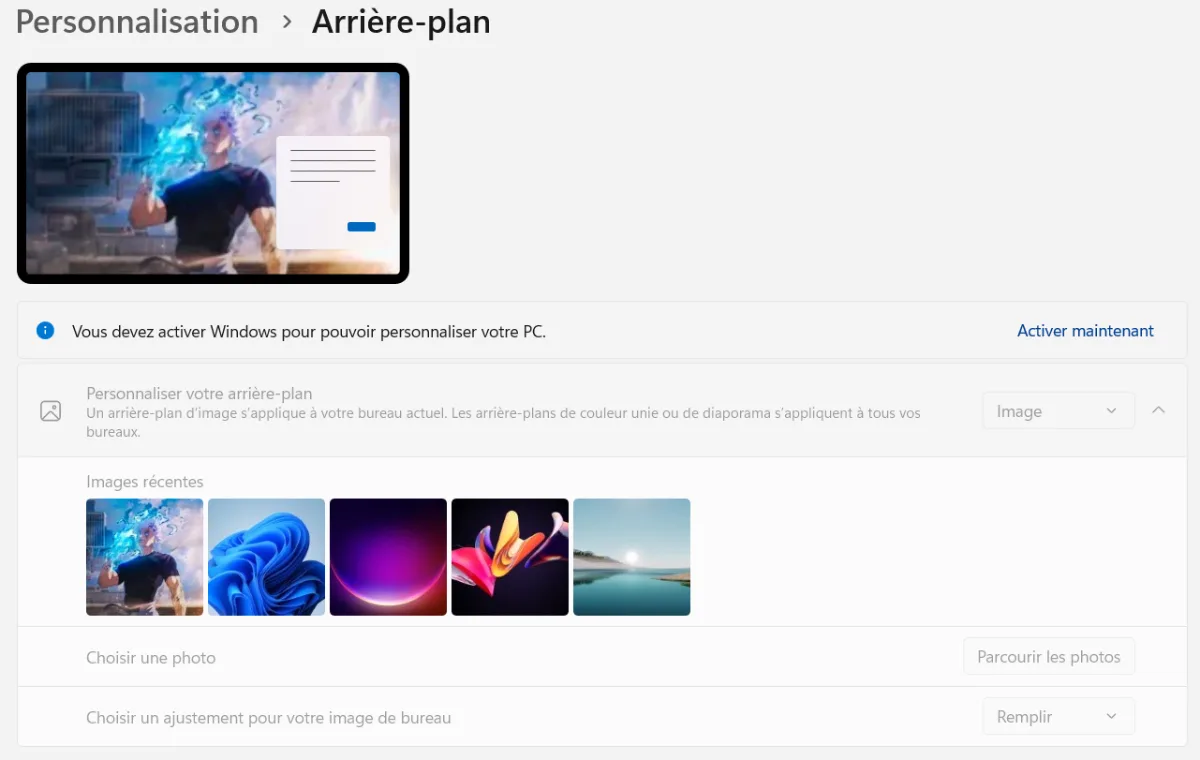
Without activation, personalisation remains blocked.
Why does my PC display “Activate Windows”?
- Windows was installed without a product key: this is very common on a built/assembled PC sold without a licence, or after a reinstallation.
- The key entered isn’t valid, already used on another PC, or doesn’t match the installed edition (Home or Pro).
- A major hardware change, such as replacing the motherboard, can cause the activation of a digital licence linked to the old hardware to be lost.
- An Evaluation edition has been installed, less common, and especially in business environments.
How do I activate Windows 11?
- Open Settings > System > Activation.
- Click on Change product key
- Enter a valid Windows 11 Home or Pro key that matches the installed edition.
- If you already have a digital licence linked to your Microsoft account, sign in with that account: after a hardware change, the Activation Troubleshooter tool allows you to re-associate it with the PC.
Buy your licence from Microsoft or an authorised reseller. Keys sold for a few euros on reselling sites are often volume licences or misused licences: they can be disabled without notice.
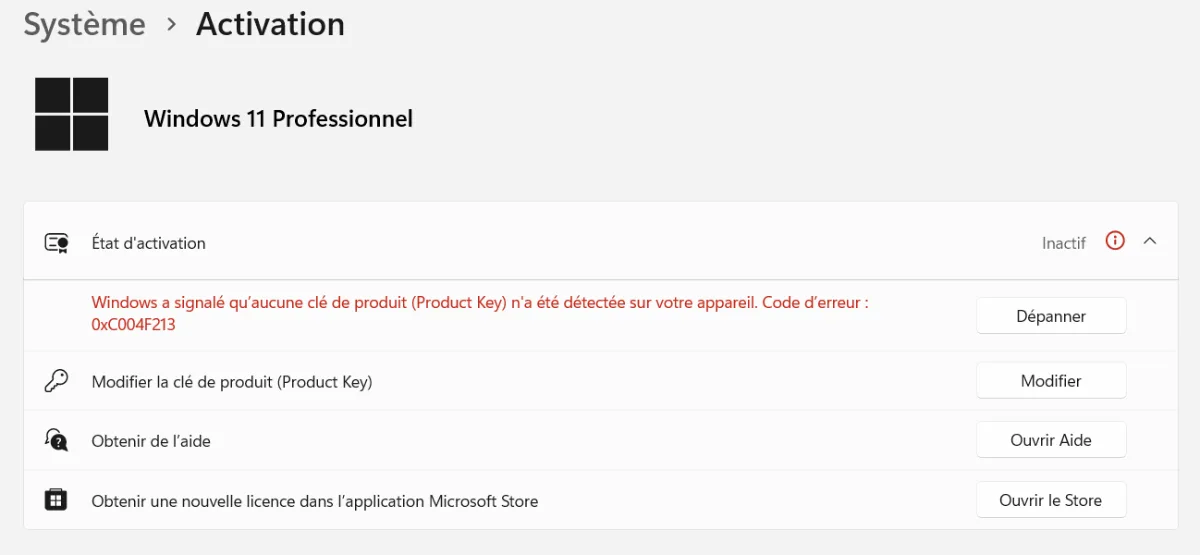
Change product key: activation takes less than a minute.
Pre-built PC delivered with Windows 11 “trial version”: what should you do?
Many pre-built PCs are delivered with Windows 11 installed but not activated. That’s the case with ours: our product pages state “Windows 11 Pro (trial version)”. The PC is ready to use and you can start playing right away.
If you already have a Windows 11 licence (or an eligible older Windows 10 licence linked to your Microsoft account), you just need to activate it as described above. Otherwise, an official licence removes the watermark and unlocks personalisation.
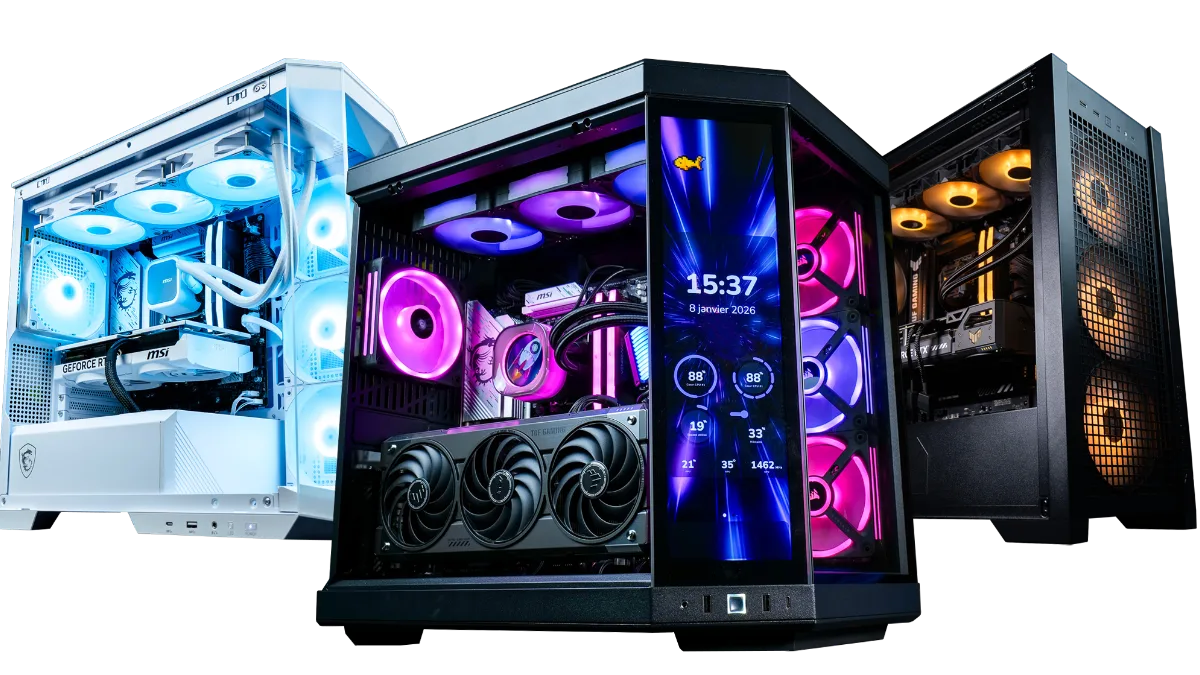
A pre-built PC in “trial version” mode is ready to play from the first startup.
If your PC has other issues after the first installation, our guides to update its drivers on Windows 10 and 11 and test your PC’s performance will help you check everything.
Our gaming-ready PCs
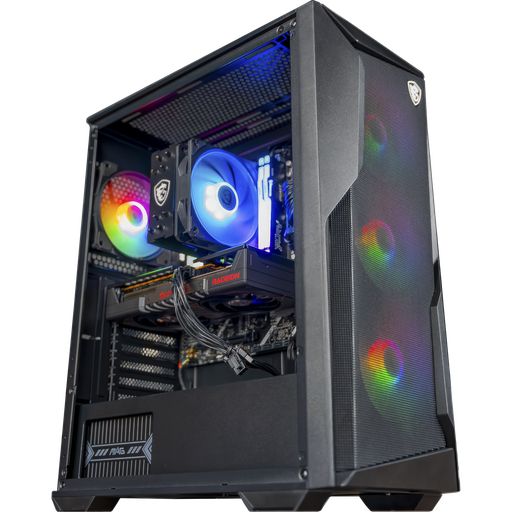
Rift PC, Radeon RX 9060 XT 16 GB
Ryzen 5 7500F, RX 9060 XT 16 GB and 16 GB of DDR5: assembled, tested and ready for high-end 1080p and 1440p.
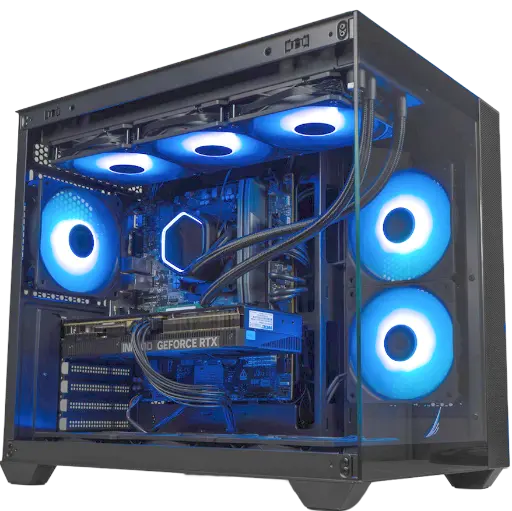
Umbra PC, GeForce RTX 5070
RTX 5070 12 GB, Ryzen 5 7500F and 16 GB of DDR5: built for 1440p.
Windows 11 trial version FAQ
Trial version of Windows 11: what is it?
It’s Windows 11 installed with no licence activated. The system works, but shows a watermark and blocks personalisation until activation.
How long does the Windows 11 trial version last?
A standard unactivated installation has no end date: it remains usable with its limitations. Only the Evaluation editions of Windows 11 Enterprise expire after their test period.
Can you play with unactivated Windows 11?
Yes. Games, drivers and updates work normally.
How do I remove “Activate Windows” at the bottom right?
By activating Windows with a valid licence in Settings > System > Activation. The watermark disappears immediately.
Does my Windows 10 licence work on Windows 11?
A genuine Windows 10 licence linked to your Microsoft account can generally activate Windows 11 in the same edition. If you’re unsure, use the Activation Troubleshooter tool.
Are Windows keys for a few euros reliable?
Not always: they are often volume licences or resold licences outside Microsoft’s terms, which can be deactivated. Prefer Microsoft or an authorised reseller.
