 Your PC in instalments (up to 12x)
Why does my computer shut down by itself?
7 causes + effective solutions 2026
Your computer shuts down without warning? Whether it happens mid-game, during an update, or even just after you’ve turned it on, these sudden power-offs can indicate faults of varying severity. Before replacing a component or panicking, it’s essential to identify where the problem is coming from: the power supply, overheating, software, or even a faulty graphics card.
In this complete 2026 guide, we show you the 7 most common causes of a computer that turns itself off—along with a clear, quick solution for each, validated by our technicians.
quick solutions below
👇
- 1. PC shuts down immediately after switching on
- 2. Shuts down after a few minutes
- 3. Cuts out during a game or under load
- 4. Random shutdowns
- 5. Shuts down after sleep mode or an update
- 6. Shuts down when you move it
- 7. Blue screen followed by a shutdown
Symptom 1: The computer turns off immediately after powering on
Most likely cause: Power supply problem
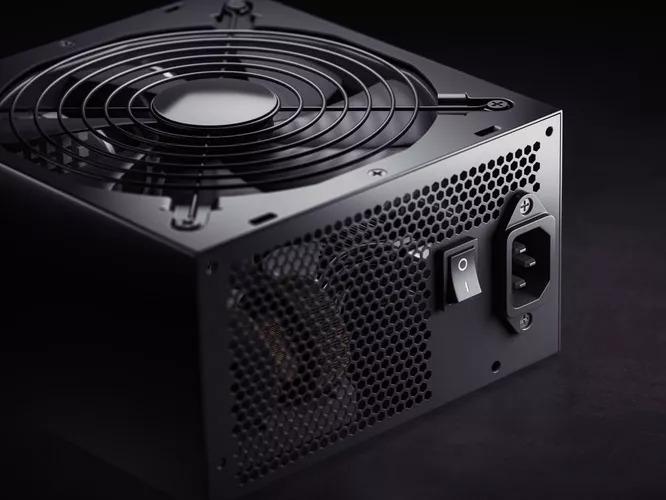
If your PC shuts off within 1 to 3 seconds of pressing the power button, the most common cause is a defective or unstable power supply. It can also be caused by a poor connection in the mains cable, a faulty power button, or an internal short circuit.
Recommended solutions:
- Try a different mains cable: sometimes a simple damaged cable is enough to interrupt the current.
- Do a power bridging test: to see if the power supply unit works without the motherboard.
- Check the extension lead or change the wall socket: some faulty UPS units can cause a power cut.
- Visually inspect the inside of the case: swollen capacitors, poorly connected cables, excessive dust around the PSU.
How to do a power bridging test?
Bridging allows you to start a power supply without the motherboard, to test that it works properly or to power another device (pump, fan, LED, etc.).
Required equipment
- A ATX power supply unit
- A power lead, a paperclip, or a pre-made bridging connector
- A minimum load (fan or LED) is recommended to test under power
✅ Simple steps
1. Unplug the power supply from the mains
Always start with the power off to avoid any risk of electric shock.
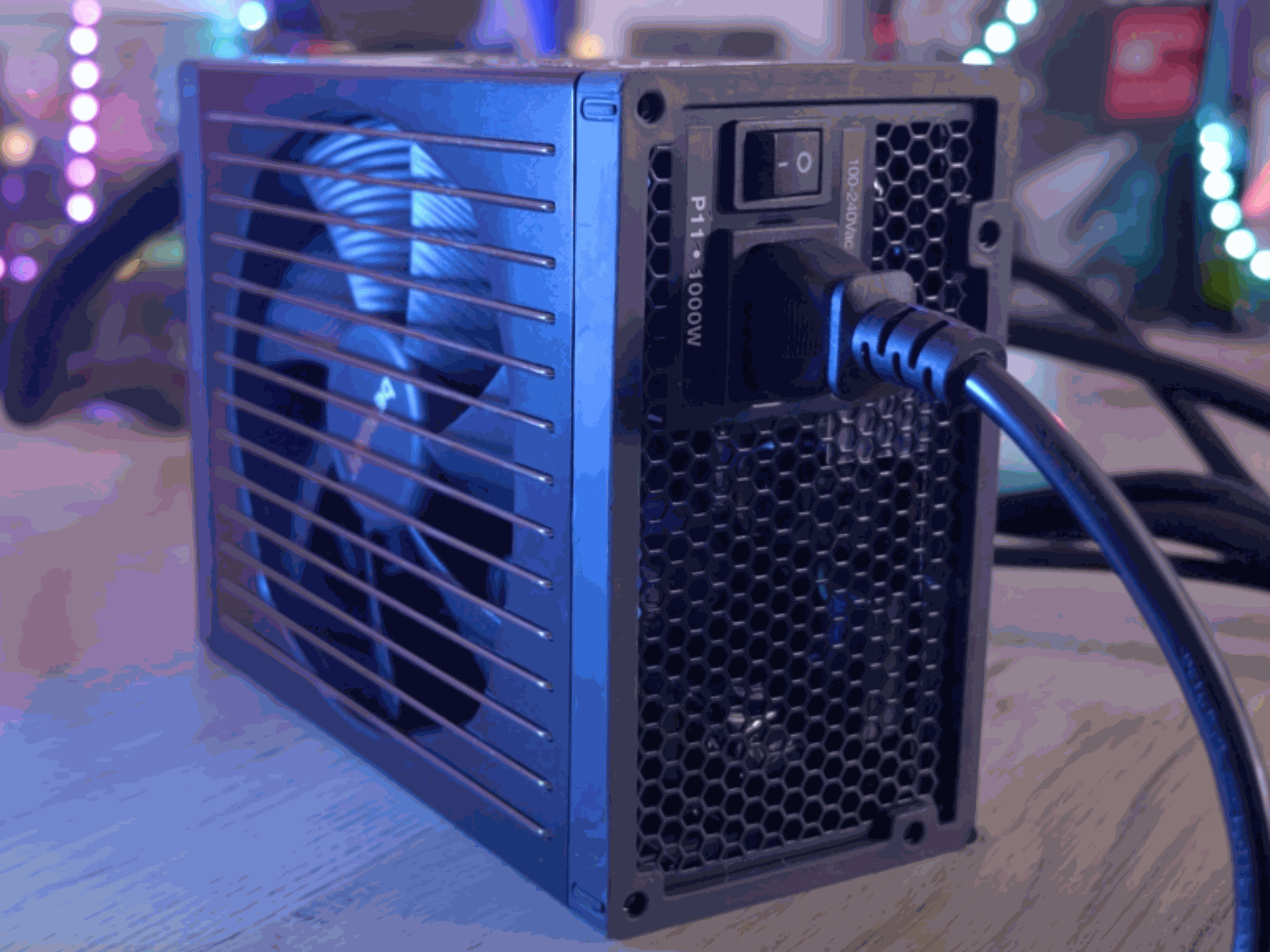
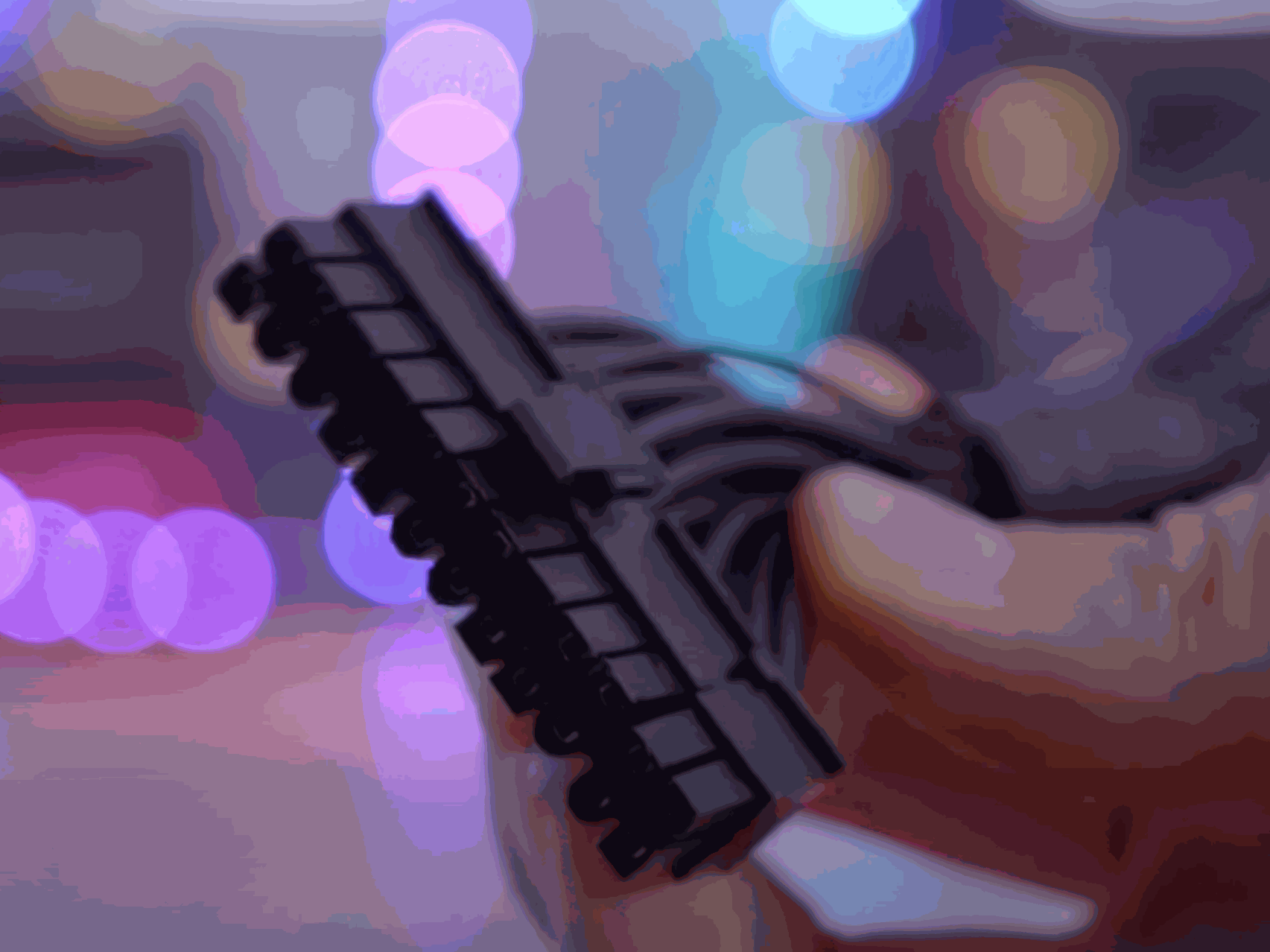
2. Identify the 24-pin connector (the one that plugs into the motherboard)
It’s wider and usually the largest output from the power supply.
3. Take a bridging wire.
You can use a bridging wire bought in a shop or make one yourself with a simple paperclip.

4. Connect the bridging wire
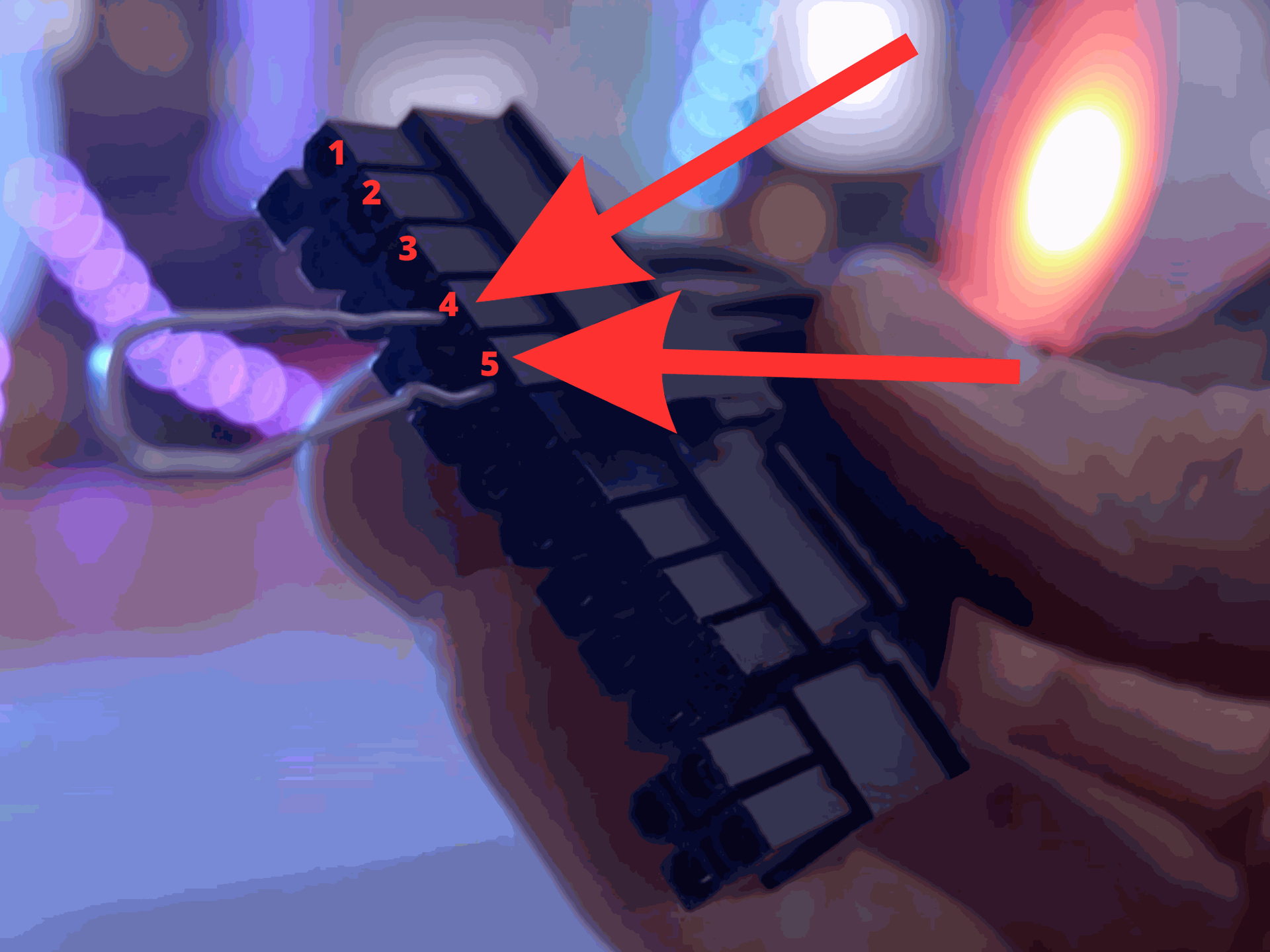
Plug one end of the bridging wire into the connector for the 24-pin section of the main PSU connector, by connecting the two pins of the bridging wire to pins 15 and 16 (4 & 5 on the diagram), which are the green and black pins (sometimes all the pins are black—please refer to the image).
The green and black pins are the power-activation pins, and they must be connected for the power supply to start.
5. Plug the power supply into the mains
Connect the power supply to an electrical socket and switch it on using the switch located at the back of the power supply.
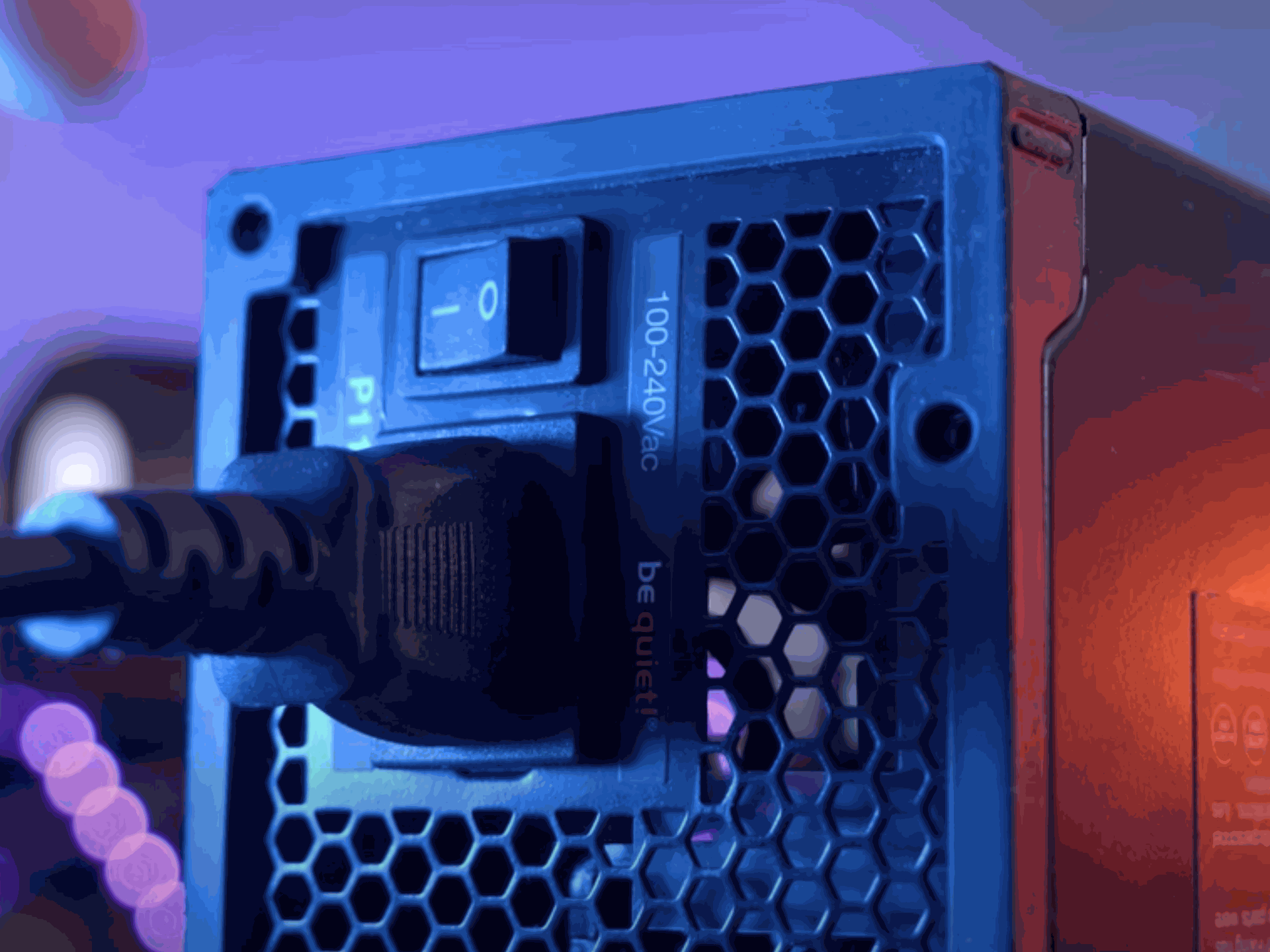
6. Test & verification
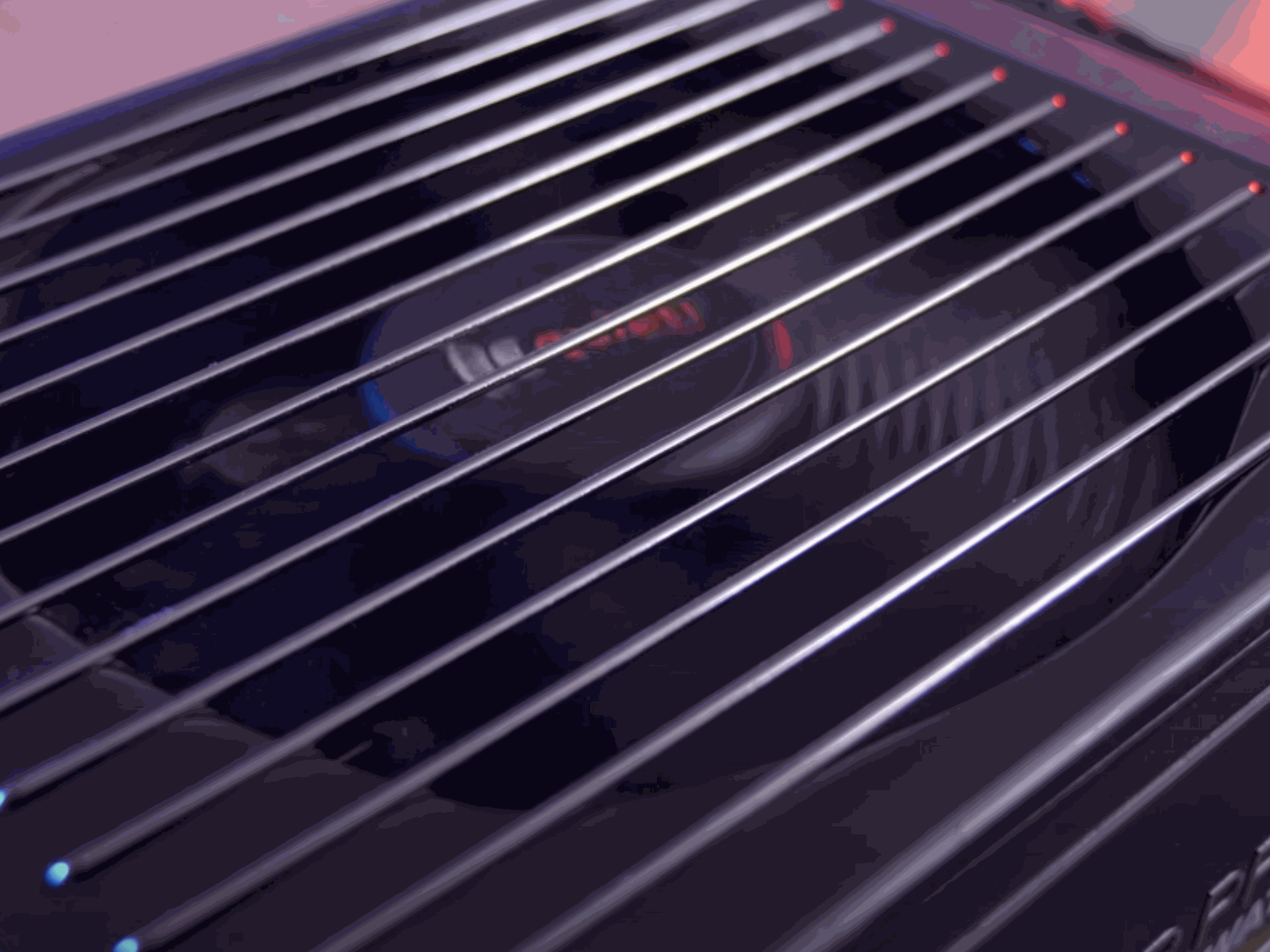
Check that the power supply is working properly by listening for the PSU fan noise and by looking to see if the power supply lights come on.
You can also use an external hard drive (HDD) connected via SATA to touch it and see whether it vibrates (a sign that the power supply is working).
✅ Tips:
- Never carry out this test without a minimum load on certain models, as it can damage the PSU.
- Avoid touching the bridge once the plug is connected.
- Use a special bridging connector if you do this often (sold for a few pounds/euros).
Symptom 2: The PC shuts down after a few minutes
Most likely cause: CPU or GPU overheating
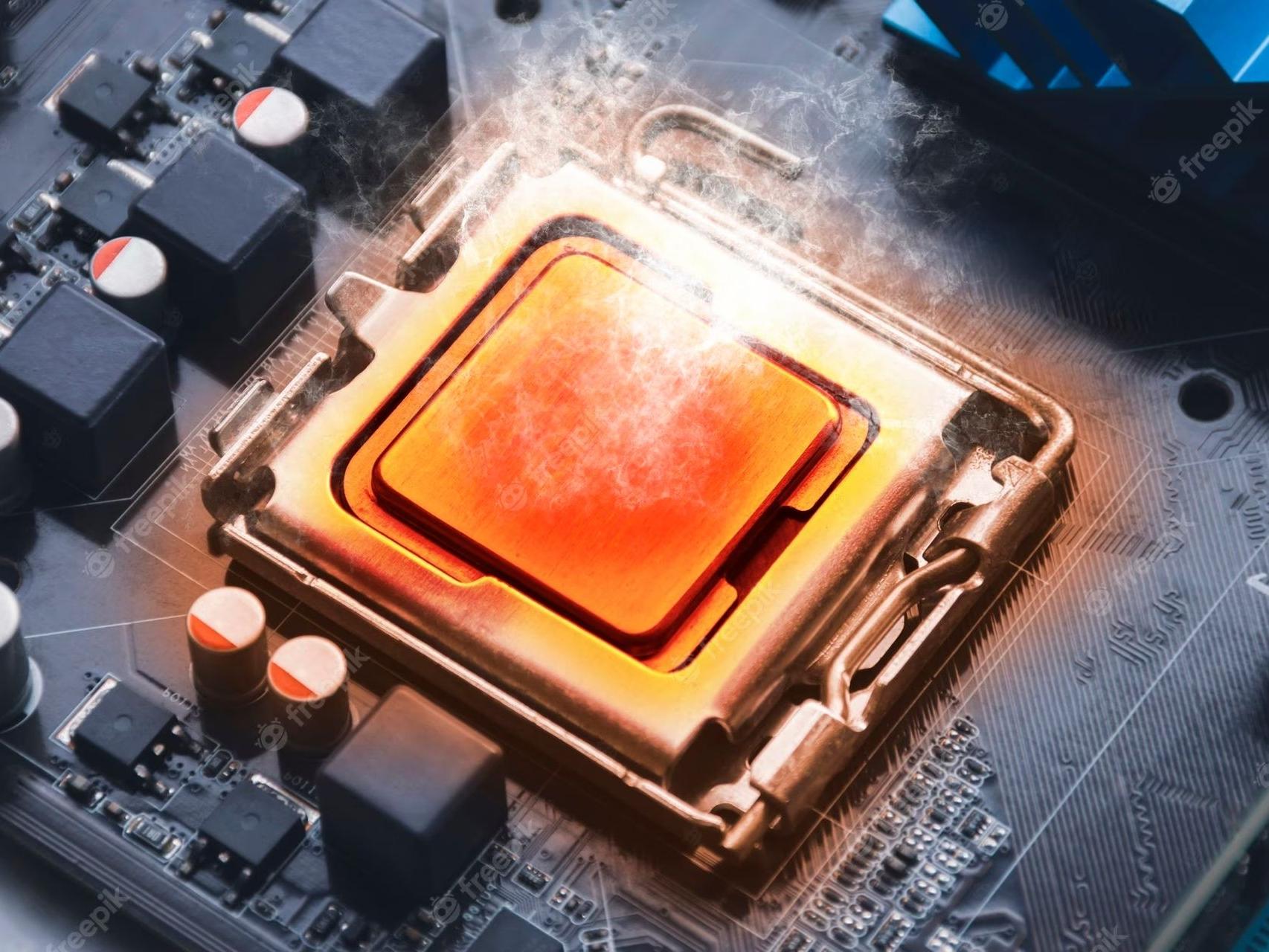
A computer that shuts down after 5 to 15 minutes of use—especially without an error message—is very often the victim of overheating. Modern components have thermal sensors that trigger an automatic cut-out to prevent critical overheating.
Recommended solutions:
- Clean the fans of the processor, the graphics card and the case using an anti-static brush or compressed air.
- Replace the thermal paste on the processor if it has dried out or if it has never been replaced in over 2 years.
- Check the temperature using a tool such as UserDiag or HWMonitor.
- Add an exhaust fan if the internal airflow is insufficient.
👉 Tip : If the computer only shuts down in summer or in a hot room, consider elevating the case or using a ventilated stand (especially for laptops).
Symptom 3: Shutdown during load (games, video rendering)
Likely cause: Overloaded power supply or graphics card
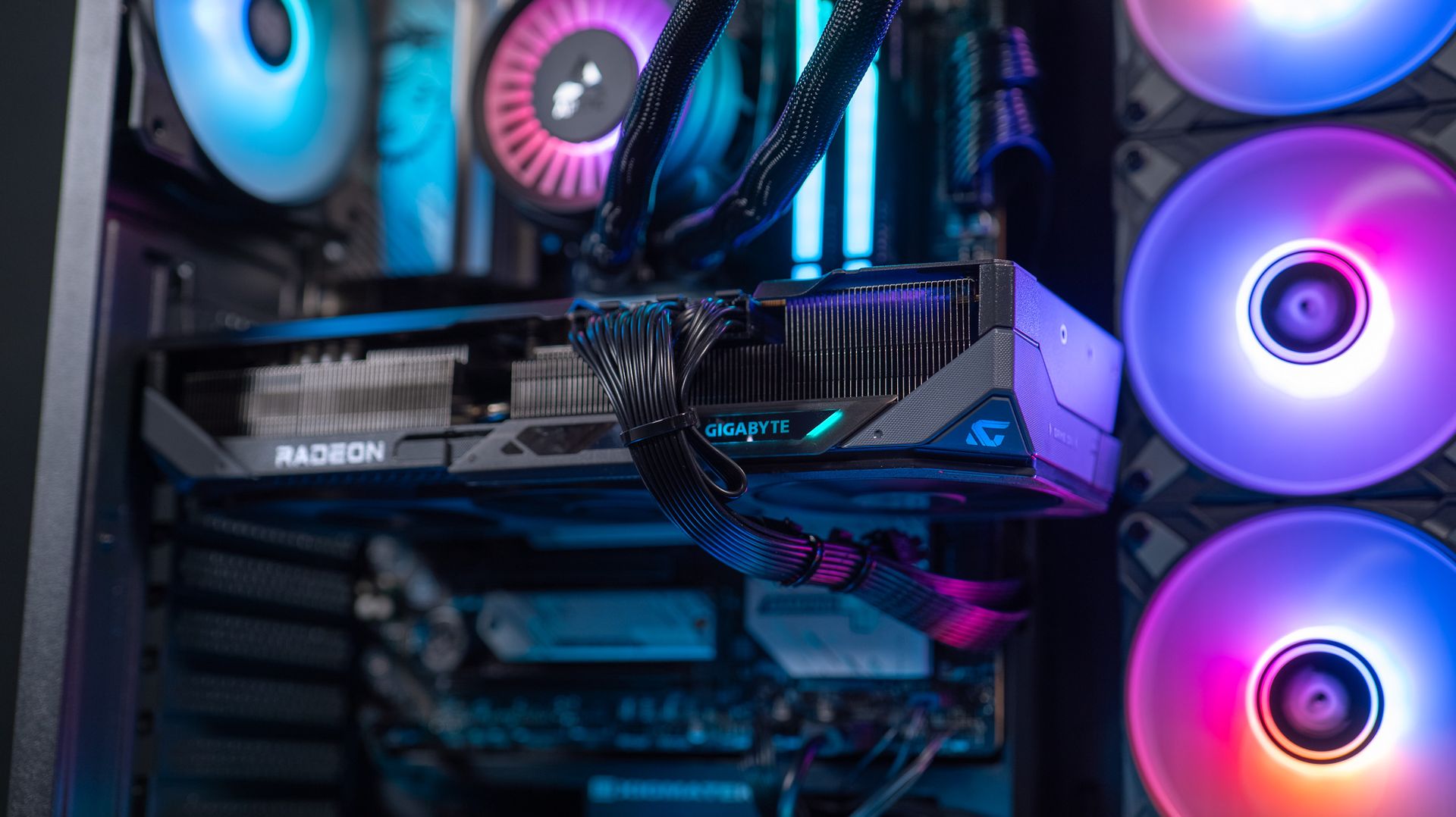
A shutdown during a gaming session or during a 3D render indicates a spike in power consumption that the power supply cannot handle. This can also point to a poorly cooled GPU or an unstable graphics card.
Recommended solutions:
- Use UserDiag to monitor load and temperatures while gaming or during a stress test.
- Try with another power supply if possible (borrow one or test it in the workshop).
- Enable GPU frequency limiting via the NVIDIA or AMD panel to reduce the load.
- Update the graphics drivers and test several versions (sometimes an update is unstable).
👉 Important : A low-quality power supply (not 80 Plus certified) may be fine at idle, but becomes unstable under load.
Symptom 4: Random shutdown with no error message
Likely cause: Faulty drivers or Windows instability
When the computer shuts down unpredictably, with no blue screen and no overheating, the problem is likely due to corrupted drivers or a software conflict. It can also indicate a faulty RAM module or a system drive that is at the end of its life.
Recommended solutions:
- Run UserDiag to collect data and identify driver errors or hardware conflicts.
- Perform a full driver update: graphics card, chipset, BIOS, network, etc.
- Test the RAM with MemTest86 (creating a bootable USB drive is required).
- Carry out a system repair using the command sfc /scannow in the Windows command prompt.
👉 Tip : If the cut-outs occur after a recent installation of software or a device, try temporarily uninstalling it.
Symptom 5: PC shuts down after going to sleep or after an update
Likely cause: Power management conflict or faulty update
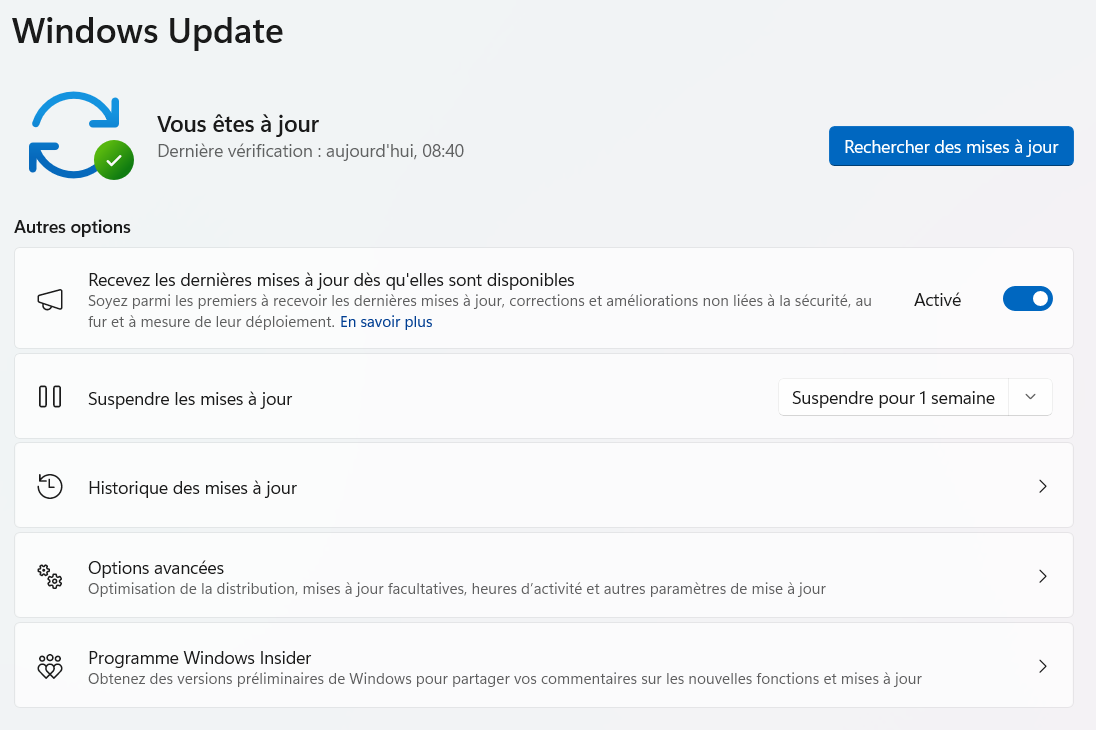
If your PC shuts down after waking from sleep, a Windows update or a BIOS update, it is often a conflict between the power management system and device drivers.
Sometimes a bad Windows update can also cause this behaviour.
Recommended solutions:
- Disable hybrid sleep: Settings > System > Power > Additional power settings > Change mode settings > Change advanced power settings > Hybrid sleep: Disabled.
- Go back to the previous update if the issue started right after a major Windows update (Settings > Update & Security > Recovery).
- Disable fast startup in the advanced power options.
👉 Tip : Enable the Windows event log to check whether the shutdown is caused by software or by hardware (Windows key + R → eventvwr).
Symptom 6: Shuts down when you move the laptop
Likely cause: Poor contact, unstable battery, or an internal short circuit
If your laptop shuts down when you move it or even slightly shift it, it is often a hardware issue: poor contact between the battery and the motherboard, deterioration of the power cable ribbon, or dust present in the internal connectors.
Recommended solutions:
- Test without the battery (only on mains power). If the issue disappears, the battery needs replacing.
- Clean the battery contacts with a cotton bud lightly soaked in isopropyl alcohol.
- Open the case (if you’re comfortable doing so) and check the condition of the internal connectors.
👉 Important : Avoid using the PC on your lap or on a soft surface (sofa, bed), as this can block the ventilation grilles or damage internal cables through repeated twisting.
Symptom 7: Shutdown with a blue screen (BSOD)
Likely cause: Critical hardware or software error
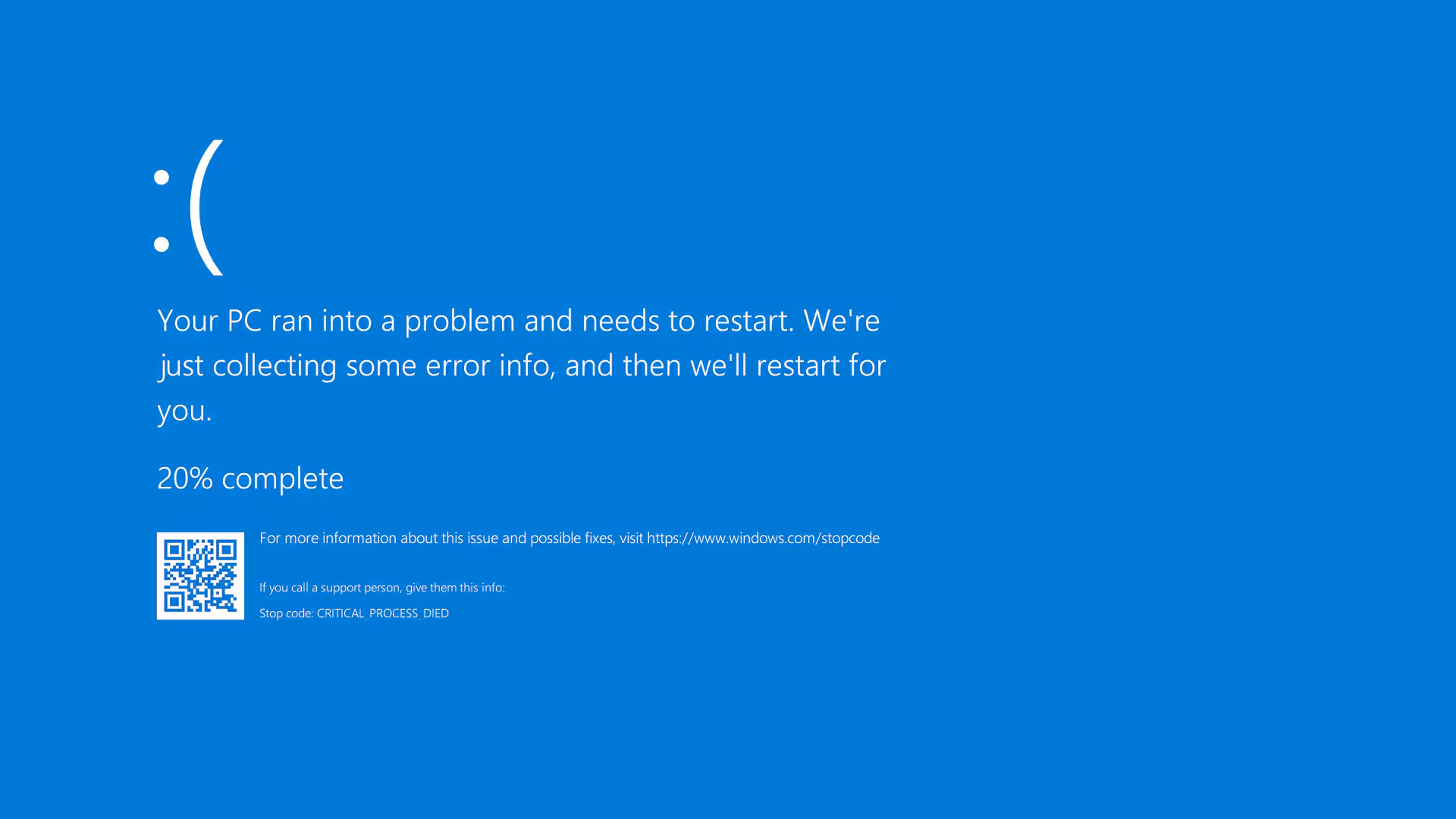
If the PC shows a blue screen before shutting down, it means a component or a driver is causing a critical system error. BSODs are often caused by unstable memory, an incompatible driver, or a failing disk.
Recommended solutions:
- Note down the BSOD error code (e.g. IRQL_NOT_LESS_OR_EQUAL, MEMORY_MANAGEMENT) to better pinpoint the issue.
- Run a diagnostic with UserDiag or WhoCrashed to interpret the minidump files.
- Test your RAM with MemTest86 (booting from a USB stick is required).
- Run chkdsk /f /r in the terminal to check the integrity of your hard drive or SSD.
👉 Tip: If you notice frequent BSODs after a driver or BIOS update, roll back to the previous version via Device Manager or the Advanced System Settings.
