 Your PC in instalments (up to 12x)

Why aren’t my devices being detected?
When a device isn’t detected by the computer, it could be due to several reasons. Here are a few steps you can follow to try to resolve this issue :
CHECK THE CONNECTION
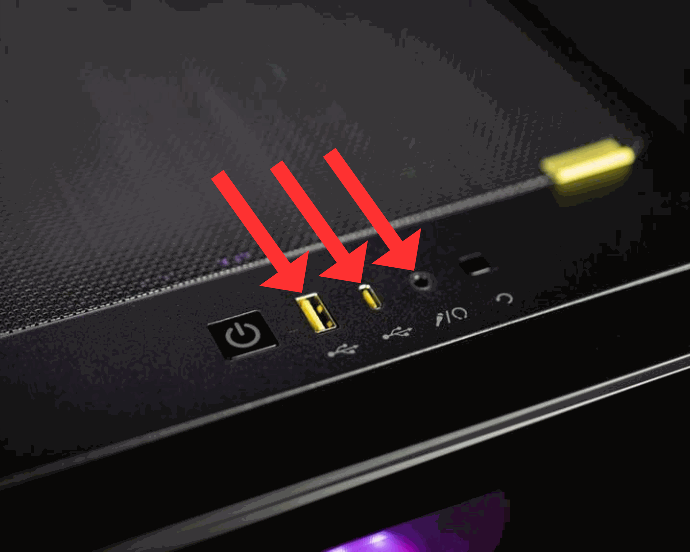
Make sure the device is properly plugged into the computer and that it’s working correctly. Also check that the cables are securely connected.
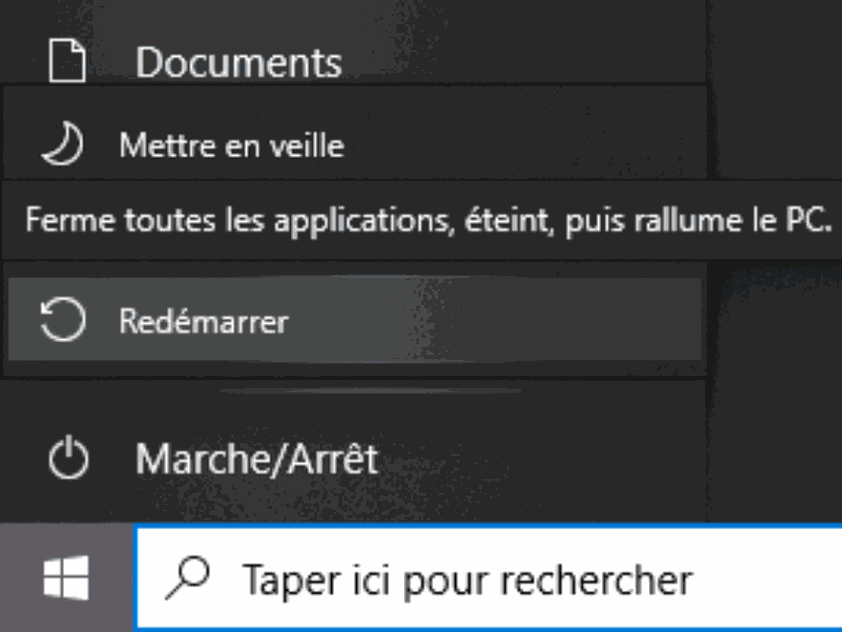
RESTART THE COMPUTER
Sometimes a simple restart of the computer can solve the problem.
CHECK THE FRONT PANEL
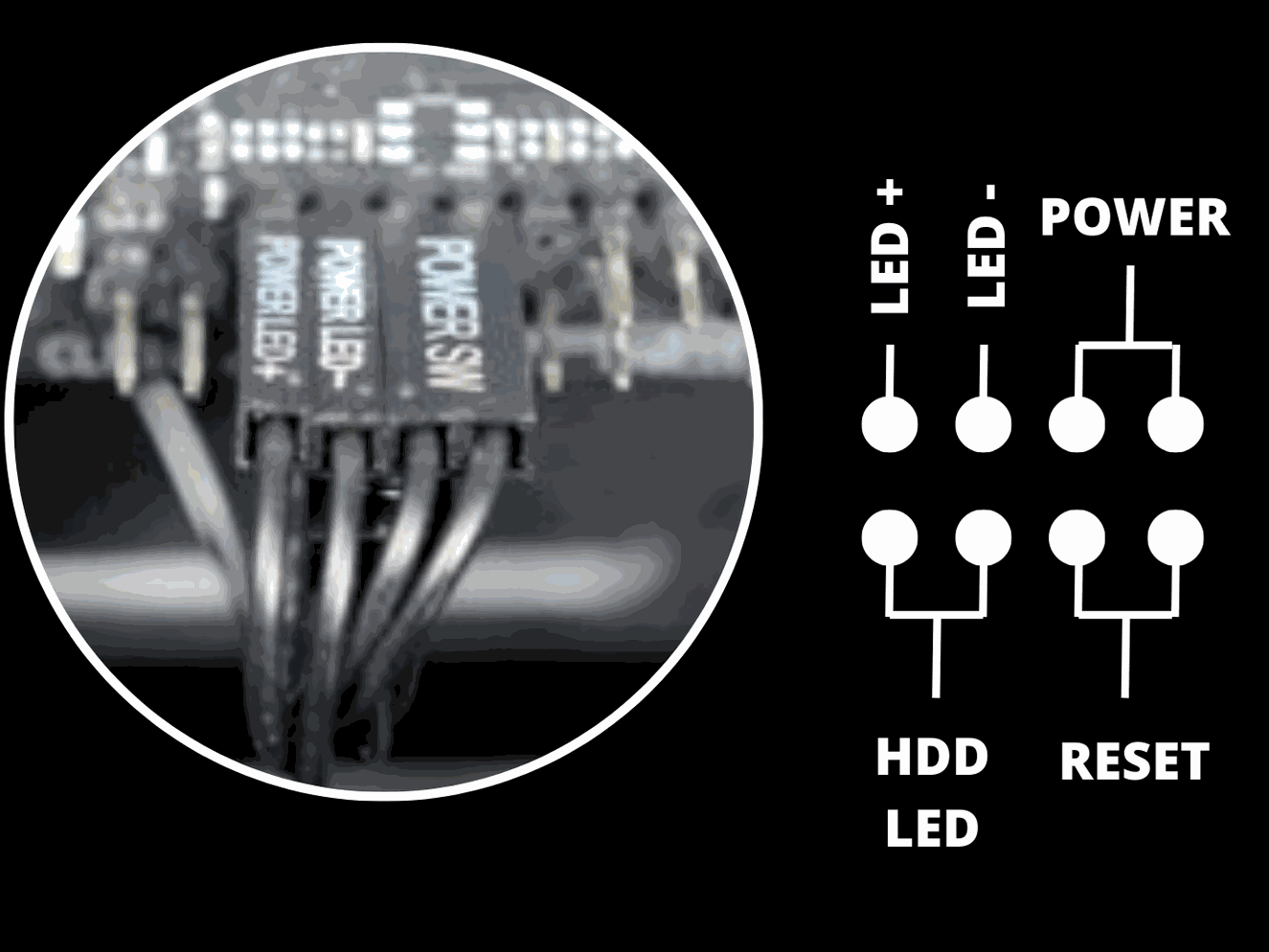
Check the Front Panel connections by following the diagram shown.
The Front Panel is located below the graphics card on the motherboard.

UPDATE THE DRIVERS
Drivers are the software that allows your computer to communicate with the device. Make sure the device’s drivers are up to date.
You can do this by going to the manufacturer’s website for your motherboard and downloading the latest drivers.
UPDATE THE DRIVERS
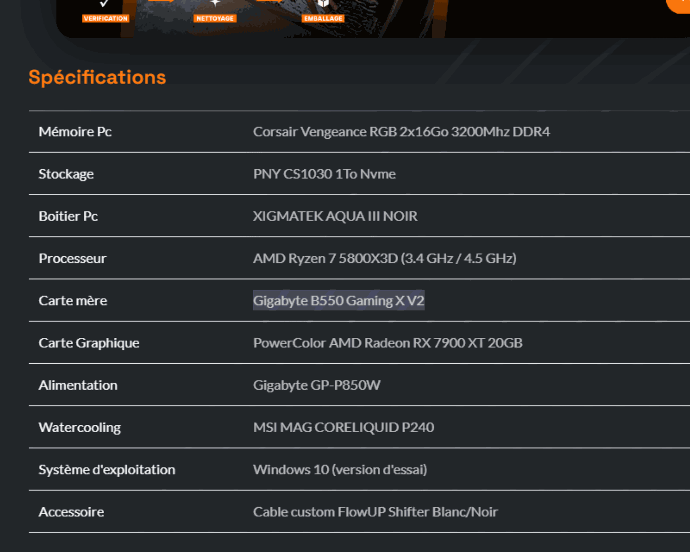
To find the manufacturer’s website for your motherboard, go to the product page for the computer you purchased on flowup.shop. Scroll down the product page and you’ll reach the specifications.
Note down the reference of your motherboard to find the manufacturer. In our example, it’s a Gigabyte B550 Gaming X V2.
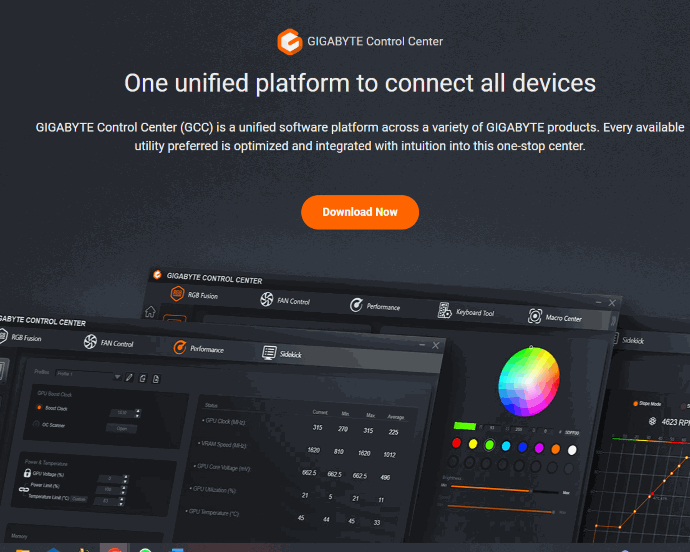
UPDATE THE DRIVERS
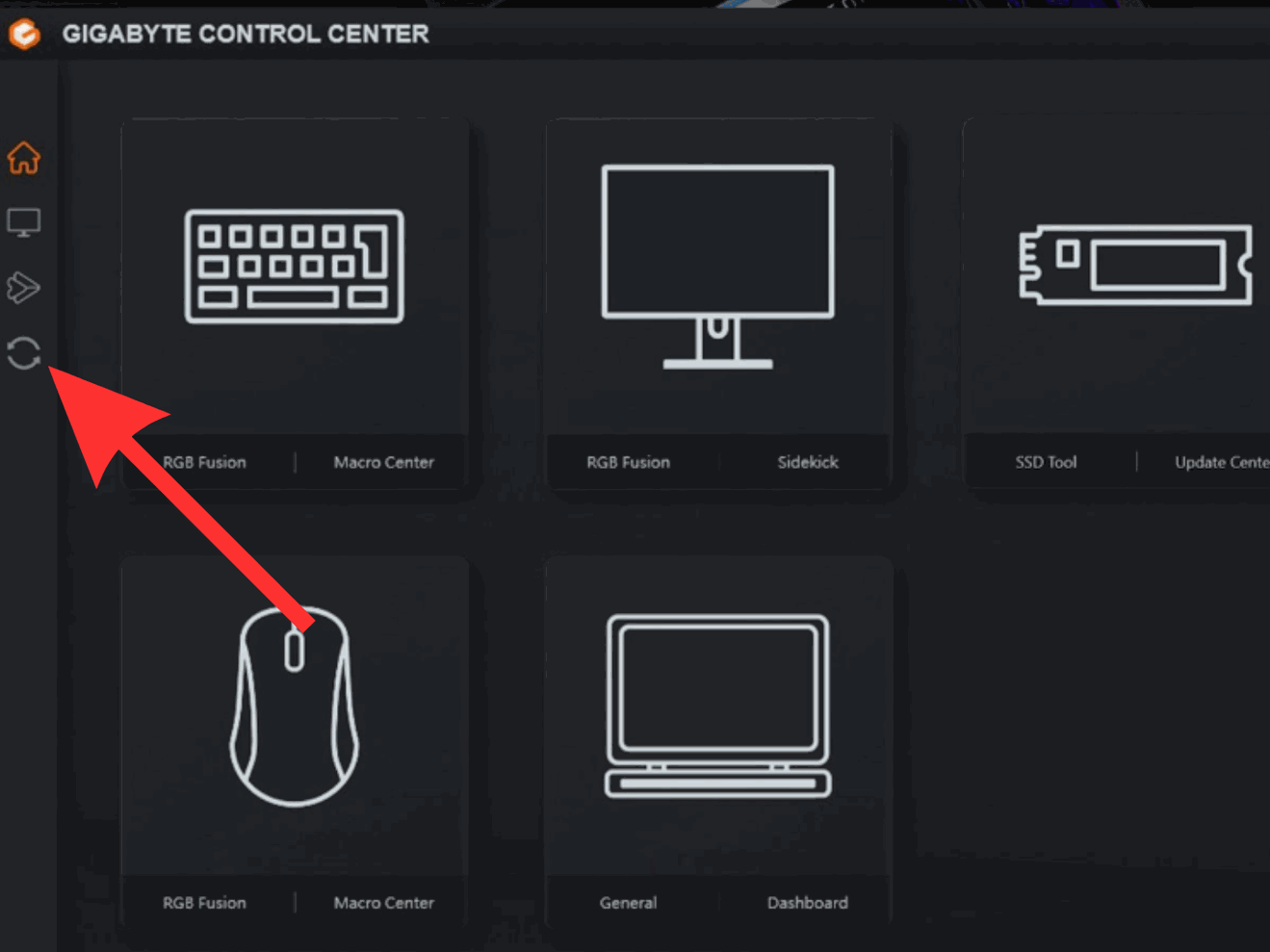
The menu will look like this; all you have to do is click on the update icon so that Gigabyte Control Center can suggest the latest updates.
CHECK THE DEVICE MANAGER
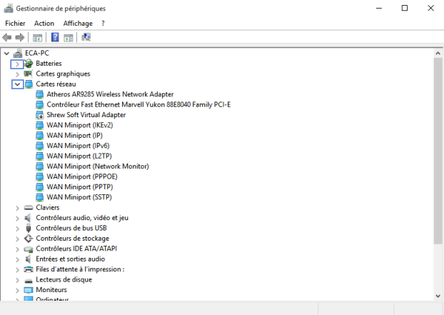
The Device Manager is a Windows tool that lets you see all the devices connected to your computer. Check whether the device is listed in the Device Manager.
If the device appears with a yellow or red icon, it means there’s a problem with the device.
USE A DIFFERENT USB PORT
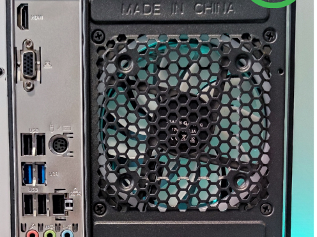
If the device is a USB device, try plugging it into another USB port on your computer.
CHECK BIOS SETTINGS
If the device is an internal device, such as a sound card or a graphics card, check the BIOS settings to make sure the device is enabled.
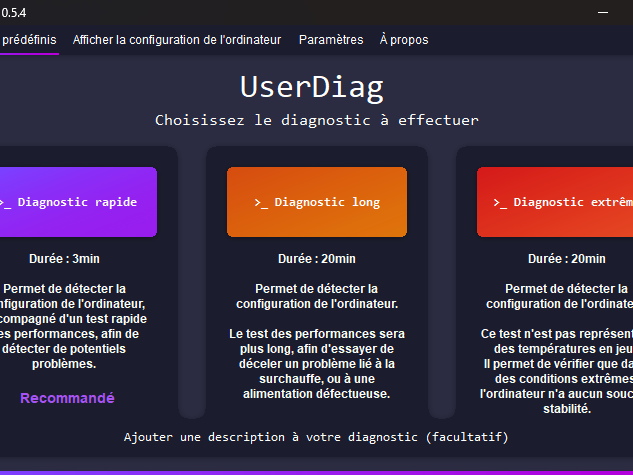
You’ll need to search Userdiag on your search engine and download it.
UserDiag is a diagnostic tool that helps retrieve your computer’s hardware information, while running various tests to ensure that your components are working properly.
CHECK BIOS SETTINGS
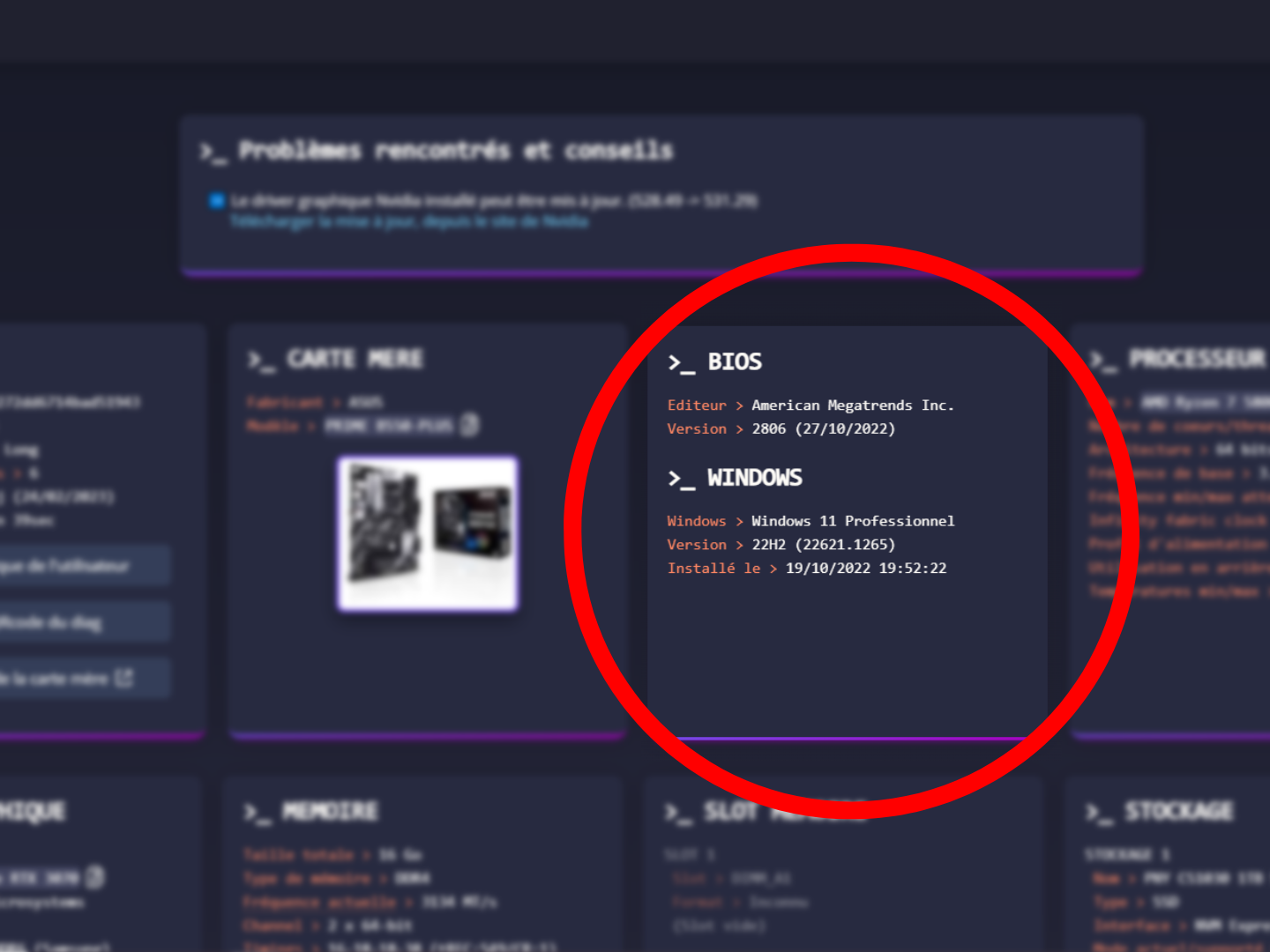
When you run your Userdiag diagnostics, you get a lot of information. It’s important to check whether the BIOS is up to date.
To do this, nothing could be simpler: just go to the website of your motherboard manufacturer and check whether your BIOS is included in its latest update.
As for the graphics card, for example, you can update the drivers by following the blue link provided if it turns out to be necessary.
If none of these steps resolves the issue, it’s possible that the device is faulty and needs to be replaced.
