 Your PC in instalments (up to 12x)
By the FlowUP team, PC gaming system builder in Genappe (Belgium) · Updated 28 September 2026
In brief: a computer is too old when it can no longer receive security updates, when it stays slow even after cleaning, or when repairing it costs almost as much as replacing it. In 2026, the easiest test is Windows 11: if your PC isn’t compatible (generally an Intel processor older than the 8th generation or an AMD processor older than the Ryzen 2000, no TPM 2.0), Windows 10 won’t receive any more fixes after 12 October 2027, even via the extended update programme.
A computer doesn’t break down overnight just because it has turned five years old. It deteriorates little by little: a startup that takes longer, a game that won’t install, a fan that scratches. The challenge is knowing when an upgrade is enough, and when it’s better to move on.
Here are the seven signs to watch for, followed by a simple table to decide between upgrading and replacing.
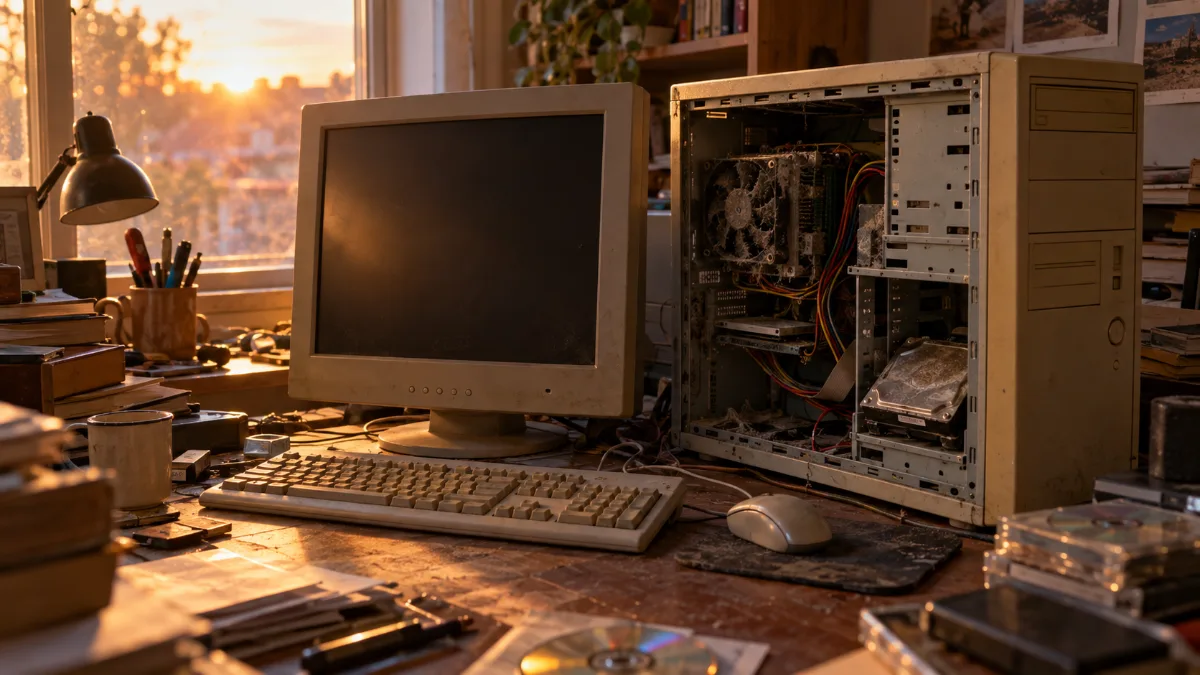
The 7 signs that a computer is too old
1. It isn’t compatible with Windows 11
This is the most objective sign. Windows 10 hasn’t been supported since 14 October 2025. So a PC that isn’t compatible with Windows 11 has no software future in the medium term. Microsoft’s free app PC Health Check tells you in a minute whether your machine passes.
2. It stays slow even after cleaning
More than two minutes to start up, apps that take seconds to open, a browser that lags with a few tabs: if the problem continues after cleaning Windows, it’s often a mechanical hard drive or a lack of RAM. Our article Why is my PC running slower? helps you find the cause.
3. Your software and games won’t install
Publishers are gradually dropping older configurations. On the gaming side, for example, Battlefield 6 requires TPM 2.0 and Secure Boot, and several recent releases ask for an SSD and a graphics card that supports ray tracing. We detail these requirements in our guide which PC to play all games on.
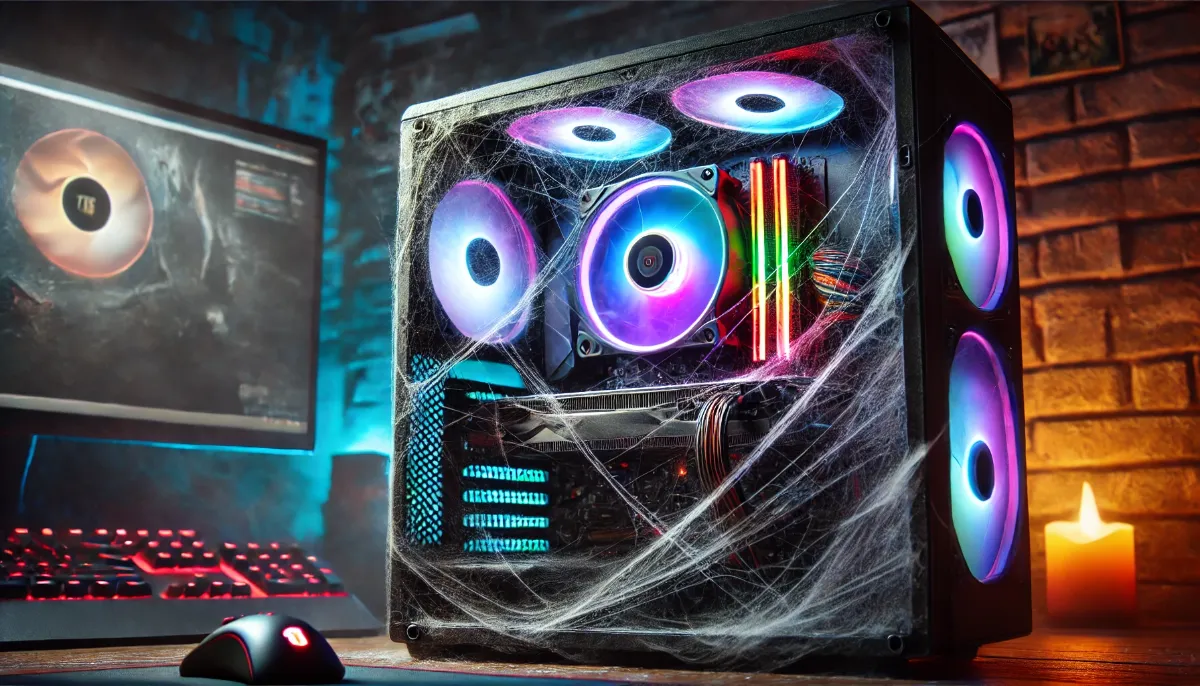
4. It makes unusual noises
A fan that scratches or whistles is often just clogged or worn out: it’s easy to clean or replace. On the other hand, a hard drive that rattles is an emergency: back up your data immediately, it can fail at any moment.
5. It overheats and shuts down by itself
Sudden shutdowns under load point to overheating: dust, dry thermal paste, or a failing fan. Our article Why does my gaming PC get hot when I play? breaks down normal temperatures and the solutions.
6. On a laptop, the battery no longer lasts
A battery that loses half its capacity is often replaced. But if it’s the only healthy component in an otherwise tired machine, the cost rarely makes sense.
7. Repairing costs more than half of a new one
Our simple rule: if the repair or upgrade costs more than half the price of an equivalent new computer, it’s better to replace it. You get a warranty again and components that will last longer.
Windows 10 and Windows 11: what’s changed
From 14 October 2025, Windows 10 no longer receives free updates as standard. Microsoft offers individuals an Extended Security Updates (ESU) programme: free if you stay signed in with a Microsoft account, or paid as a one-off purchase with a local account. Microsoft has extended this programme to 12 October 2027. After this date, a PC running Windows 10 will no longer be protected.
| Item | Windows 11 minimum configuration |
|---|---|
| Processor | 1 GHz, 2 cores, 64-bit, included in the compatibility list (typically Intel 8th generation or newer, AMD Ryzen 2000 or newer) |
| RAM | 4 GB minimum |
| Storage | 64 GB minimum |
| Firmware | UEFI, compatible with Secure Boot |
| Security | TPM 2.0 |
| Graphics card | Compatible with DirectX 12 (WDDM 2.0 driver) |
Sources: Microsoft (Windows 11 system requirements, Windows 10 ESU programme); ESU extension to October 2027 reported by BleepingComputer.
These minimums are enough for Windows, not for gaming. For a comfortable experience in 2026, aim for 16 GB of RAM, an SSD, and a processor that’s less than six or seven years old.
Upgrade or replace: the table to help you decide
| Symptom | Solutions | Cost | Our verdict |
|---|---|---|---|
| Very slow boot and application opening | Replace the hard drive with an SSD | Low | Upgrade |
| Less than 16 GB RAM, lag when multitasking | Add more RAM | Low | Upgrade |
| Stuttering games, old graphics card | Replace the graphics card | Medium | Upgrade if the processor and power supply keep up |
| Hard drive that rattles | Back up, then replace the drive | Low | Upgrade |
| Not compatible with Windows 11 | Change processor, motherboard and often RAM | High | To replace: it’s almost like a brand-new PC |
| Several of these problems at once | Replace the machine | High | Change |
The SSD: the most cost-effective upgrade
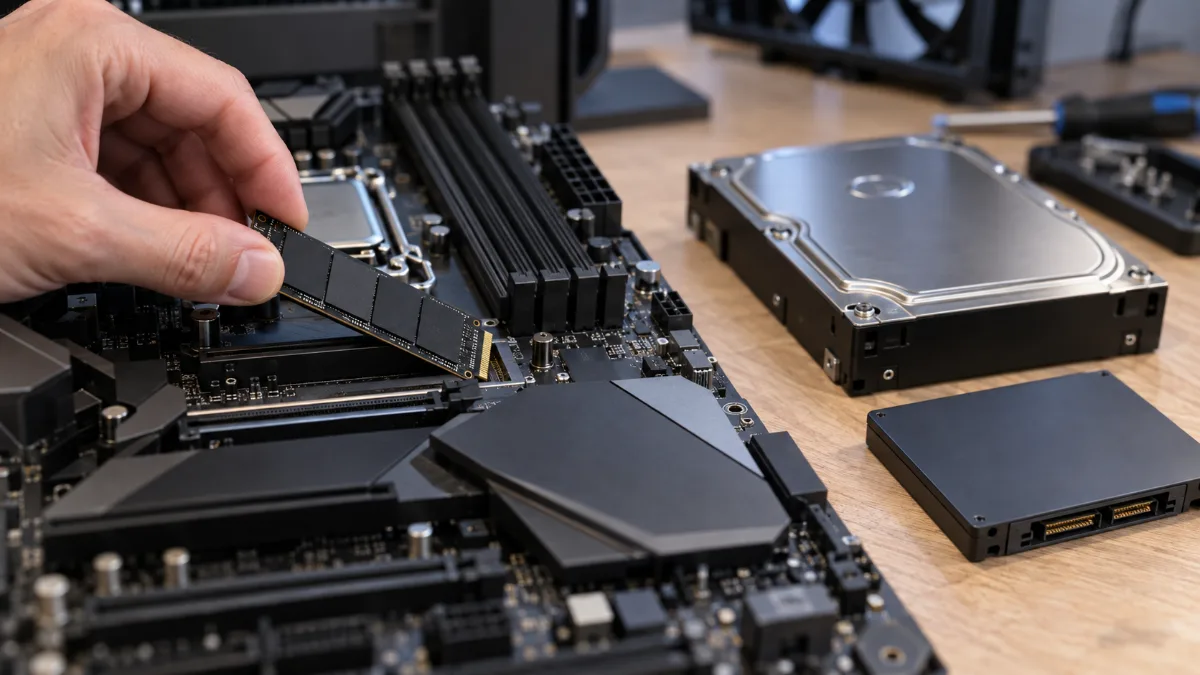
On a PC still fitted with a mechanical hard drive, switching to an SSD changes everything: booting in a few seconds, instant apps. It’s often what gives office machines another two or three years.
The video above shows the full replacement, with the installation of Windows 11. Once the SSD is in place, follow our guide to initialise a hard drive or an SSD.
When it comes to gaming, the graphics card is often the first component to show its limits. Our article on the lifespan of a graphics card helps you tell whether yours can still hold on.
Keep your computer running smoothly for longer
- Dust it off twice a year: our guide to clean your PC of dust shows you how.
- Keep drivers and Windows up to date: see how to update your drivers.
- Sort it out at startup in the Task Manager, Startup tab.
- Reinstall Windows properly every few years, after backing up your photos, videos and documents.
- Monitor temperatures while gaming with a tool like HWiNFO.
Change your PC: build it yourself or buy it pre-built?
Building your own PC lets you choose each part, but it takes time and a minimum level of experience to avoid incompatibilities, an undersized power supply or an imbalance between the processor and graphics card. A PC built by a system integrator saves you that time, with a warranty on the whole system and a machine tested before shipping.
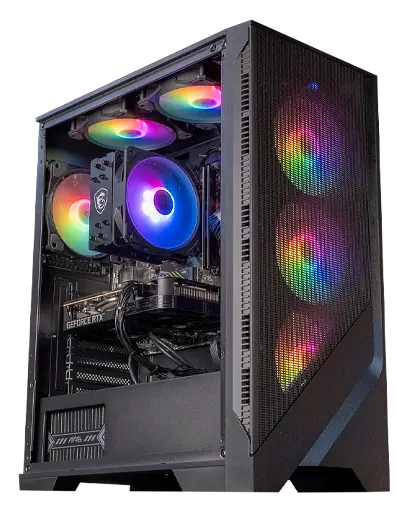
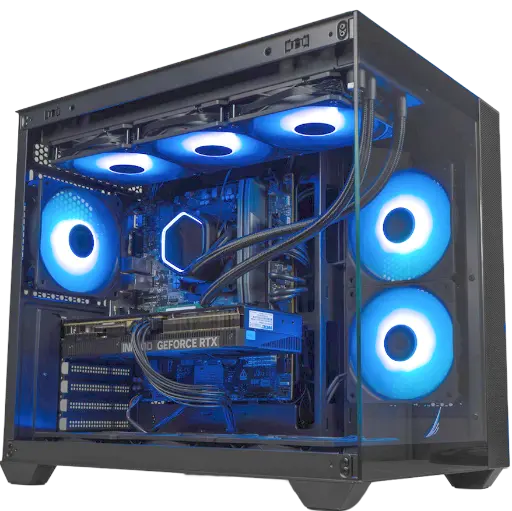
Corvus PC: Ryzen 5 5500 + RTX 5050
A modern replacement for an old PC: compatible with Windows 11, SSD, 16 GB of RAM and a recent graphics card to play in 1080p.
Umbra PC: GeForce RTX 5070 12 GB
For those who want a real leap forward: smooth 1440p and several years of headroom.
And your old PC? Don’t throw it away with household waste. You can resell it, give it to a charity, or drop it off at a collection point so it can be recycled. Remember to erase your data first by resetting Windows with the disk cleanup option.
Frequently asked questions
At what age is a computer too old?
There’s no fixed age. In practice, an office PC often starts to fall behind after 6 to 8 years, and a gaming PC after 4 to 6 years if you want to keep good settings. The real criterion is usage: if it’s still doing what you ask of it, it’s not too old.
My PC isn’t compatible with Windows 11: what should I do?
You can stick with Windows 10 with extended updates until 12 October 2027. After that, you’ll need to replace at least the processor and the motherboard, which often amounts to changing your computer.
Can you keep using Windows 10?
Yes, it still works. But without security updates, it becomes increasingly exposed. Sign up for Microsoft’s ESU programme to stay protected until October 2027.
Can an SSD save an old PC?
Often, yes, as long as the rest is still up to the job. This is the upgrade that delivers the most visible performance improvement for the lowest cost, especially compared to a mechanical hard drive.
When should you change your gaming PC?
When your games no longer run properly even on medium settings, when they refuse to start because of missing hardware features, or when you would need to change the processor, motherboard and graphics card all at once.
What should you do with your old computer?
Resell it, give it away, or drop it off at a collection point for recycling. Erase your data first by resetting Windows with the drive cleanup option.
