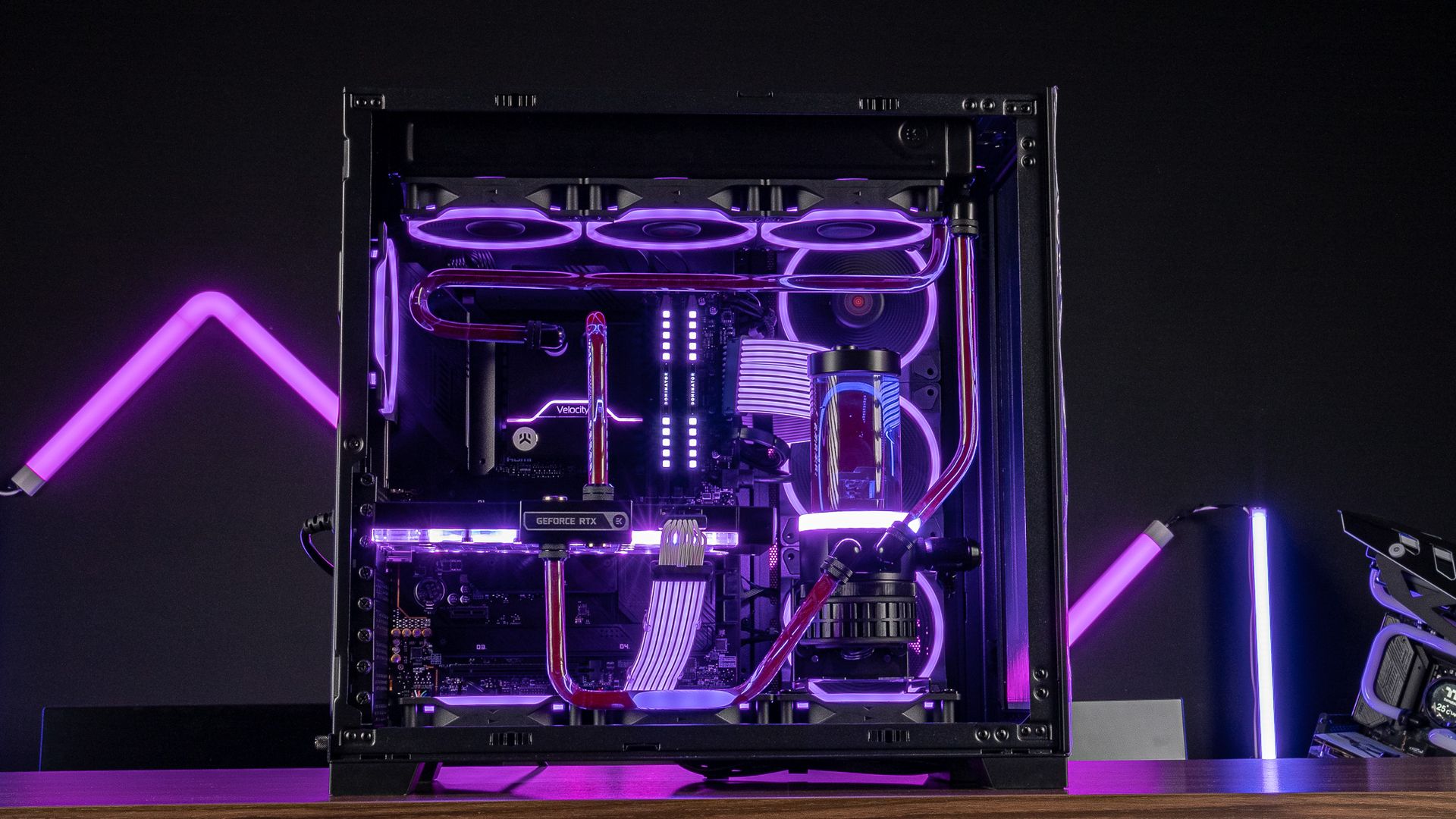
Pay for your PC in installments (up to 12 payments)
How Can I Tell if My Computer Is Too Old?
Computers, like cars, simply seem to get older. But how do you know that your tech friend has had one drink too many?
This article will show you the signs of a computer ageing and point you to what you can do about it—whether you want to buy a new one or simply keep yours in as good condition as possible.
Signs Your Computer Is at the End of Its Life
Excessive Slowness
One of the first signs of an ageing computer is that it becomes very slow.
When your computer starts up, applications open very slowly, and when you run a command or launch a lightweight game (Valorant, LOL), even a simple command takes ages to execute.

With applications becoming increasingly demanding on resources, older components can’t do the job.
At the moment, 16 GB of RAM (random-access memory) in dual-channel DDR4, along with 512 GB of SSD storage, is the minimum if you want to hope to run your PC for the next three years.
As far as processors are concerned, you’ll need to get an 11th-generation Intel or an AM4-based AMD in order to have the minimum resources and keep your PC going for 2–3 years.
A Software Incompatibility
If you discover that you can no longer install the latest versions of your favourite software applications, or that your current operating system is no longer supported by software updates, it’s very likely that your computer has become obsolete.

Technology moves forward, software developers update their products based on the latest technologies, and leave older technologies behind for good.
Strange Noises
Any strange noises coming from your computer, such as clicking, whistling, etc., are signs of hardware malfunctions.
A faulty fan, a hard drive that’s struggling, or any damage inside the tower are all signs that your computer is on its way out.
Battery Problems
For laptops, a battery that starts draining faster than before, or won’t charge at all, is the first sign of ageing.
Replacing the battery can only be a temporary solution, but it’s possible that if other components show signs of ageing, it won’t be enough of a cure.
Overheating
Frequent overheating is another clear sign.
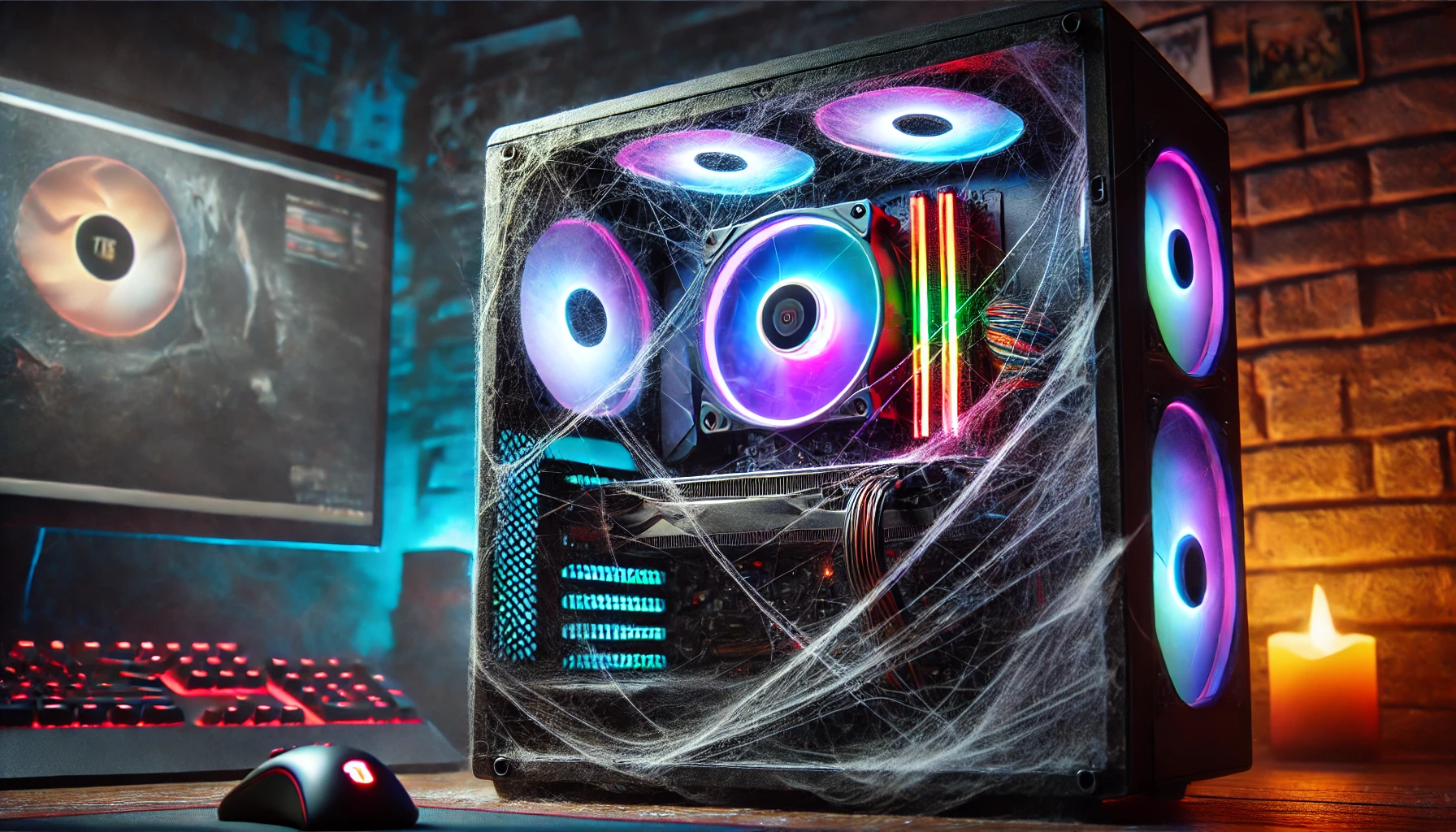
If your computer starts getting super hot to the touch and tends to shut down unexpectedly from time to time, it could be due to a build-up of dust or deterioration of the computer itself.

Solutions
Replace your computer
Now that you know what it looks like, the ball is in your court to decide: either you choose to repair your computer, or you buy a brand-new one.
Build your computer
Building your own computer allows maximum customisation and is a way to save a bit on the price.
By choosing each component individually, you can create a machine that’s perfectly suited to your needs, whether that’s gaming, multimedia creation, or intensive work.
However, make sure you follow enough tutorials and that you know enough about computers to avoid compatibility problems, insufficient battery power, or even bottlenecks.
Buy your computer
If you want to save time, put your trust in professionals, and have the protection of a warranty, you can choose pre-built PCs from reputable professionals. Avoid unscrupulous sellers and big retailers, which generally make a lot of profit on completely outdated full PCs.
Find out as much as you can from other buyers and specialised video creators.
discover our pcs
Keep Your Computer in Good Shape?
As the saying goes, if you want to go far, take care of your gear!
Upgrading the Hardware
If your computer isn’t ready to die yet, but is rather slow, adding more RAM or a brand-new SSD should really help.
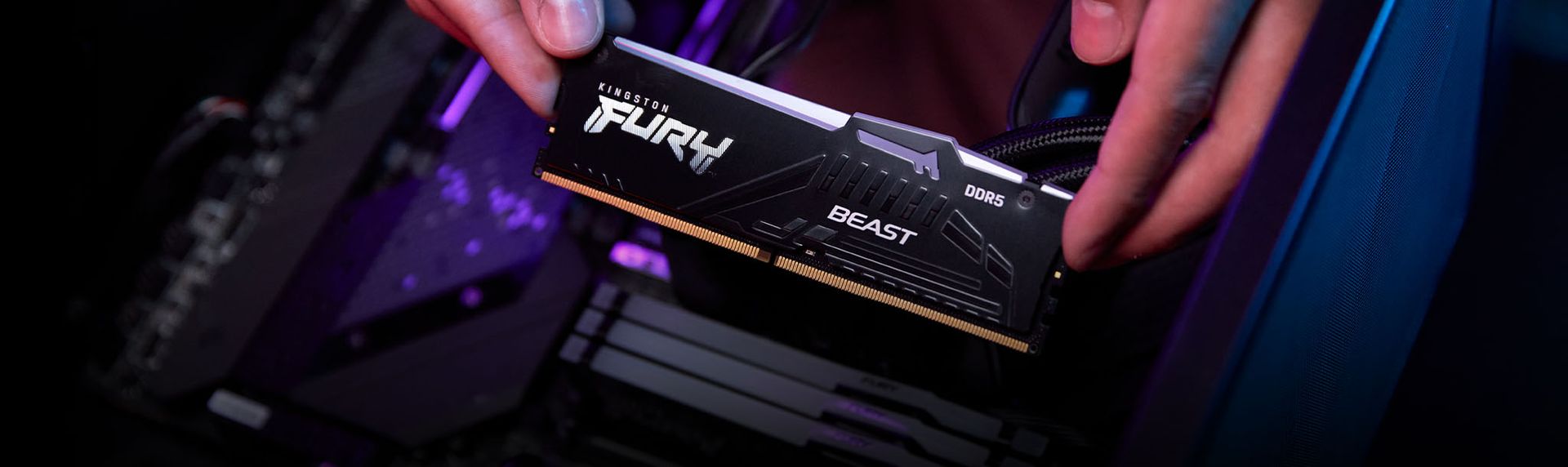
These upgrades will cost far less than a new computer and will give you a few extra years with your machine.
Cleaning and Maintenance
Sometimes, a lot of the cleaning can work wonders. Clear your computer of the dust that has built up in the case (CPU enclosure) as well as in the fans.
Keep your apps, drivers, and operating system up to date as well.
Reinstalling the Operating System
A fresh installation of your operating system would also help to resolve performance issues. It clears temporary files and unnecessary applications that slow down your computer.
Be sure to back up all your data, photos, videos, and applications to a hard drive.
Upgrade your computer
If repair and upgrade costs add up, it may be worth offsetting the purchase of a new computer. The latest technology is more cost-effective, which in itself is equivalent to a whole range of repairs.
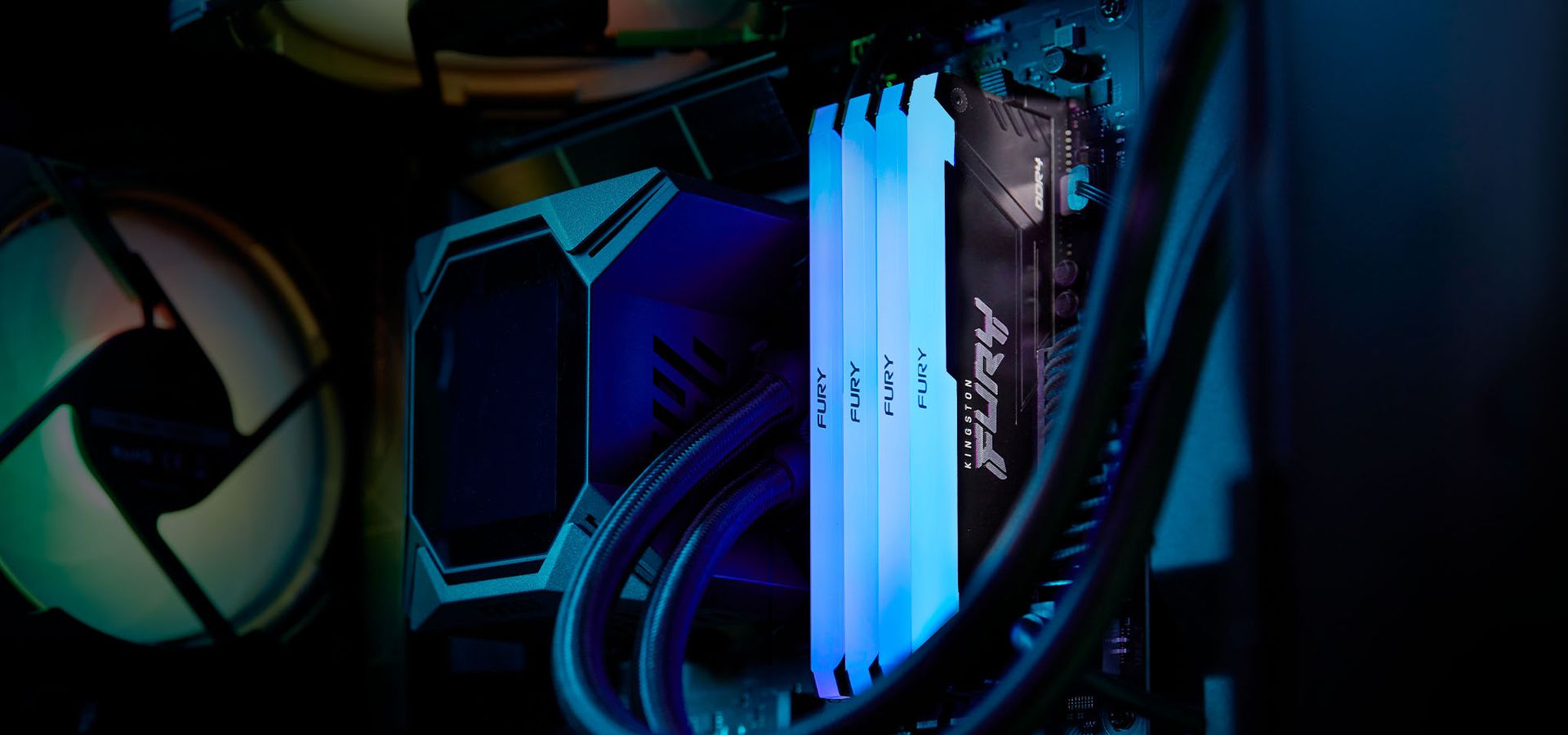
A new computer will also give you access to the latest features and technologies—from better screens to faster processors, along with improved battery life.
They’re also generally more energy-efficient, which can actually save you money in the long run on your electricity bill.
In short
There are a variety of things that should be considered as signs that your computer is getting too old, including performance, software compatibility, and the condition of hardware components.
Based on these indicators, you can then determine whether it’s enough to simply add a few upgrades and repairs to your current computer to ensure it has as long a life as possible, or whether it would actually be smarter to switch to a new computer so you get the most out of it.
Take the time to think about what you really need and what you can afford. Sometimes, all you need is a modest upgrade to give your old piece of tech a new lease of life.
If you notice lots of signs that your computer is wearing out, then switching to a new model may be the best solution in the long term.