
By the FlowUP team, a PC gaming assembler in Genappe (Belgium) · Updated 28 September 2026
Installing a game on PC happens in two phases: downloading, which depends on your connection and the server, then the actual installation (decompression and writing the files), which depends on your drive and your processor. Big recent games can be several dozen gigabytes, sometimes over 100 GB: to speed things up, you need to act on both. Here’s the method to install a game step by step, plus the Steam, network and storage settings that really save time.
In brief
- Install a game: an official launcher (Steam, Epic Games, EA app, Ubisoft Connect, Battle.net, Xbox app), an account, then click “Install” by choosing the drive.
- Slow on Steam: check the download region, remove any bandwidth limits, and clear the download cache.
- Connect the PC to Ethernet rather than Wi‑Fi whenever possible.
- Install your games on an NVMe SSD: the installation step after downloading will be much faster.
- Two PCs at home? Steam’s local network transfer copies the game from one to the other without going back through the internet.
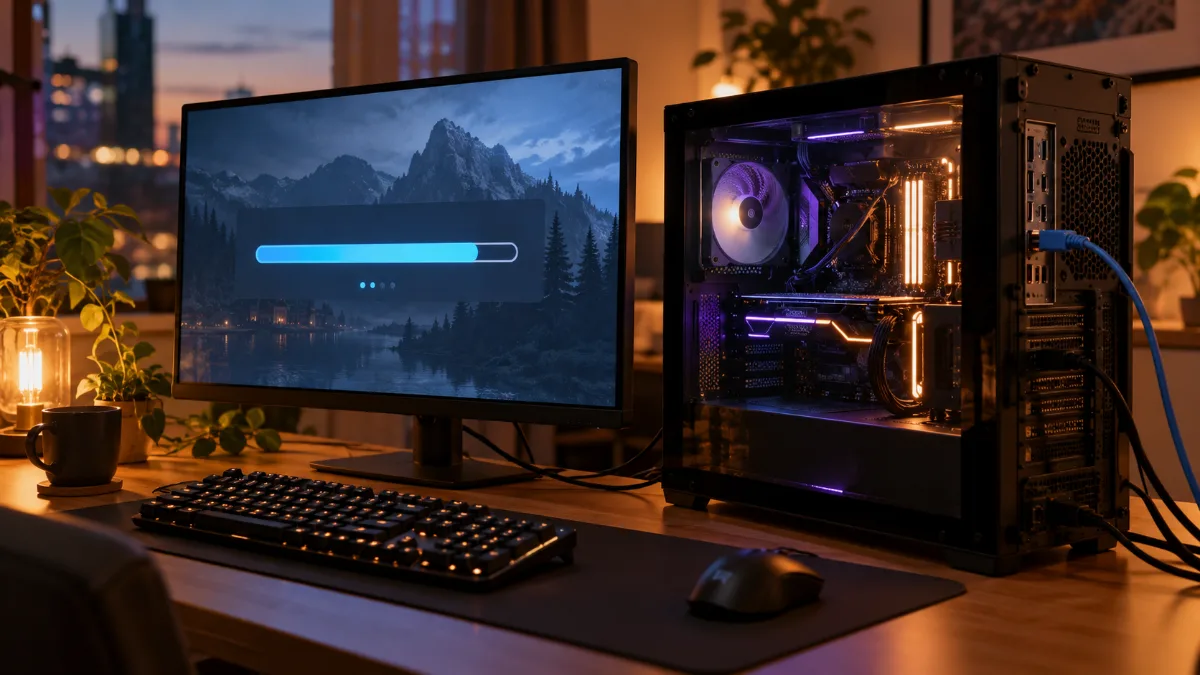
A network cable and a fast SSD: the two biggest levers for speeding up an installation
How to install a game on PC in 4 steps
On PC, almost all games run through a launcher today: an application that handles purchases, downloading and updates. The method is the same everywhere:
- Install the launcher from the store where you buy the game: Steam, Epic Games Store, EA app, Ubisoft Connect, Battle.net or the Xbox app for PC Game Pass. Download it only from the publisher’s official website.
- Sign in or create an account, then buy the game, or add it to your library if it’s free.
- Click “Install” in your library and choose the destination drive. This is the right time to select your fastest SSD instead of an old hard drive.
- Let the launcher do the work: it downloads, decompresses and then verifies the files. The “Play” button appears when everything is ready.
A boxed game or a key code follows the same path: the key is activated in the relevant launcher, then the game downloads like the others.
Why does installing a game take so long?
A launcher strings together two very distinct steps, and they don’t have the same weak point.
| Step | What happens | What limits the speed |
|---|---|---|
| Download | Compressed files arrive from the servers | Your subscription, Wi‑Fi, the selected server |
| Installation | Decompression, writing and verifying files | The drive (SSD or hard drive) and the processor |
If the download bar moves quickly but the installation or update then drags on, the bottleneck is on the storage side, not the internet.
MB/s or Mb/s: is your download really slow?
Internet providers advertise speeds in megabits per second (Mb/s), while Steam shows megabytes per second by default (MB/s). One byte is 8 bits: divide your subscription speed by 8 to know the maximum Steam can display. Steam also lets you show speeds in bits per second in its download settings.
| Subscription | Theoretical maximum in Steam | Theoretical time for 100 GB |
|---|---|---|
| 100 Mb/s | 12.5 MB/s | about 2 h 15 |
| 300 Mb/s | 37.5 MB/s | about 45 min |
| 1 Gb/s | 125 MB/s | about 13 min |
| 2 Gb/s | 250 MB/s | about 7 min |
Theoretical calculation (speed divided by 8); in practice you get a little less due to the network protocol.
In other words, if Steam shows 11 MB/s with a 100 Mb/s connection, your download isn’t slow, it’s already at the maximum. To go faster, you then need to tweak the installation or change your subscription.
Increase download speed on Steam: 5 settings
If your Steam download speed stays well below the value in the table, start with these settings. Almost all of them are in Steam > Settings > Downloads.
1. Choose the right download region
Steam selects a content server close to you, but not always the best one. In “Download Region”, select your country or the closest region, then compare with one or two nearby regions. This is the first piece of Steam support advice in case of slow downloads.
2. Remove the bandwidth limit
On the same page, check that the bandwidth limit is turned off. Typically this is the setting you enable one evening so you don’t interfere with an online game, and then you forget about it for months.
3. Clear the download cache
At the bottom of the page, under Downloads, the button “Clear download cache” resolves a good chunk of blocked downloads or ones that are unusually slow. Your installed games aren’t affected, you’ll just need to sign back into Steam afterwards.
4. Start the big downloads when the PC is idle
A download running during an online match shares the connection with the game, and the installation that follows makes heavy demands on the drive and the processor. Start the big installs when you’re not playing, in the evening or overnight, and pause them before a ranked match.
5. Enable local network transfer
Do you already have the game on another PC at home or on a Steam Deck? Steam can copy the files directly from one device to another instead of redownloading them. According to Valve, a recent computer connected via Ethernet transfers the content at around 100 MB/s, more than many fibre connections. By default, transfers are allowed between devices connected to your own account.
- Both Steam instances must be online and on the same local network.
- The source PC must be idle (no games running, no downloads in progress) and have the game up to date.
- The firewall must allow TCP port 27040 and UDP ports 27031 to 27036.
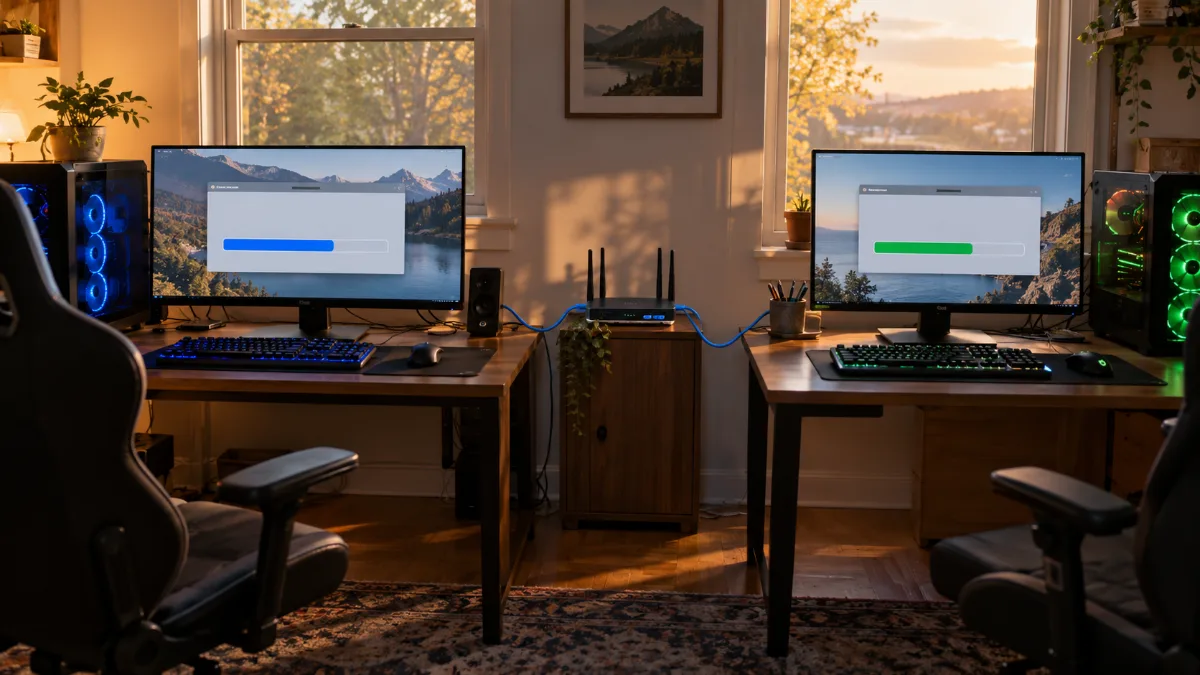
With two PCs on the same network, Steam copies the game locally instead of redownloading it.
The video below covers Steam’s main settings in one minute:
Increase download speed on Steam, in video (channel: “In 1 minute”).
A stable connection: Ethernet cable first and foremost
Wi‑Fi is convenient, but a wall, a floor, or your neighbours’ networks are enough to make your speed drop. For a 100 GB game, an Ethernet cable between the router and the PC is still the most reliable solution. If running a cable is impossible, a PLC adapter or a Wi‑Fi access point placed closer to the PC often helps.
- Pause the other big bandwidth users: cloud sync (OneDrive, Google Drive), Windows updates, and other launchers that download at the same time.
- Restart the router if the throughput drops on all devices, not just in Steam.
- Measure your actual speed on a speed-test site to compare it with what Steam shows.
And the VPN? It adds a detour between you and the download server. In most cases, it slows the download down instead of speeding it up: turn it off during the big installs. If your problem is more lag during the game, our guide for fixing lag on PC details the in-game network settings.
Install your games on an NVMe SSD
Once the download is finished, the drive decides. An NVMe SSD writes files much faster than a hard drive, and the difference is especially noticeable during installation and updates, which affect thousands of files.
| Storage | Typical sequential throughput | For installing games |
|---|---|---|
| Hard drive (HDD) 7,200 RPM | about 150 to 250 MB/s | Slow, especially during updates |
| SATA SSD | up to around 550 MB/s | Good |
| NVMe SSD PCIe 4.0 | up to around 7,000 MB/s | Recommended |
| NVMe SSD PCIe 5.0 | up to around 14,000 MB/s | Very fast, especially useful for creation |
Sequential read speeds announced by manufacturers; for small files, the gap between hard drives and SSDs is even more pronounced.
With a 1 Gb/s fibre connection (125 MB/s), a hard drive keeps roughly the pace of the download, but the following installation and every update take far longer. To choose the right model, follow our guide to choose your SSD in 2026, or compare the two technologies in our HDD vs SSD comparison.
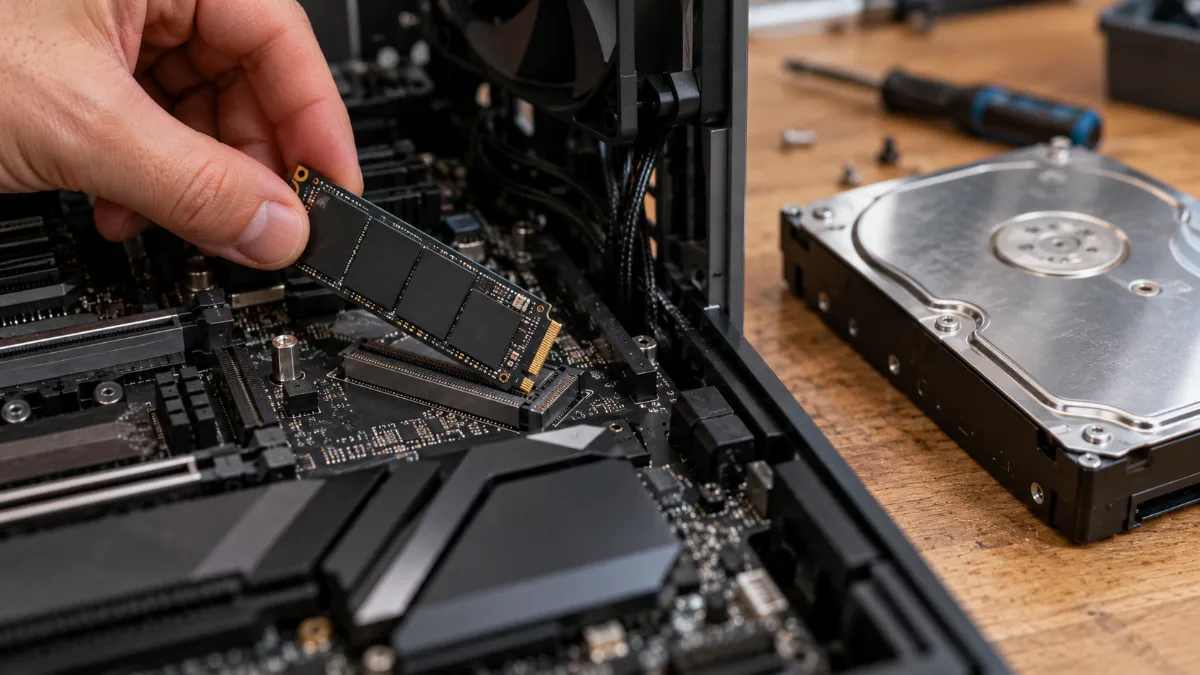
An M.2 NVMe SSD slots directly into the motherboard, with no cable.
Keep some free space
An almost-full SSD slows down write speeds, and updates often need temporary space. Keeping a buffer of around 15, 20% is a good habit. For cleaning without risk, here are the unnecessary files to delete on Windows.
Don’t defragment an SSD
Defragmentation is only useful for hard drives. On an SSD, the Windows tool “Defragment and optimise drives” sends a TRIM command instead: let it do its job and don’t use third-party defragmentation software.
What about an external SSD?
Steam and other launchers allow installing games on an external USB SSD. It’s convenient for storing a library, but the USB port limits throughput: for games you play often, stick with the internal SSD.
FrenchHardware’s take on fast SSDs in 2026.
3 tips to save time without buying anything
Preload games before they launch
Steam, the Epic Games Store or Battle.net often offer preloading a few days before a game launches: the files download in advance, and on launch day there’s only a small update left to get. On Steam, the “Preload” button appears in the library when the publisher allows it, and the window that opens lets you choose the installation drive.
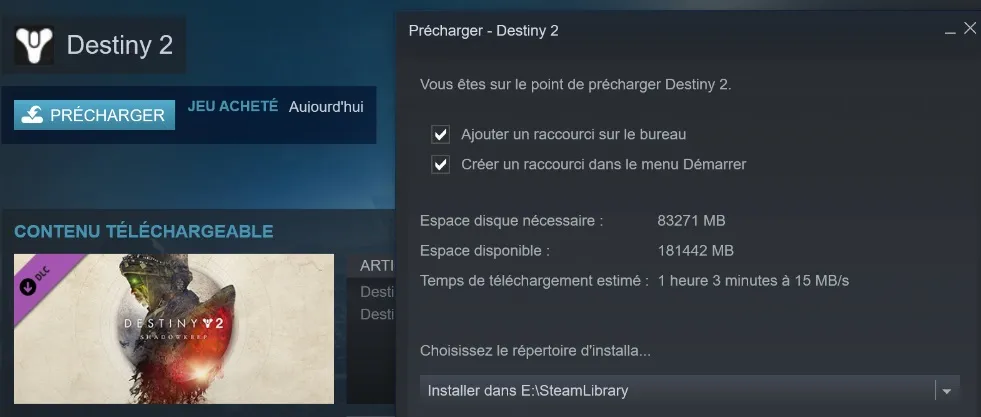
The Steam preloading window: choose your SSD as the destination straight away.
Move a game instead of downloading it again
Do you add an SSD or change disks? In Steam > Settings > Storage, select the game and then choose “Move” to the new drive. This is a local copy, much faster than a fresh download.
Exit power-saving mode
In power-saving mode, Windows limits the processor, and decompressing the files slows things down. During a big installation, switch the power mode to Performance in Settings > System > Power, especially on a laptop.
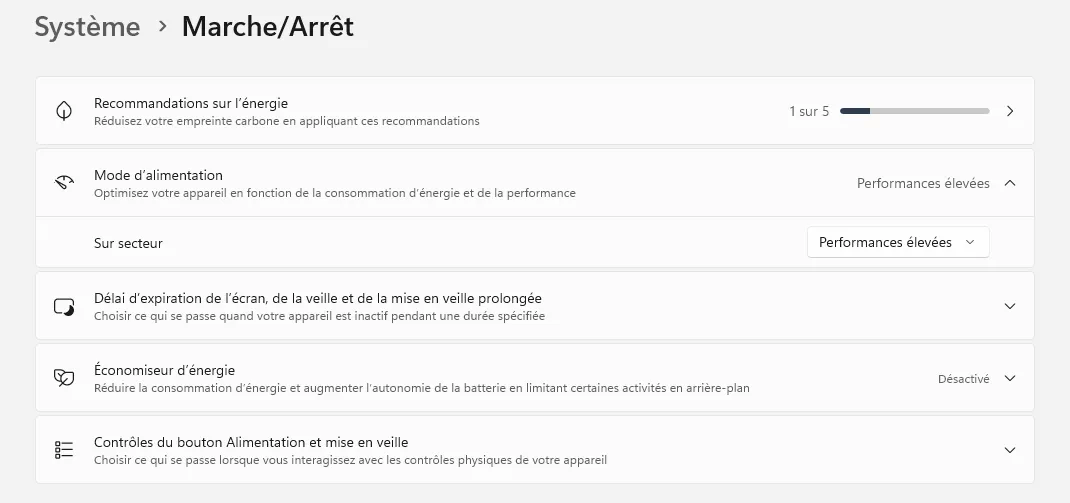
One tip you shouldn’t follow: turn off your antivirus to save a few minutes. Install your games from official stores and keep Windows protection turned on.
FlowUP PCs that install fast
On our gaming PCs, Windows and games install on an M.2 SSD. Three configurations to get started:
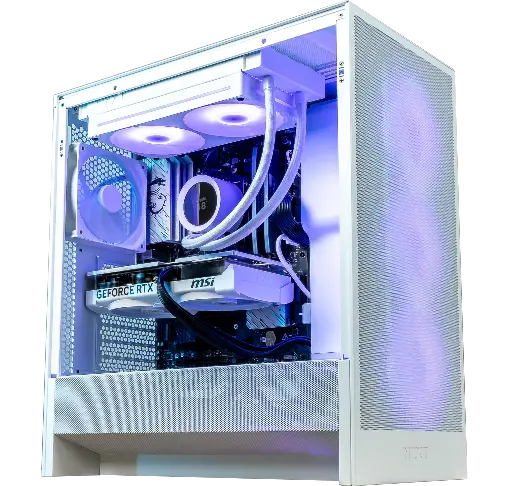
PC Novara GeForce RTX 5070 12GB
Ryzen 5 7500X3D, RTX 5070 12GB, 16 GB DDR5 and 1 TB M.2 SSD: a ready-to-play setup straight out of the box.

PC Novara GeForce RTX 5070
RTX 5070 12 GB, Ryzen 5 7500X3D, 16 GB DDR5, 1 TB M.2 SSD and NZXT Kraken Plus 240 RGB water cooling, to play in 1440p.
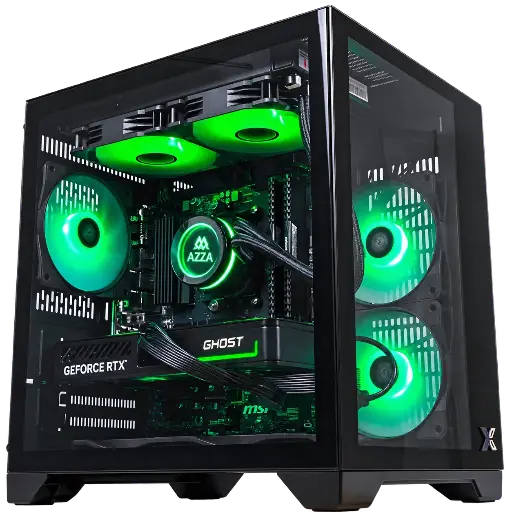
PC CUBI GeForce RTX 5060
RTX 5060, Ryzen 7 5700X, 16 GB DDR4, 500 GB M.2 SSD and 240 mm liquid cooling. A good starting point: add a second SSD when your library grows.
FAQ
Why is my Steam download slow even though I have fibre?
First check the unit: Steam shows MB/s, fibre is advertised in Mb/s, and 1 Gb/s gives at best 125 MB/s. If you’re well below that, change your download region, clear the download cache and switch to Ethernet.
How do I download a free game on PC?
Go through the official stores: Steam and the Epic Games Store offer many free games, and Epic regularly gives away games for a limited time. Avoid unofficial download sites, these are a common source of malware.
Why does installation keep going after the download has finished?
The launcher decompresses and then verifies the files. On a hard drive or an almost-full SSD, this step can take a long time: let it finish, free up space, and install your next games on a NVMe SSD.
Can I play while a game is installing?
Yes, but the download and the online game share the connection, and the installation puts load on the disk and the processor. Pause the download before you start an online match.
How much space should I allow for a game?
The required space is listed in the system requirements on the game’s page. Some large recent games exceed 100 GB, and updates sometimes need additional temporary space as well: a 1 TB SSD is a comfortable minimum for keeping multiple large games installed.
Sources: Steam Support, slow downloads, clear the download cache and local network transfers, accessed 28 September 2026.
A question about your FlowUP PC? Our team will answer you on the support page.
