
By the FlowUP team, PC gaming assembler in Genappe (Belgium) · Updated 28 September 2026
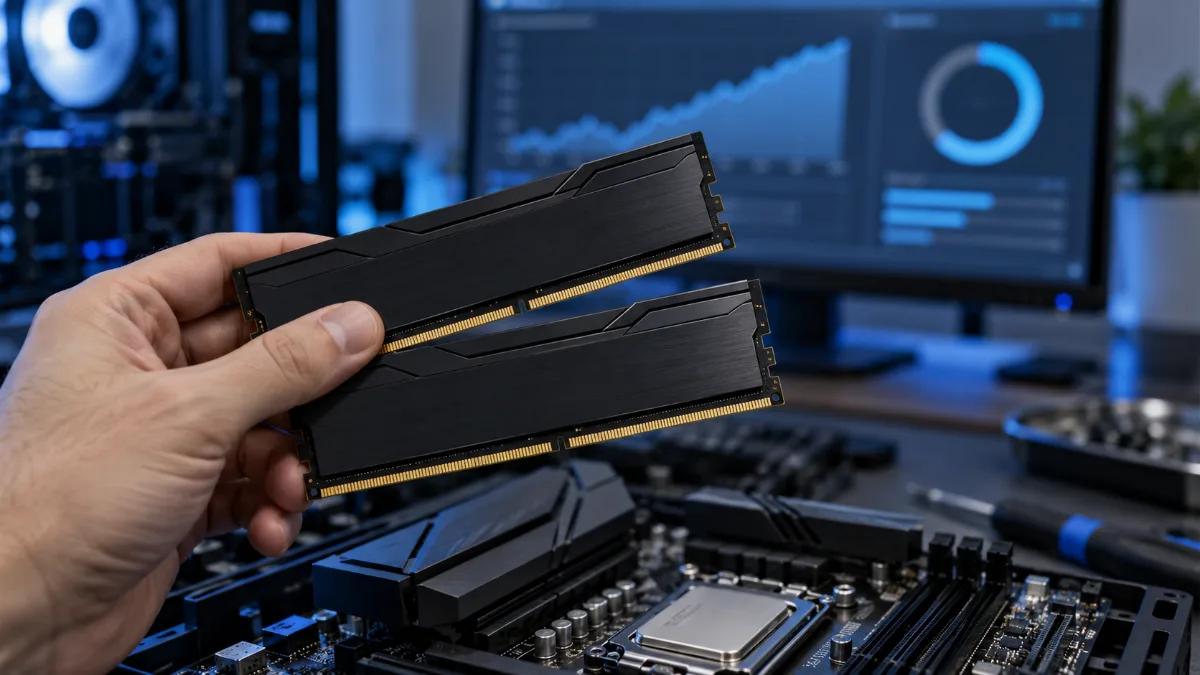
Short answer: you don’t “clean” RAM like a drive. Windows manages memory by itself and frees it as soon as a program is closed. To free up RAM, close unnecessary programs, disable apps at startup, and restart your PC from time to time. If your RAM is constantly full, the real solution is to add more.
What is RAM, and why does it fill up?
RAM (random-access memory) temporarily stores what the processor is using right now: the current game, browser tabs, Discord, and background programs. It empties completely when you shut the PC down.
A well-filled RAM is not a problem in itself: Windows intentionally keeps recently used data in memory (the “standby memory”) to relaunch your programs faster, and it releases it as soon as an application needs it. The real issue is when used memory reaches 90 to 100%: Windows then starts using the disk as extra memory, and everything slows down.
How can you tell if your RAM is saturated?
- Open the Task Manager with Ctrl + Shift + Esc.
- Tab Performance, then Memory: look at memory labelled “In use”.
- Tab Processes: click the Memory column to sort by the most memory-hungry programs.
Below 80% while gaming, everything is fine. Above that, if you’re experiencing slowdowns, try the solutions below.
6 ways to free up RAM in Windows
1. Close the programs that consume the most
In Task Manager, select the unnecessary program and click End task. Browsers with dozens of tabs are often the first culprits: close the ones you don’t need while you’re playing.
2. Disable apps at startup
Task Manager, tab Startup apps: disable anything that doesn’t need to launch with Windows (secondary game launchers, manufacturer utilities, messaging apps). You free up memory and get a faster startup.
3. Restart regularly
A blank restart fully clears RAM. Be careful: in Windows 10 and 11, a normal shutdown uses Fast Startup and doesn’t reset everything to zero, choose Restart instead.
4. Track memory leaks
If the used memory keeps rising during a session, a program or driver is holding onto memory without releasing it. Identify it in Task Manager, then update it or uninstall it. Graphics drivers and some games are sometimes to blame: their updates often fix these leaks.
5. Check virtual memory
Let Windows automatically manage the swap file size (Advanced system settings, Performance, Virtual memory). Disabling it to “save” something is a bad idea: some games crash when RAM is full.
6. Add more RAM
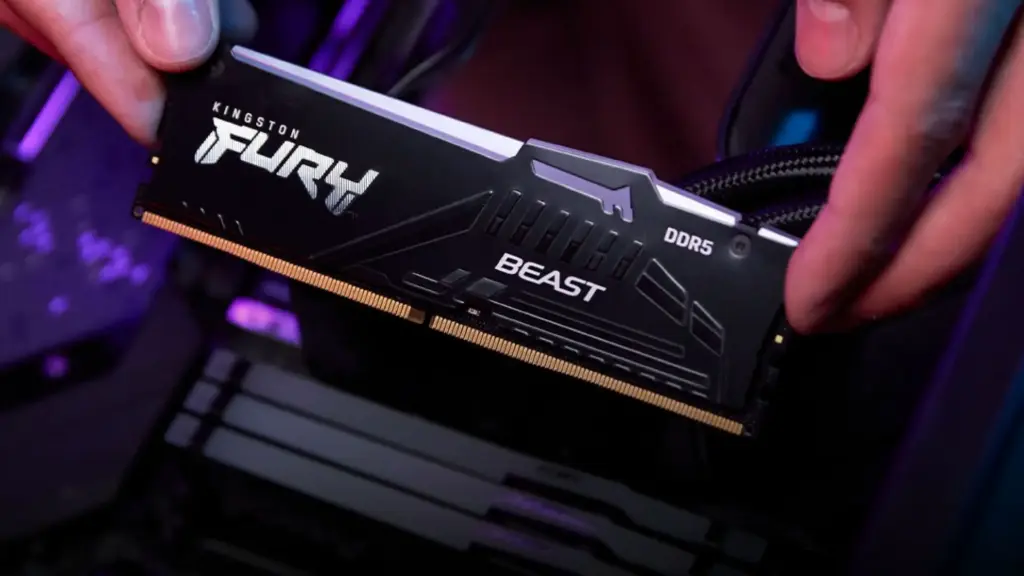
If your RAM is full while only your usual programmes are running, no tip will replace the need for more memory. In 2026, 16 GB is the minimum for gaming, and 32 GB is the comfort option if you stream or keep lots of applications open. Always install two identical sticks to benefit from dual-channel, and check compatibility (DDR4 or DDR5) with your motherboard.
Everything is detailed in our guides 16 GB or 32 GB of RAM in 2026 and how to choose your RAM.
Does “RAM cleaner” software do anything?
Rarely, and they can even slow the PC down. These tools force Windows to clear standby memory. The “free RAM” counter goes up, which is reassuring, but then Windows has to reload from the disk the data it was keeping on hand. Old scripts that “reserve” memory to free it later are no more useful.
The only case where clearing standby memory can help is a specific game or driver bug that causes stuttering after long hours. The free tool RAMMap, published by Microsoft (Sysinternals), does it properly, without any dubious third-party software.
Clearing RAM cache in Windows 10 and 11, in a video by the Québec Test channel. For occasional cases only.
And physically cleaning the RAM sticks?
If your PC won’t boot, beeps during startup, or only detects part of the memory, the contacts on the memory sticks may be the cause. With the PC switched off and unplugged, remove the memory sticks, blow the slots out with dry air, gently clean the gold contacts with a lint-free cloth and a little isopropyl alcohol, then reseat them properly until you hear the click. For the rest of the machine, follow our guide on the unnecessary files to delete software side.
Frequently asked questions about RAM
How do I clear my PC’s RAM?
Close any unnecessary programmes from the Task Manager, disable apps at startup, and restart the PC. Windows automatically frees up memory from closed programmes.
Is it bad if my RAM is used at 80%?
No, Windows intentionally uses the available memory to speed up your programmes. What matters is the memory that is actually used: if it stays close to 100% and the PC slows down, close some programmes or add more RAM.
Do you need to use software to clean RAM?
No, in the vast majority of cases. These programmes clear a memory that Windows already manages very well, which can slow down the PC. Microsoft’s RAMMap is enough for the rare cases where it’s useful.
How much RAM do you need for gaming in 2026?
Minimum 16 GB, 32 GB for comfortable gaming while streaming or with lots of applications open, ideally DDR5 and dual-channel.
Does clearing temporary files free up RAM?
No: temporary files are on the drive, not in RAM. Deleting them frees up storage space. See our article is it dangerous to delete temporary files?
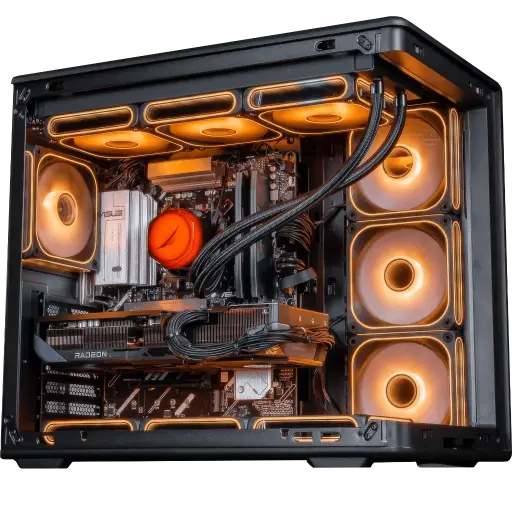
Apex V2 PC: 32 GB DDR5
Ryzen 7 7800X3D, 32 GB DDR5 and RX 9070 XT 16 GB: memory in reserve for gaming, streaming and keeping your applications open.
