 Your PC in instalments (up to 12x)
From the FlowUP team, PC gaming system builder in Genappe (Belgium) · Updated 28 September 2026
No, deleting temporary files isn’t dangerous. Windows and your software create them for occasional use, and anything that’s still used is locked: Windows simply refuses to delete them. Deleting them frees up space, sometimes several tens of gigabytes. Here’s what these files are, how to remove them properly in Windows 10 and 11, and the two boxes you shouldn’t tick by mistake.
In brief
- A temporary file (often with the .tmp extension) is working data created by Windows or an application, which is supposed to disappear afterwards.
- Deleting them is safe: files that are still in use are ignored.
- Simplest method: Settings, System, Storage, Temporary files.
- Watch out for two options: “Downloads” (your personal files) and “Previous Windows installation” (prevents you from going back).
- Main benefit: disk space. For speed, an SSD with some headroom matters a lot more.
Contents
- TMP file: what is it?
- Is it dangerous to delete temporary files?
- How to delete temporary files in Windows 10 and 11
- What you shouldn’t delete
- FAQ
TMP file: what is it?
A temporary file acts as a draft: a programme stores data there during an installation, a software update, video rendering, or when opening a document. It often has the .tmp extension. Normally, the app deletes it once the job is done, but after a crash or a sudden shutdown, many remain on the disk and build up.
You’ll mostly find them in three places:
- %temp% (C:\Users\your name\AppData\Local\Temp): temporary files from your applications.
- C:\Windows\Temp: Windows files.
- Your browser cache, which keeps pieces of websites to load them faster.
Temporary files silently build up in multiple Windows folders.
Is it dangerous to delete temporary files?
No. A temporary file that’s still in use is locked by the programme that’s using it: Windows then shows “The file is open in another programme” and it’s enough to click Ignore. Everything else can be deleted without consequences; at worst, an app recreates its files the next time you launch it, and a website loads a little more slowly the first time after you’ve cleared the cache.
What you need to know is that the gain is mainly disk space. Temporary files don’t slow down the PC by themselves, except when they fill an almost-full SSD: in that case, the entire system suffers. For real speed gains, see our complete guide to clean your PC.

At the service desk, we remind you of this often: emptying temporary files frees up space without breaking anything.
How to delete temporary files in Windows 10 and 11
Method 1: storage settings (the simplest). Open Settings, System, Storage, then Temporary files. Windows calculates the space used by category: tick what you want to delete and click Delete files.
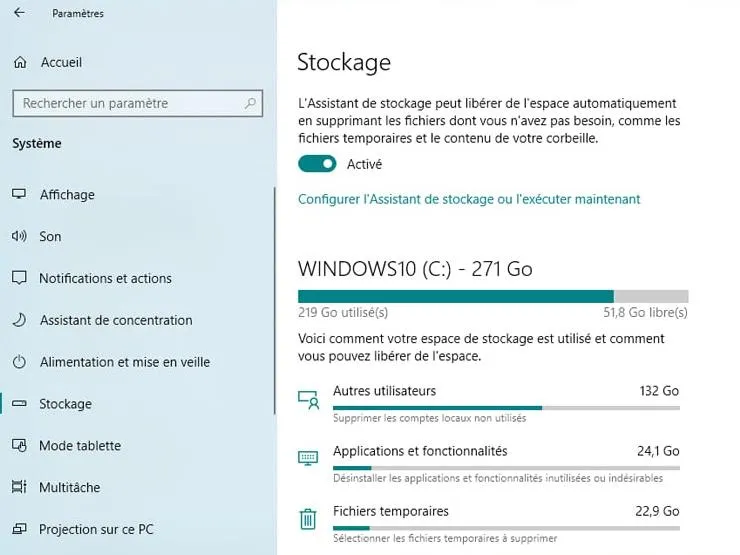
On this PC, 22.9 GB of temporary files to recover in one click.
Method 2: the %temp% folder. Press Windows + R, type %temp% and confirm. Select all (Ctrl + A), press Delete and tick “Do this for all current items” before clicking Ignore for the files currently in use. Empty the Recycle Bin afterwards.
Method 3: Disk Cleanup. Windows + R, type cleanmgr, choose the C drive, then Clean up system files to include leftover Windows update files.
Method 4: Storage Assistant, automatically. In Settings, System, Storage, enable the Storage Assistant: Windows will automatically delete temporary files and empty the Recycle Bin at the chosen frequency. This is the solution we recommend so you don’t have to think about it anymore.
And the browser? In Chrome, Edge or Firefox, the shortcut Ctrl + Shift + Delete opens the clearing of browsing data directly. Tick “Cached images and files” and leave passwords and cookies checked if you don’t want to have to log in again everywhere.
No need for paid cleaning software: Windows tools do the same job, without the risk of deleting items useful to the system. Video demonstration with the HotDriver channel:
What you shouldn’t delete
- Downloads: this box, found in Windows temporary files, clears your entire Downloads folder. Only tick it if you’ve checked it.
- Previous Windows installations: several gigabytes, but that’s what lets you go back to the previous version after a major update. Wait a few days for everything to work properly before deleting it.
- Random system folders: don’t delete anything manually in C:\Windows except Temp, and not in the game installation folders.
A bit of tidying is enough: Windows tools get the job done safely.
If your drive is still full after cleaning, the most effective option is to add space: everything is explained in how to choose your SSD, and if a new drive doesn’t appear, follow our guide hard drive or SSD not detected.
To go further than temporary files, check out our list of unnecessary files to delete on Windows.
FAQ
Can I delete all the files in the Temp folder?
Yes. Files that are currently in use won’t allow themselves to be deleted: click Ignore. Nothing important for you is stored in this folder.
Does deleting temporary files speed up the PC?
Rarely in a visible way. The real benefit is the space you free up, which helps especially when the system drive is almost full.
How often should I delete them?
Once a month is enough, or never manually if Storage Assistant is enabled.
What is a .tmp file that I can’t delete?
A file that’s still open by a program. Restart your PC and try again: it usually frees up.
Our gaming PCs come with an M.2 SSD and Windows ready to use: discover our configurations.
