 Your PC in instalments (up to 12x)
By the FlowUP team, gaming PC builder in Genappe (Belgium) · Updated 28 September 2026
Unnecessary files, or unwanted files, are everything Windows and your software leave behind: temporary files, update leftovers, old Windows installations, forgotten apps. Chosen wisely, they often represent dozens of gigabytes. Here’s what you can delete safely in Windows 10 and 11, free of charge and using the tools already built in, and what you definitely shouldn’t touch.
In short
- Safe to delete: temporary files, Recycle Bin, Windows update cache, thumbnails, error reports.
- Delete after checking: Downloads, old Windows installation, unused apps and games, large duplicate files.
- Never delete manually: Windows folders, System32, WinSxS, .dll files, and pagefile.sys or hiberfil.sys files.
- Everything is free in Settings, System, Storage, without any cleaning software.
Contents
- Which unnecessary files should you delete?
- How to remove unwanted files for free
- Which apps should you delete to free up space
- Files you should never delete
- FAQ
Which unnecessary files should you delete?
| File types | Deletion | Where to find them |
|---|---|---|
| Temporary files (.tmp) | Safe | Storage, Temporary files, or the %temp% folder |
| Recycle Bin | Safe (after checking) | Desktop, Recycle Bin |
| Cleaning Windows updates | Safe | Storage, Temporary files |
| Windows thumbnails and error reports | Safe | Storage, Temporary files |
| Distribution optimisation files | Safe | Storage, Temporary files |
| Downloads folder | After checking | File Explorer |
| Previous Windows installation (Windows.old) | After checking (with less of a rollback option) | Storage, Temporary files |
| Unused apps and games | After checking | Settings, Apps |
| Large files and duplicates (videos, ISOs, archives) | After checking | Storage, Cleanup recommendations |
Temporary files are the easiest to delete: everything is explained in our article is it dangerous to delete temporary files.
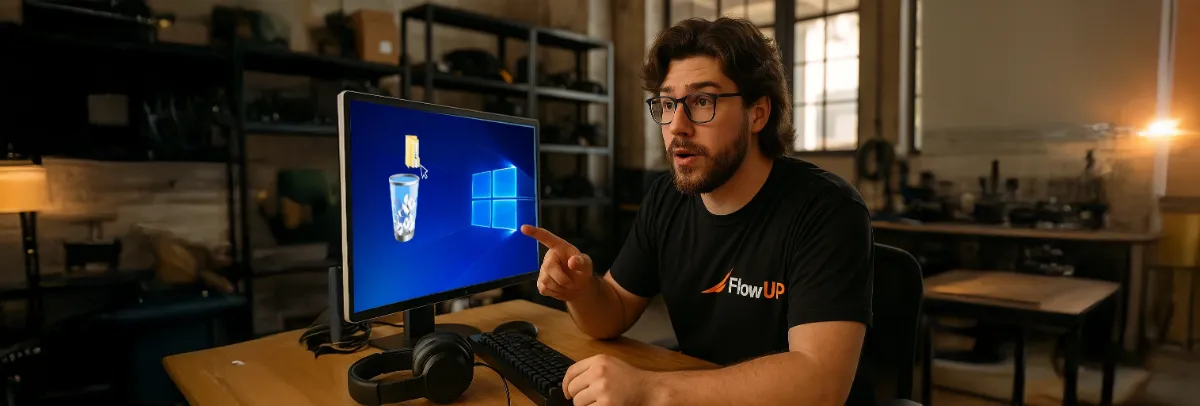
Temporary files, update leftovers, old apps: the trio that fills up your drives.
How to remove unwanted files for free
No need for paid software or a third-party “cleaner”: Windows 10 and 11 include everything you need.
- Open Settings (Windows + I), then System and Storage.
- Click on Temporary files, tick the safe categories in the table above, then Remove files.
- In Windows 11, also open Cleanup recommendations: Windows lists large files, unused files, and apps that are rarely opened.
- Turn on Storage Assistant so this cleanup happens automatically every month.
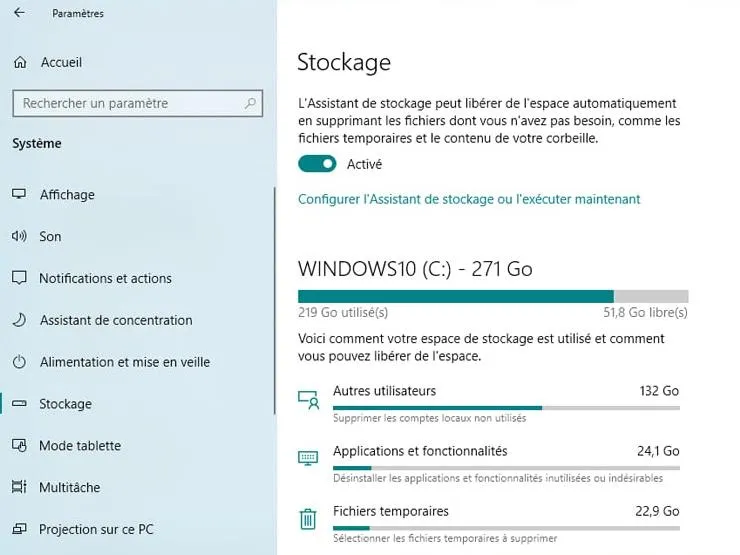
The Storage page shows what’s taking up your drive, category by category.
For update leftovers, the old tool Disk Cleanup still works: Windows + R, type cleanmgr, then Clean up system files. The PCLift chain shows these steps in a video:
Which apps should you delete to free up space
In Settings, Apps, Installed apps, sort the list by size: the biggest ones appear first. On a gaming PC, it’s almost always games you no longer play, some of which exceed 100 GB. Uninstall them from their launcher (Steam, Epic, Battle.net): most of your saves remain in the cloud for most recent games.
Also remove trial software you never use, duplicate tools (two video players, three browsers) and old printer or device drivers you no longer need. If you’re unsure about an unknown app, look up its name before uninstalling: some are useful drivers (audio, chipset, graphics card).
Last tip: your videos, photos and archives don’t need to be on the system SSD. Move them to a second drive or an external disk, this is often where the real gain is.
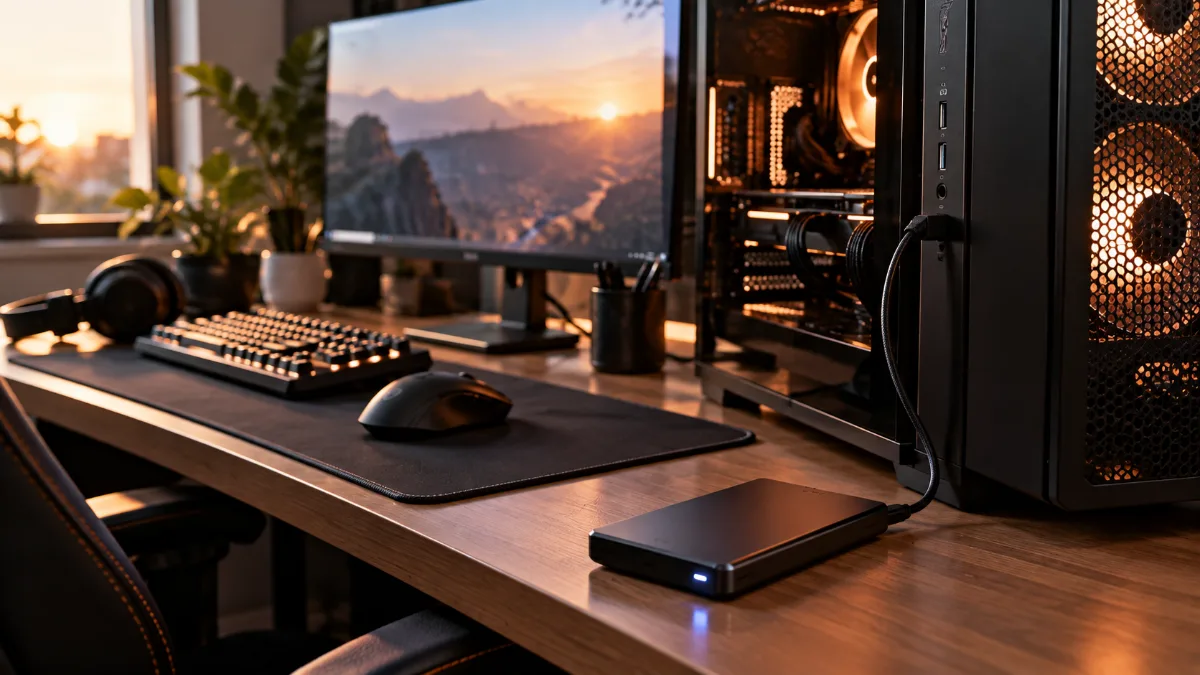
Videos and archives can live on an external drive instead of the system SSD.
Files you should never delete
- The C:\Windows, System32 and WinSxS folders: deleting anything there by hand can stop Windows from starting. To shrink WinSxS, use the Windows Update cleanup instead.
- .dll files: they are used by multiple programmes at the same time. Renaming or deleting them “just to see” is a bad idea.
- pagefile.sys and hiberfil.sys: the swap file and the hibernation file. They’re managed by Windows.
- The Prefetch folder: it speeds up programme startup. Emptying it is pointless, Windows rebuilds it straight away.
- The Program Files folders: always uninstall software via Settings, never by deleting its folder.
If your drive stays full anyway, it’s simply too small for your use. Our advice on choosing an SSD will help you add one, and if you want a complete clean-up, including the inside, follow our guide to cleaning your PC.
FAQ
How to remove unwanted files for free?
With Settings, System, Storage, Temporary files, or with the Disk Cleanup tool (cleanmgr). Both are built into Windows and are free.
What are unwanted system files?
They’re leftover update files, error reports, thumbnails, and old Windows installations. Disk Cleanup deletes them via “Clean up system files”.
Should you use CCleaner or another cleaner?
It’s no longer necessary: Windows tools cover what’s essential. In particular, avoid “registry cleaners”, which provide no measurable benefit and can cause problems.
Does deleting unnecessary files speed up the PC?
Especially if the system drive was nearly full. Otherwise, the gain is space, not speed.
Need more space for your games? Our gaming PCs come with a fast M.2 SSD: discover our configurations.
