 Your PC in instalments (up to 12x)
By the FlowUP team, gaming PC builder in Genappe (Belgium) · Updated 30 September 2026
In brief: FreeSync (AMD) and G-Sync (NVIDIA) are two variable refresh rate (VRR) technologies: the screen constantly syncs to the number of frames sent by the graphics card. The image no longer tears (tearing) and the stutters associated with V-Sync disappear. Today, most FreeSync monitors also work with NVIDIA cards in G-Sync Compatible mode. To choose, focus mainly on the frequency range and the certification level, not just the logo.
Tearing: the problem that FreeSync and G-Sync solve
A typical monitor refreshes at a fixed rate, for example 144 times per second. The graphics card, meanwhile, produces a number of frames that constantly changes depending on the scene. When a new frame arrives while the monitor is still displaying the previous one, you see two offset halves of frames: that’s tearing, or tearing.
The traditional solution, V-Sync, forces the graphics card to wait for the monitor. No more tearing, but stutters start the moment the frame rate drops below the monitor’s refresh frequency, plus a slight input delay. VRR reverses the logic: it’s the monitor that waits for the graphics card.
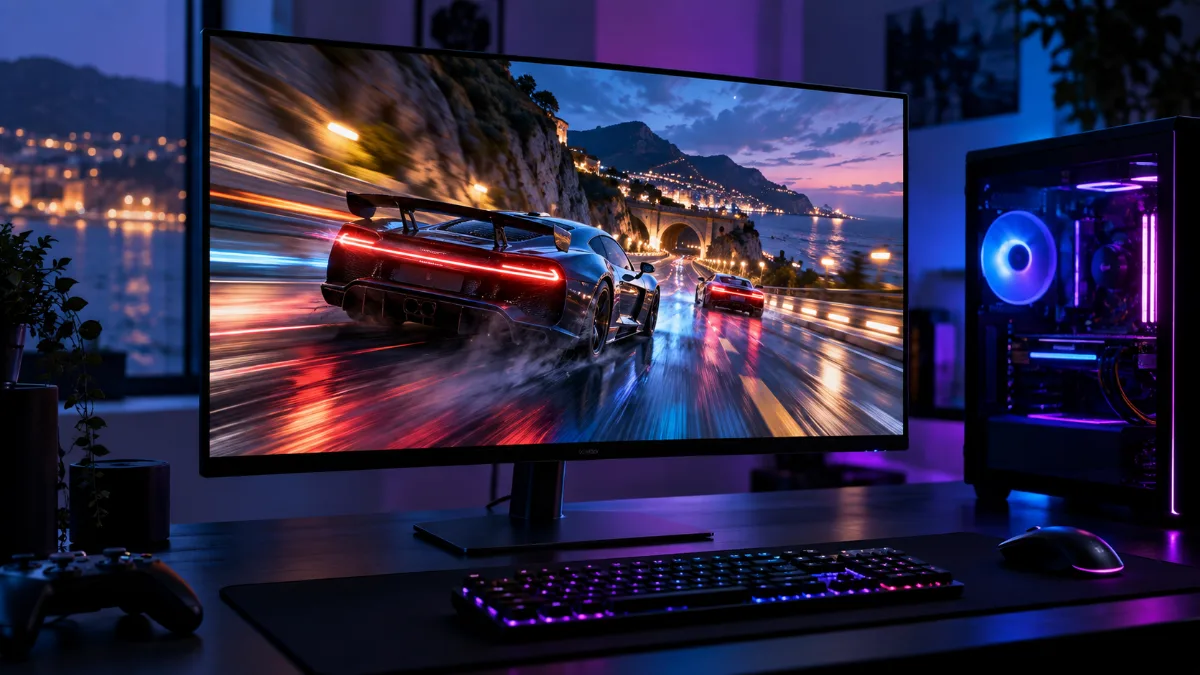
With VRR, the monitor follows the graphics card image by image.
FreeSync: AMD’s three tiers
| Tier | Required frequency below 3440 pixels wide | Required frequency from 3440 pixels wide | Certified HDR |
|---|---|---|---|
| FreeSync | Minimum 144 Hz | No minimum | No |
| FreeSync Premium | Minimum 200 Hz | Minimum 120 Hz | No |
| FreeSync Premium Pro | Minimum 200 Hz | Minimum 120 Hz | Yes |
Source: AMD, FreeSync page; new requirements in force since March 2024 (Tom's Hardware).
The Premium and Premium Pro tiers also require LFC (Low Framerate Compensation): when frames per second drop below the minimum of the VRR range, the graphics card doubles the frames so the monitor stays within its range. AMD raised its requirements in March 2024: a monitor certified before that date may therefore display a logo with older criteria.
G-Sync: NVIDIA’s tiers
| Tier | NVIDIA processor in the screen | What it brings |
|---|---|---|
| G‑Sync Compatible | No: standard Adaptive-Sync validated by NVIDIA | Basic VRR, with no flicker or artefacts observed by NVIDIA |
| G-Sync | Yes | VRR across the full range, variable overdrive |
| G‑Sync Ultimate | Yes, high-end | All G-Sync, plus HDR |
| G‑Sync Pulsar | Yes | VRR combined with stroboscopic backlighting for greater motion clarity |
Source: NVIDIA, G-SYNC screens page.
Since 2024, NVIDIA has integrated its G-Sync features directly into MediaTek display chips. No dedicated module is needed anymore, which lowers the price of “complete” G-Sync monitors.
FreeSync or G-Sync: which one should you choose?
Our view as PC builders: in 2026, the logo matters far less than before. Most monitors sold are Adaptive-Sync displays, VESA’s open standard on which FreeSync is based. They work with a Radeon in FreeSync, and with a GeForce in G-Sync Compatible mode.
- AMD Radeon card: a FreeSync screen, ideally Premium for LFC.
- NVIDIA GeForce card: a G-Sync Compatible screen, or a recent FreeSync screen. NVIDIA lets you enable VRR on non-validated screens, without guaranteeing the result.
- You swap graphics cards often: a screen certified for both FreeSync and G-Sync Compatible, and you’re sorted.
For GeForce cards, you need a GTX from the 10-series or newer via DisplayPort. With HDMI 2.1, G-Sync Compatible VRR works starting from the RTX 30.
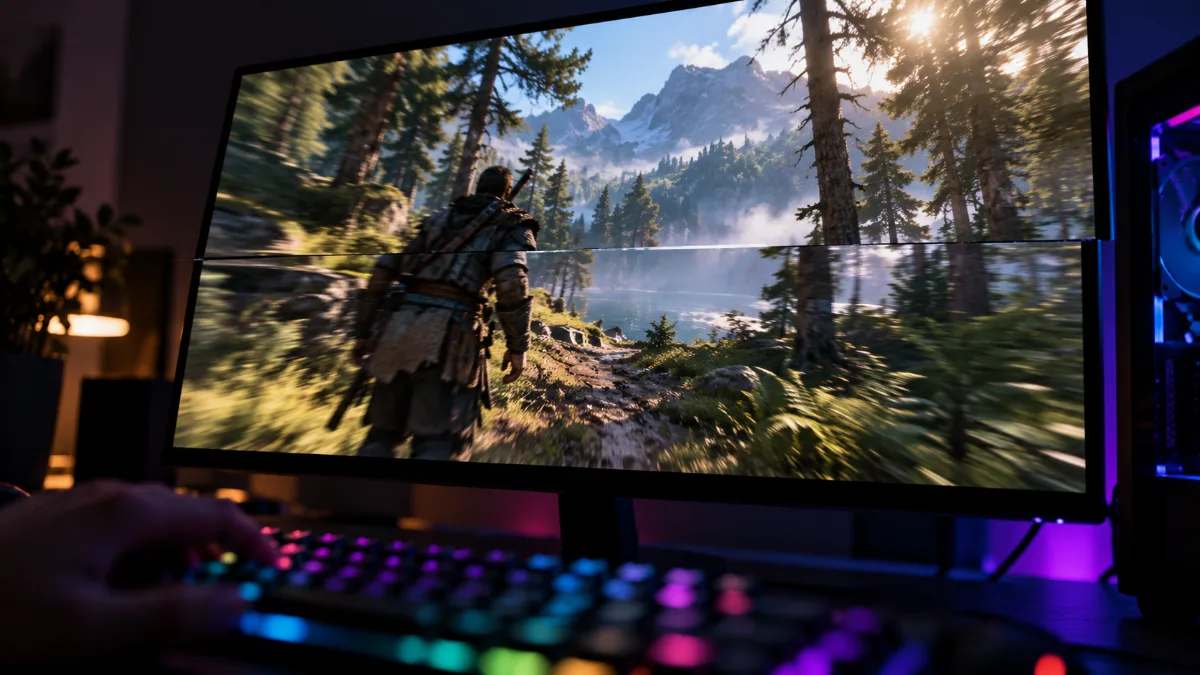
Tearing: two images displayed at the same time, offset from each other.
How to enable FreeSync or G-Sync
- In the monitor menu: enable the FreeSync, Adaptive-Sync or VRR option. It’s sometimes disabled at the factory.
- Prefer to connect via DisplayPort: the VRR range is often wider there than with HDMI.
- NVIDIA card: NVIDIA Control Panel, then Display and Configure G-SYNC.
- AMD card: AMD Adrenalin software, Display tab, AMD FreeSync option.
- In Windows: check that the screen’s maximum refresh rate is correctly selected in the advanced display settings.
Our tip: enable VRR and limit the frame rate to a few units below the monitor’s maximum refresh rate (for example 160 on a 165 Hz screen). This way you’ll always stay within the VRR range. For choosing the screen itself, read our guide which monitor to choose for a gaming PC.
VRR-compatible gaming screens
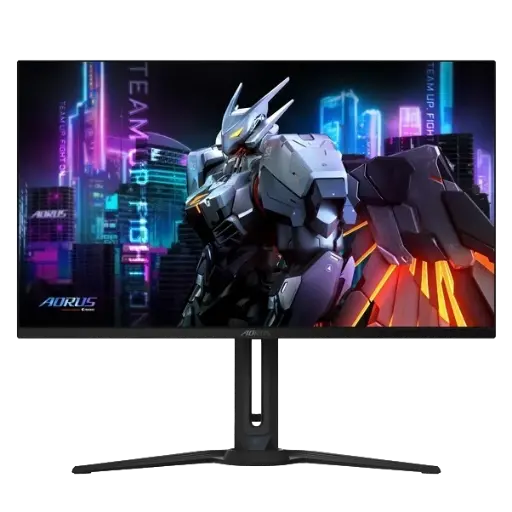
AORUS FO32U: FreeSync Premium Pro
32-inch 4K QD-OLED at 165 Hz with FreeSync Premium Pro: VRR and HDR for high-end graphics cards.
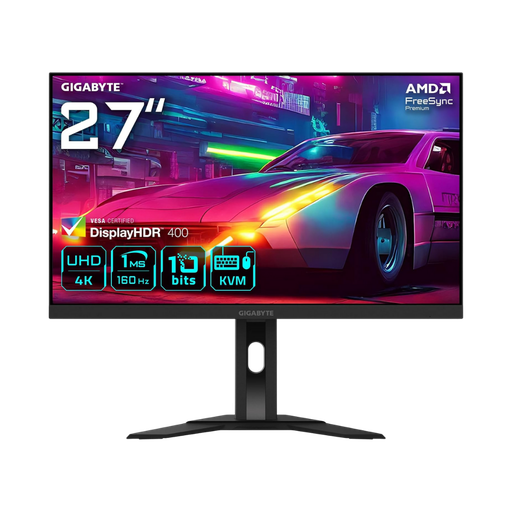
GIGABYTE M27UA: FreeSync Premium
27-inch 4K at 160 Hz in IPS, FreeSync Premium: crisp, smooth 4K.
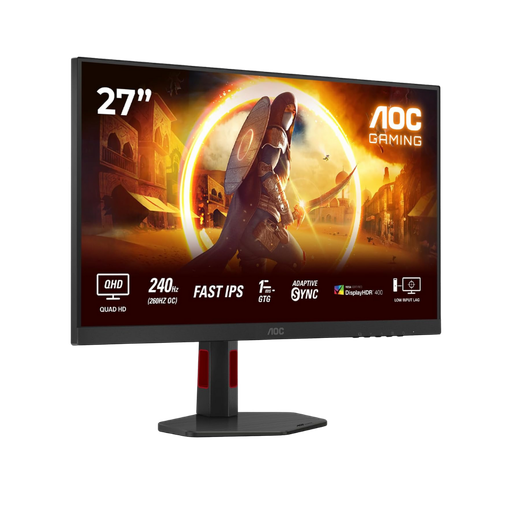
AOC 27" QHD 240 Hz: Adaptive-Sync
VRR range from 48 to 260 Hz via DisplayPort: perfect for competitive 1440p.
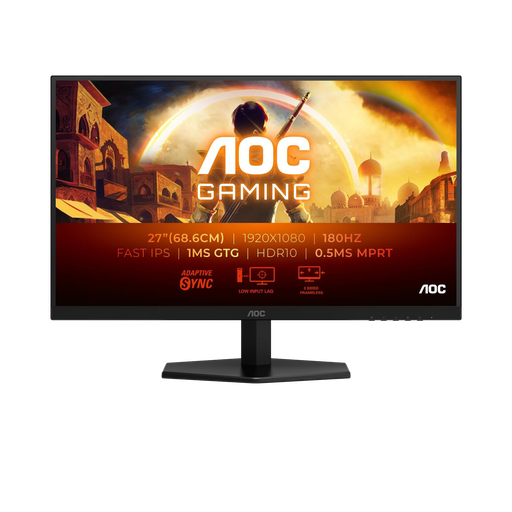
AOC 27" FHD 180 Hz: G-Sync Compatible
Adaptive-Sync and G-Sync Compatible: the right screen for a GeForce in 1080p.
FAQ: FreeSync and G-Sync
What’s the difference between FreeSync and G-Sync?
Both synchronise the screen to the graphics card. FreeSync is AMD’s technology, based on the open standard Adaptive-Sync. G-Sync is NVIDIA’s, with a dedicated processor in the screen for G-Sync and G-Sync Ultimate levels.
Does a FreeSync screen work with an NVIDIA graphics card?
Yes, in the vast majority of cases, in G-Sync Compatible mode, with a GeForce GTX 10 or newer. Screens validated by NVIDIA are guaranteed to be free from flickering.
Do you need to enable V-Sync with FreeSync or G-Sync?
It’s not essential. The simplest option is to cap the frames per second slightly below the screen’s maximum refresh rate to stay within the VRR range.
FreeSync Premium or Premium Pro?
Premium is enough for gaming in SDR. Premium Pro adds HDR certification: useful on an OLED screen or a very bright display.
Is G-Sync Compatible worse than G-Sync?
A bit less complete: no variable overdrive and sometimes a shorter range. But in games, a good G-Sync Compatible screen already provides a smooth, tear-free image.
