
By the FlowUP team, gaming PC assembler in Genappe (Belgium) · Updated 28 September 2026
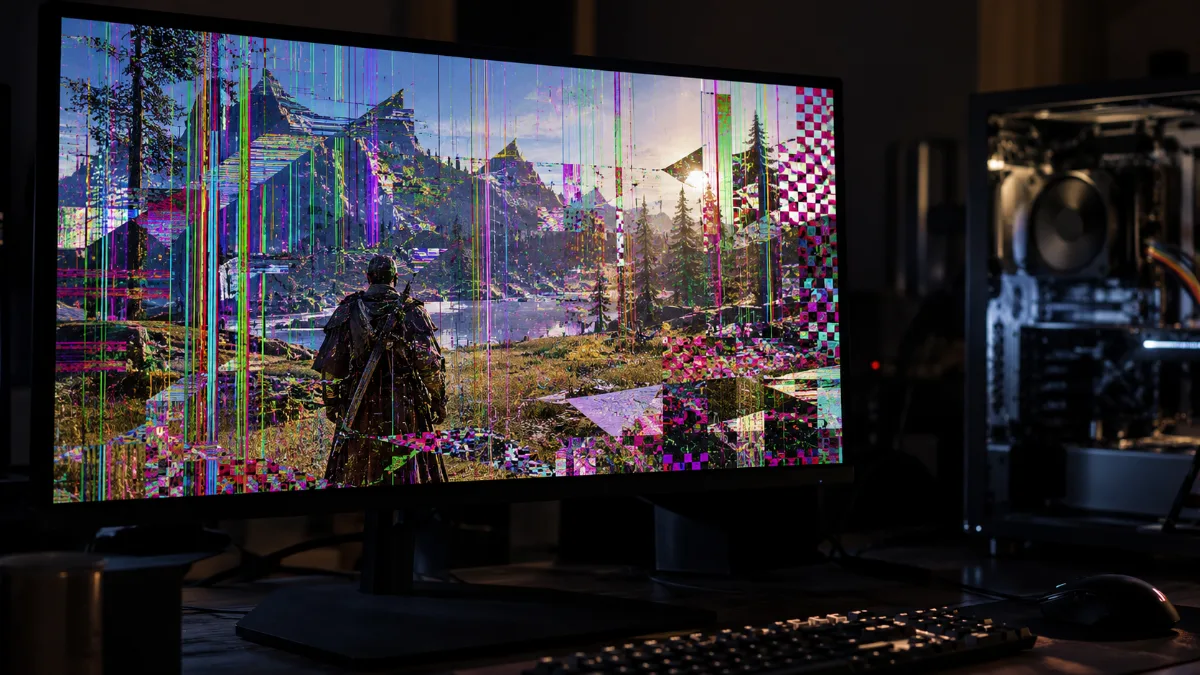
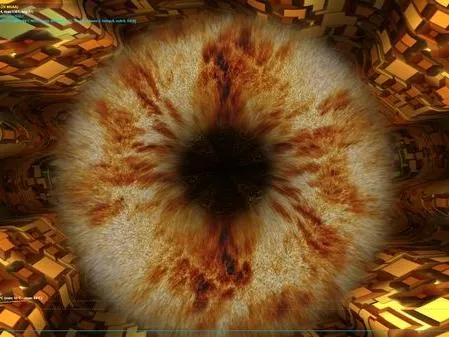
In short: a graphics artefact is a display defect that shouldn’t be there, lines, pixel checkerboards, stretched triangles, textures that flicker. The cause is often software-related (driver, overclocking) and it can be fixed within a few minutes. If the artefacts also appear in the BIOS, even before Windows, then the graphics card or its memory is probably to blame.
What does a graphics card artefact look like?
You sometimes read that the colour of artefacts indicates their cause (red for overheating, green for the driver...). That’s a myth: the colour depends mainly on the image being displayed at the moment the bug occurs. What really matters is the shape of the defect and when it appears.
| Symptom | Most common causes |
|---|---|
| Coloured points or sparks that flicker | Unstable video memory (VRAM), overclocking, overheating |
| Checkerboards, pixel blocks, corrupted textures | Faulty or too hot VRAM |
| Stretched triangles or polygons towards the edges of the screen | Corrupted driver, GPU overclocking, card nearing end of life |
| Fixed vertical or horizontal lines | Cable, port or screen; otherwise the graphics card |
| Screen flickers or goes black at times | Cable, screen frequency, driver, power supply |
The time-saver: where do the artefacts appear?
Restart and enter the BIOS (press Delete or F2 during startup). The BIOS doesn’t use your graphics drivers: it’s the best test to tell software from hardware.
| The artefacts appear… | Main clue |
|---|---|
| In the BIOS and at startup | Hardware: graphics card, cable or screen |
| Only under Windows, even on the desktop | Graphics driver, display settings |
| Only in games, after a few minutes | Overheating, overclocking, power supply, or VRAM that wears out under load |
| Only in one game | Game bug or graphics setting: update it, check the files |
Quick extra check: connect the monitor using another cable, on another output of the graphics card, or test with another screen. If the problem disappears, the card is probably not to blame. And if the screen stays completely black, follow our guide instead no display.
How to fix graphics card artefacts: 6 solutions
1. Reinstall the graphics driver properly
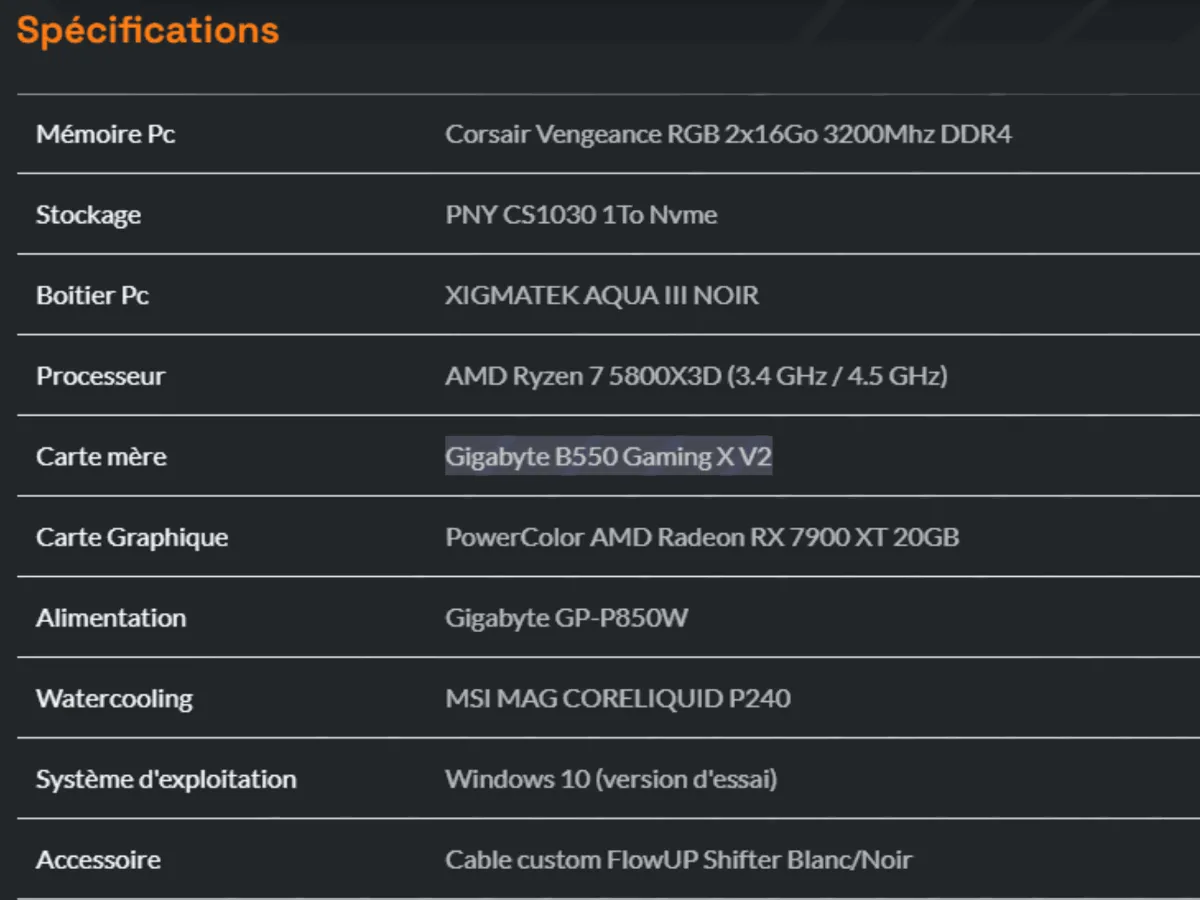
This is the number one cause, and the easiest to fix. Start by identifying your card: on flowup.shop, the product page for your PC lists the exact model in the specifications (in this example, a Radeon RX 7900 XT).
Next, download the driver from the chip manufacturer: NVIDIA App for a GeForce, AMD Software: Adrenalin Edition for a Radeon. If the artefacts appeared after an update, do a clean installation using the free DDU tool (Display Driver Uninstaller) in Safe Mode, then reinstall the driver.
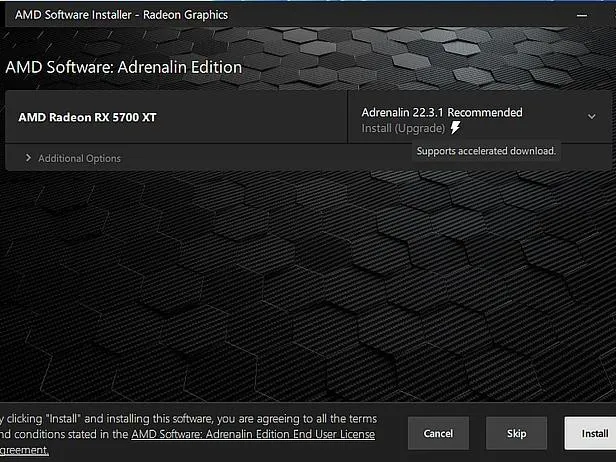
For a Radeon, AMD offers a help page to find the right driver.
2. Remove all overclocking
An over-ambitious overclock of the video memory causes exactly this kind of flickering specks. Restore the default settings in MSI Afterburner or the manufacturer’s software, and disable any “OC” modes. If the artefacts disappear, you’ve found the culprit. More information in our article should you overclock your PC?
3. Monitor temperatures
Run HWiNFO during a game and watch the GPU temperature, the hotspot, and the memory temperature. A card that runs noticeably hotter than when you started out, or that reaches the maximum temperature stated by its manufacturer, deserves cleaning of the fans and the heatsink. Follow our guide to clean your PC, and our section PC overheating if the problem affects the whole machine.
4. Check connections and power
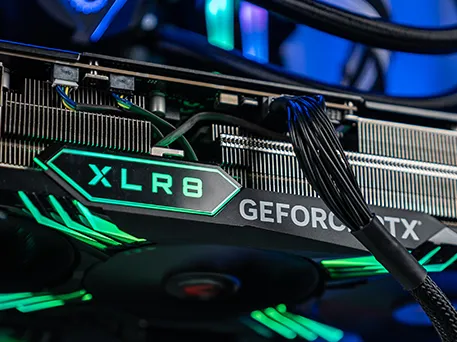
With the PC switched off and unplugged, check that the card is fully seated in its PCIe slot and locked in place. Check the PCIe power cables: fully clipped in, and ideally use a separate cable with a connector for power-hungry cards. On newer cards with a 12V-2x6 connector, it must be pushed all the way in, with no play.
A worn-out or undersized power supply can also cause artefacts and black screens in games (see our power supply guide).
5. Test the PC with UserDiag
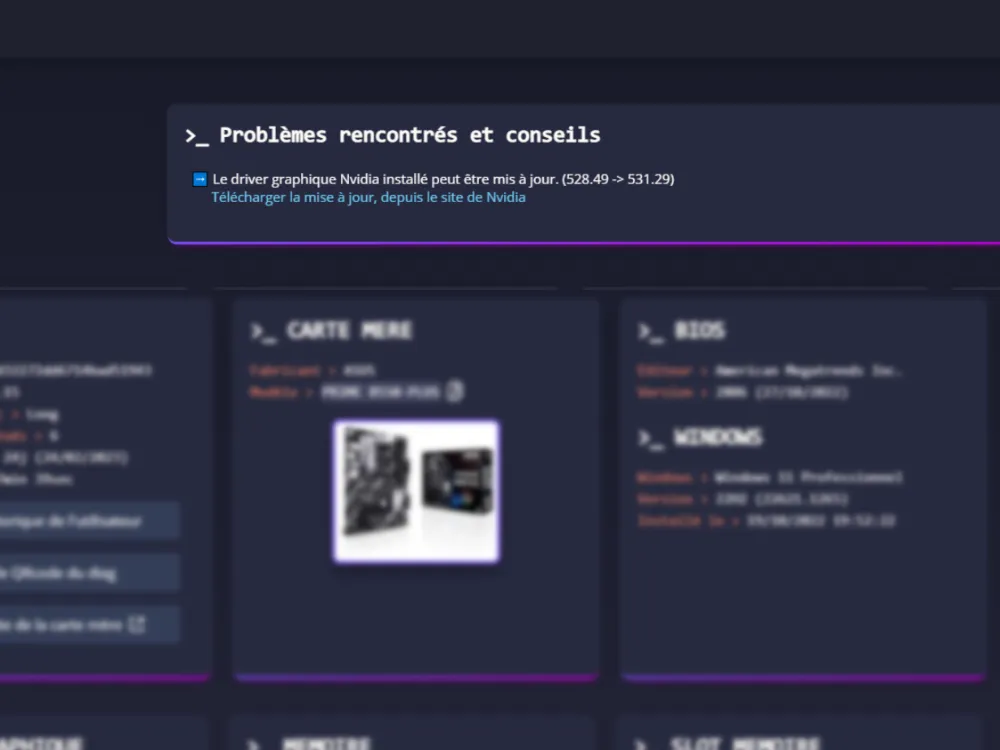
UserDiag is a free tool that reports the PC configuration and runs the components while monitoring temperatures and frequencies. Download it from userdiag.com, choose the long or extreme diagnosis, then let it run.
At the end, the report opens in your browser, with recommendations in blue. Client FlowUP? Keep the link to this report and send it to our technician if the issue persists: it saves us valuable time so we can help you.

6. If nothing works: make use of the warranty
Artefacts in the BIOS, which persist with another cable and another screen, even after reinstalling the driver and with no overclocking: the graphics card is probably faulty, often at the level of its memory. Don’t push it, contact the seller while the warranty is still valid. With FlowUP, go through our support page with your UserDiag report.
Diagnosing a graphics card that produces artefacts, in a video by the Tuto-Polo channel.
Frequently asked questions about graphics artefacts
Is a graphics artefact serious?
Not necessarily. If it comes from a driver, overclocking or a game, it disappears once the cause is fixed. If it also appears in the BIOS, the graphics card is probably damaged and you should consider a repair or a replacement.
Can artefacts come from the screen or the cable?
Yes, especially fixed lines and flickering. Test another cable, another card output and, if possible, another screen before you suspect the graphics card.
Can a graphics card that makes artefacts be repaired?
If the cause is software or temperature-related, yes. If the video memory is faulty, the repair requires a specialised workshop and often costs too much compared with a new card. Under warranty, have it replaced.
Artefacts only while gaming, what should you do?
Start by removing any overclocking and monitoring temperatures during gaming. Then update the game and the driver. If it happens only with one game, it’s often a bug in the game itself.
Artefacts and a blue screen at the same time?
Both can be caused by the graphics driver or an unstable card. Reinstall the driver properly, then consult our guide on theWindows blue screen to decode the error message.
If the issues persist anyway, the graphics card is probably at the end of its life: head to our Gaming PC, with recent GPUs under warranty.
