 Your PC in instalments (up to 12x)

Why isn’t my storage detected?
After waiting for days that seemed endless, you open your parcel and unpack your brand-new PC straight from our workshop. However, you’re someone who plans ahead, so you’ve also ordered an HDD to get more storage.
You turn on the machine and then ... Surprise! The HDD or SSD isn’t detected ...
No problem—let’s see together how to detect a storage drive and initialise it (partition) in 5 minutes!
What is an HDD?
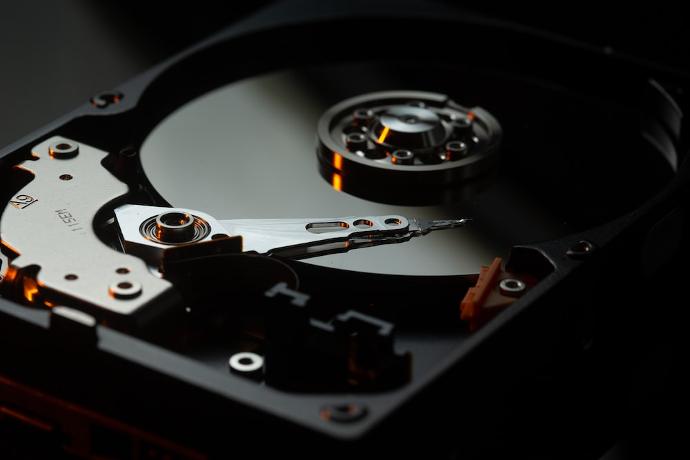
An HDD (Hard Disk Drive) is a type of data storage used in computers and other electronic devices.
A hard drive is made up of one or more magnetic disks that spin at high speed and store data using a read/write arm.
What is an SSD?
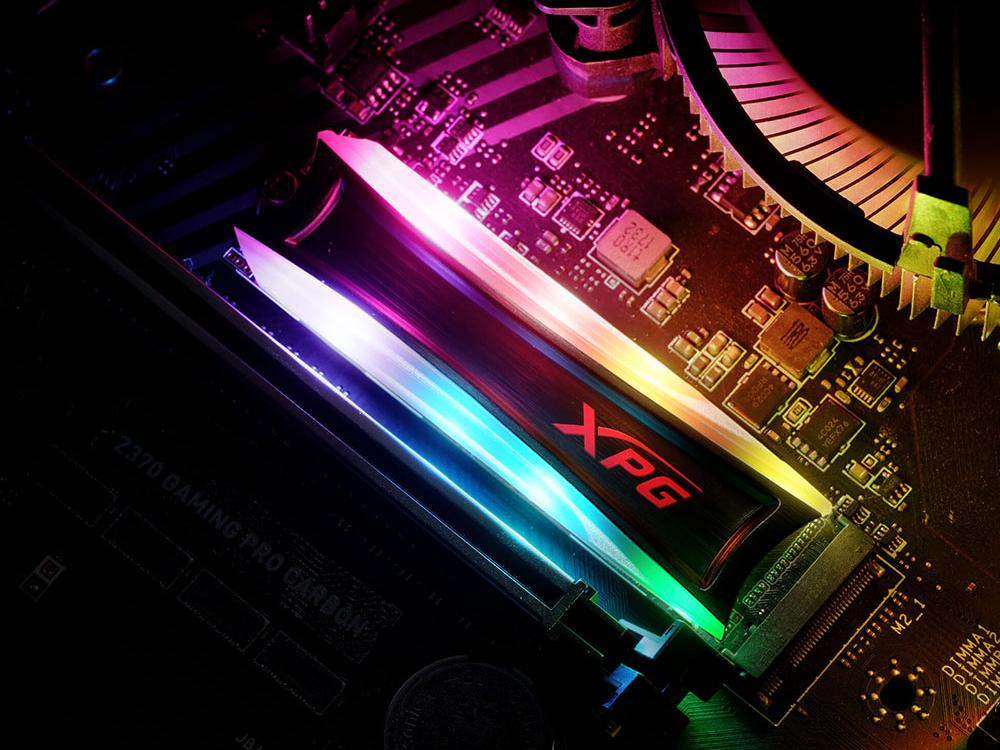
An SSD (Solid State Drive) is a type of data storage used in computers.
Unlike traditional hard drives (HDD), which use rotating disks to store data, SSDs use flash memory chips to store data.
How to detect a storage drive ?
Detect an HDD / SSD
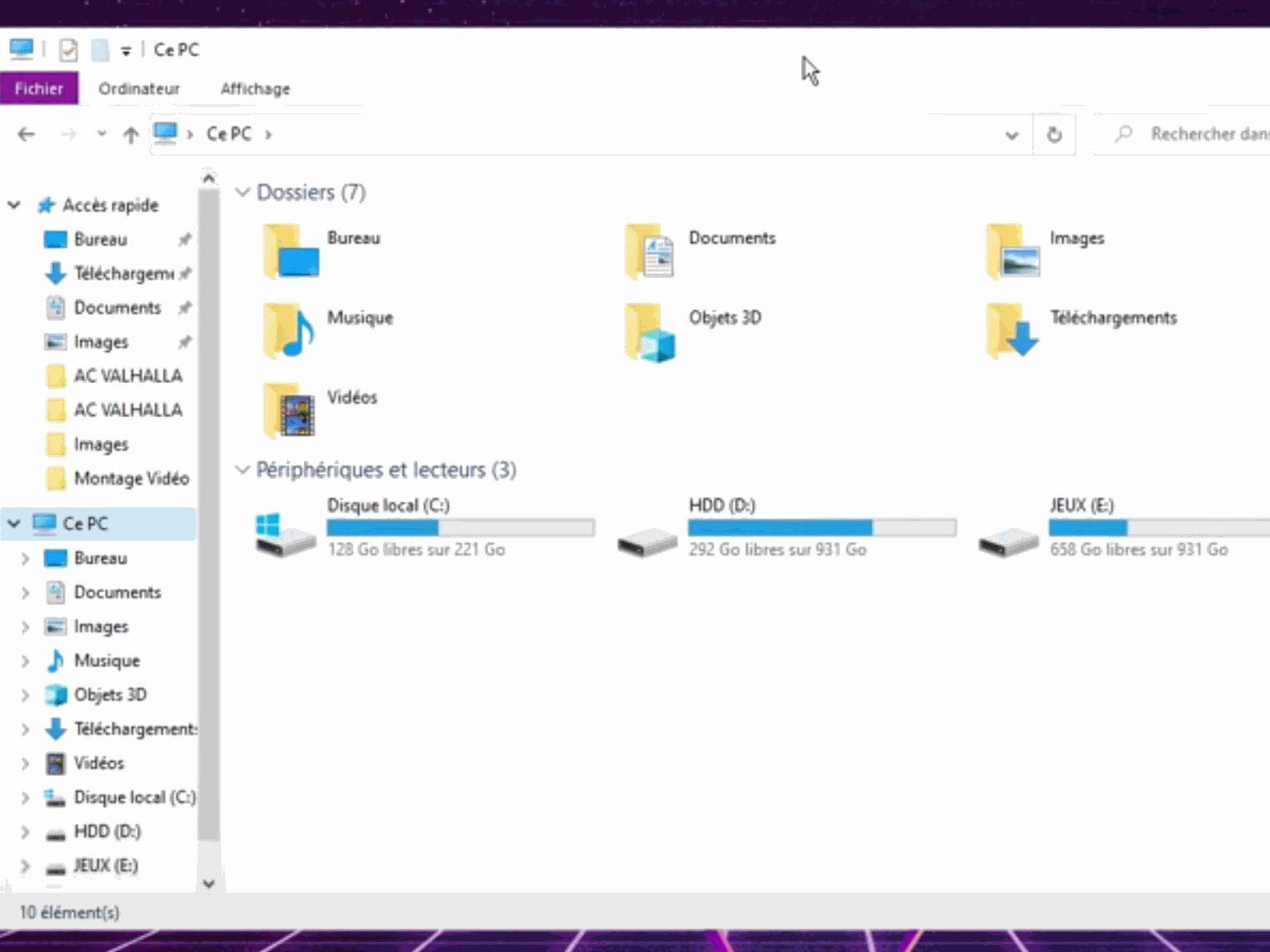
The first step is to go to File Explorer on your desktop, click on This PC and check whether you’ve got the expected storage memory.
If that’s not the case, no worries—we’ll look into it together very quickly!
Detect an HDD / SSD
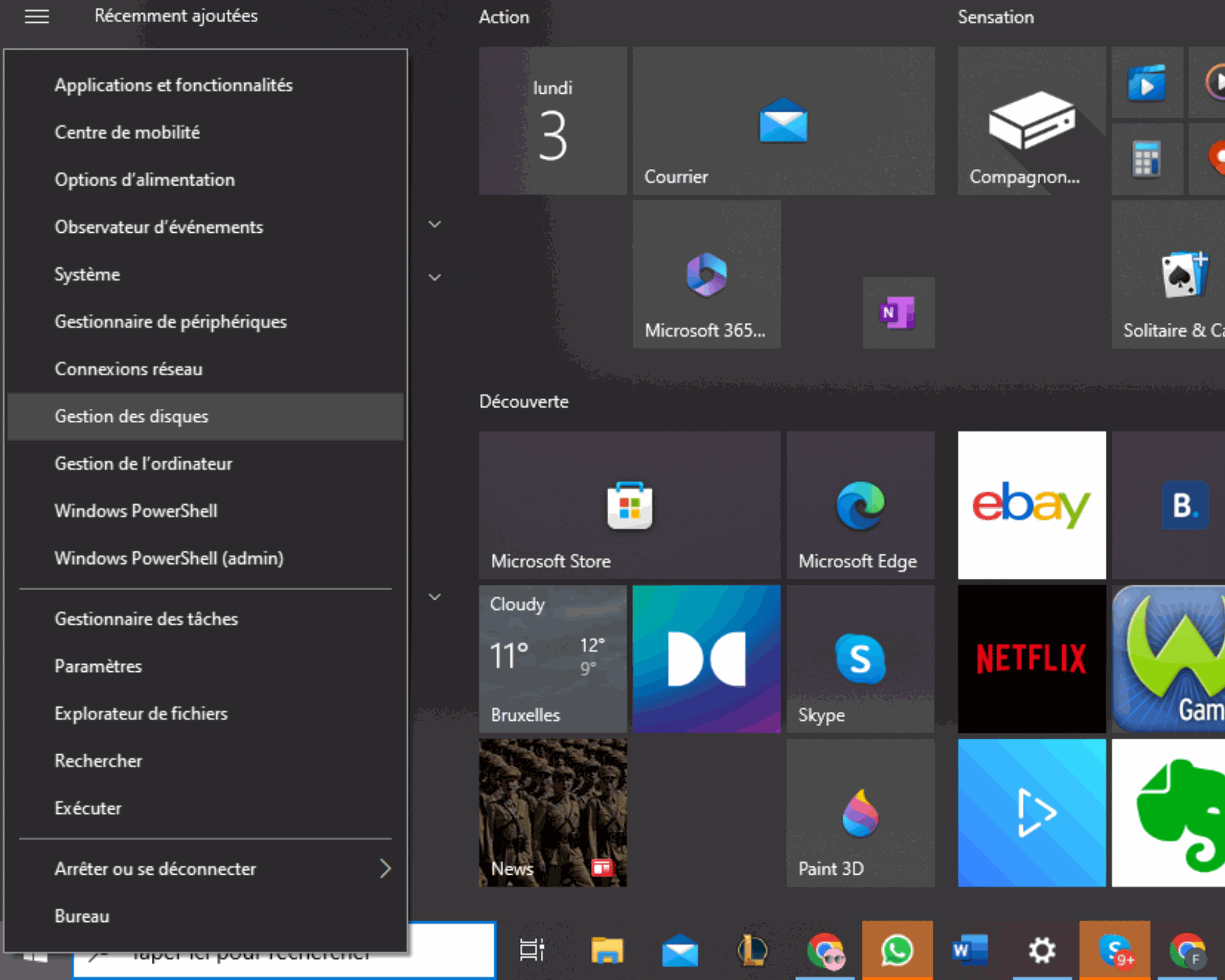
Go to the little Windows icon at the bottom left of your computer and right-click it.
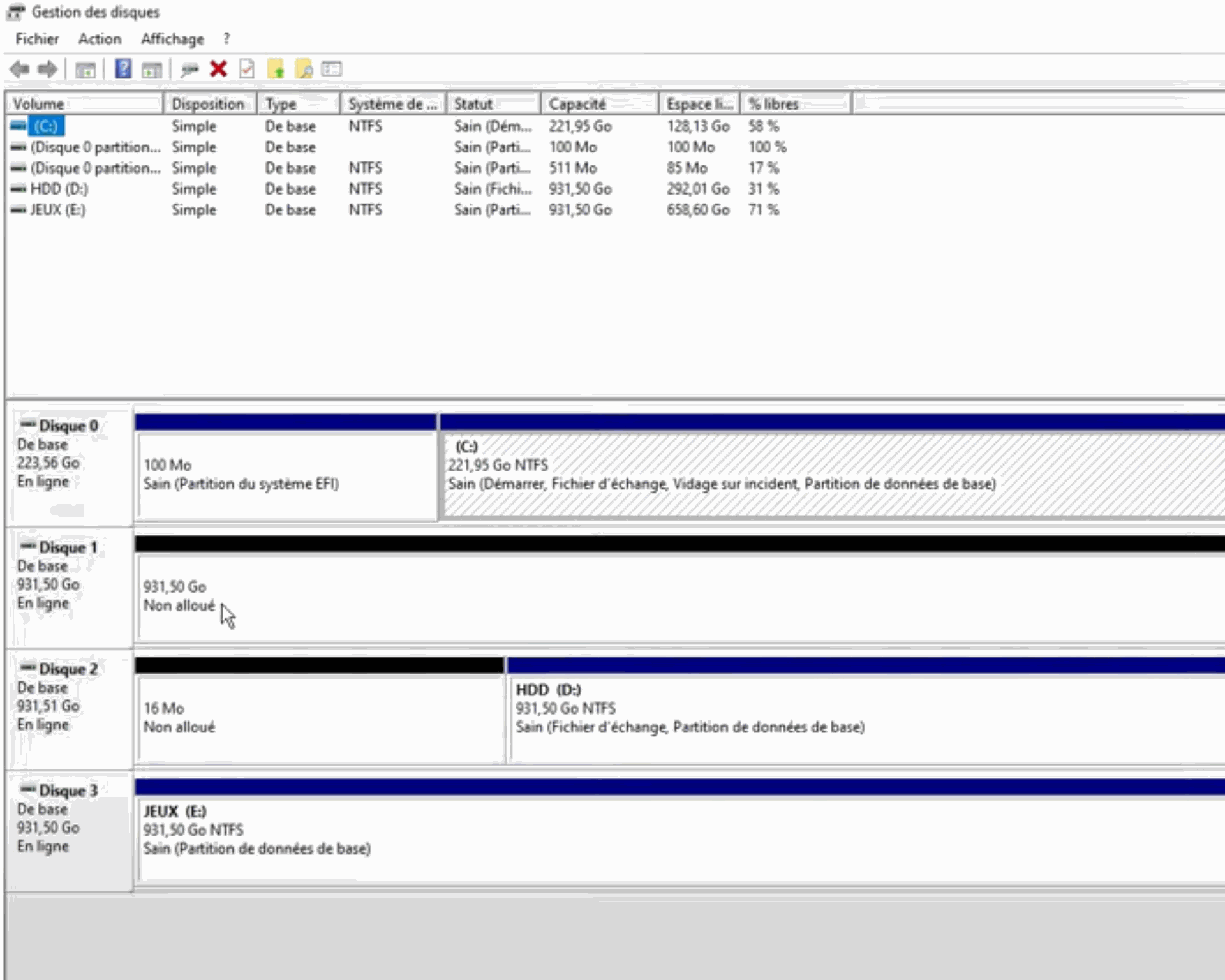
You’ll need to click on the title Disk Management.
Detect an HDD / SSD
You’ll see a report of the different HDDs / SSDs available in your computer.
If you see the label " Unallocated ", it means the HDD isn’t active—we need to look at how to activate it.
How to activate an HDD / SSD ?
Activate an HDD / SSD
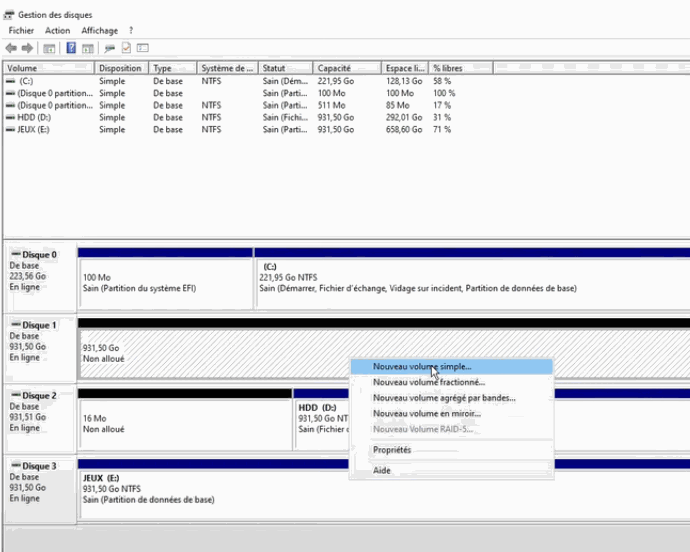
From the SSD / HDD " Unallocated ", right-click on it and click New Simple Volume ...
Activate an HDD / SSD
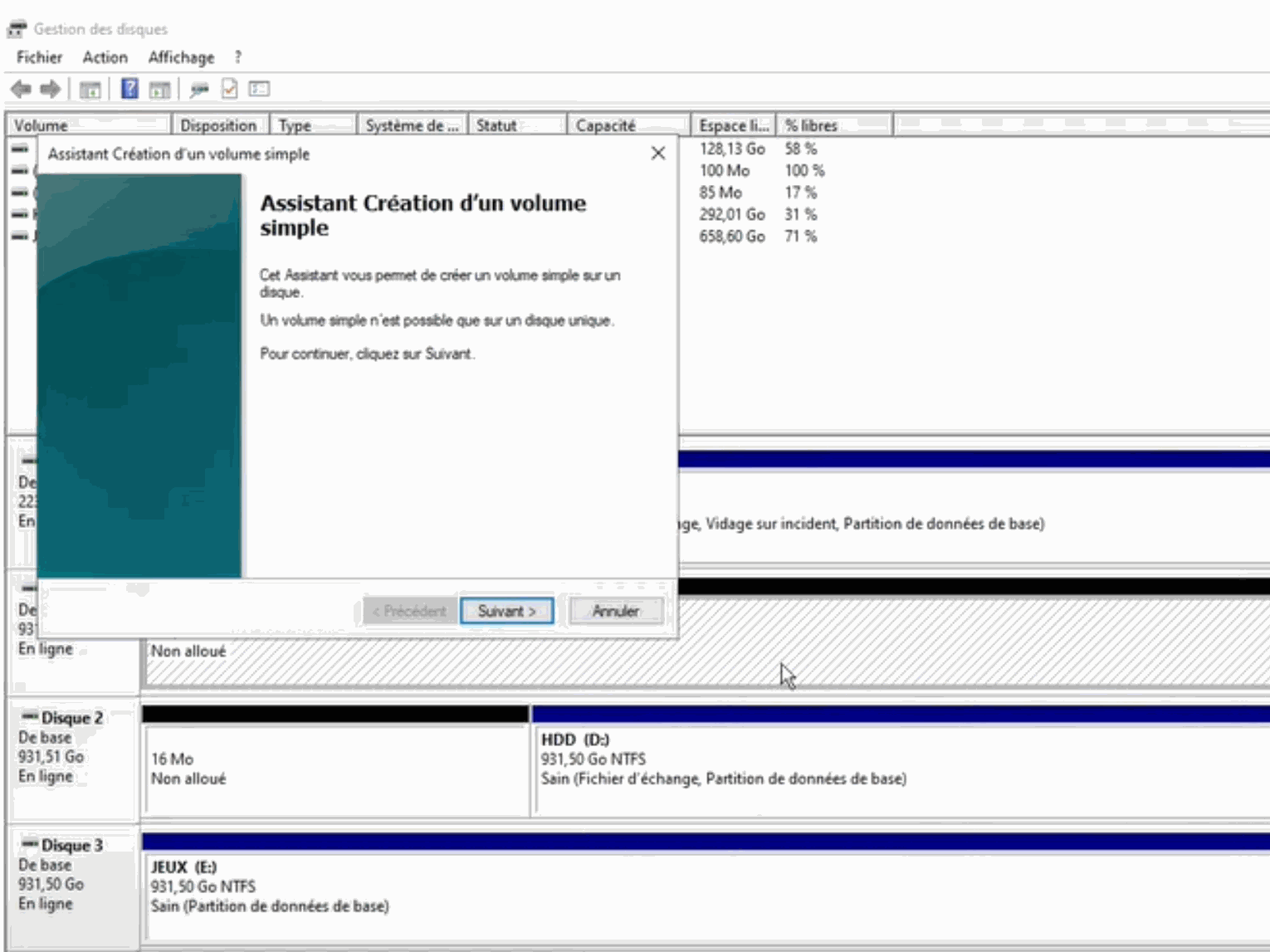
A simple volume creation wizard will appear; the process is very straightforward—click Next.
Activate an HDD / SSD
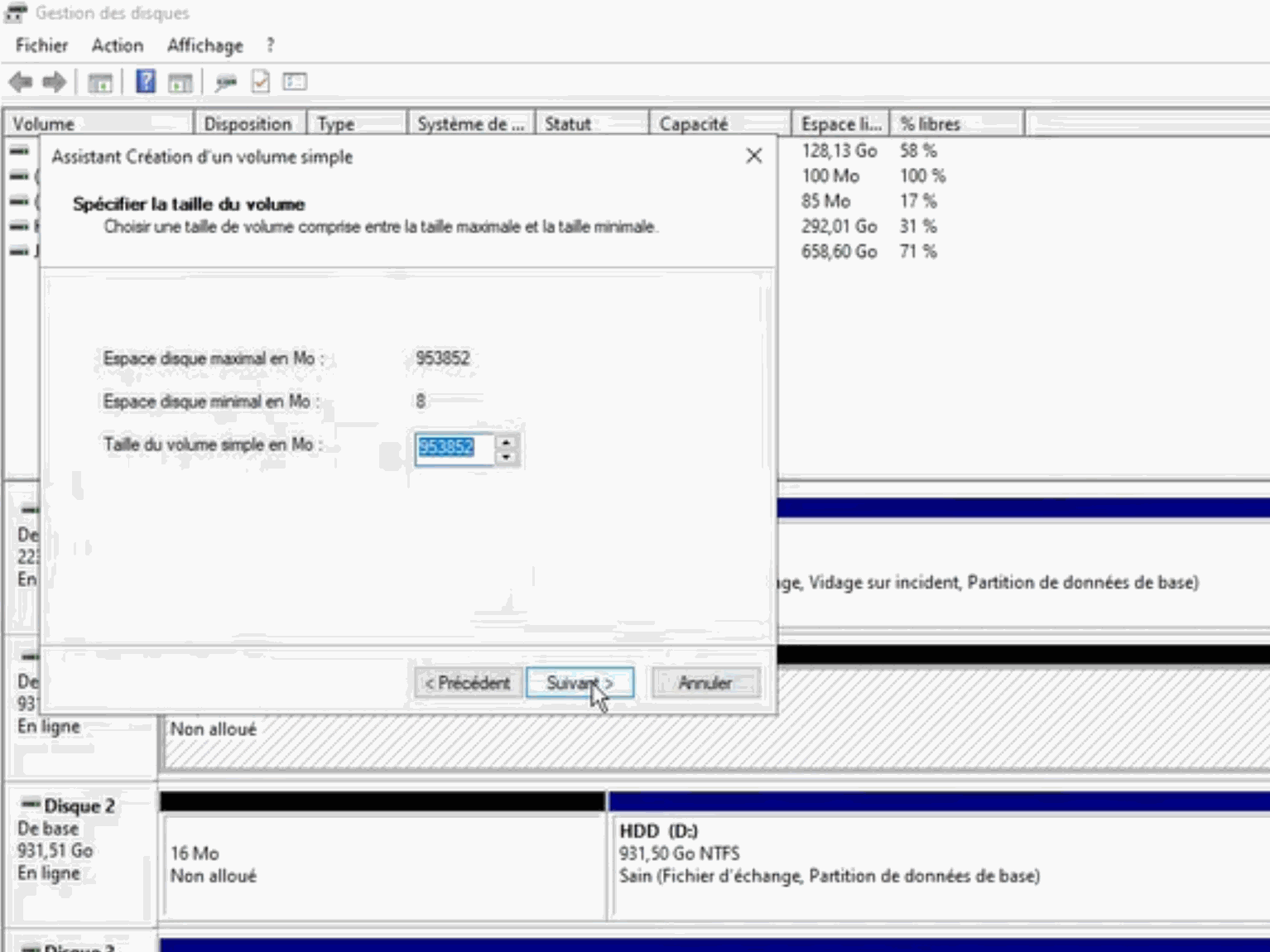
The Create wizard will let you choose the size of the simple volume in MB—don’t change it; it will automatically suggest the correct size.
Move on to the next step.
Activate an HDD / SSD
The Create wizard will let you assign a letter to the HDD / SSD—choose the letter you want; it doesn’t really matter.
Move on to the next step.
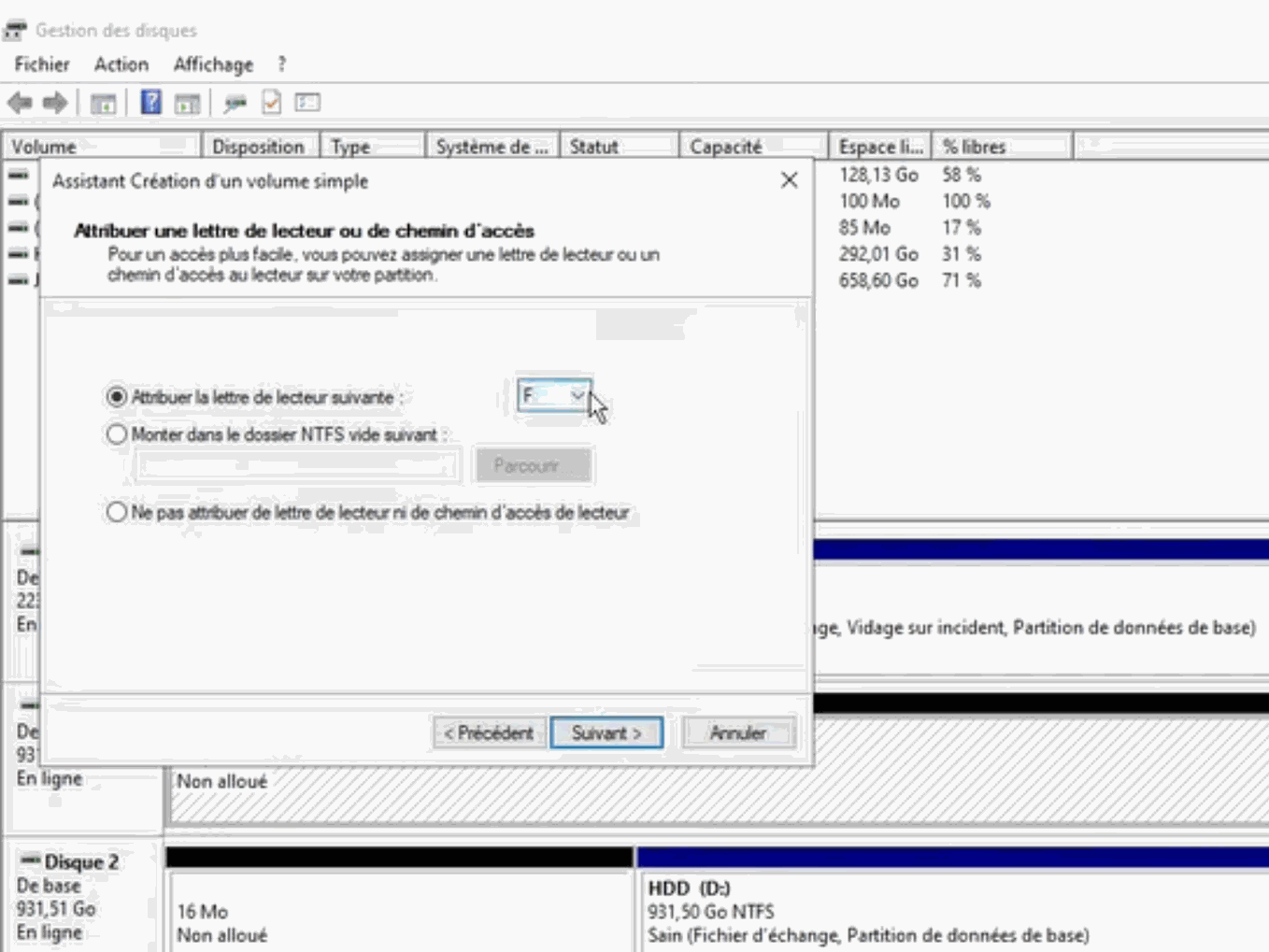
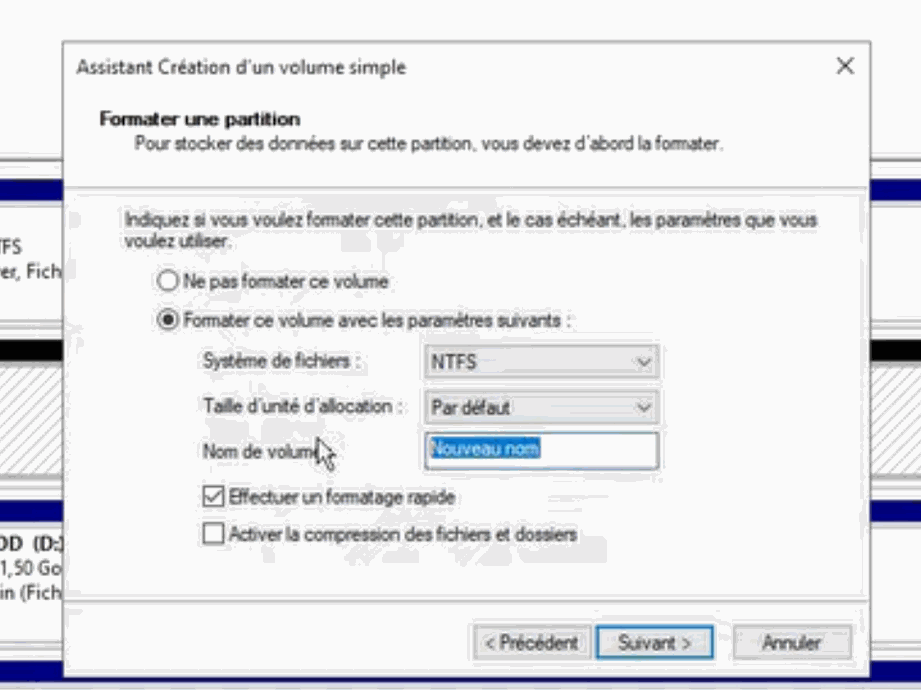
Activate an HDD / SSD
The Create wizard will let you assign a name to the HDD / SSD—this time, it is important; it will help you tell it apart from the other drives in your File Explorer.
Move on to the next step.
Activate an HDD / SSD
For example, we assign the name " SSD_GAMES ".
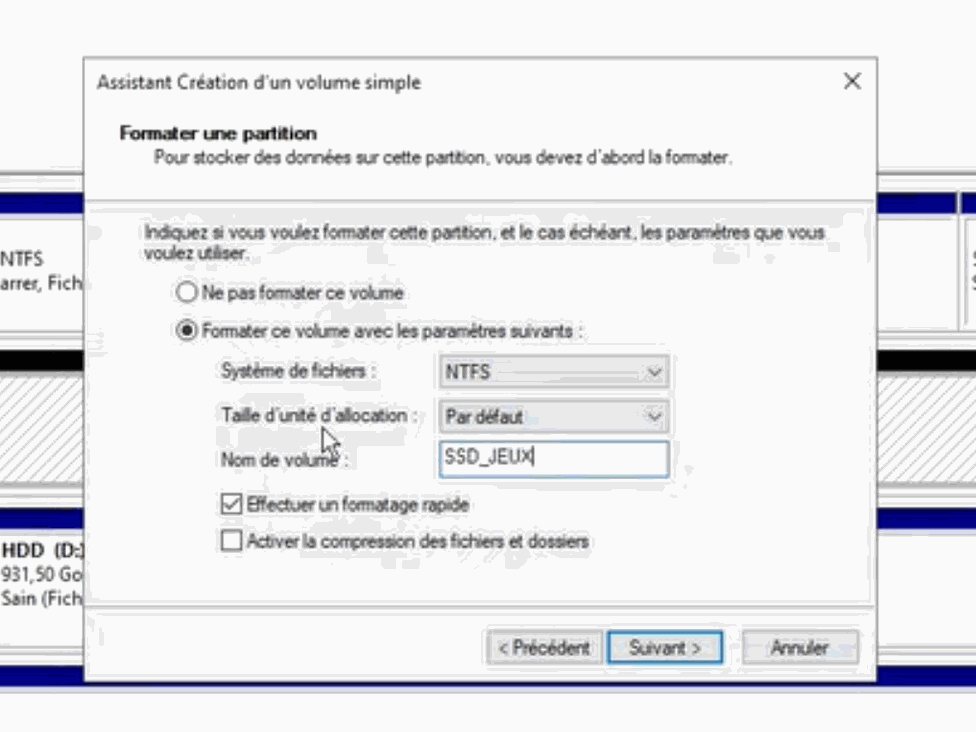
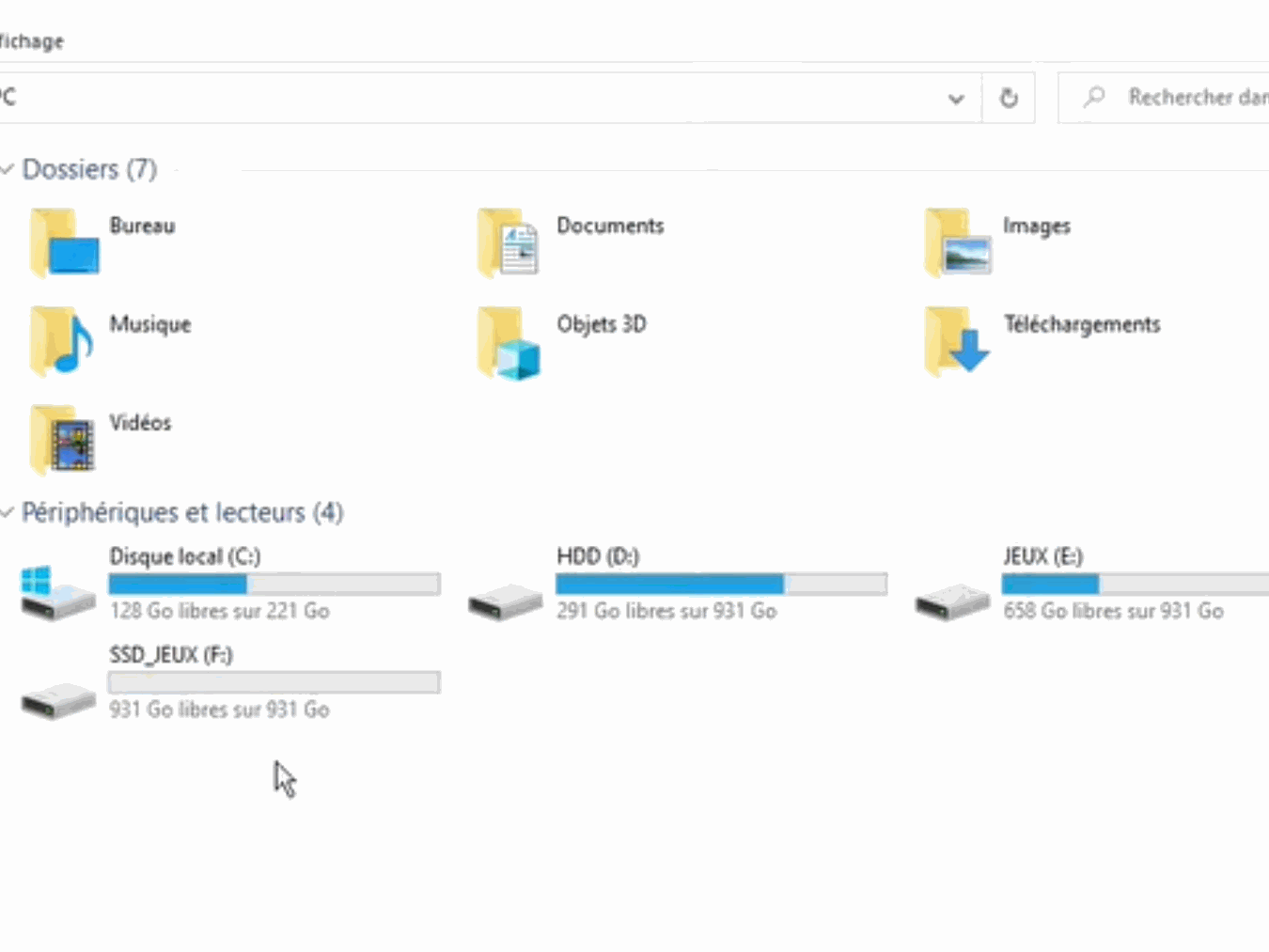
Activate an HDD / SSD
All you have to do is finish the process, and then you can go to your File Explorer to see your activated SSD / HDD.
Does your computer not detect any HDD at all?
Check whether the HDD is present and its SATA connection
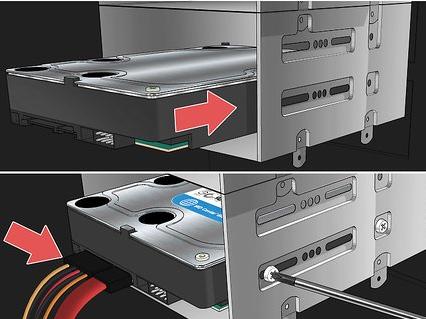
To check whether an HDD is present, please open the back panel of your PC. You’ll find a dedicated space for HDDs—check that the HDD is there and that it’s properly connected using its SATA cable.
If it’s unplugged, reconnect it to the HDD. Also check, by following the SATA cable, that the HDD is connected to both the power supply and the motherboard.
Attention—note that there are two cables connected to the hard drive.
Is there no HDD at all?
If you’ve bought an HDD and it isn’t there, please contact us by sending us the reference number of your order (e.g. S40567) as well as a photo of the storage from your File Explorer.
