Why does my PC have lag?
Nothing is more irritating than seeing your gaming experience disrupted by unexpected slowdowns.
Whether you’re taking on formidable enemies in a competitive shooter or exploring fantastical worlds in an immersive role-playing game, lag and stuttering can ruin even the most exciting experience.
But why does your loyal gaming companion—your PC—let you down when you need it most?
So you need to understand why your PC seems to drag when you try to enjoy your favourite game. From hardware to software, and including how system resources are managed, we’ll examine every aspect to help you understand and resolve these performance issues.
In 5 minutes, we’ll unravel the mysteries behind in-game slowdowns!
1. Understand hardware requirements
From the processor to the graphics card, via memory and storage, each component plays an essential role in your gaming PC’s overall performance.

The importance of having hardware capable of running modern games
The importance of having hardware capable of running modern games lies in the fact that today’s games demand high graphical and processing performance to deliver an immersive, smooth experience. Modern games incorporate increasingly sophisticated graphics, vast and complex open worlds, as well as game mechanics that require a high level of responsiveness.
As a result, outdated or underperforming hardware can lead to issues such as drops in frame rate, stuttering, or even crashes, thereby compromising your gaming experience.
A powerful processor is essential for carrying out the complex calculations needed for game AI, game physics, and player interactions. Likewise, a high-performance graphics card is crucial for displaying high-quality graphics with advanced visual effects such as real-time shading, dynamic lighting effects, and high-resolution textures.

RAM and fast storage are also important for quickly loading game textures, models, and data, and for enabling smooth multitasking when running games and background applications.
Outdated components or insufficient specifications can cause performance problems
Outdated components or insufficient specifications can cause performance problems in several ways.
First of all, older processors or less powerful graphics cards may not be able to meet the processing and display requirements of modern games. This often results in lower frame rates, stuttering, and longer loading times, because the hardware struggles to process the tasks required by the game.
Similarly, insufficient RAM can create bottlenecks when loading game textures and models, limiting overall performance. Slow storage, such as a traditional hard drive, can also cause delays when loading game levels and assets, disrupting a smooth gaming experience.
In addition, outdated components may not be compatible with the latest gaming technologies, such as DirectX 12, Vulkan, or ray tracing, which limits the features and performance the game can offer.
Upgrading your hardware for smoother gaming
1. Assess your needs:
- Analyse the requirements of the games: Identify the minimum and recommended specifications of the games you want to play to determine which areas of your hardware need improvement. You can find these, for example, on the website of the game you want to play, with the exact minimum specifications required in order to launch the game.
2. Prioritise the components:
- Identify bottlenecks : Determine which components of your PC are most likely to limit gaming performance, such as the processor, the graphics card, or the amount of RAM.

3. Upgrade the processor and graphics card:
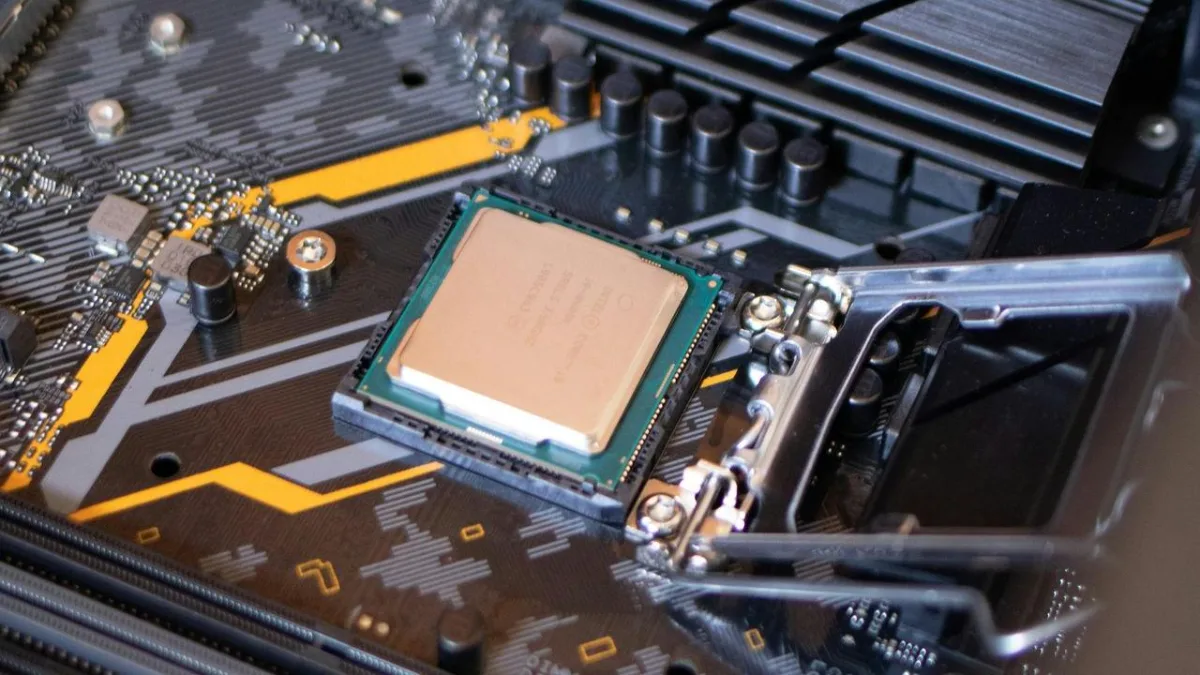
- Invest in a high-performance processor : Choose a newer processor with better computing power to handle gaming tasks and complex calculations.
- Upgrade your graphics card : Choose a next-generation graphics card with superior graphics capabilities for sharper images and smoother performance.

4. Increase memory and storage:
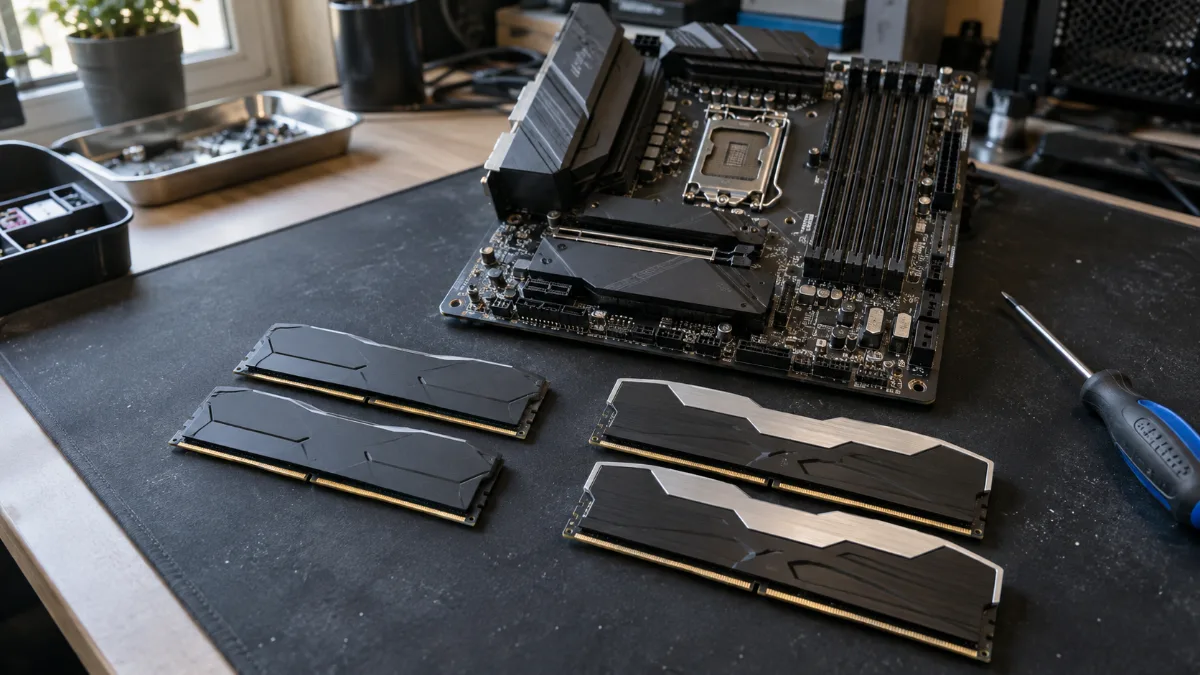
- Choose faster RAM with increased capacity : Add more RAM so games load more quickly and multitasking is handled more effectively.
- Invest in an SSD drive : Replace your hard drive with an SSD for shorter loading times and improved overall system responsiveness.
5. Make sure they’re compatible:
- Check hardware compatibility : Before buying new components, make sure they are compatible with your motherboard and the other components in your system.
2. Optimise software settings
Game settings and background applications can have a significant impact on your PC’s performance while you’re gaming. Here’s how they can affect performance:
- Game settings :
- Graphics and resolution : High graphics settings, such as texture quality, particle effects and resolution, require more processing power and graphics memory. Setting them too high can lead to frame-rate drops and stuttering.
- Performance options : Some games offer performance options, such as disabling certain advanced graphics features to improve overall performance. Use these options to find the right balance between visual quality and smooth gameplay.

- Background applications :
- Running programmes : Background applications such as streaming software, downloads, antivirus programmes or automatic updates can consume valuable system resources. Close these programmes while gaming to free up additional resources.
- Resource management : Some background programmes can monopolise the processor, memory or hard drive, thereby reducing overall system performance. Use the Task Manager (on Windows) or Activity Monitor (on macOS) to identify and close resource-hungry programmes.

By optimising game settings to match the capabilities of your hardware and minimising background applications, you can maximise your PC’s performance while gaming and enjoy a smoother, more enjoyable gaming experience.
Guide to optimising graphics settings for a balance between performance and visual quality
Optimising graphics settings is essential to achieve the best possible performance while keeping satisfactory visual quality in your favourite games.
Here’s a step-by-step guide to finding the perfect balance between performance and visual quality:
1. Start with the preset settings :
- Most games offer preset settings such as “Low”, “Medium”, “High” or “Ultra”. Start by selecting the preset recommended by the game, then adjust from there.

2. Adjust individual settings :
- Resolution : Set the resolution to your screen’s native value for optimal sharpness. Lower it if you have performance issues.
- Texture quality : Increase this setting for more detailed textures, but lower it if your graphics card lacks video memory.
- Special effects : Disable or reduce effects such as anti-aliasing, ambient occlusion and motion blur to improve performance.
- View distance : Reduce the view distance to lessen the load on the processor and graphics card.
3. Prioritise the settings with the biggest impact on performance :
- Settings such as shadow quality, depth of field and real-time reflections often have a major impact on performance. Adjust them accordingly.
4. Test and fine-tune :
- Test the game’s performance after each adjustment to assess the impact on performance and visual quality. Find the right balance between smooth performance and attractive graphics.
5. Experiment with the graphics drivers :
- Make sure you have the latest graphics drivers installed. Sometimes, driver updates can improve performance and the game’s stability.

The importance of updating drivers for optimal performance
Regularly updating your drivers is crucial to ensure optimal performance from your hardware, especially graphics cards, processors, motherboards, and other essential components in your system. Here’s why driver updates are so important for gaming performance:
- Compatibility and stability : Driver updates are often released to address compatibility issues with new games or software, as well as to improve overall system stability. By installing the latest drivers, you minimise the risks of crashes, freezes, or bugs during your gaming sessions.
- Performance optimisation : Hardware manufacturers regularly release driver updates to optimise the performance of their products. These updates can include improvements to energy efficiency, processing optimisations, and fixes for specific performance problems. By keeping your drivers up to date, you can benefit from smoother performance and faster response times in your favourite games.
- New features : Driver updates can also introduce new features or improvements to existing ones. For example, a graphics card driver update may include new visual effects or advanced game features that enhance the overall gaming experience.
- Security : In addition to improving performance, driver updates can also fix known security vulnerabilities. Keeping your drivers up to date ensures that your system is protected against potential threats and security exploits.
3. Effective management of system resources
Resource-heavy applications can have a significant impact on game performance by monopolising the system resources required for the game to run properly. Here’s how these applications affect game performance:
- Processor usage :
- Background programs that consume a large amount of processing power can reduce the availability of the processor for the game. This can lead to stuttering, lower frame rates, and jerks during gameplay.
- Memory usage :
- Applications that use a large amount of RAM (random-access memory) can cause slowdowns by forcing the system to use the swap file on the hard drive, which is much slower than RAM.
- Hard drive usage :
- Background programs that perform intensive read/write operations on the hard drive can lead to longer loading times and stuttering during gameplay, particularly in games with open worlds or high-resolution textures.
- Network bandwidth usage :
- Applications such as streaming software, automatic updates, or background downloads can use a significant portion of network bandwidth, causing lag and disconnections during online gaming.
Manage background programs
1. Use Task Manager (on Windows) or System Activity (on macOS) :
- Identify the programs that use the most resources.
- End any non-essential running processes by right-clicking the program and selecting “End task” (on Windows), or by using the “Quit” function (on macOS).
2. Disable programs at startup :
- Prevent programs from loading automatically at startup by using the system configuration utility (on Windows) or System Preferences (on macOS).
- Reduce the number of programs at startup to free up resources from the moment the system starts.
3. Use Game Mode or Full Screen mode :
- Enable Game Mode (on Windows) or use Full Screen mode to minimise interruptions and optimise game performance by disabling notifications and automatic updates.
4. Task scheduling :
- Schedule software and driver updates to run outside gaming sessions to avoid interruptions.
5. Using resource management tools :
- Use third-party software such as MSI Afterburner, Razer Cortex, or Game Booster to automatically optimise system resources during gaming sessions.
- These tools can temporarily disable non-essential processes, allocate more resources to the game, and optimise system settings for maximum performance.
The benefits of software tools for improving system performance
Software tools designed to improve system performance offer several significant benefits for gamers and users in general:
- Automatic resource optimisation :
- These tools can analyse system resource usage in real time and automatically adjust settings to optimise system performance.
- They can temporarily disable non-essential background processes, freeing up resources for priority tasks such as gaming.
- Process and service management :
- Software tools let users view and manage the processes and services currently running on their system.
- Users can disable unnecessary services or background programmes that consume unnecessary resources, which can improve overall system performance.
- Performance monitoring :
- These tools provide real-time performance monitoring features, allowing users to track CPU, memory, hard drive, graphics card usage, etc.
- Performance monitoring enables users to identify system bottlenecks and take steps to resolve them.
- Cleaning and system optimisation :
- Some software tools offer system cleaning features, allowing users to remove temporary files, junk files, outdated registry entries, etc., which can slow down the system.
- System optimisation can improve boot speed, system responsiveness, and overall performance.
- Task scheduling :
- Users can schedule tasks such as maintenance checks, software and driver updates, disk defragmentation, etc., to run automatically outside periods of heavy system use.
4. Monitoring and resolving performance issues
To identify system bottlenecks and monitor performance, here are some powerful tools to use:
1. Built-in system resource monitoring :
- Task Manager (Windows) / Activity Monitor (macOS) : These built-in tools allow you to monitor CPU, memory, disk, and network usage in real time. They provide an overview of running processes and their resource consumption.
2. Third-party performance monitoring software :
- MSI Afterburner : In addition to monitoring graphics card performance, MSI Afterburner offers CPU, memory, and disk monitoring features, as well as overclocking options.
- HWMonitor : This software displays temperatures, voltages, fan speeds, and other crucial information about your system’s hardware.
- Open Hardware Monitor : It provides detailed monitoring of hardware sensors for CPUs, GPUs, hard drives, etc., with real-time graphs and customisable alarms.
3. Benchmarking tools :
- 3DMark : Mainly used to evaluate graphics performance, 3DMark can also provide information about the system’s overall performance.
- Geekbench : Used to assess CPU and memory performance, Geekbench provides benchmark scores for comparing the performance of different systems.
4. Temperature monitoring utilities :
- Core Temp : It monitors CPU temperatures and provides valuable information about temperature spikes and any potential cooling issues.
- SpeedFan : This software allows you to control fan speeds and monitor the temperatures of various system components.
Resolving common performance problems
Here are troubleshooting steps to resolve common performance issues such as overheating, disk fragmentation, and outdated drivers:
1. Overheating :
- Step 1: Check ventilation :
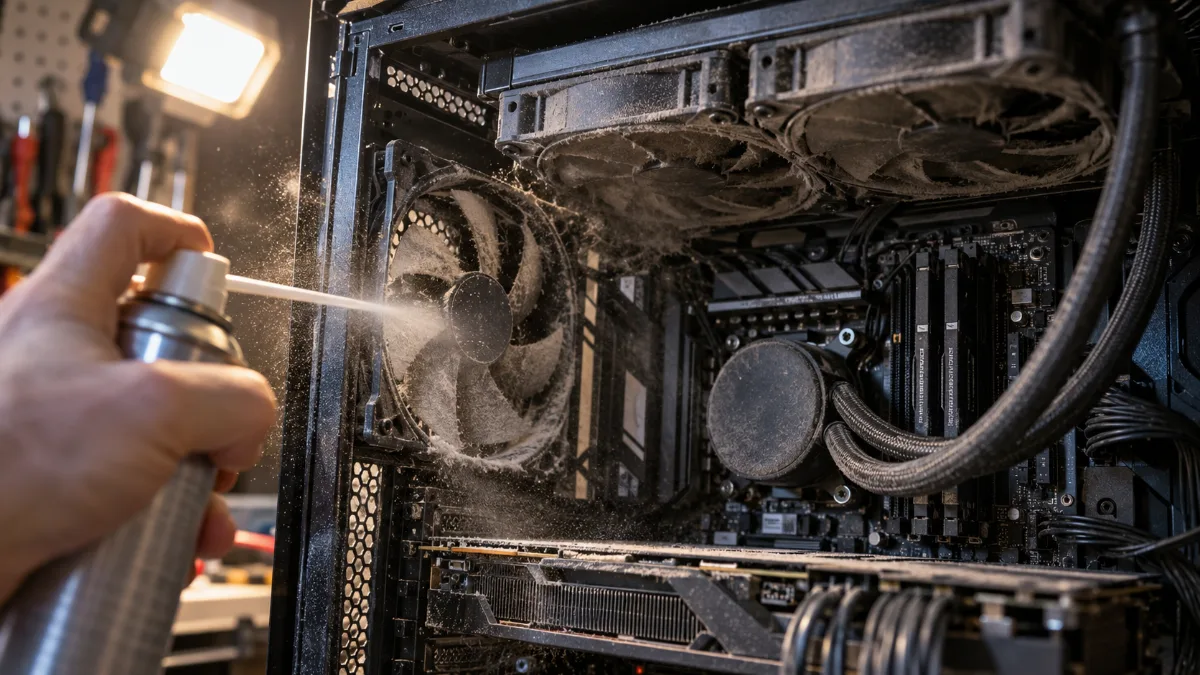
- Make sure the case and processor fans are working properly and aren’t blocked by dust.
- Step 2: Monitor temperatures :
- Use temperature monitoring software to monitor the processor, graphics card and other component temperatures. If temperatures exceed the recommended levels, consider improving cooling or cleaning the components.
- Step 3: Improve cooling :
- Add additional fans, improve the processor heatsink, or invest in a better air or liquid cooling system if necessary.
2. Disk fragmentation:
- Step 1: Run disk defragmentation :
- On Windows, use the built-in defragmentation tool to group fragmented files and optimise disk performance.
- Step 2: Use third-party software :
- If the built-in defragmentation tool isn’t enough, consider using third-party software such as Defraggler, Smart Defrag or MyDefrag for more advanced and customised defragmentation.
- Step 3: Schedule regular defragmentations :
- Set up the system to automatically defragment the disk at regular intervals, for example once a week, to maintain optimal disk performance.
3. Outdated drivers:
- Step 1: Check driver updates :
- Use the Device Manager utility to check the drivers on your system and look for available updates.
- Step 2: Download and install the updated drivers :
- Visit the website of your hardware manufacturer (graphics card, motherboard, etc.) to download the latest drivers and install them manually if necessary.
- Step 3: Use automatic driver update utilities :
- If you prefer an automatic approach, use driver update utilities such as Driver Booster, Driver Easy or Snappy Driver Installer to search for and automatically install the latest drivers.
And there you go ...
If your computer carries on misbehaving, we strongly recommend you go and see a computer technician!