 Your PC in instalments (up to 12x)
By the FlowUP team, PC gaming assembler in Genappe (Belgium) · Updated 28 September 2026
For most players, the best gaming monitor in 2026 is a 27-inch 1440p between 165 and 240 Hz: sharp, smooth, and a sensible match for the graphics card. If you mostly play competitively, a 24 or 25-inch 1080p at 240 Hz or higher is still unmatched. And if your PC is very powerful, a 27 or 32-inch 4K at 144 Hz or higher delivers the most detailed picture. Here’s how to choose the right size, resolution, refresh rate, panel type and connectivity without getting it wrong.
In brief
- Size: 24/25 inches for competitive play, 27 inches for 1440p, 32 inches for 4K.
- Refresh rate: at least 144 Hz for gaming, 240 Hz and up for competitive FPS.
- Panel: IPS for versatility, VA for contrast, OLED for the high end.
- Connectivity: DisplayPort on PC, HDMI 2.1 for 4K 120 Hz and consoles.
- The monitor should match the PC: a mid-range graphics card pairs better with 1440p than with 4K.
Which gaming monitor should you choose? A profile-based table
| Your profile | Size | Resolution | Refresh rate | Recommended panel |
|---|---|---|---|---|
| Competitive player (Valorant, CS2, Fortnite) | 24 to 25 inches | 1080p | 240 Hz and above | Fast IPS or OLED |
| All-round player | 27 inches | 1440p | 165 to 240 Hz | IPS, VA or OLED |
| Premium image, big PC | 27 to 32 inches | 4K | 144 Hz and above | IPS or OLED |
| Immersion (racing, simulation, single-player) | 34-inch ultrawide | 3440 x 1440 | 144 to 240 Hz | Curved VA or OLED |
Why the monitor matters as much as the PC
Many players invest in a good PC and keep an old monitor. That’s a shame: a graphics card that can calculate 200 frames per second on a 60 Hz screen will only display 60. Conversely, a 4K monitor connected to an entry-level PC will force you to lower all settings.
The right move: choose the monitor and the PC together. For a more general guide, also aimed at creators, read our article to choose a PC monitor, and to calibrate the whole setup, our guide on a gaming PC budget.
What screen size should you choose for gaming?
22-inch monitors have almost disappeared: the new baseline is now 24 or 27 inches. Bigger isn’t always better: on a typical desk, a 32-inch monitor forces you to turn your head to keep an eye on the corners of the screen, which hurts competitive play.
- 24 or 25 inches: the format for competitive players, everything stays within your field of view.
- 27 inches: the most balanced option, ideal for 1440p.
- 32 inches: relevant for 4K, if you have enough viewing distance.
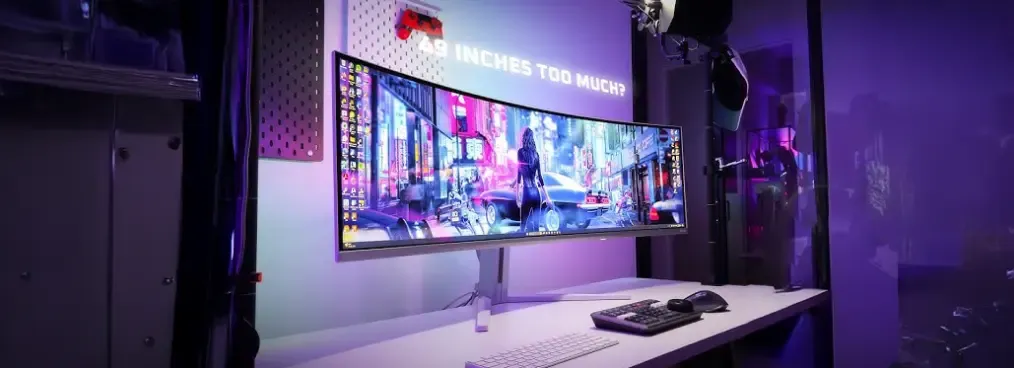
In terms of format, the classic 16:9 works for everything. Ultrawide 21:9 (and beyond) immerses you in single-player games and makes working on long documents easier, but some competitive games handle it poorly and it costs more.
1080p, 1440p or 4K: which resolution should you choose?
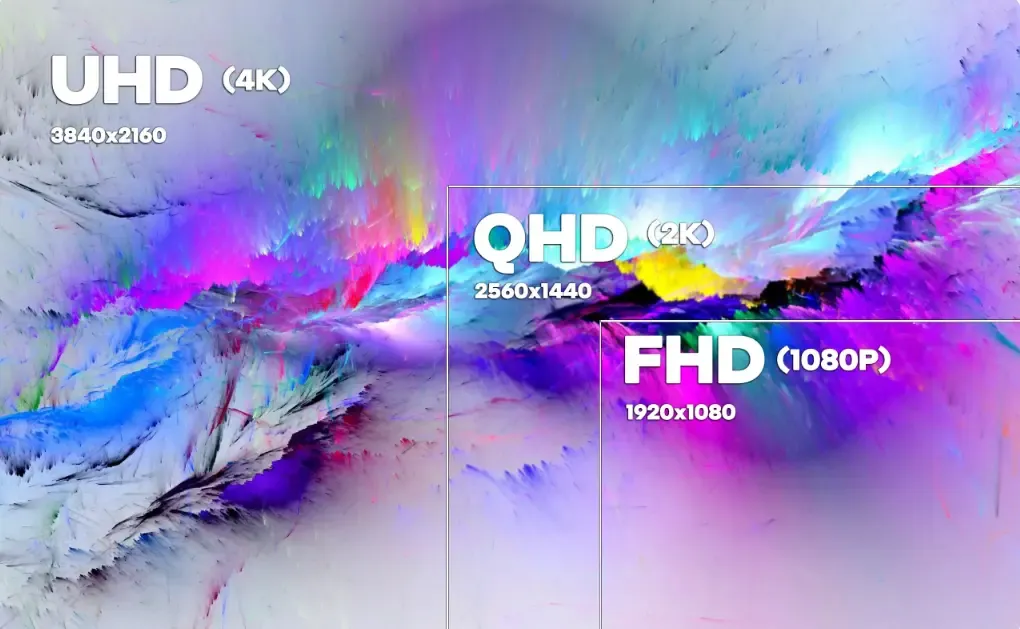
Resolution is the number of pixels displayed: 1920 x 1080 in Full HD, 2560 x 1440 in QHD (1440p), 3840 x 2160 in 4K. The more of them there are, the sharper the image, but the more your graphics card has to work.
- 1080p: perfect for competitive play and tight budgets, especially on 24-inch screens. On 27 inches, the image starts to lack fine detail.
- 1440p: the best compromise between sharpness and smoothness for most players. For example, see our ideal setup for playing in 1440p.
- 4K: a superb picture, but one that needs a high-end graphics card to stay smooth.
144 Hz, 180 Hz, 240 Hz or higher: what do you really need?
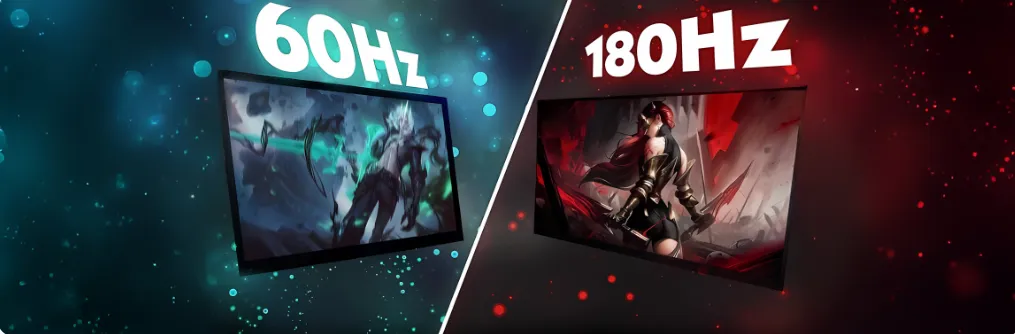
Refresh rate tells you how many times per second the monitor displays a new image. A 60 Hz screen, the office standard, still isn’t enough for fast-paced games: from 144 Hz onwards, movements become noticeably smoother and aiming more precise.
- 144 to 180 Hz: a serious baseline for gaming, and the standard for affordable gaming monitors.
- 240 Hz: a real advantage for competitive FPS, as long as your PC can produce enough frames per second.
- 300 Hz and above: reserved for esports players, with a setup that can keep up.
For turn-based adventure or strategy games, 60 to 100 Hz may be enough. But if you’re buying a monitor today, choosing at least 144 Hz is a decision you won’t regret.
IPS, VA or OLED: which panel should you choose for gaming?
| Panel | Strengths | Weak points | Who is it for? |
|---|---|---|---|
| IPS (and Fast IPS) | Accurate colours, wide viewing angles (178°) | Average contrast, slightly grey blacks | The majority of players |
| VA | Excellent contrast, deep blacks | Possible smearing in fast dark scenes | Single-player games, movies, curved screens |
| OLED (QD-OLED, WOLED) | Perfect blacks, near-instant response | Price, risk of burn-in of static images | Comfortable budget, premium image |
| TN | Very fast, inexpensive | Limited colours and viewing angles | Now rare; not recommended today |
To go further into the difference between the two most common LCD panels, read our article on VA and IPS panels.
Response time: a story of milliseconds
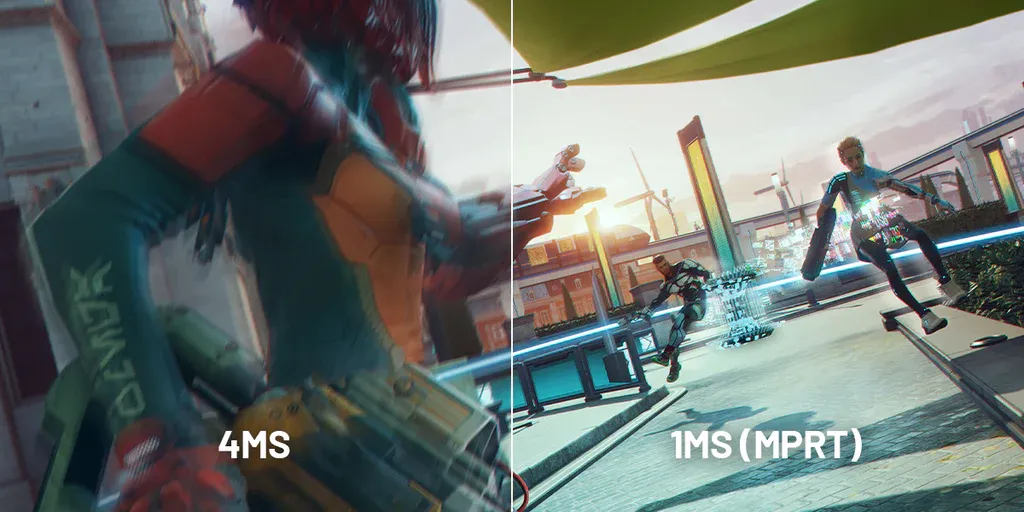
Response time is the delay it takes for a pixel to change colour. The shorter it is, the less blurred motion trails (ghosting) moving objects leave behind. For gaming, aim for 1 to 3 ms; beyond 5 ms, blur becomes clearly visible in fast-paced games.
Watch out for marketing numbers: the value “1 ms MPRT” measures perceived motion blur and is often achieved with a stroboscopic backlight mode that darkens the image. The “GtG” (grey-to-grey) value reflects the panel’s real responsiveness much better.
HDMI 2.1, DisplayPort 2.1, FreeSync, G-SYNC: the details that matter
A 240 Hz monitor connected with an old cable or to a limited port won’t deliver its full potential. On a PC, plug the monitor into the graphics card (not the motherboard), preferably via DisplayPort.
| Connectivity | Maximum throughput | To remember |
|---|---|---|
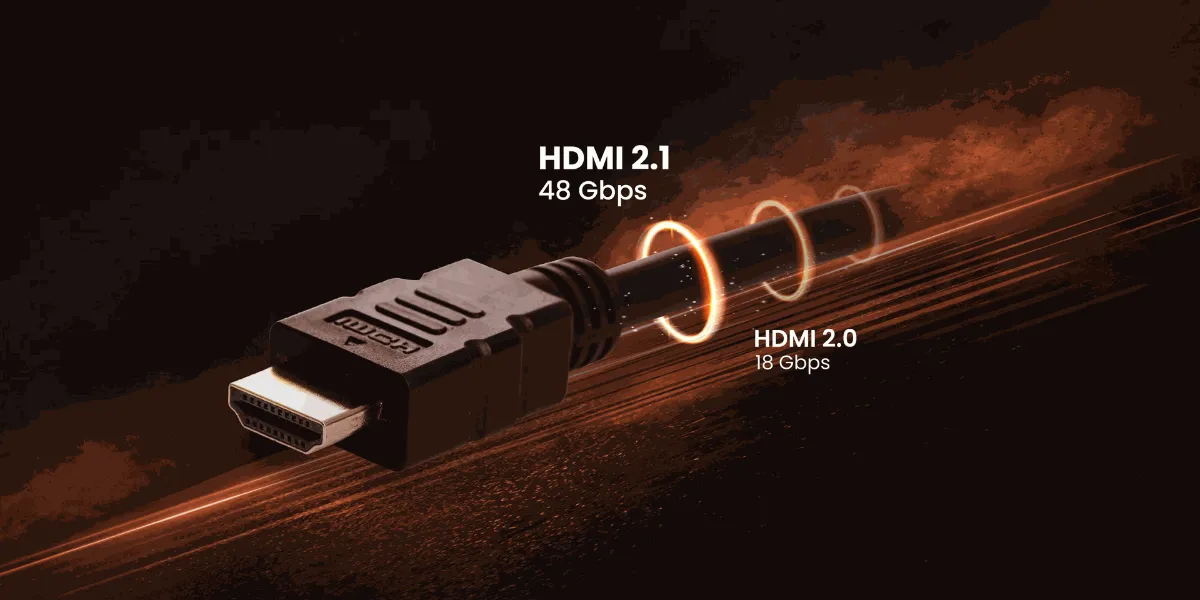
| HDMI 2.0 | 18 Gbit/s | 4K at 60 Hz, 1440p at 144 Hz |
| HDMI 2.1 | 48 Gbit/s | 4K at 120 Hz and up, essential for newer consoles |
| DisplayPort 1.4 | 32.4 Gbit/s | Enough for most high-refresh 1440p monitors |
| DisplayPort 2.1 | up to 80 Gbit/s | For very high-refresh 4K monitors |
Data rates announced by HDMI Licensing Administrator and VESA.
Also consider adaptive sync: G-SYNC (NVIDIA) and FreeSync (AMD) match the monitor’s refresh rate to the graphics card’s output, eliminating screen tearing and stutters. Most recent FreeSync monitors are also compatible with NVIDIA cards (label: “G-SYNC Compatible”).
So, which gaming monitor should you choose in 2026?
A 24/25-inch 1080p monitor at 240 Hz and up, if…
you mainly play competitive FPS, you want the maximum frames per second, and your PC is fairly affordable.
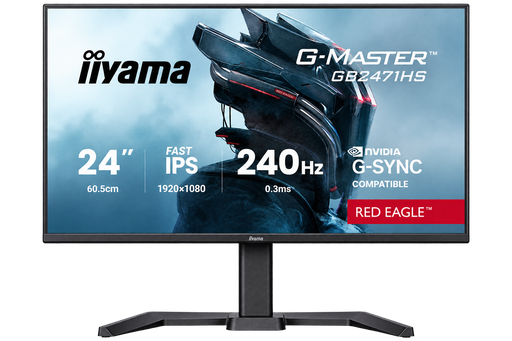
iiyama G-Master Red Eagle 24" 240 Hz
Fast IPS Full HD panel at 240 Hz: the competitive format par excellence.
A 27-inch 1440p high-refresh monitor, if…
you play a bit of everything, you want a sharper image without moving up to 4K, and your PC is mid-range or high-end. It’s the best compromise for the majority of players.
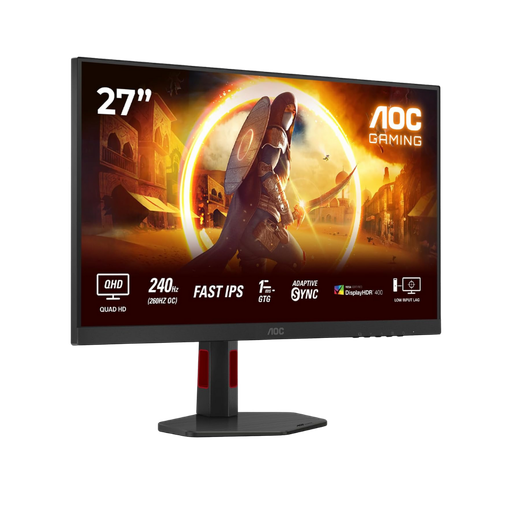
AOC 27" 240 Hz QHD
Fast IPS 1440p panel at 240 Hz: sharpness and smoothness for all types of games.
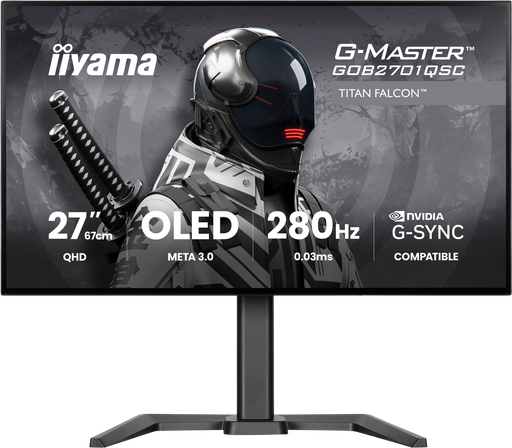
iiyama G-Master Titan Falcon 27" OLED 280 Hz
Tandem OLED 1440p panel at 280 Hz: perfect blacks and remarkable responsiveness.
A 4K monitor at 144 Hz and up, if…
your PC is powerful (RTX 5070 Ti, RX 9070 XT or better), you’re looking for the most detailed image, and you also play spectacular single-player games.
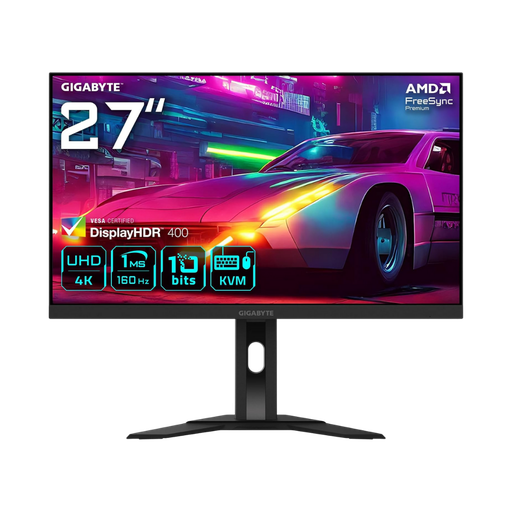
Gigabyte 27" 4K 160 Hz
Super Speed IPS 4K panel at 160 Hz, for a very sharp image without sacrificing smoothness.
Discover our gaming monitors
To see one of our PCs in action, here’s a gaming test of our Rift PC (Radeon RX 9060 XT) by Mathis and Gauthier:
Mathis and Gauthier, review of the FlowUP Rift PC, September 2026.
And the PC to go with it?
A high-refresh monitor only makes sense if the PC can generate enough frames per second. For 1440p at 165 Hz and up, aim for at least a RTX 5060 Ti 16 GB or an RX 9060 XT 16 GB; for 4K, a RTX 5070 Ti or an RX 9070 XT.
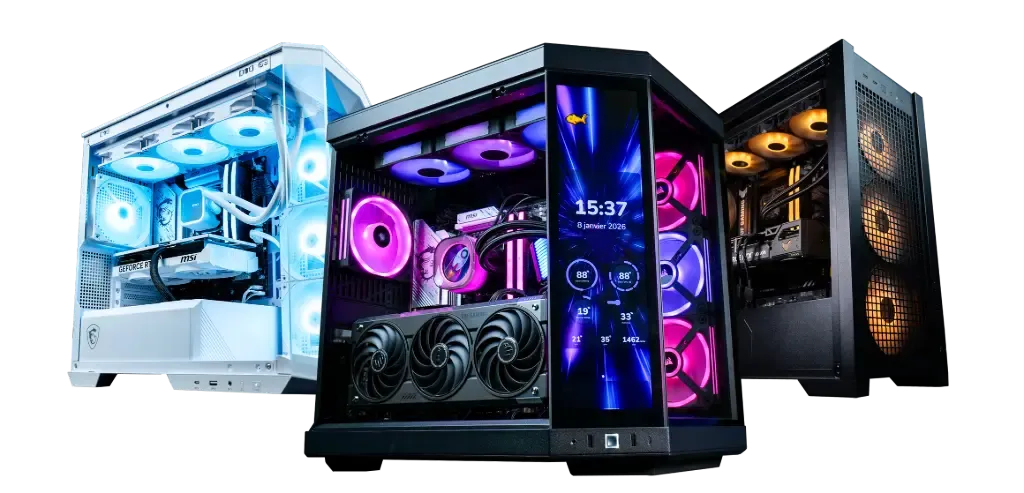
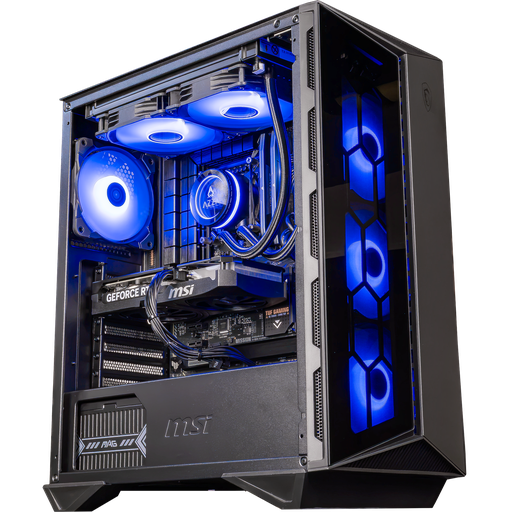
Swift GeForce RTX 5060 Ti 16 GB PC
For a 1080p high-refresh or 1440p monitor: a RTX 5060 Ti with 16 GB of video memory.
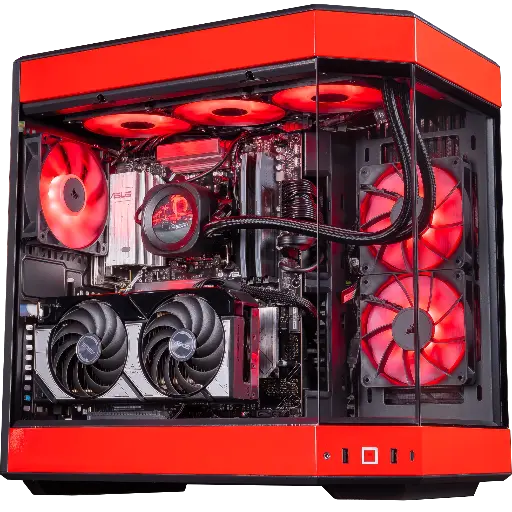
Rivals GeForce RTX 5070 PC
For competitive 1440p at 240 Hz: Ryzen 7 9800X3D and RTX 5070.
To understand this resolution and which graphics cards can handle it, read our guide 4K resolution: what it is and which PC you need for 4K gaming.
Before buying, also check the monitor's VRR support with your graphics card: it's all explained in FreeSync or G-Sync: which should you choose.
FAQ: which gaming monitor should you choose in 2026?
What is the best size for a gaming monitor?
24 or 25 inches for competitive 1080p, 27 inches for 1440p, 32 inches for 4K.
144 Hz or 240 Hz: which should you choose?
144 Hz is already very smooth for most players. 240 Hz is a real advantage in competitive FPS, as long as your PC consistently exceeds 200 frames per second in your games.
Should you get a 1440p monitor in 2026?
For most players, yes: it’s the best balance between sharpness, smoothness, and the power required from the graphics card.
Does HDR really do anything?
Yes, on a good monitor. The DisplayHDR 400 rating adds little; from DisplayHDR 600 or 1000, or on a certified DisplayHDR True Black OLED, the difference becomes clearly noticeable in contrast-heavy scenes.
IPS, VA or OLED: which panel is best?
There isn’t one single answer: IPS for versatility, VA for contrast, OLED for a high-end image.
Is HDMI 2.1 important?
Yes, if you’re aiming for 4K at 120 Hz or higher, or if you’re plugging in a recent console. On PC, DisplayPort remains the first choice.
G-SYNC or FreeSync, what’s the difference?
Both synchronise the screen with the graphics card to prevent image tearing. G-SYNC is NVIDIA’s technology, FreeSync is AMD’s; many FreeSync displays are also certified as G-SYNC Compatible.
Curved or flat screen for gaming?
A matter of taste: the curved display boosts immersion on 32-inch screens and ultrawides; flat panels are still often preferred for competitive play.
What resolution for a 27-inch screen?
1440p (QHD). At Full HD, the image lacks sharpness at this size; 4K looks superb but needs a much more powerful graphics card.
A second screen for streaming, useful?
Yes: having a 24-inch screen next to your main display lets you keep OBS and the chat in view. We explain it in our 2026 streaming setup guide.
