 Your PC in instalments (up to 12x)
By the FlowUP team, gaming PC builder in Genappe (Belgium) · Updated 1 October 2026
In short: a dead motherboard can be identified by a PC that won’t power on, powers on but shows nothing, or where a diagnostic light (CPU, DRAM, VGA or BOOT) stays on. Before concluding, test the power supply, the RAM sticks one by one, and the graphics card, then reset the BIOS (clear CMOS). The motherboard is often wrongly blamed. If it really is the cause, you need to replace it with a model with the same socket.
Symptoms of a dead motherboard
- Nothing happens when you press the power button: no fan, no light.
- The PC powers on but shows nothing: the fans spin, the screen stays black.
- A diagnostic light stays on on the motherboard.
- Looping restarts even before the BIOS logo appears.
- USB, audio or network ports that no longer respond.
- A burning smell or a swollen or blackened component: unplug everything immediately.
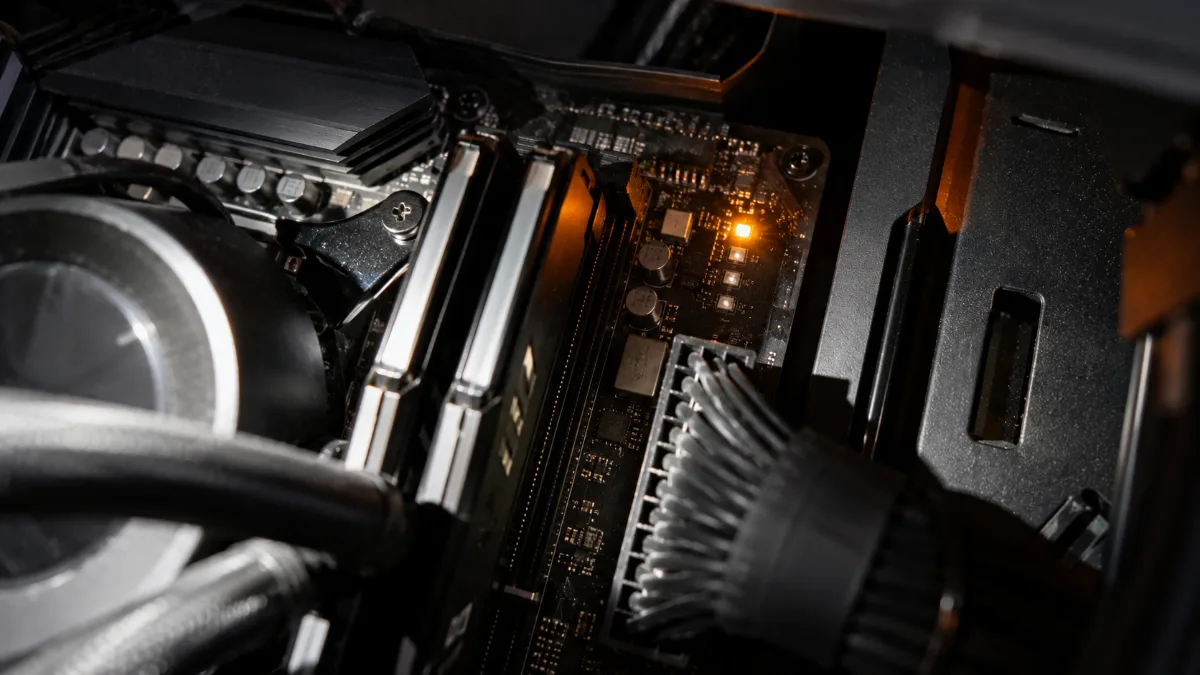
A diagnostic light on: the first clue for finding the faulty part
None of these symptoms alone proves that the motherboard is dead. A tired power supply, a RAM stick that isn’t seated properly, or a misconnected cable produces exactly the same signs. That’s why it’s important to test in order.
Motherboard diagnostic lights
Most recent motherboards have four small lights near the RAM slots (Q-LED on ASUS, EZ Debug LED on MSI). At startup, they light up one after the other. The one that stays on indicates the step that’s stuck.
| Light on | What it indicates | First test |
|---|---|---|
| CPU | Missing or faulty processor | Reseat the processor, check the socket and its pins |
| DRAM | Missing or faulty memory | Re-seat the RAM, test one stick at a time |
| VGA | Missing or faulty graphics card | Reseat the card, check its power cables |
| BOOT | No boot drive | Check the M.2 SSD and its screw, boot order |
Source: ASUS, troubleshooting using Q-LED lights (updated 7 April 2026).
So a CPU or DRAM light being on doesn’t automatically mean “dead motherboard”: it points first to the processor or memory. After a failed BIOS update, the CPU light can also stay stuck. Our guide on how to access your PC’s BIOS goes over the basics.
How to tell if your motherboard is dead: the method
- Check the power supply: mains cable, switch at the back, 24-pin and 8-pin CPU connectors fully seated.
- Switch to a minimal setup: processor, cooler, one RAM stick, graphics card and power supply. Unplug everything else, including drives and peripherals.
- Test the RAM stick by stick, in the slot recommended in the manual.
- Do a clear CMOS to reset the BIOS.
- Plug the screen into the graphics card, not the motherboard.
- Try another power supply if you have one available.
If the PC still refuses to start in a minimal setup, using a healthy power supply and tested RAM, then the motherboard becomes the number one suspect.
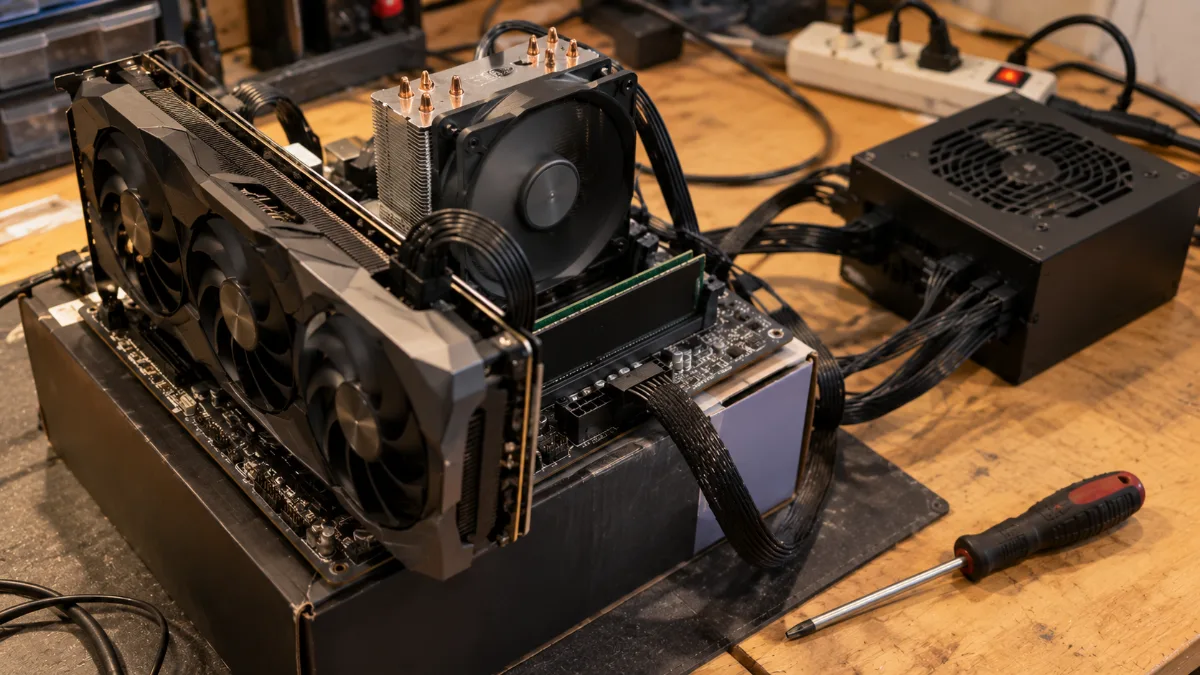
The minimal setup: the test that isolates the faulty component
These steps follow ASUS’s procedure for a PC that won’t power on, shows nothing, or won’t boot. And if your PC won’t start at all, our guide my computer won’t turn on covers the other causes.
Dead motherboard: repair or replace?
A motherboard is rarely repaired: the failures affect soldered components. You replace it. The new one must have the same socket as the processor (AM5, LGA1700, LGA1851…), a compatible chipset, and the correct form factor for the case. Our article on the motherboard chipset helps you choose.
On a PC older than five years, the calculation changes. A new motherboard for an older platform (AM4, LGA1200) costs a lot for what it provides, and DDR4 RAM can’t be reused on a DDR5 platform. Often, that’s the right time to move to a complete, newer PC, assembled and tested. FrenchHardware also shows how to check a brand-new PC right when you receive it:
FrenchHardware: how to test your new gaming PC
Our ready-to-play gaming PCs
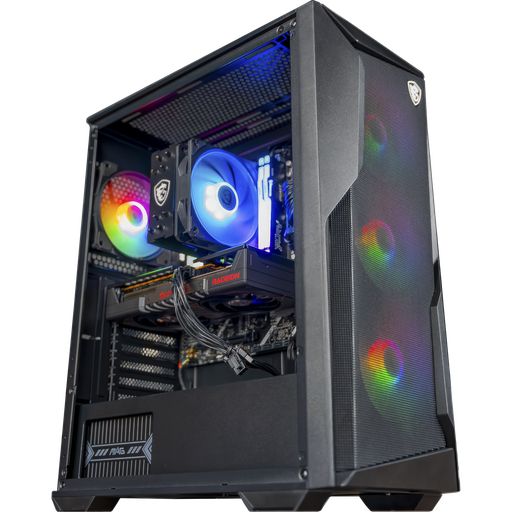
Rift PC: AM5 platform and DDR5
Ryzen 5 7500F, Radeon RX 9060 XT 16GB, 16GB of DDR5 and MSI B840 Gaming Plus WiFi motherboard: a solid, up-to-date foundation for years.
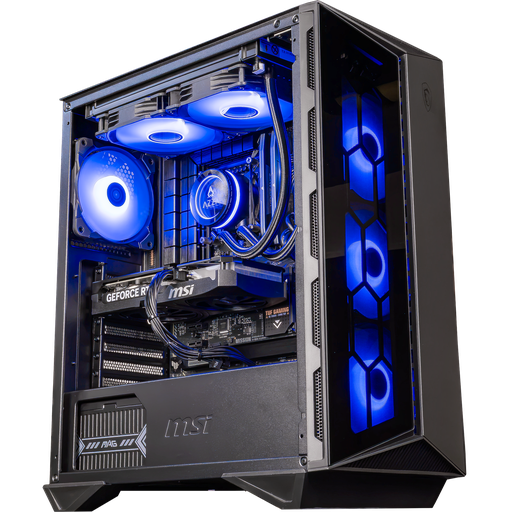
Swift PC: ASUS TUF Gaming B760
Core i5-14400F, RTX 5060 Ti 16GB and ASUS TUF Gaming B760-Plus WiFi motherboard: solid and well connected.
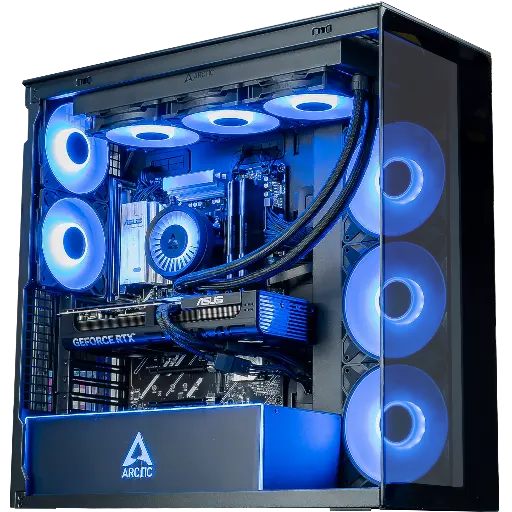
Cheetoh PC: MSI B850 and Ryzen 7 7800X3D
Ryzen 7 7800X3D and RTX 5070 on the MSI B850 Gaming Plus WiFi 6E motherboard: 1440p on a scalable AM5 platform.
FAQ: faulty motherboard
How can I tell if my motherboard is faulty?
Try the minimum configuration, test the RAM modules one by one, clear CMOS, and check the power supply. If it still won’t boot, the motherboard is most likely the cause.
What are the symptoms of a faulty motherboard?
PC won’t power on, black screen with fans spinning, stuck diagnostic light, boot loops, or ports that stop responding.
Can a faulty motherboard damage the other components?
It’s rare, but a burnt smell or a blackened component means you should unplug everything before testing the parts elsewhere.
Can you repair a motherboard?
Rarely. The failures involve soldered components: you replace the board with a model that uses the same socket.
Do you need to reinstall Windows after changing the motherboard?
Not necessarily, but Windows may request a reactivation of the licence linked to the hardware.
