 Your PC in instalments (up to 12x)
By the FlowUP team, gaming PC builder in Genappe (Belgium) · Updated 28 September 2026
In short: under Windows 10 or 11, keep Shift pressed while clicking on Restart, then Troubleshoot > Advanced options > UEFI firmware settings > Restart. When the PC starts up, press the BIOS key several times: Del on most desktop PC motherboards (MSI, Gigabyte, ASUS), F2 on many laptops (Dell, Acer, ASUS), F10 or Esc on HP, F1 or F2 on Lenovo.
Accessing the BIOS (or UEFI) of your computer is an essential step for changing the system’s low-level settings.
Configure the hardware, change the boot order, enable the RAM’s XMP profile or troubleshoot a PC that won’t start anymore: in all these cases, you need to know how to enter the BIOS.
Here are the 4 methods that work under Windows 10 and 11, the keys by PC and motherboard brand, and the solutions when the BIOS won’t show up.
Access the BIOS: the 4 methods
Method 1: from Windows 10 and 11 (Shift + Restart)
The most direct way to access the BIOS/UEFI is to go through Windows.
Follow these steps:
Step 1: Restart using the SHIFT key
- Click the “Restart” button while keeping the SHIFT key (above CTRL) pressed.
- A blue menu will then appear. Select the “Troubleshoot” option.
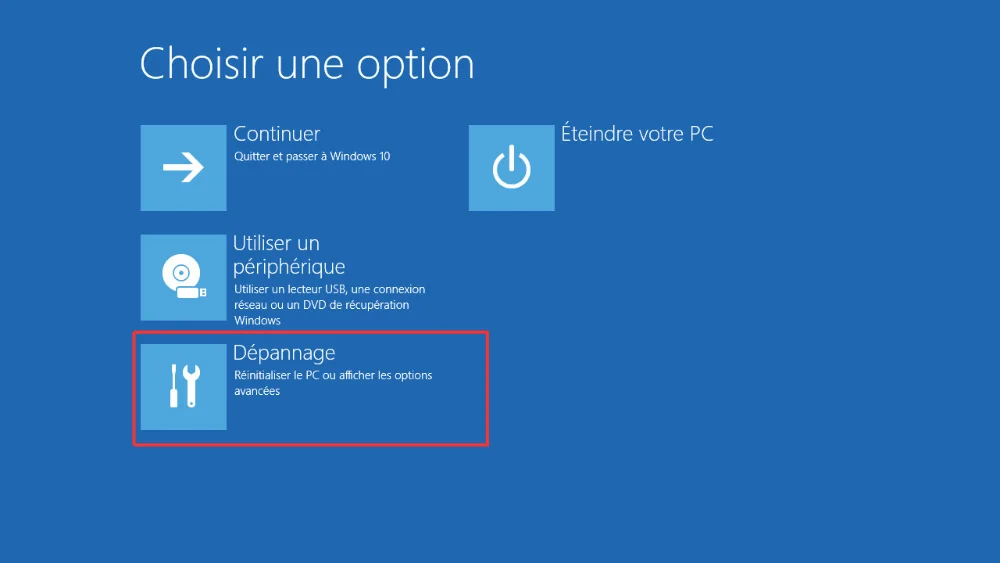
- Click on “Advanced options”.
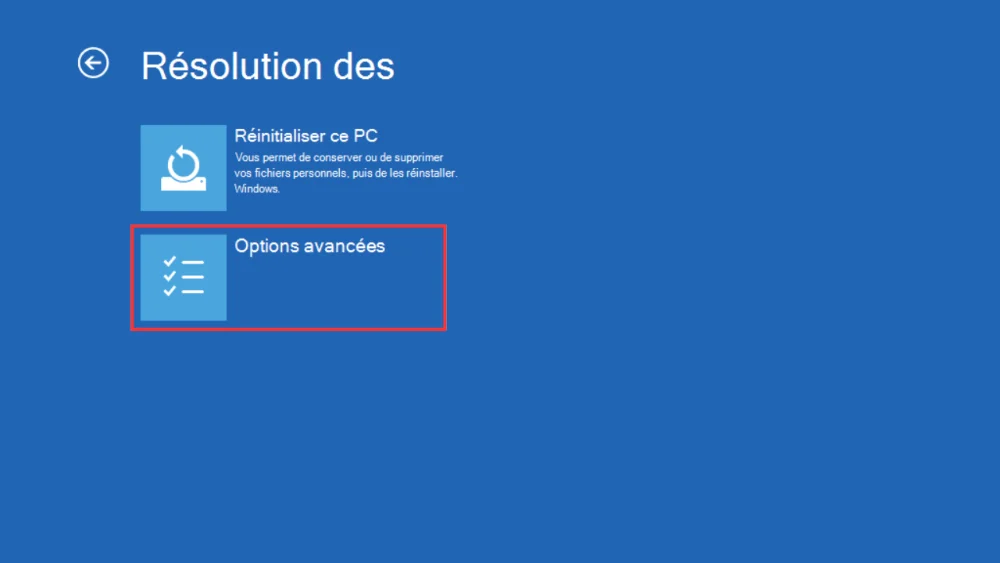
- Select “Change UEFI firmware settings”.
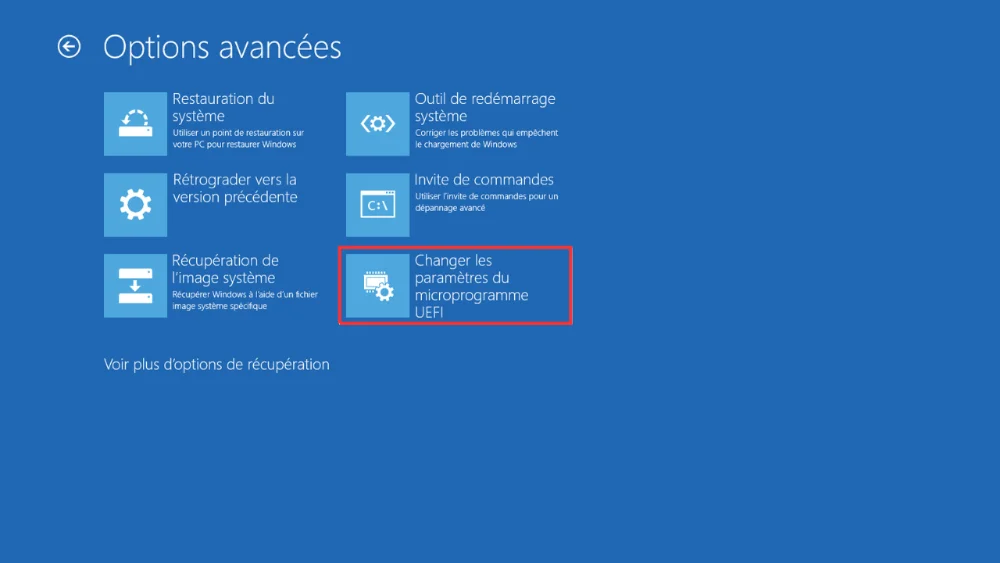
- Click on “Restart”.
The video below (Yannis Astuces PC, in French) shows the full path under Windows 10 and 11, from the Restart button to the UEFI screen:
Variants on Windows 11
On Windows 11, the method is the same as for Windows 10, but the icons and layout may differ slightly.
Another method is to:
- Hold down the Shift key while clicking Restart from the sign-in screen.
- Follow the same steps via the recovery options.
If the “UEFI firmware settings” option doesn’t appear
- Your machine may be using a legacy BIOS rather than UEFI. Check via the utility msinfo32 (Press Windows + R and type msinfo32, then confirm).
- Make sure your system is up to date (Windows Update).
- Some manufacturers disable this feature in restricted BIOS versions. Refer to your motherboard’s documentation.
Method 2: Access the blue menu from Settings
- Click on the Windows logo at the bottom left of the screen.
- Open settings by clicking the gear icon.

- Select “Update & security”.
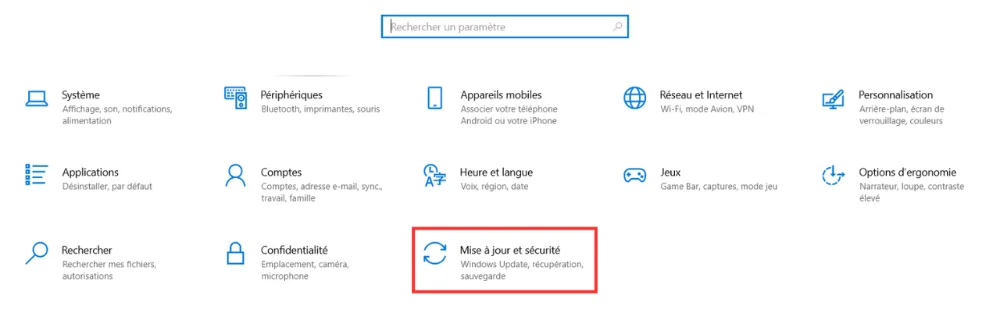
- In the left-hand menu, click “Recovery”.
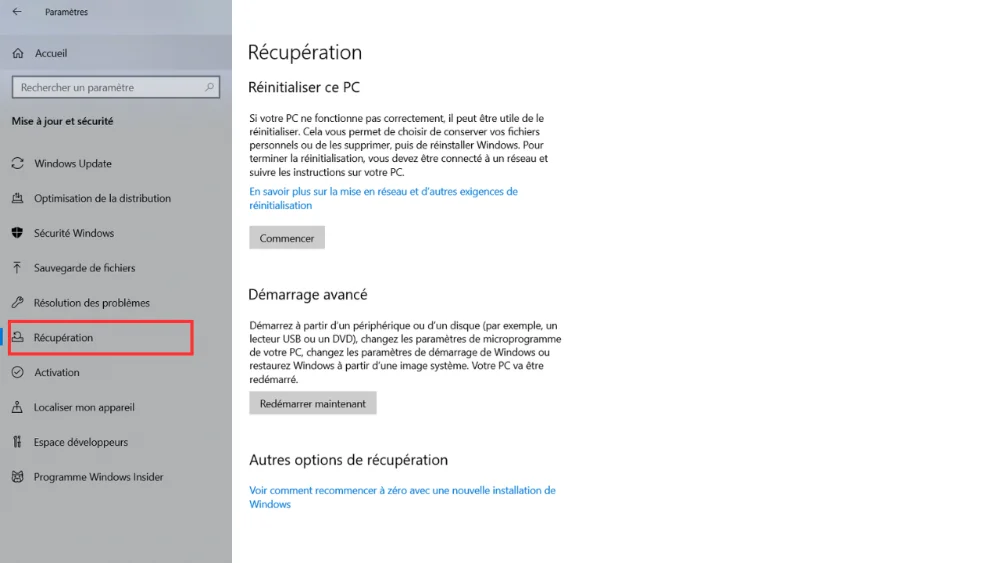
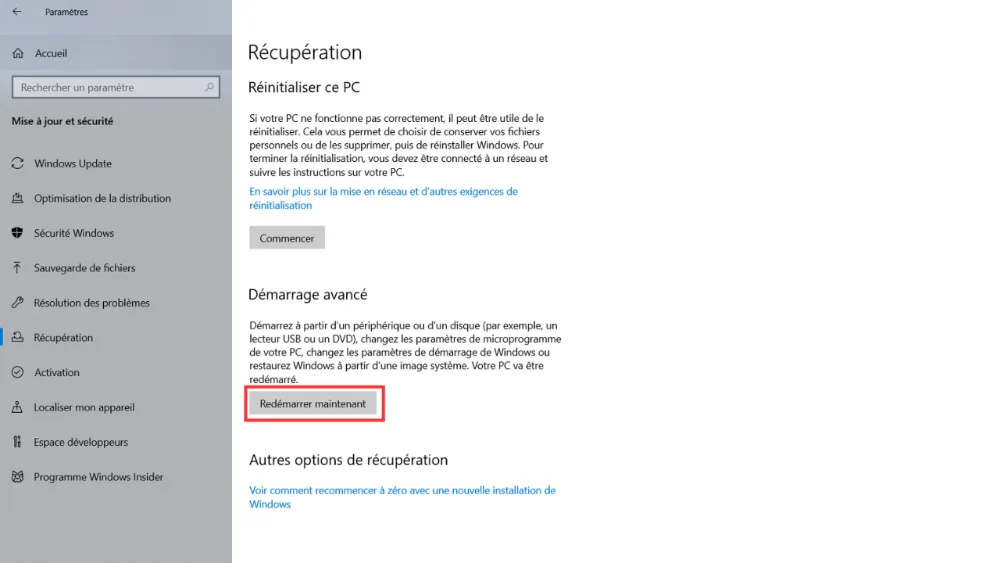
- Under “Advanced startup”, click “Restart now”.
- Under Windows 11, the path is Settings > System > Recovery > Advanced startup > Restart now. Then continue as in method 1: Troubleshoot, Advanced options, UEFI firmware settings.
Method 3: access the BIOS when the computer boots
You may need to access the BIOS without going through Windows, especially if Windows won’t start.
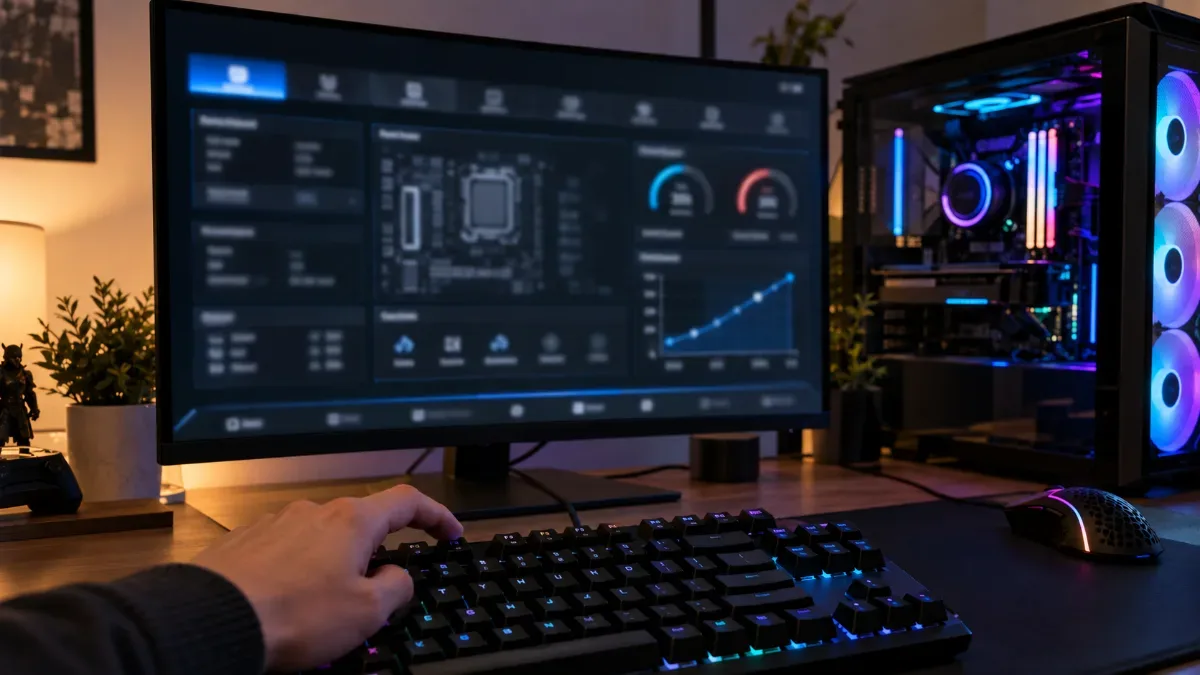
The method is always the same: switch on the PC and press the BIOS key several times during the first few seconds, before the Windows logo appears.
Access key by brand (table of common keys)
When the computer starts, it’s possible to access the BIOS by pressing a specific key.
It depends on the PC brand or the motherboard:
| Brand | BIOS access key |
ASUS | Del or F2 |
HP | F10 or Esc |
Dell | F2 |
Lenovo | F1 or F2 |
Acer | F2 |
MSI | Del |
Toshiba | F2 |
Gigabyte | Del |
ASRock | F2 or Del |
How quickly do you need to press the key?
Timing is critical: you must press the key as soon as you press the PC’s Power button. Press it several times (quickly) without pausing until the BIOS menu appears. If you wait too long, the operating system may start instead.
Tip: USB keyboard vs Bluetooth keyboard
Bluetooth wireless keyboards aren’t recognised before the operating system starts. Use a wired USB keyboard to access the BIOS. Some proprietary wireless dongles (Logitech Unifying, for example) also work, but this isn’t guaranteed.
Method 4: the shutdown command (the fastest)
If Windows starts, one command is enough to restart directly into the BIOS/UEFI. Open the Command Prompt as an administrator and type:
shutdown /r /fw /t 0
The /r option restarts the PC, /fw asks the next boot to open the firmware interface (the UEFI), and /t 0 removes the wait time. This command works only on a PC in UEFI mode (Microsoft documentation).
Specific case: access the BIOS on a laptop
Laptops often have faster boot sequences and a limited interface. Some manufacturers hide information on the screen for a quicker boot, making it harder to access the BIOS. There may also be additional shortcut keys to enable, such as the Fn key.
HP, Dell, ASUS, Acer models: specific keys
- HP: F10 or Esc
- Dell: F2 (sometimes Fn+F2)
- ASUS : F2 (press from power-on)
- Acer : F2 or Fn+F2 (depending on the BIOS and model)
It’s sometimes necessary to disable Fast Startup in the Windows settings in order to have time to press the access key.
What to do if Secure Boot blocks access?
The Secure Boot can prevent certain boot options or access to devices.
To disable this option:
- Access the BIOS/UEFI using the Windows method or at startup.
- Look for the Secure Boot option in the Security or Boot tab.
- Change the setting to Disabled.
- Save the changes and exit (usually F10).
Caution: Windows 11 and several online games with anti-cheat require Secure Boot. If you disable it for a one-off operation, remember to re-enable it afterwards.
How can you tell whether your PC uses a BIOS or UEFI?
Check via msinfo32
Here’s how to determine whether your system uses UEFI or a traditional BIOS:
- Press Windows + R and type msinfo32, then confirm.
- In the System Information window, look for the line BIOS Mode.
- It will display “UEFI” or “Legacy”.
Alternative method via command line
Open the Command Prompt (cmd) as an administrator and type:
bcdedit
Look at the path line in the “Windows Boot Loader” section: winload.efi means Windows boots in UEFI, winload.exe means legacy BIOS.
What is the BIOS for?
The BIOS (Basic Input Output System) is the first programme to start when you switch on your computer, even before Windows. It initialises the essential components and starts the priority application (generally the operating system).
Main functions of the BIOS/UEFI
- Initialisation of components: The BIOS/UEFI initialises hardware components such as the processor, the RAM and connected devices.
- Boot sequence (Boot): It sets the order of devices to activate in order to start the operating system. You can choose the boot order for a dual boot, allowing you to have multiple operating systems on the same computer.
- Overclocking: Many modern BIOS/UEFI versions include tools to overclock the processor and RAM. For the memory, that’s also where you enable the RAM’s XMP profile.
What should you do if you can’t access the BIOS?
Common symptoms
- The computer boots straight into Windows without displaying the message “Press F2 to enter Setup”.
- The BIOS flashes but shuts down immediately.
- Keyboard not detected at startup (especially USB or wireless).
- Error message like “No Bootable Device” without BIOS access. If the PC doesn’t boot at all, follow our guide my computer won’t start.
Black screen right when you power on, with no logo or message? The problem is then more likely with the display: see our guide black screen, no display: causes and solutions.
Solutions: CMOS reset, key not recognised, keyboard not active
- Check the keyboard: prefer a wired USB keyboard. Avoid Bluetooth models that require Windows to be recognised.
- Restart while repeatedly pressing several keys: Del, F2, F10, Esc depending on the brand.
- Disconnect all external devices: USB stick, hard drive, SD card that could interfere with booting.
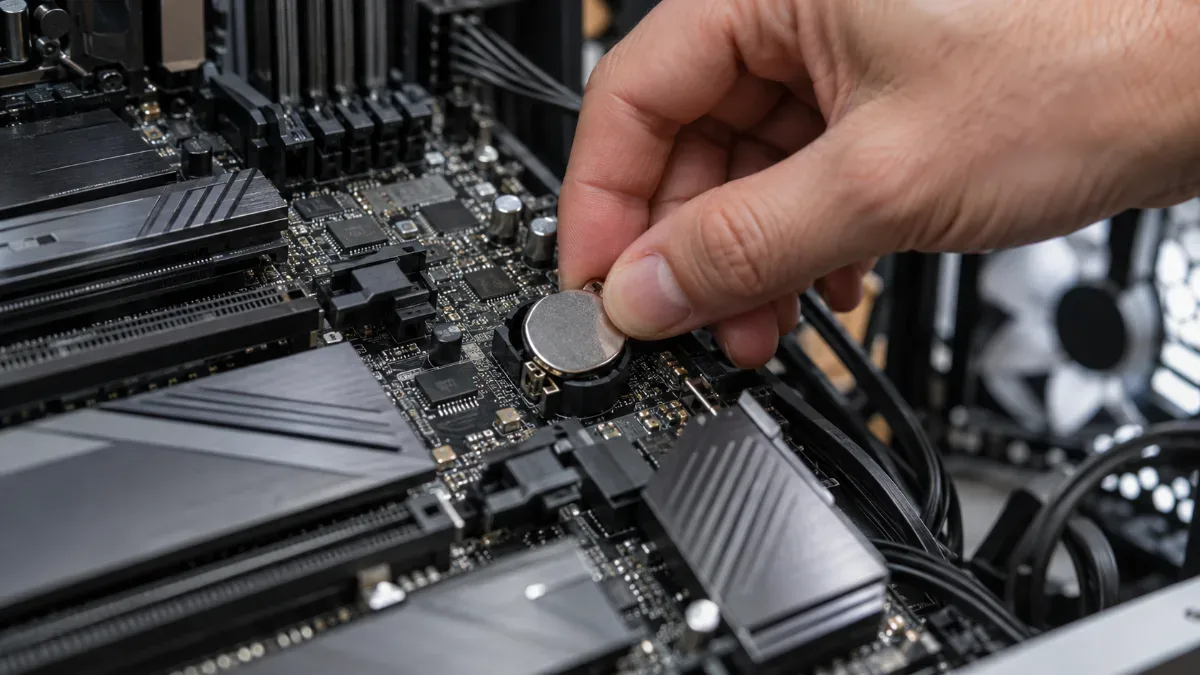
- Reset the CMOS: switch off the computer, open the case (on a desktop PC), remove the CMOS battery for 1 minute, then put it back in.
- Use the Windows advanced startup method (see the previous section) if your OS still boots.
Would you rather have a pre-built PC that’s already ready to play, without having to set up the BIOS yourself? Here’s an example of a gaming configuration from our catalogue:
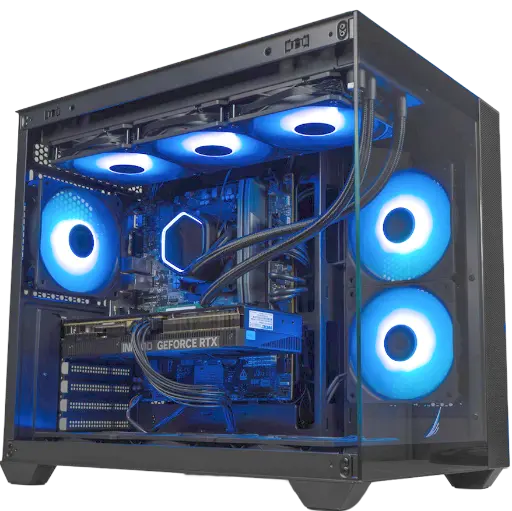
PC Umbra, GeForce RTX 5070
Ryzen 5 7500F and RTX 5070 12GB for playing in 1440p. You can also find all our gaming PCs.
FAQ: access the BIOS and adjust your settings
Which key to access the BIOS?
It depends on the manufacturer: Delete on most desktop PC motherboards (MSI, Gigabyte, ASUS), F2 on many laptops (Dell, Acer, ASUS), F10 or Escape on HP, F1 or F2 on Lenovo. Press repeatedly as soon as you power on.
How do I access the BIOS in Windows 11?
Hold Shift while clicking Restart, then choose Troubleshoot > Advanced options > UEFI firmware settings > Restart. The PC restarts straight into the UEFI, without having to hit the right key.
How can I access the BIOS if Windows won’t boot?
Restart the computer and press the dedicated key (usually Delete, F2 or F10) repeatedly as soon as it powers on. If the screen stays black, consult our guide Black screen, no display.
What’s the difference between BIOS and UEFI?
UEFI is the modern successor to BIOS: a graphical interface that works with a mouse, support for drives larger than 2 TB, and Secure Boot. By habit, people still often call the UEFI on recent motherboards “BIOS”.
Can you access the BIOS without restarting the computer?
No. BIOS/UEFI runs before Windows: you always need to restart to enter it, whether via the Windows menu, the shutdown command, or the key during startup.
What are the risks of changing BIOS settings?
Incorrect settings (voltages, frequencies, boot order) can make the system unstable or prevent it from starting. Change only what you understand, and note the original values before you change anything.
How do I reset the BIOS settings?
In the BIOS, select the “Load Optimized Defaults” or “Load Setup Defaults” option (the shortcut key is usually shown at the bottom of the screen), then save. If the BIOS is no longer accessible, perform a Clear CMOS.
