
By the FlowUP team, gaming PC assembler in Genappe (Belgium) · Updated 28 September 2026
A Clear CMOS resets the motherboard BIOS to its factory settings. It’s one of the first things to try when a PC won’t boot after a BIOS change, overclocking, or a memory upgrade. The procedure doesn’t affect Windows or your files, and it can be done in three ways: using a button, using two pins (a jumper), or by removing the motherboard battery.
In short
- Clear CMOS = resetting the BIOS to default values.
- Useful after a failed overclocking, an unstable XMP or EXPO memory profile, a black screen at startup, or a component change.
- Three methods: Clear CMOS button, CLR_CMOS jumper, or removing the battery for a few minutes.
- Always with the PC switched off and the power supply unplugged.
- No danger: Windows, games and files remain intact.
Contents
- What is CMOS?
- When should you do a Clear CMOS?
- How to do a Clear CMOS: the 3 methods
- Is it dangerous?
- What a Clear CMOS doesn’t fix
- FAQ
What is CMOS?
The CMOS is a small memory chip on the motherboard that stores BIOS settings: boot order, CPU frequencies, the memory profile, and the date and time. A coin-cell battery (often a CR2032) powers it when the PC is unplugged. Doing a “Clear CMOS” means erasing those settings so you can go back to the original configuration.
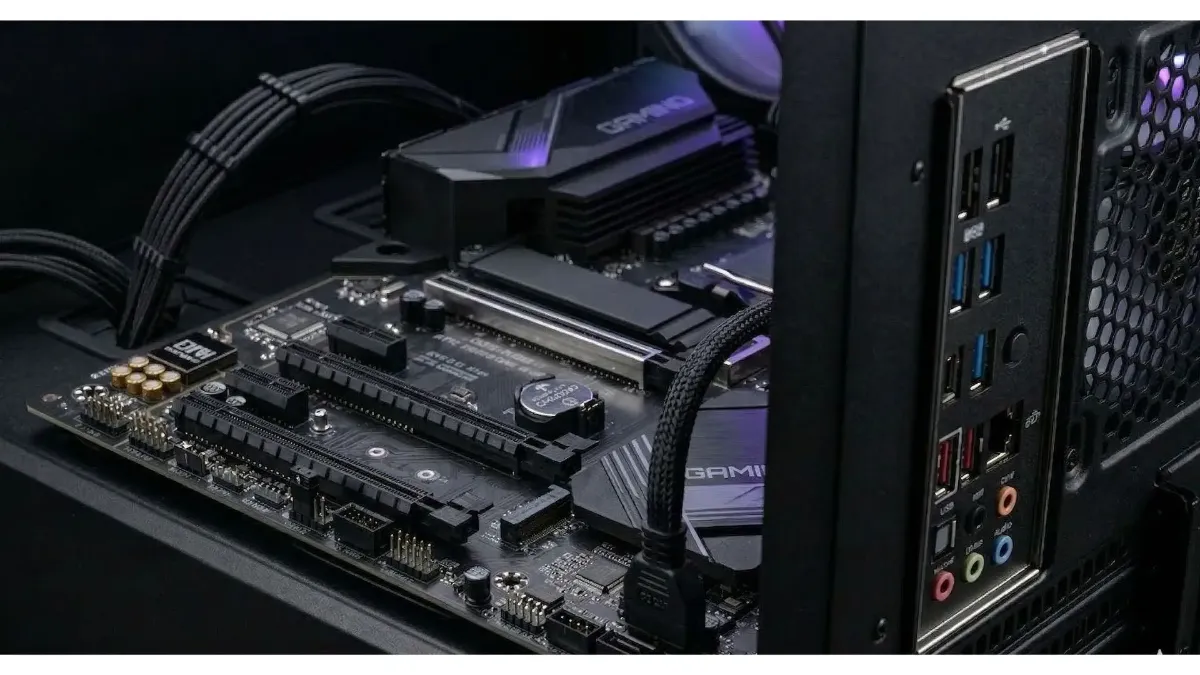
All BIOS settings are stored in a small memory on the motherboard.
When should you do a Clear CMOS?
- After a failed overclocking or undervolt: the PC won’t get past the boot screen or restarts in a loop.
- With an unstable XMP or EXPO memory profile: blue screens or a PC that won’t boot after enabling the profile.
- When the PC powers on but shows no display: fans spin but the screen stays black. See also our guide black screen on a PC: no display.
- After changing the processor or memory, if the motherboard doesn’t adapt by itself.
- After a BIOS update, when the manufacturer recommends it.
How to do a Clear CMOS: the 3 methods
First of all: switch off the PC, unplug the power cable or turn off the switch on the back of the PSU, then press the power button for a few seconds to discharge any residual energy.
| Method | Where | Difficulty |
|---|---|---|
| Clear CMOS button | Rear panel (ports) of some motherboards | Very easy |
| CLR_CMOS jumper (or JBAT1) | Two pins on the motherboard | Easy |
| Remove the battery | Coin-cell battery on the motherboard | Easy, sometimes hard to access |
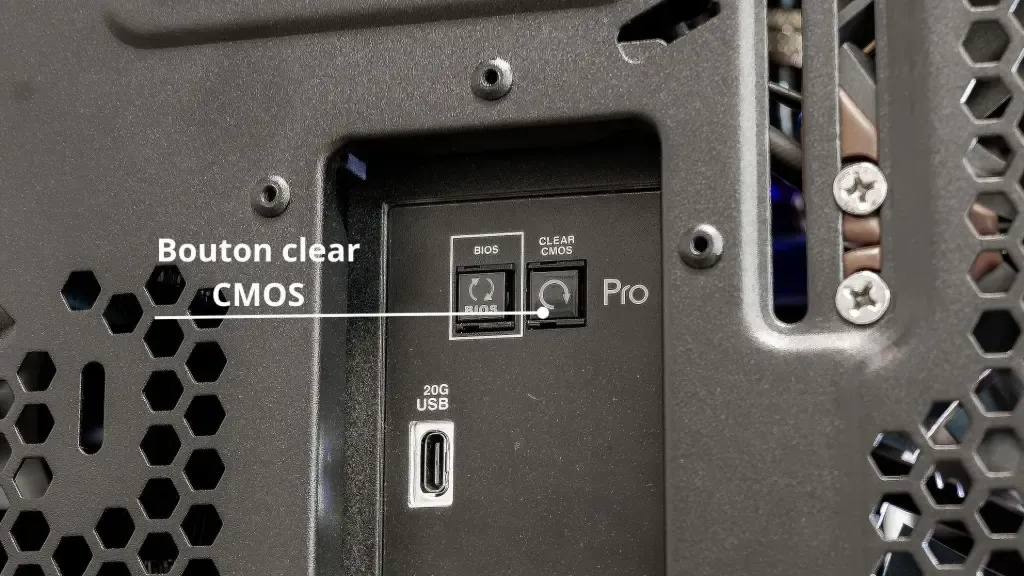
Method 1: the Clear CMOS button. On motherboards that have one, it’s located in the middle of the USB ports on the back. With the PC unplugged, press it for a few seconds. It’s the simplest method.
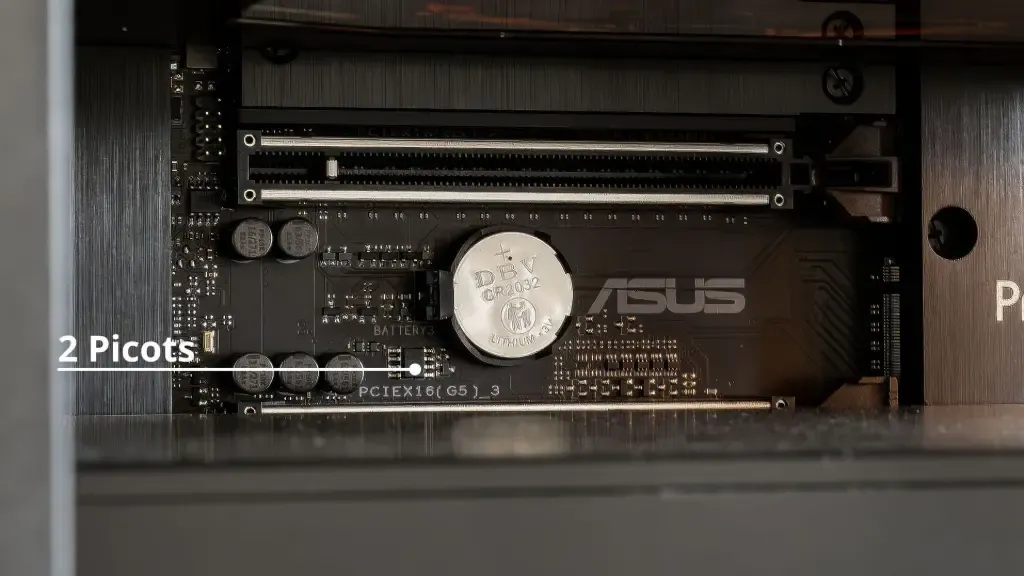
Method 2: the jumper. Locate the two pins labelled CLR_CMOS, CLRTC or JBAT1 (the motherboard manual shows their position). Connect them for 5 to 10 seconds using the tip of a screwdriver or the jumper provided, then remove it.
Method 3: the battery. Carefully remove the coin-cell battery from its holder, wait a few minutes, then put it back in the same orientation. On some motherboards it’s hidden under the graphics card or under a cover: you’ll have to remove those.
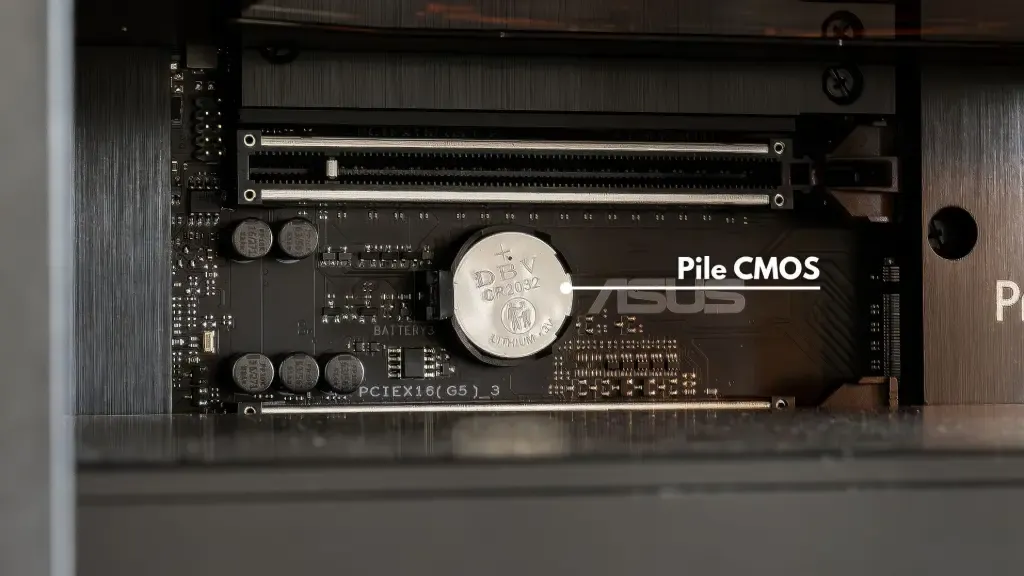
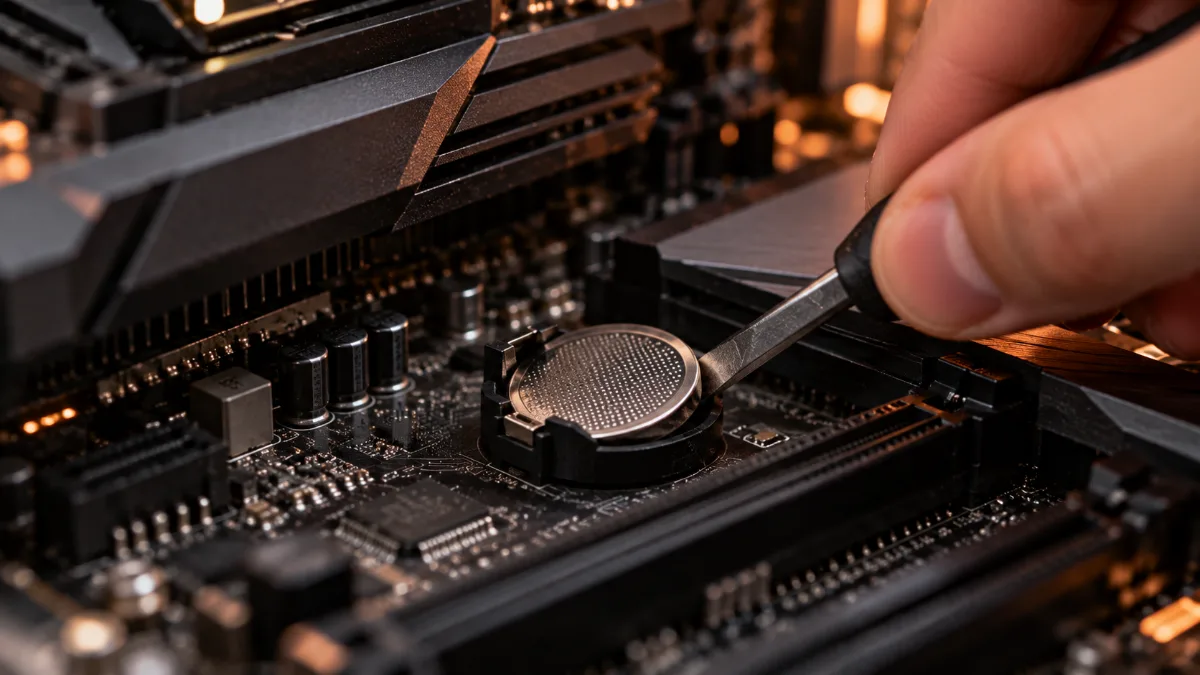
A small flat-head screwdriver is enough to release the battery from its clip.
On reboot, the PC may take longer than usual, or show a message asking you to enter the BIOS: this is normal. Then set the date and time again, and re-enable the XMP or EXPO memory profile if it was stable before.
Is it dangerous to do a Clear CMOS?
No. The procedure only affects the BIOS settings: Windows, your games and your files on the SSD are not touched. The only real risk is doing it with the PC powered on, which is why it’s important to unplug the power supply. Also remember to note your custom settings (memory profile, fan curve) if you want to set them again afterwards.
FrenchHardware reviews the most common failures (PC won’t turn on, blue screen) and the reflexes to have:
What a Clear CMOS doesn’t fix
Clear CMOS fixes an unstable setting or a misconfigured BIOS. It doesn’t repair a faulty memory stick, an underpowered PSU, or a damaged motherboard. If your PC still won’t start after the procedure, follow our diagnosis for no display and a black screen, or, in case of blue screens, our guide Windows blue screen. And if you like to push your hardware, read first should you overclock your PC .
On a PC that’s been assembled and tested in the workshop, the BIOS is set up and validated before shipping, including the memory profile: this kind of troubleshooting becomes the exception. Two ready-to-play configurations:
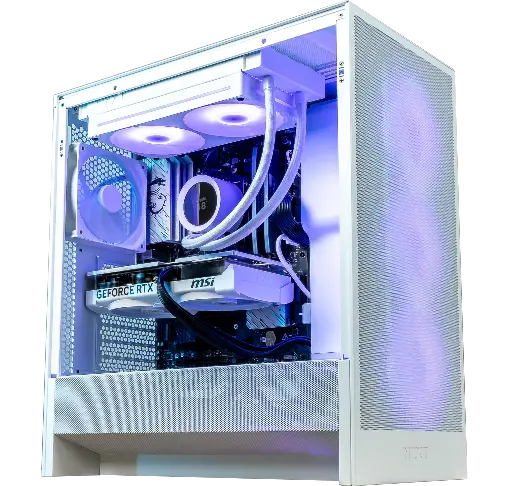
PC Novara GeForce RTX 5070 12GB
Ryzen 5 7500X3D, RTX 5070 12GB, 16 GB DDR5 and a 1 TB M.2 SSD: a configuration ready to play straight out of the box.
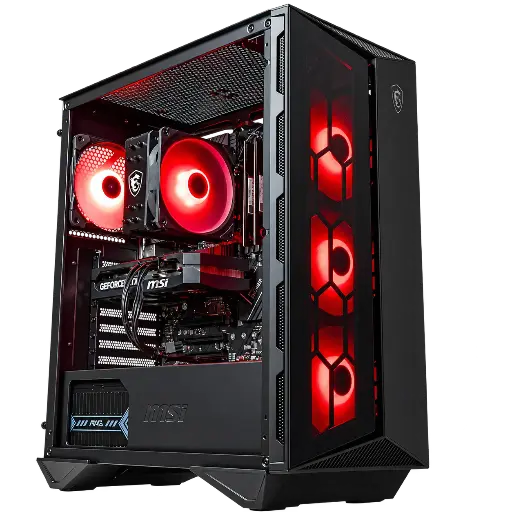
PC Banger GeForce RTX 5060
RTX 5060 and Intel Core i5-12400F for Full HD, ready to use.
FAQ
Does Clear CMOS delete Windows?
No. It only affects BIOS settings; Windows, games and files remain intact.
How long do you need to remove the CMOS battery?
A few minutes are usually enough. If the BIOS isn’t reset, leave the battery removed for longer, with the PC unplugged.
Should you do a Clear CMOS after changing RAM?
Only if the PC won’t boot or becomes unstable. Otherwise, the motherboard detects the new memory on its own.
Do all motherboards have a Clear CMOS button?
No, it’s mainly found on higher-end models. But all boards have a jumper and a battery.
What should you do if the PC still won’t start?
Check the connections, test with just one memory stick, then contact the manufacturer’s support. For a FlowUP PC, go through our support.
