
By the FlowUP team, PC gaming builder in Genappe (Belgium) · Updated 28 September 2026
In brief: a computer works like a chain. Storage (SSD) keeps your programs, RAM holds them ready, the processor (CPU) carries out the instructions, the graphics card (GPU) calculates the images, and the motherboard connects everything together. The power supply provides the energy, cooling removes the heat, and the keyboard, mouse and screen connect you to the machine.
A desktop PC isn’t magical. Open the case and you’ll find around ten parts, each with a specific role. What’s fascinating is how quickly they pass the baton: when you click an icon, billions of operations follow one after another in a fraction of a second.
Rather than listing the components one by one, we follow the journey of an action, from the power button to the image on your screen.
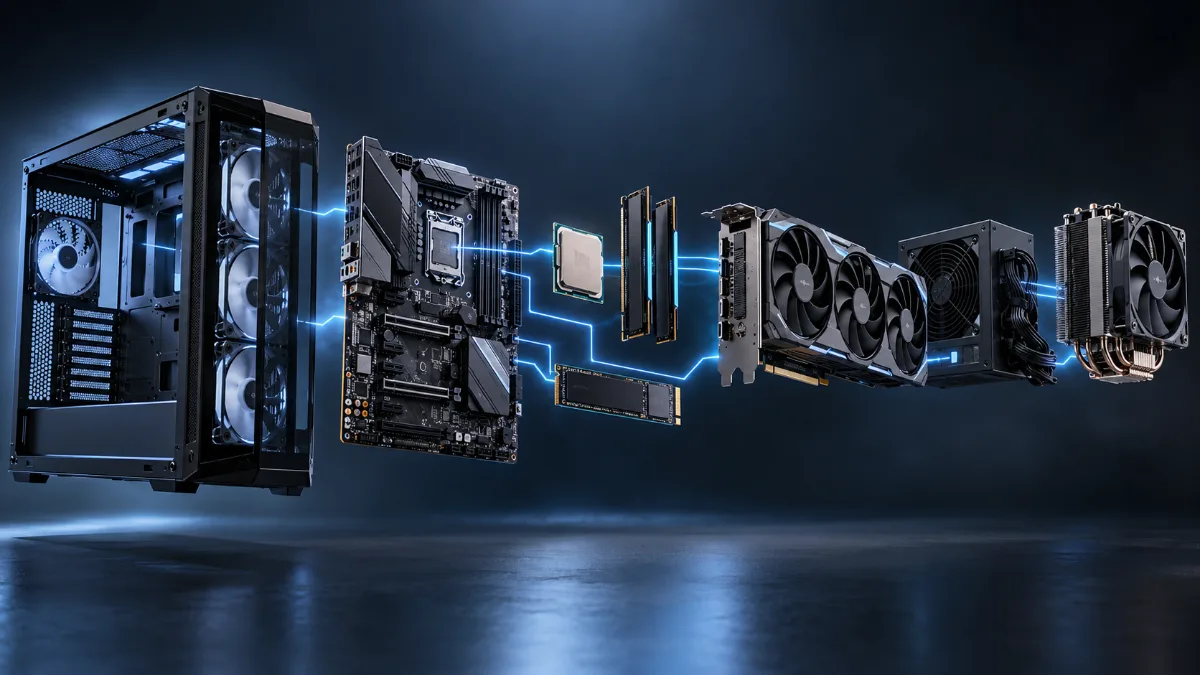
Components and their role at a glance
| Component | Its role | The analogy |
|---|---|---|
| Processor (CPU) | Executes program instructions | The conductor |
| Memory (RAM) | Keeps the data currently in use close at hand | The workbench |
| Storage (SSD, hard drive) | Stores programs and files even when powered off | The library |
| Graphics card (GPU) | Calculates the images displayed on your screen | The artist |
| Motherboard | Connects and lets all components communicate | The road network |
| Power supply | Converts mains electricity for the components | Power station |
| Cooling | Evacuates the heat produced | Air conditioning |
| Peripherals | Link you to the machine | The senses |
For a piece-by-piece buying guide, see our article on the components of a gaming PC. Here, we focus on how they work together.
What happens when you turn on the PC
- The power supply sends current to the motherboard the moment you press the button.
- The motherboard firmware (BIOS or UEFI) wakes up and checks that the processor, memory and graphics card respond. This is the power-on self-test.
- It then looks for an operating system on the SSD and starts the bootloader.
- Windows loads from the SSD to the RAM, much faster, then the processor runs it.
- The desktop appears thanks to the graphics card, which sends the image to the screen.
With an SSD, this whole process takes around ten seconds. With an old mechanical hard drive, it can be more than a minute, this is why an SSD is the most cost-effective upgrade for an old PC.
The processor: executing instructions
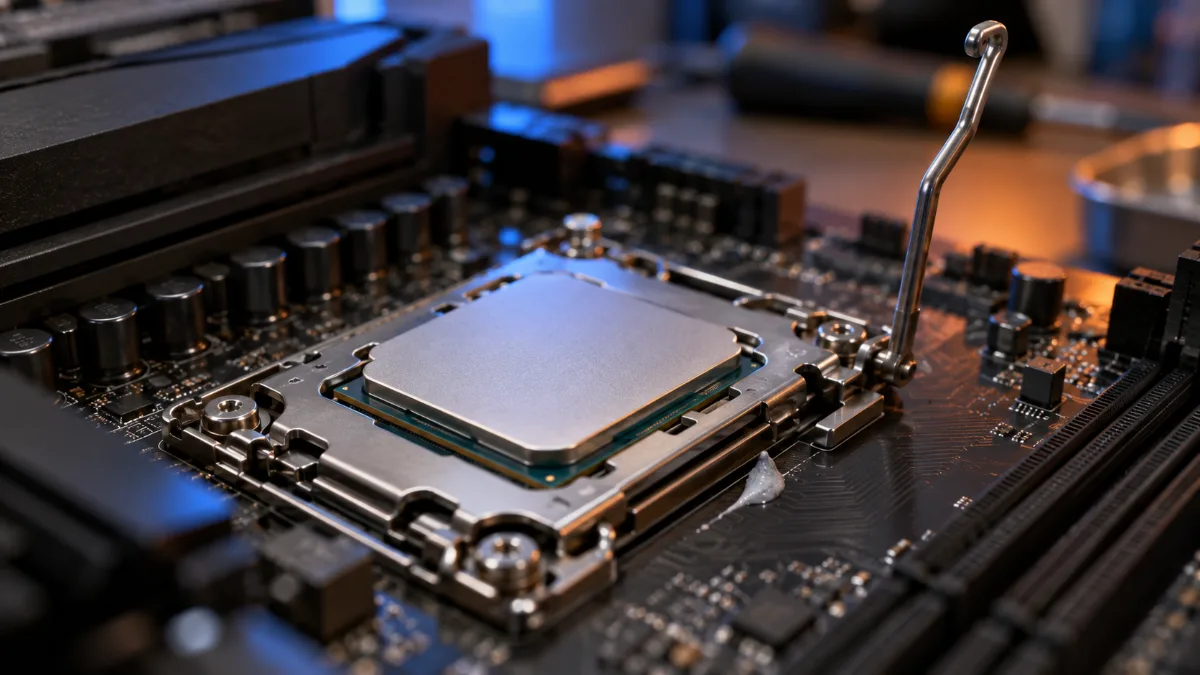
The processor reads program instructions and executes them, billions of times per second. It consists of cores, real small autonomous processors, and each can handle one or two threads at a time.
To avoid waiting for RAM, it keeps the most frequently used data in its own ultra-fast memory, the cache. Some processors also include a small graphics part, enough for office work but not for gaming. To choose yours, see Intel or AMD: which processor should you choose.
RAM and storage: the workbench and the library
Storage (SSD or hard drive) keeps everything, even when the PC is switched off, but it’s slow compared to the processor. RAM is much faster, but it disappears when you cut the power. When you launch a game, its files are copied from the SSD to the RAM, where the processor can access them instantly. That’s why a lack of RAM slows everything down: the PC has to continuously go back to the storage to fetch data. In 2026, 16 GB is the minimum for gaming, 32 GB is comfortable.
The graphics card: making the images
Where the processor has a few very versatile cores, the graphics card has thousands, simpler ones, that work in parallel. It’s ideal for calculating millions of pixels for each frame. It has its own memory, VRAM, to store game textures.
In a game, the processor prepares the scene (positions, physics, characters’ intelligence) and the graphics card draws it, 60, 144 or 240 times per second. To find out how long it will last, read our article on the lifespan of a graphics card.
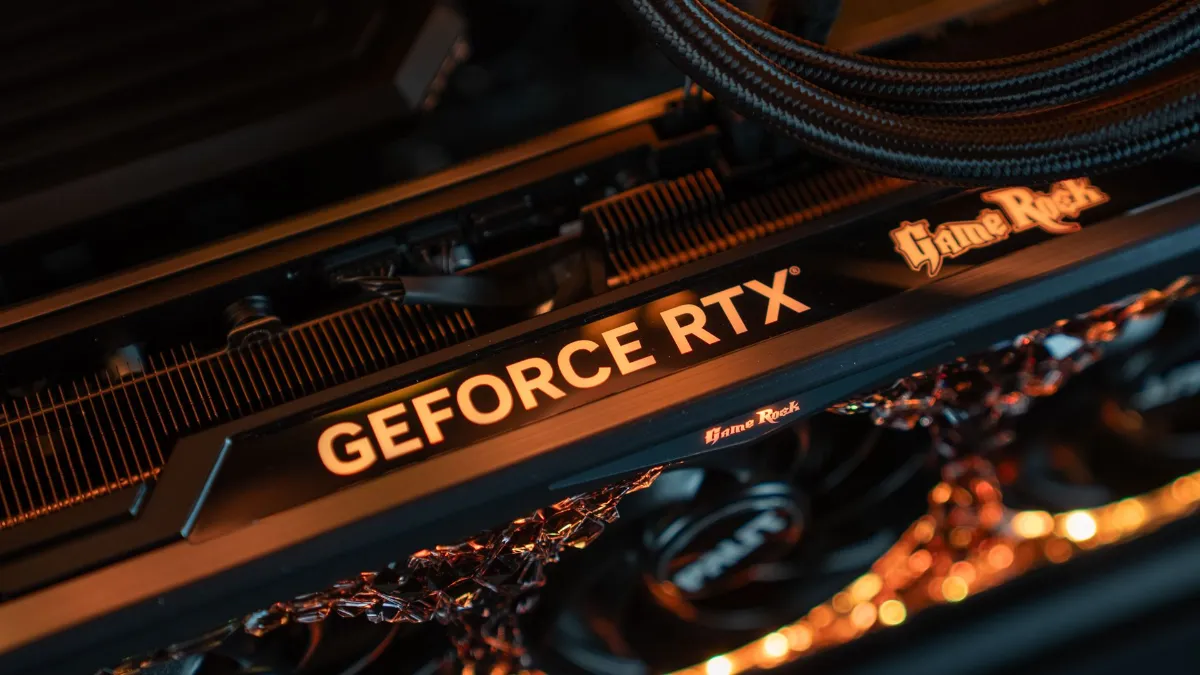
The motherboard: connecting everyone
A motherboard is the main printed circuit board everything plugs into: the processor socket, RAM slots, M.2 ports for SSDs, a PCI Express port for the graphics card, plus USB, network and audio connectors. Its chipset handles part of the communication and determines which features are available (number of ports, overclocking). It also houses the BIOS, the small program that boots the machine.
Power supply and cooling: energy and heat
The power supply converts the alternating current from the wall socket into direct current at different voltages (12 V, 5 V, 3.3 V) and protects components against overvoltage and short circuits. Its 80 Plus certification indicates its efficiency.
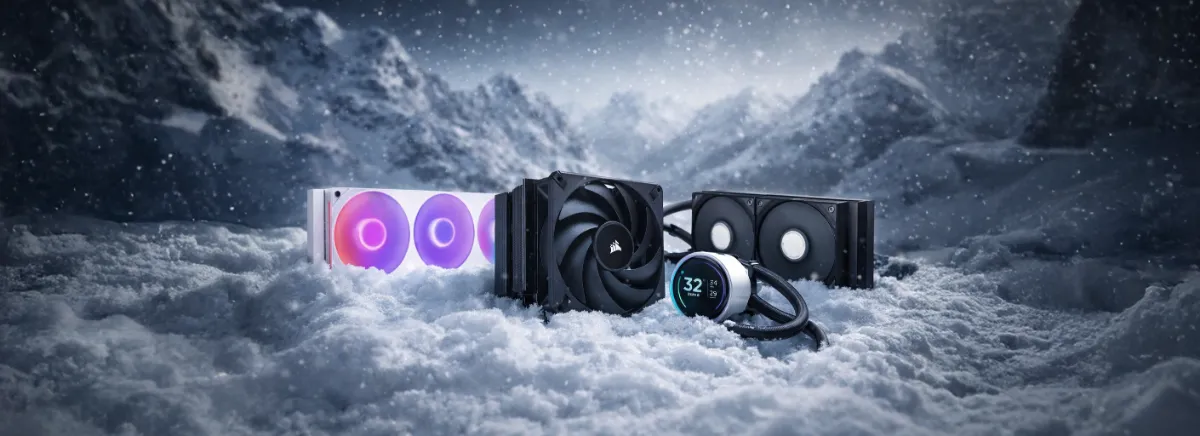
All that electricity ends up as heat. The cooling removes it: an air cooler or watercooling for the processor, a radiator with fans for the graphics card, and case fans to circulate fresh air. Our comparison air cooler or watercooling helps you choose.
The path of an action: from click to screen
Let’s take a concrete example: you fire in a game by clicking.
- The mouse sends the signal via USB to the motherboard.
- The processor receives it and calculates the result: trajectory, impact, sound.
- It pulls the necessary data from the RAM, which had been loaded from the SSD when the game started.
- It sends the scene to the graphics card, which draws the new image.
- The image goes to the screen via the HDMI or DisplayPort cable.
All of this takes just a few milliseconds. It’s the speed of each link that makes a gaming PC feel smooth.
Codeur-pro’s video goes over the basics of how a computer works, with simple diagrams. A great extra to visualise what we’ve just explained.
Desktop PC or laptop: the same principle
A laptop PC works in exactly the same way, with miniaturised components and a battery. Everything is more compact, so it’s less powerful and harder to cool. We compare the two in our article Fixed gaming PC or laptop.
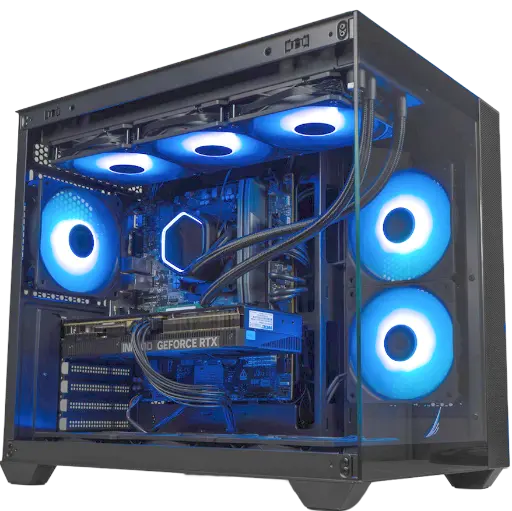
See a complete gaming PC
To see how all these parts come together into a machine ready to play, take a look at our configurations, each one has a page detailing every component:
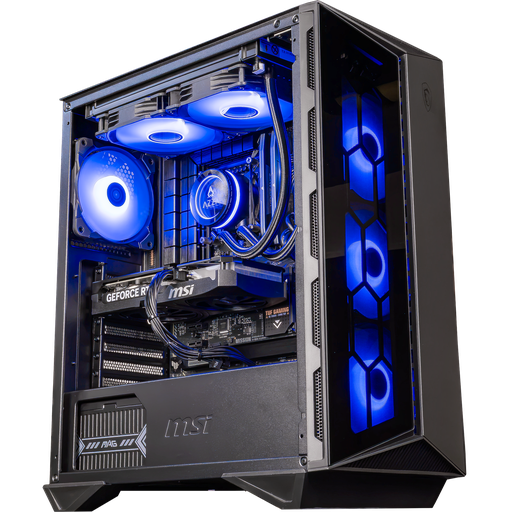
Swift PC: Core i5-14400F + RTX 5060 Ti 16 GB
A versatile, upgradable setup for gaming, streaming and creating.
Frequently asked questions
How does a computer work, in short?
The processor runs the instructions from the programs, the RAM holds the data in use, storage keeps everything long-term, the graphics card produces the images, and the motherboard connects it all. The power supply provides the energy, and the cooling removes the heat.
What are the main components of a computer?
The processor, the system memory, storage, the motherboard and, for gaming, the graphics card. The case, cooling and peripherals are added to that.
What’s the difference between RAM and storage?
RAM is very fast but it gets cleared when the power is turned off: it’s used for data that’s currently being used. Storage (SSD, hard drive) is slower but keeps your files long-term.
What’s the difference between CPU and GPU?
The CPU has few very versatile cores for running all kinds of tasks. The GPU has thousands, simpler cores specialised in parallel calculations like rendering the images.
Does a laptop work like a desktop PC?
Yes, with the same components in a miniaturised form and a battery. It’s less powerful for the same budget and harder to upgrade.
