 Your PC in instalments (up to 12x)
By the FlowUP team, gaming PC builder in Genappe (Belgium) · Updated 28 September 2026
In short: to update your drivers on Windows 10 or 11, start with Windows Update (optional updates), then install the graphics card driver from NVIDIA, AMD or Intel’s official website or app, and finally the chipset driver for the motherboard. Avoid "driver updater" software: sometimes they install unsuitable drivers.
Updating your drivers is one of the best habits for improving stability, fixing bugs and sometimes gaining a few FPS, especially with the graphics card. The golden rule can be summed up in one sentence: update from the right source, not just any software.
Which drivers should you prioritise?
| Driver | What is it for | Where to get it | Priority |
|---|---|---|---|
| Graphics card (GPU) | New games, fixes, performance | NVIDIA, AMD or Intel website or app | Yes, for every major new game or issue |
| Chipset (motherboard) | Stability, USB, power management | AMD or Intel site, or the motherboard manufacturer | Yes, once or twice a year |
| Network (Wi‑Fi, Ethernet) | Dropouts, unstable ping | Windows Update or the motherboard manufacturer | Only if there’s a problem |
| Audio, Bluetooth, peripherals | Sound, controllers, headsets | Windows Update or manufacturer | Only if there’s a problem |
The simplest method: Windows Update
For most PCs, Windows Update offers drivers validated by Microsoft and generally stable ones. Not all of them install automatically: part of them can be found under optional updates.
- Windows 11: Settings > Windows Update > Advanced options > Optional updates > Driver updates, then tick the boxes and install.
- Windows 10: Settings > Update & Security > Windows Update > Show optional updates.
- For specific hardware, open Device Manager (right-click the Start button), right-click the device, then Update driver > Search automatically for drivers.
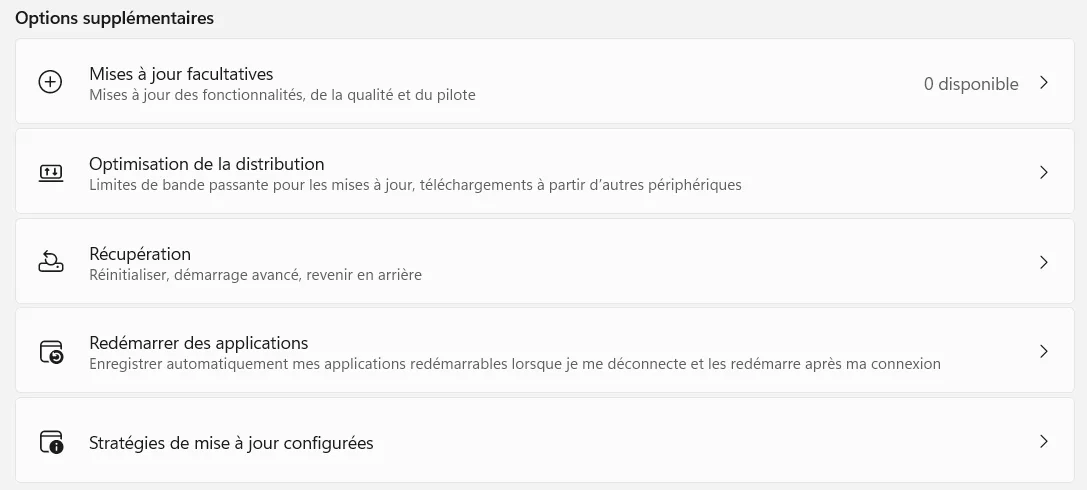
Good to know: Windows Update is often several weeks behind manufacturers when it comes to graphics card drivers. For the GPU, use the method below instead. And if you’re still on Windows 10, its support ended on 14 October 2025: security fixes are only provided via the Extended Security Updates (ESU) programme, until 12 October 2027 for private users.
Update the graphics card driver (the most important)
NVIDIA (GeForce)
- Install the NVIDIA app (NVIDIA App), which replaces GeForce Experience and prevents issues with every new driver.
- Or download the driver manually from the GeForce Drivers page by selecting your card.
AMD (Radeon)
- Use the AMD Software: Adrenalin Edition tool, or the Auto-Detect and Install tool, which detects your card and installs the right driver.
Intel (Arc and integrated graphics)
- Go through the Intel Driver & Support Assistant, which detects Intel hardware and offers updates.
The video from AngleFormation below shows the graphics driver update step by step under Windows 11:
Update the chipset driver (AMD / Intel)
On a desktop PC, it’s often forgotten, and yet this driver can fix strange bugs: USB ports that drop out, temperamental sleep mode wake-ups, micro-stutters.
- AMD Ryzen processor: the chipset driver is downloaded from the AMD drivers page, by selecting "Chipsets" and then your socket (AM4 or AM5).
- Intel processor: the Intel Driver & Support Assistant offers it, or you can use the support page from your motherboard manufacturer.
- Laptop: start by using the manufacturer’s website (Dell, HP, Lenovo, ASUS, Acer…) for the specific drivers: touchpad, power management, function keys.
Errors to avoid
- "Driver Booster" or "Driver Updater" software: they sometimes install unsuitable versions, generic drivers, or even unwanted software.
- Update everything on a stable PC: for the vast majority of players, the graphics card and chipset are enough.
- Download a driver from a third-party site: stick to the official sites (NVIDIA, AMD, Intel, the PC manufacturer, or the motherboard manufacturer).
- Turn off the PC during an installation: let it finish, then restart.
When should you do a clean install?
Do a clean install of the graphics driver if you notice:
- a crash or a black screen just after an update;
- artifacts on the screen;
- abnormally low performance;
- a conflict after changing the graphics card (especially between NVIDIA and AMD).
With NVIDIA, the installer offers the “Custom” option, then “Perform a clean installation”, which resets all settings to zero. With AMD and Intel, uninstall the driver from Windows Settings, restart, then reinstall from the official source. In case of a major problem, the free tool Display Driver Uninstaller (DDU), used in safe mode, removes all traces of the old driver.
If your PC won’t start at all after an update, follow our guide my computer won’t start (safe mode section), and in case of a blue screen or shutdowns, our article why my computer turns off by itself.
Mini checklist (2 minutes)
- Windows Update, including optional driver updates.
- Graphics card driver from NVIDIA, AMD or Intel.
- Chipset driver (AMD or Intel).
- Restart.
- Quick test: a game and a temperature + FPS monitoring tool.
Do you prefer a pre-built PC that’s ready to play? Discover our configurations.
FAQ: update your drivers
How do I update all the drivers on my PC at once?
There is no single official button. The safest method: Windows Update (including optional updates), then the graphics driver via NVIDIA, AMD or Intel. Software that promises to “update everything” should be avoided.
Should you update your drivers regularly?
The graphics driver, yes: every time a major new game releases or if you run into a problem. The chipset, once or twice per year. For the rest, if everything works, there’s no need to touch anything.
How can I tell if my drivers are up to date?
The NVIDIA app, AMD Software, or the Intel Assistant show the installed version and flag new ones. In Device Manager, the Driver tab for each device shows the version and its date.
Can a driver update increase FPS?
Sometimes, yes, especially on recent games: graphics card manufacturers optimise their drivers for new releases. On an older game, the gain is usually zero.
What should I do if a new driver causes a problem?
Go back to the previous version: Device Manager > right-click the device > Properties > Driver tab > Roll Back Driver. For the graphics card, you can also reinstall an older version from the manufacturer’s website.
