 Your PC in instalments (up to 12x)
By the FlowUP team, gaming PC assembler in Genappe (Belgium) · Updated 28 September 2026
Have you added a drive, or did your new PC arrive with a second storage drive, but it doesn’t show up in File Explorer? In the vast majority of cases, the drive is there, but Windows hasn’t prepared it yet. Here’s how to have it recognised in five minutes, then what to check if Windows doesn’t see it at all.
In brief
- Open Disk Management (right-click the Start button).
- “Not initialized” disk: initialise it to GPT. “Unallocated” space: create a new simple volume.
- Drive missing from Disk Management: check the BIOS, the SATA and power cables, or the mounting of the M.2 SSD.
- To see whether your drive is an SSD or an HDD, look at the Performance tab in Task Manager.
Contents
- SSD or HDD: how to tell which drive is in your PC
- Check storage in Windows
- Enable an unallocated drive, step by step
- Internal HDD or SSD not detected at all: BIOS, cables, and M.2
- External hard drive not recognised
- Your FlowUP PC doesn’t show the ordered drive
- FAQ
SSD or HDD: how to tell which drive is in your PC
Easiest: open Task Manager (Ctrl + Shift + Esc), Performance tab. Each drive is listed there with its type: “SSD” or “HDD”. Another method: type “Defragment and optimize drives” in Windows Search; the column “Media type” shows “Solid State Drive” or “Hard Disk Drive”.
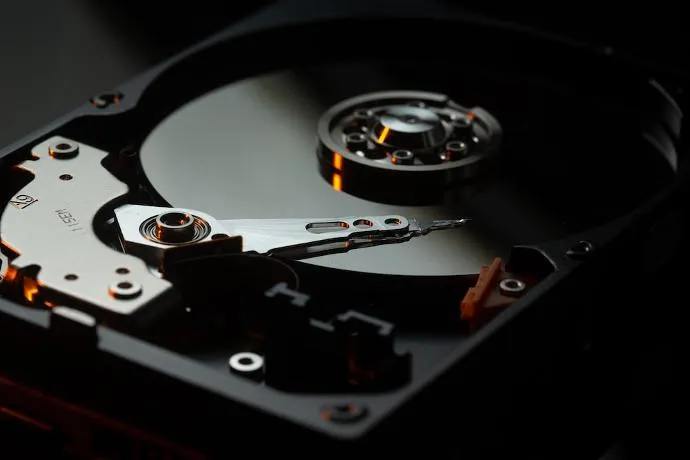
The HDD: magnetic platters that spin, lots of space for not a lot of money.
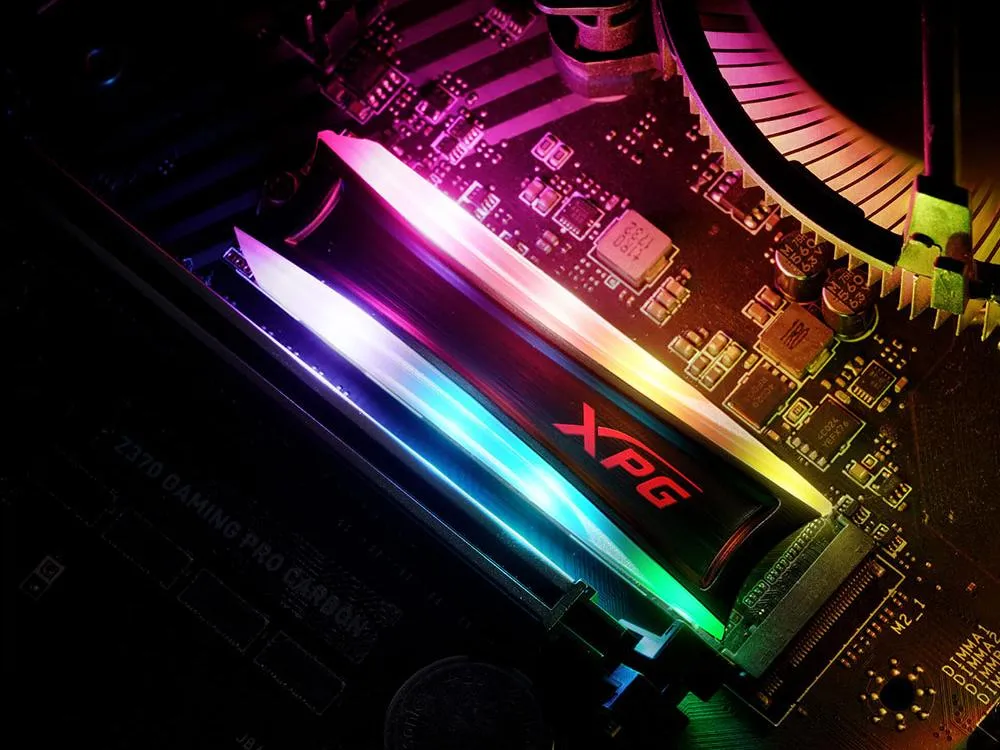
The SSD: flash memory, with no moving parts, much faster.
An HDD (hard disk drive) stores data on magnetic platters that spin at high speed: it’s slow, but offers a lot of capacity for the price. An SSD uses flash memory chips: Windows and games load much faster from it. To choose the right one, read our guides how to choose your SSD and how to choose your HDD.
Check storage in Windows
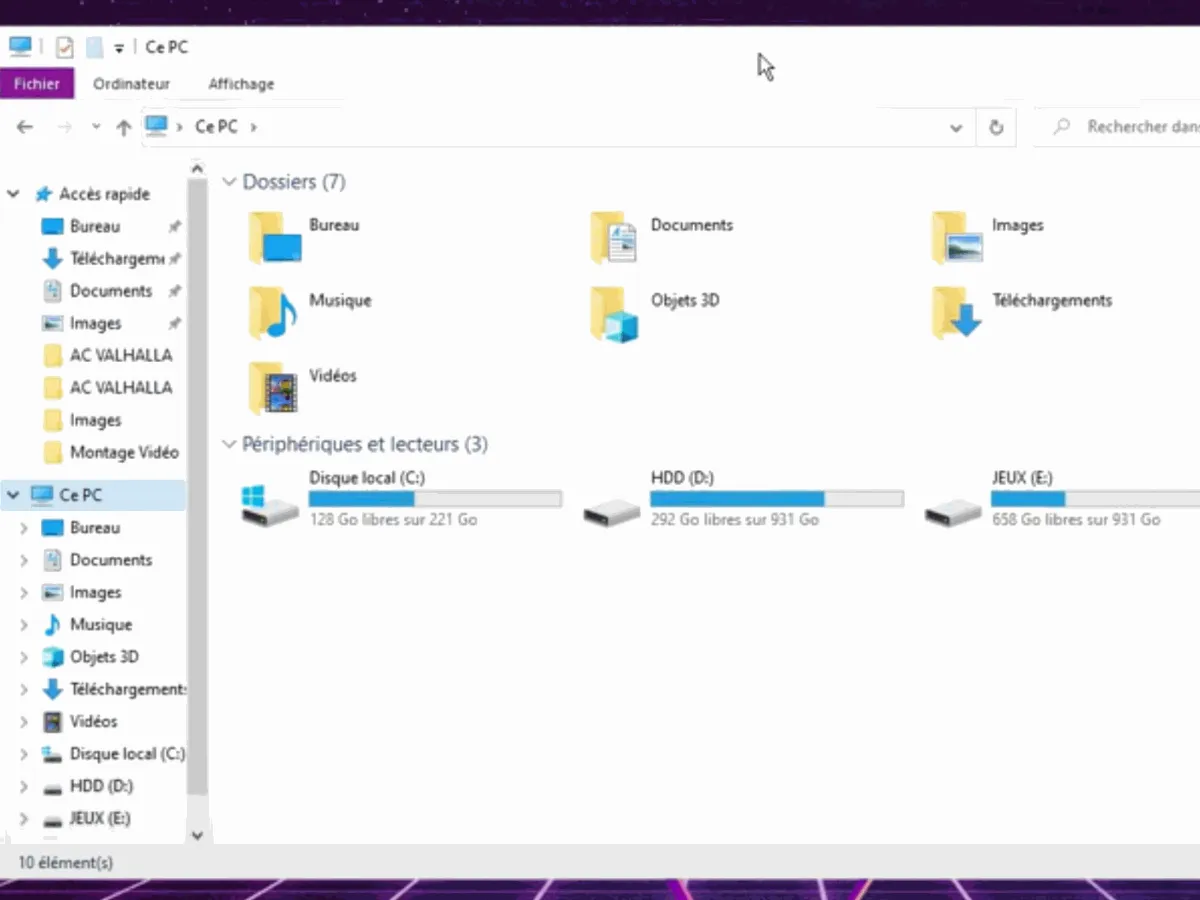
1. Open File Explorer and click This PC. You’ll see all active drives there. If the expected drive is missing, move on to the next step.
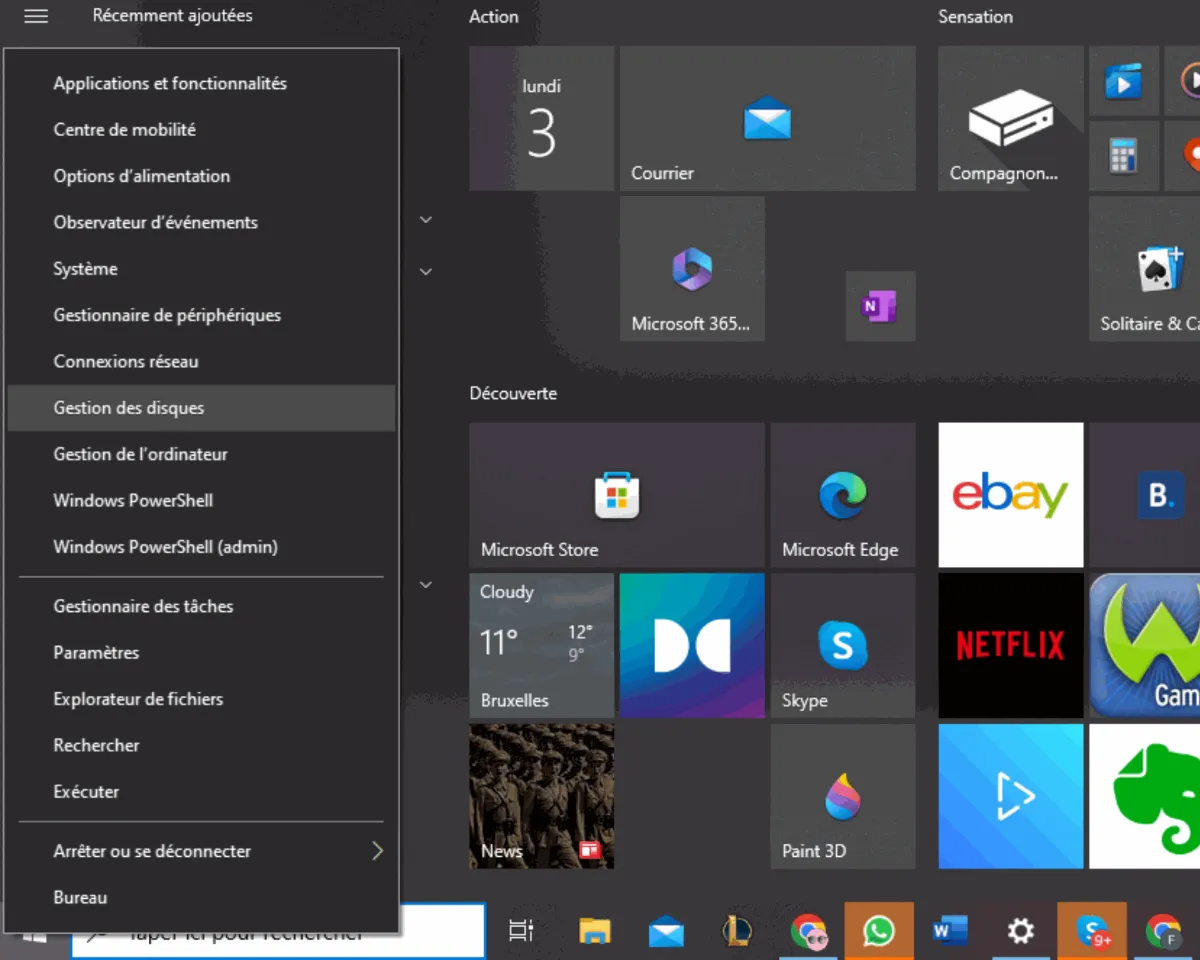
2. Right-click the Start button (Windows icon) and choose Disk Management.
3. The window lists all connected drives. Locate the one labelled Unallocated (black bar) or Not initialized: that’s your drive, it just isn’t ready yet.
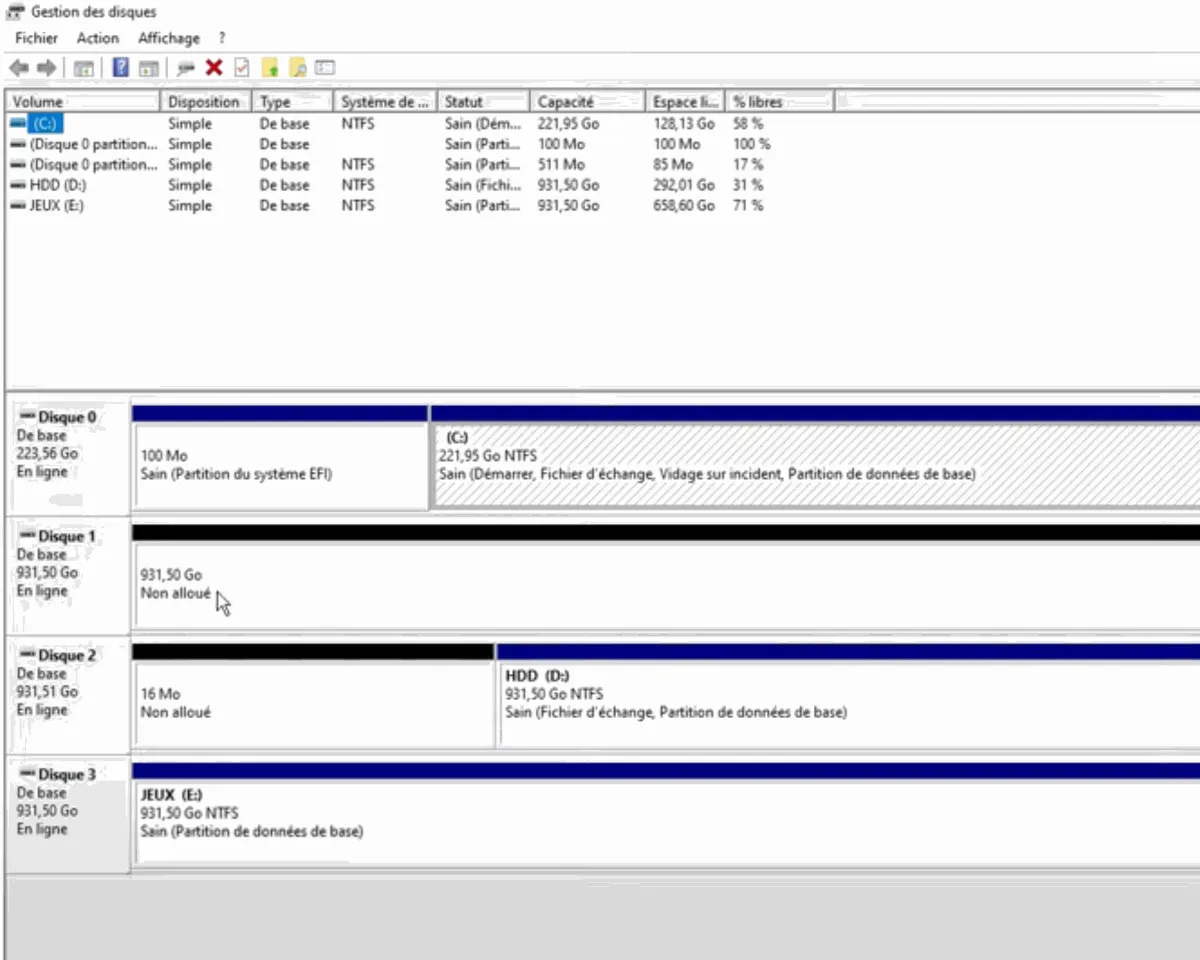
Depending on what you see:
- Not initialized: a window offers to initialise the drive. Choose GPT (the format used by recent PCs), confirm, then move on to the next step.
- Unallocated: create a volume, as explained just below.
- Offline: right-click the drive name, then Online.
- Healthy volume but missing from File Explorer: it’s missing a drive letter. Right-click, Change drive letter and paths, then Add.
Warning: never initialise or format a drive that already contains data without backing it up first. These operations erase its contents.
Enable an unallocated drive, step by step
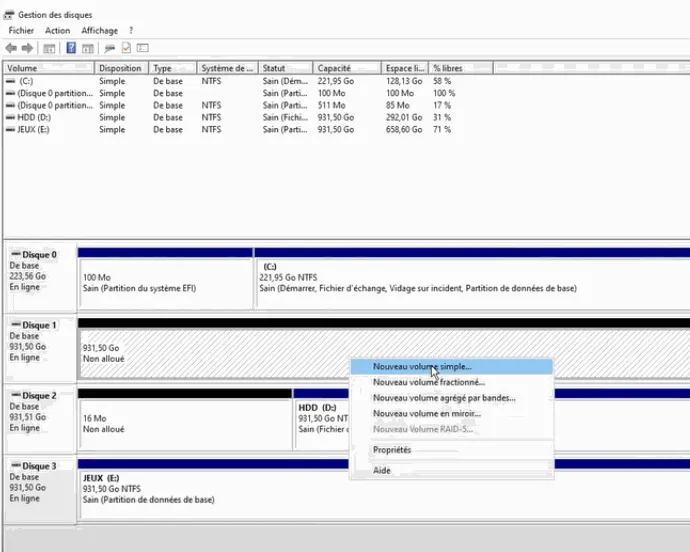
1. In Disk Management, right-click the Unallocated area and choose New Simple Volume.
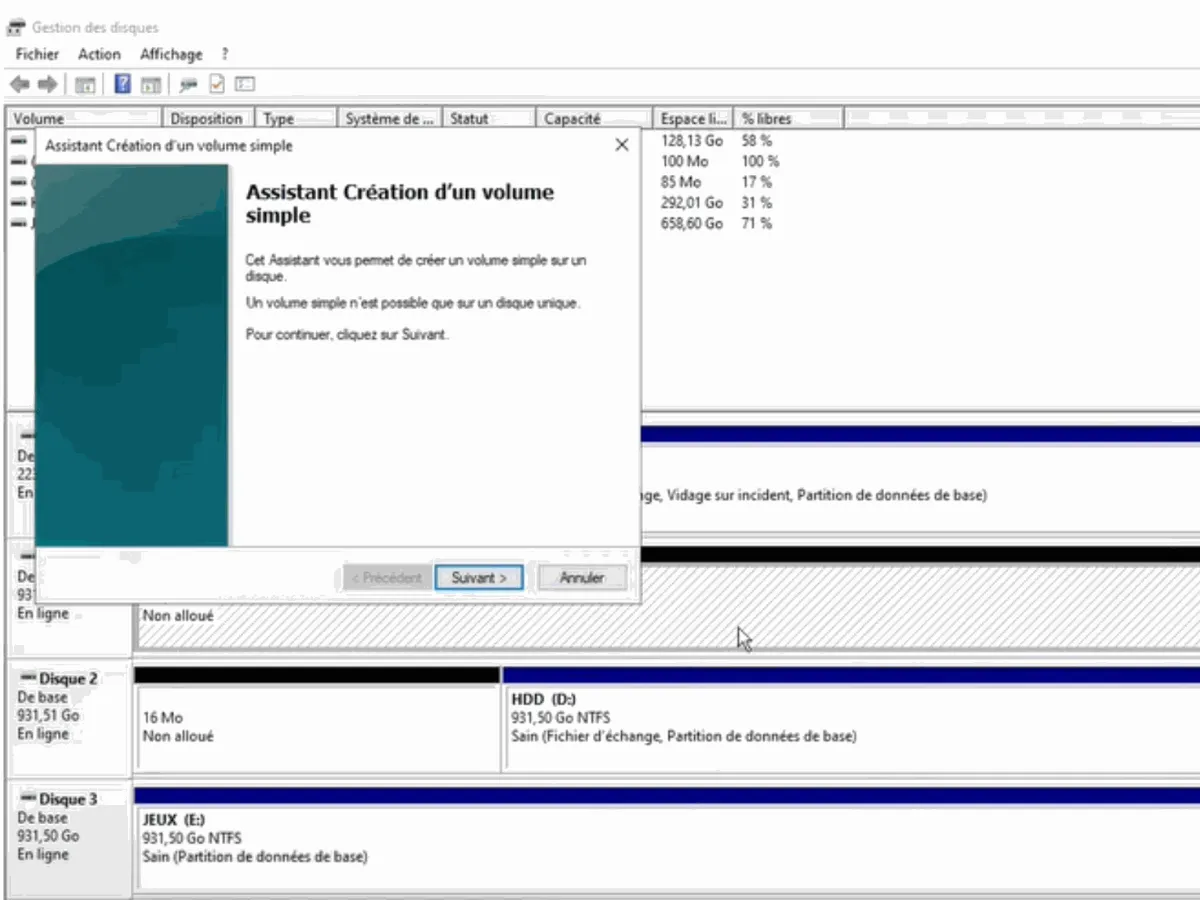
2. The New Simple Volume wizard opens. Click Next.
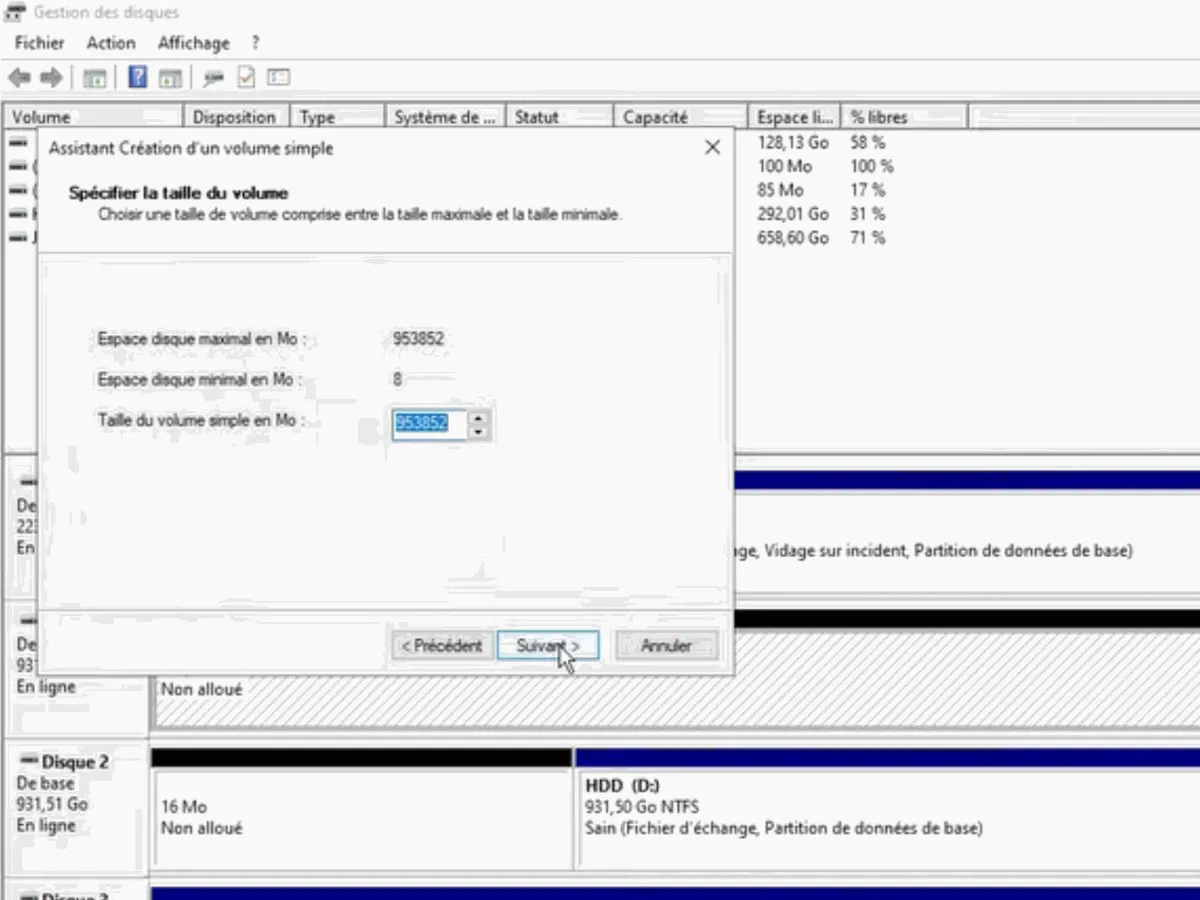
3. Leave the proposed size as is: Windows automatically indicates all available space. Click Next.
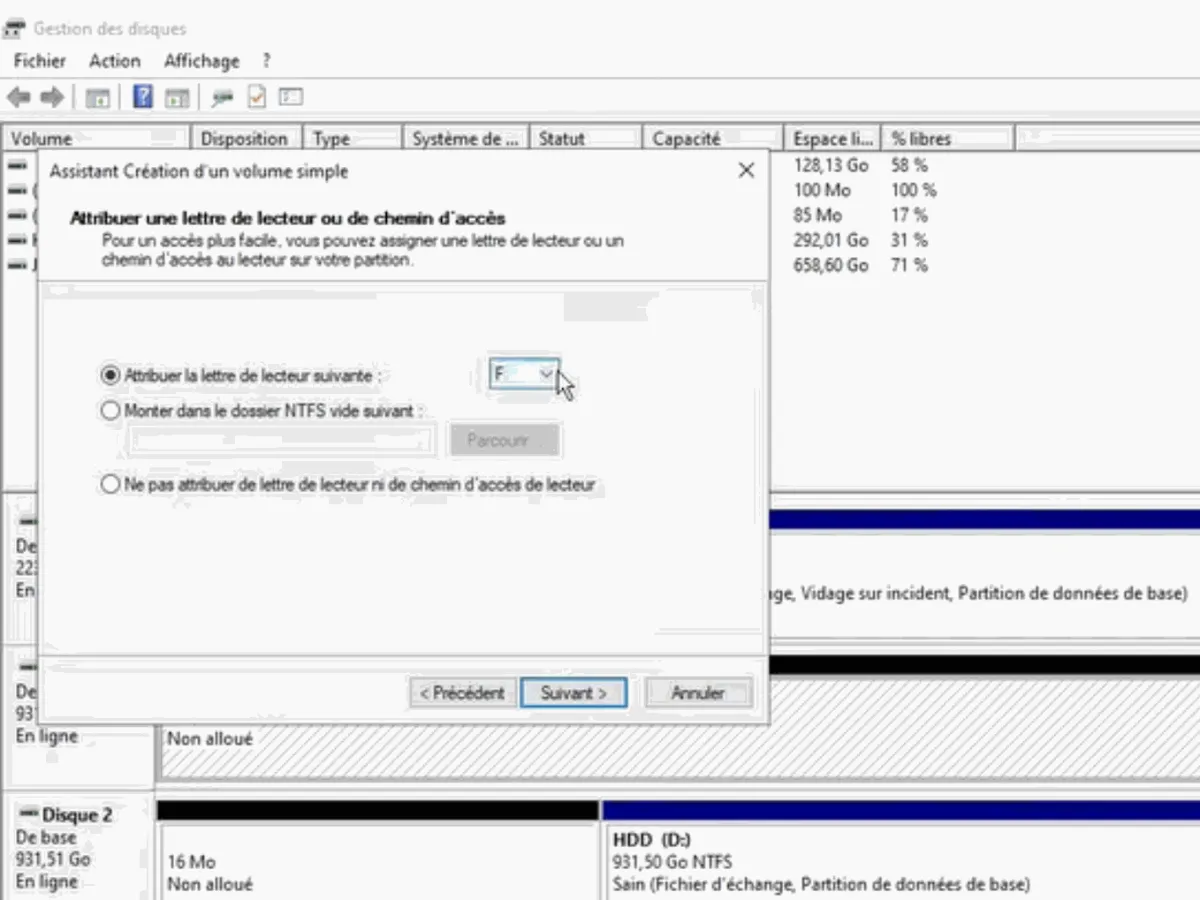
4. Choose a drive letter (D, E, F…), whichever you prefer.
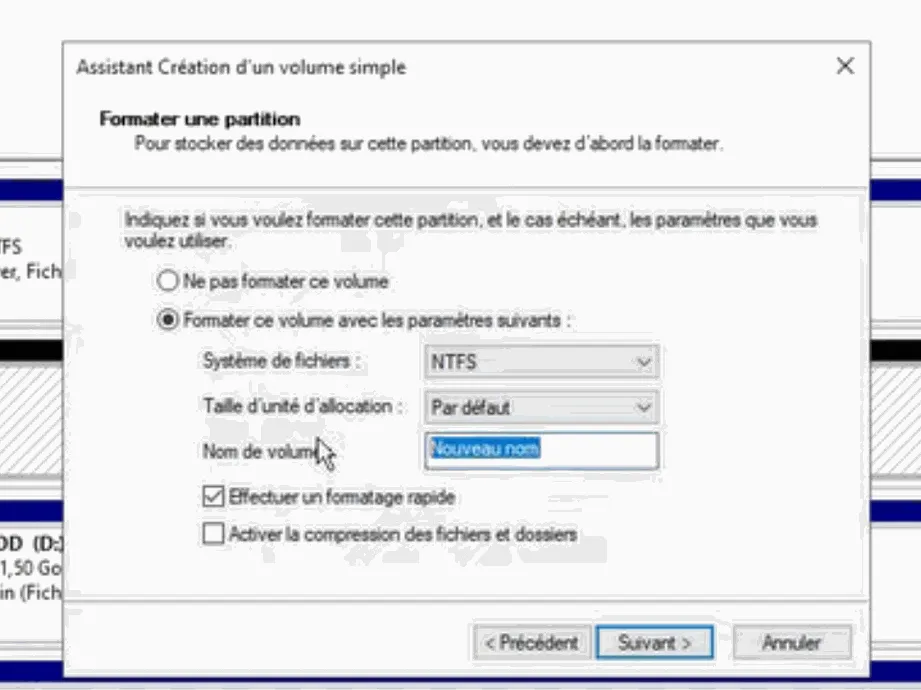
5. Keep the NTFS file system and make sure quick formatting is checked.
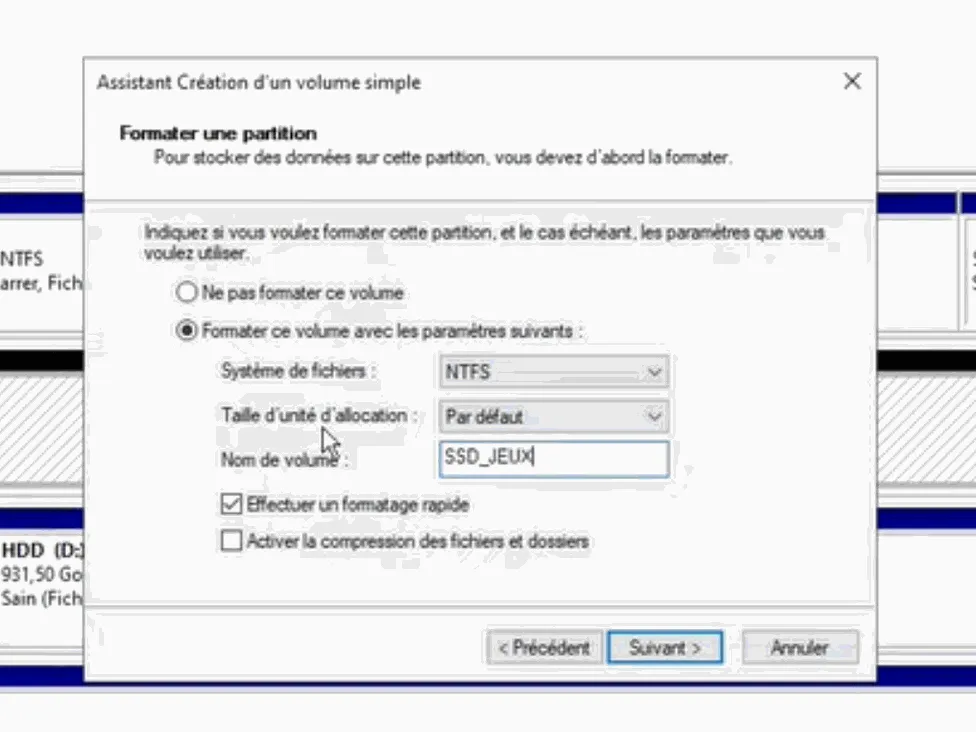
6. Give the drive a clear name, for example “SSD_GAMES”, so you can recognise it in File Explorer. Click Next and then Finish.
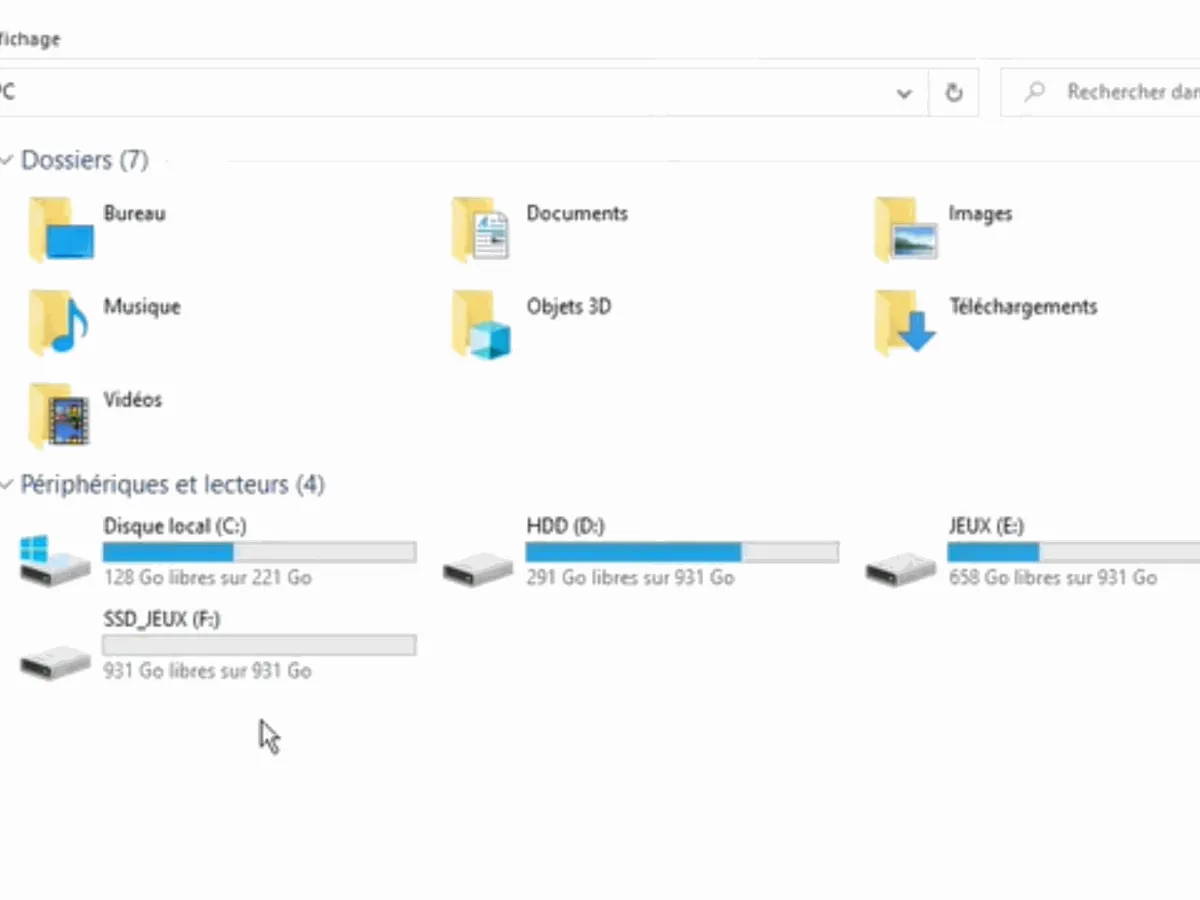
7. The drive now appears in This PC, ready to receive your games and files.
This video from the channel “Le mode d'emploi du PC” repeats the same procedure for a new drive that isn’t recognised:
Internal HDD or SSD not detected at all: BIOS, cables, and M.2
If the drive doesn’t even show up in Disk Management, the issue is hardware-related or happens before Windows. Check in this order:
- The BIOS. During startup, press Delete or F2 to enter the BIOS and check the list of storage devices. If the drive isn’t listed there, Windows won’t be able to see it.
- The cables for a SATA drive. A 2.5-inch HDD or SSD needs two cables: the SATA data cable connected to the motherboard, and the power cable coming from the power supply unit. Open the back panel of the case and check that both are fully plugged in. Try another SATA port as well.
- The M.2 SSD. It must be pushed fully into its slot, then screwed in. On some motherboards, using an M.2 slot disables one or two SATA ports: the motherboard manual indicates this.
- Windows installation. If the Windows installer can’t see an NVMe SSD, it often lacks the Intel storage driver (RST or VMD), which you need to load from the motherboard manufacturer’s website.
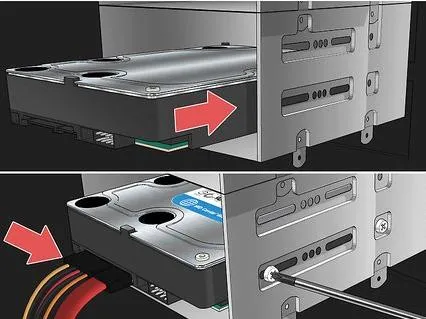
A SATA drive always uses two cables: data and power.
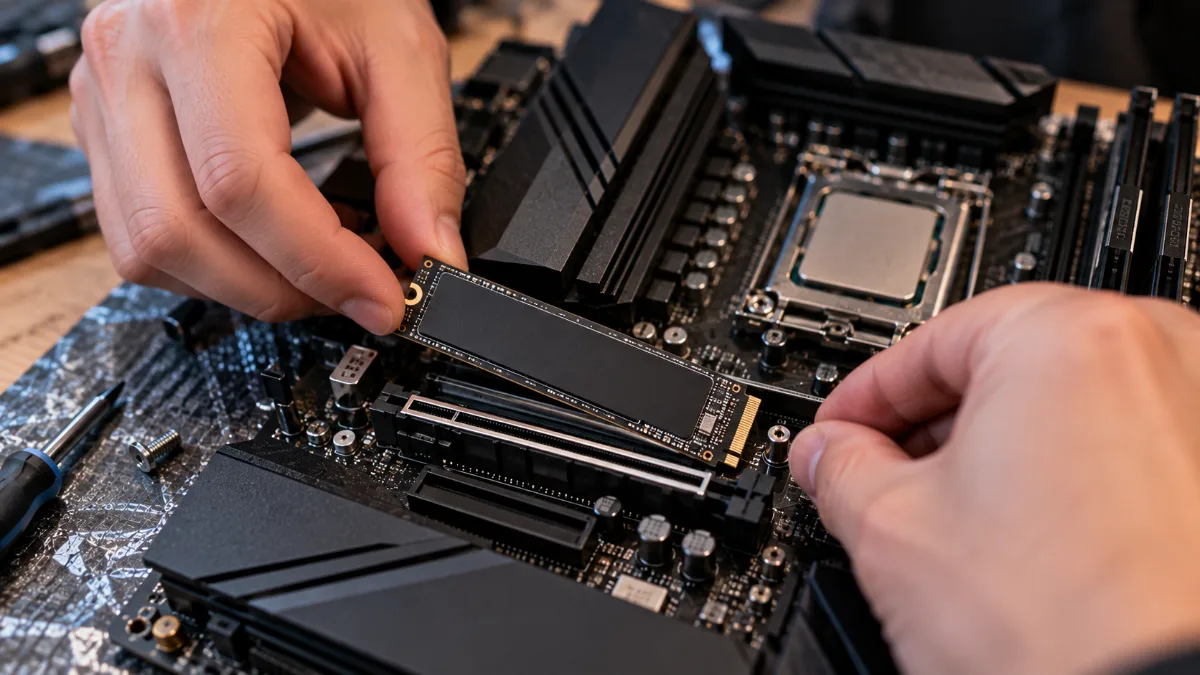
An M.2 SSD must be pushed fully into its slot, then screwed in.
External hard drive not recognised
For an external USB drive, start by changing the port (preferably a port at the back of the PC, connected directly to the motherboard) and the cable. If it appears in Disk Management without a drive letter or as unallocated, apply the same steps as above. A 3.5-inch external drive also needs its own power adapter.
Your FlowUP PC doesn’t show the ordered drive
On our PCs, a second drive can also come up as unallocated: the steps above are enough to activate it in a few minutes. If you can’t find it either in File Explorer or in Disk Management, contact our after-sales service with your order reference (for example S40567) and a screenshot of This PC. We’ll guide you or take the PC in for service.
All our gaming PCs are delivered with Windows installed and an M.2 SSD ready to use: discover our configurations.
FAQ
Why isn’t my SSD recognised by Windows?
Most of the time, it isn’t initialised yet or it doesn’t have a volume. Open Disk Management: if it shows up as “Not initialised” or “Not allocated”, follow the steps in this guide.
My hard drive isn’t detected anymore from one day to the next, what should I do?
First, check that it appears in the BIOS and that its cables are properly connected. If it has disappeared from the BIOS, it may be faulty: save anything you can and have it tested.
How can I tell if my hard drive is an SSD or an HDD?
Task Manager, Performance tab: each drive is marked “SSD” or “HDD”.
Should I choose MBR or GPT to initialise a drive?
GPT for a recent PC running Windows 10 or 11. MBR is only used for very old machines.
