 Your PC in instalments (up to 12x)
By the FlowUP team, gaming PC builder in Genappe (Belgium) · Updated 28 September 2026
A PC that gets too hot rarely does so without a reason. Most often, it’s dust, poor airflow, or cooling that’s not quite enough for the processor or the graphics card. The good news: most of these causes can be fixed within an hour, without having to buy new hardware. This guide helps you check whether your PC is really overheating, identify the cause, and correct it, whether it’s a gaming tower or a laptop.
In brief
- First, measure: a free tool like HWiNFO shows the CPU, graphics card and SSD temperatures.
- While gaming, a CPU between 60 and 85 °C and a graphics card between 60 and 83 °C are within the normal range.
- The most common causes: dust, poor airflow, tired or badly applied thermal paste, incorrectly set fans, PC boxed in a cabinet.
- A processor that gets too hot reduces its clock speed and then shuts down to protect itself: permanent damage is rare, but performance drops.
- Laptop: a hard surface, clear vents and a suitable power mode already make a big difference.
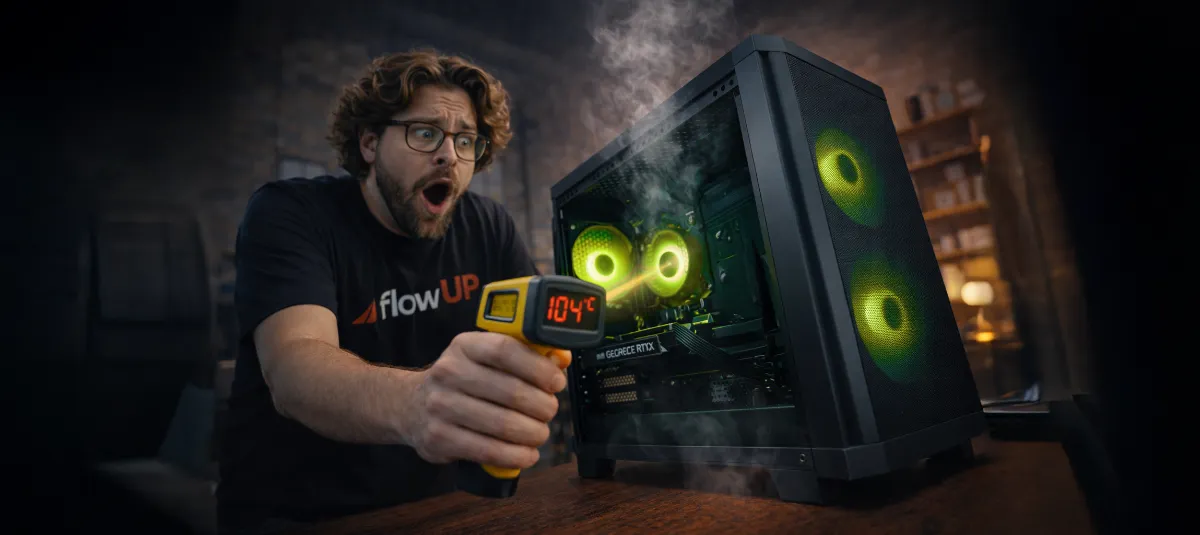
Is your PC really overheating?
A case that feels hot to the touch doesn’t mean much on its own. The real signs of overheating are these:
- the fans spin at full speed, even when the PC is doing almost nothing;
- FPS drops after a few minutes of gaming, even though everything was fine at launch;
- the PC restarts or shuts down suddenly during a game or a render;
- monitoring software reports high temperatures or ‘thermal throttling’, i.e. a forced frequency drop caused by the heat.
To be sure, install HWiNFO (free) and check the maximum temperatures after 20 to 30 minutes of gaming. MSI Afterburner, widely used by gamers, also displays temperatures as an overlay during gameplay.
Normal PC temperatures: benchmarks
These are the ranges we consider normal for a recent desktop PC, in a room between 20 and 25 °C.
| Component | At idle | In game | To watch |
|---|---|---|---|
| Processor (CPU) | 30 to 50 °C | 60 to 85 °C | over 90 °C while gaming |
| Graphics card (GPU) | 30 to 50 °C | 60 to 83 °C | over 85 °C |
| NVMe SSD | 30 to 50 °C | 40 to 65 °C | over 70 °C |
Indicative benchmarks: each model has its own limit, stated by the manufacturer.
Watch out for common misconceptions: some processors are designed to run hot. AMD states that its Ryzen 7000 are built to operate at 95 °C under heavy load without reducing their lifespan, and Intel explains that when a processor reaches its maximum temperature, it lowers its frequency and then shuts down if necessary to prevent damage. So a spike to 90 °C during a stress test isn’t a big deal. However, a processor running at those temperatures while gaming, especially with FPS drops, clearly needs help.
Overheating PC: 7 causes and their solutions
1. Dust
This is the most common cause on a PC that’s been around for more than a year. Dust clogs filters, sticks to the fan blades and builds up between the fins of the heatsinks: less air passes through, heat is removed less effectively, and temperatures climb slowly over the months.
Solution: with the PC switched off and unplugged, clean the filters, fans and heatsinks with compressed air, blocking the blades so they don’t spin up. Our guide for cleaning your PC safely covers every step in detail.
2. Poorly organised airflow
A good case isn’t enough if the air just circulates. The principle is simple: cool air comes in from the front (and the bottom), while hot air exits through the back and the top. Fans mounted the wrong way, a solid front panel, or a single fan for the entire case are enough to push up the graphics card temperature.
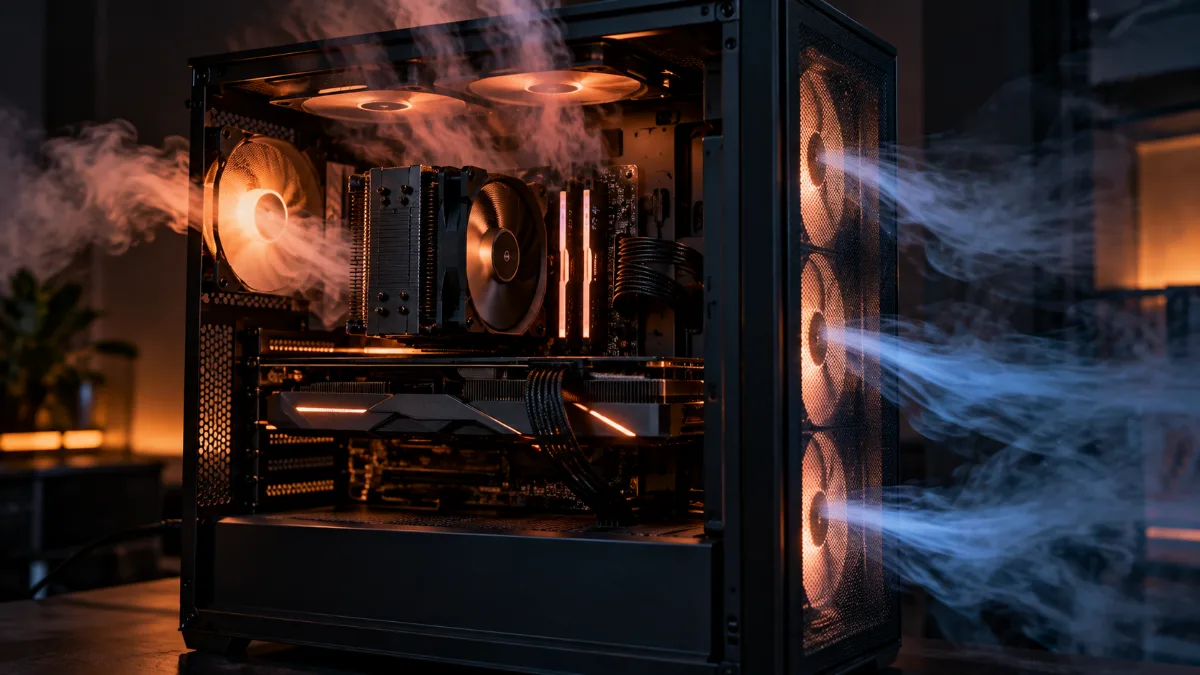
Cool air comes in from the front, hot air exits through the back and the top.
Solution: check the direction of each fan (a arrow is often moulded into the frame), plan at least one intake fan and one exhaust fan, and tidy the cables behind the motherboard tray. To choose suitable models, see our guide for choosing your PC fans.
3. Worn-out or poorly applied thermal paste
Thermal paste ensures contact between the processor and its cooler. Over the years, it can dry out, and a botched application leaves areas without contact. Typical symptom: the processor heats up quickly even under light load, while the PC is clean.
Solution: remove the old paste with isopropyl alcohol, then apply a small amount in the centre of the processor before screwing the cooler back on. You don’t need to use much: the pressure spreads it out.
The right way to apply thermal paste, in short (FrenchHardware).
4. A CPU cooling setup that’s too minimal
A small stock air cooler on a high-end processor, or 120 mm watercooling on a chip that draws a lot of power, will run constantly at its limit. Result: high temperatures and a loud fan.
Solution: switch to a larger tower air cooler or a 240 or 360 mm AIO watercooler, checking compatibility with your case. Our comparison air cooler or watercooling helps you choose.
5. Fans that are off or poorly configured
A disconnected fan, one blocked by a cable, or one set to a too-conservative curve lets heat build up. Many fans intentionally stop at idle (0 dB mode), which is normal; they should, however, start as soon as the temperature rises.
Solution: check in the BIOS or in the motherboard software that every fan is detected, then set a progressive curve: quiet at idle, faster during gaming. If one of them never spins, follow our guide on fans that don’t spin.
6. Pushing the graphics card to the max
In games, it’s often the graphics card that produces the most heat. If it’s rendering 300 frames per second on a 144 Hz screen, it’s getting hot for nothing.
Solution: limit the FPS to your screen’s refresh rate (in-game or in the NVIDIA or AMD panel), enable adaptive sync if your display supports it, and make sure cool air reaches the card properly. For game-specific cases, also read why a gaming PC gets hot when you play.
7. Where the PC is placed
A tower trapped in a cabinet, pushed up against a wall, set on carpet, or placed next to a radiator breathes poorly. In summer, a room at 30 °C also adds a few extra degrees to all components.
Solution: leave about ten centimetres of space free around the air intakes and exhausts, place the PC on a hard surface, and take it out of the cabinet if it’s enclosed.
Gaming laptop that gets hot: what should you do?
A gaming laptop gets hotter than a desktop tower, this is normal: everything has to fit into just a few centimetres of thickness. Still, there are real improvements to be made.
- Place it on a hard surface, never on a bed, a sofa or your lap: the fabric blocks the air intakes underneath the machine.
- Clear the vents at the back and on the sides, and clean them regularly with a brush or with a few bursts of compressed air.
- Elevate the back or use a ventilated stand: cool air gets under the chassis more easily.
- Adjust the power mode: on battery or for office work, a balanced mode is enough and keeps temperatures much lower.
- Limit the FPS in games, just like on a tower.
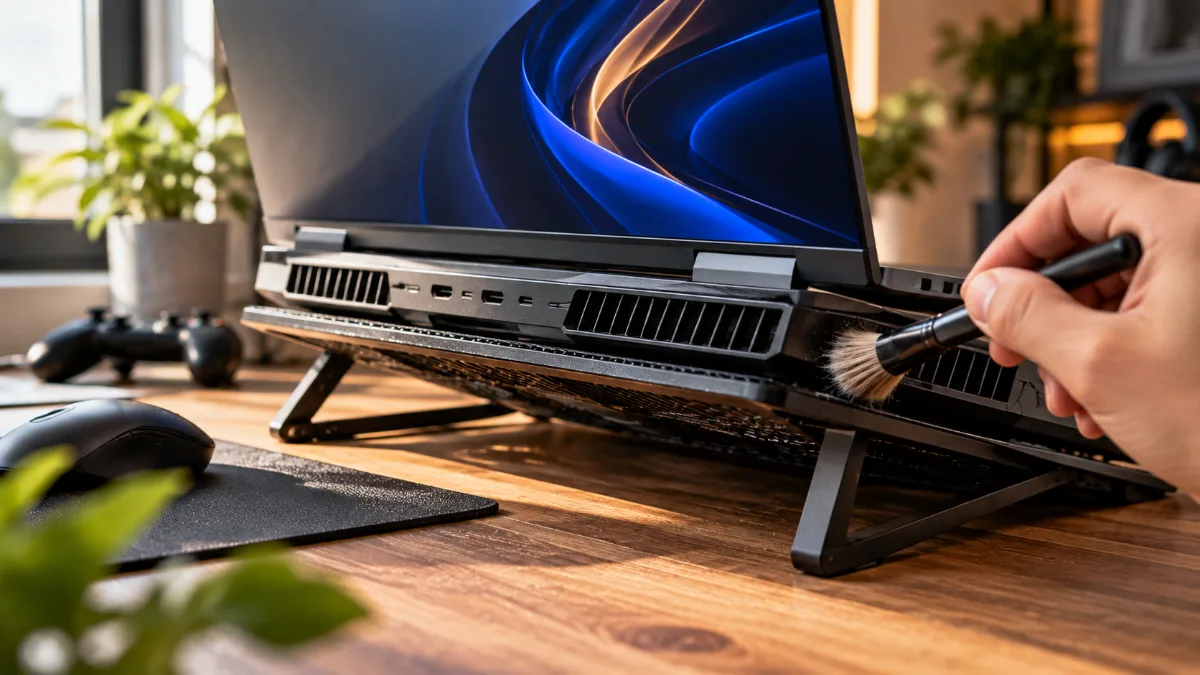
Ventilated stand and clean vents: two simple steps for a laptop that gets hot.
If the laptop stays scorching hot anyway, an internal cleaning (and possibly a change of thermal paste) by a technician is often the solution, especially after two or three years of use.
Settings for a laptop that runs too hot, in video (Arnaud C. channel).
When should you be worried?
A PC that shuts down by itself during a session has reached its thermal safety point: stop playing and find the cause before restarting. The same applies if temperatures regularly exceed the benchmarks in the table even though the PC is clean and well ventilated. A blue screen or a restart isn’t always caused by heat: our guide on the blue screen in Windows helps you tell the difference. Do you have a FlowUP PC? Contact our team via the support page.
FlowUP PCs designed to stay cool
On our configurations, cooling is sized for the selected CPU and graphics card. Three examples:
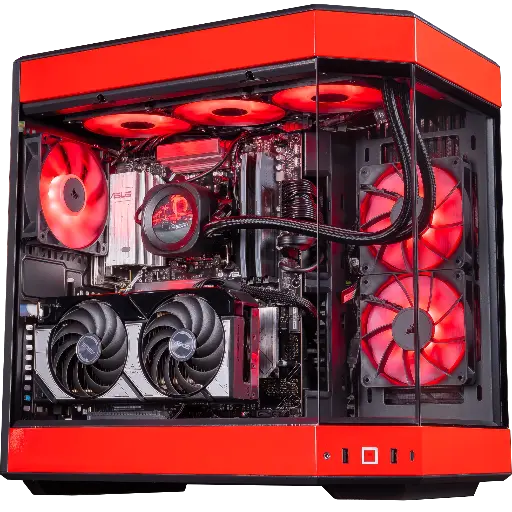
PC Rivals GeForce RTX 5070
Ryzen 7 9800X3D and RTX 5070, cooled by a Corsair 360 mm watercooler with an LCD screen, for playing at 1440p while keeping temperatures under control.
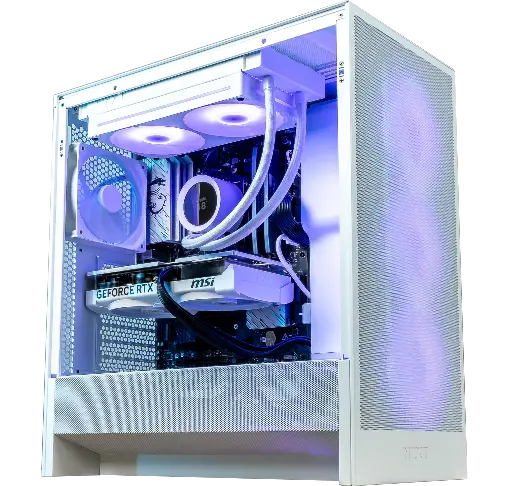
PC Novara GeForce RTX 5070
RTX 5070 12 GB and Ryzen 5 7500X3D, with an NZXT Kraken Plus 240 RGB watercooler, 16 GB DDR5 RAM and a 1 TB M.2 SSD.
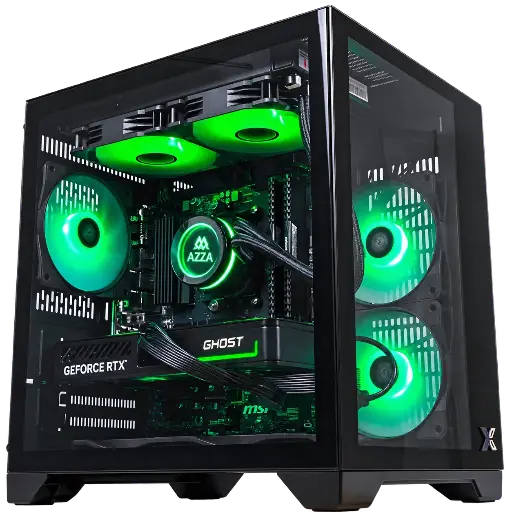
PC CUBI GeForce RTX 5060
RTX 5060 and Ryzen 7 5700X, with an AZZA GaleForce liquid cooler (240 mm), 16 GB DDR4 RAM and a 500 GB M.2 SSD.
FAQ
What temperature is dangerous for a processor?
Every processor has a maximum temperature set by the manufacturer, often between 95 and 105 °C on newer models. Once it reaches this limit, it reduces its clock speed, and then it shuts down if necessary. Aim for under 85 °C to keep full performance.
Can a PC that gets hot get damaged?
The built-in protections make immediate damage rare. On the other hand, a PC that stays hot all the time loses performance, makes more noise, and its fans and thermal paste wear out faster.
Why is my PC getting hot even though I’m not doing anything?
Open Task Manager (Ctrl + Shift + Esc) and sort by processor: a Windows update, an antivirus scan, or a program running in the background can keep the processor busy. If nothing shows up and temperatures stay high while idle, think dust and thermal paste.
Do you need to replace thermal paste regularly?
There’s no fixed schedule. Replace it if the processor temperatures rise noticeably while the PC is clean, or if you disassemble the cooler.
Is it normal for a gaming laptop to get very hot?
Yes, to a certain extent: there isn’t enough space to cool properly. What isn’t normal is drops in FPS, a keyboard that burns in office work, or sudden shutdowns.
Sources: Intel, information on processor temperatures ; Hardware Times, AMD and the Ryzen 7000 at 95 °C ; accessed on 28 September 2026.
