 Your PC in instalments (up to 12x)
By the FlowUP team, gaming PC builder in Genappe (Belgium) · Updated 28 September 2026
In brief: a graphics card fan that doesn’t spin at idle is usually normal: recent cards stop their fans as long as they stay cool (0 dB mode). Start a game: they should spin up. For a CPU or case fan that stays off, check in this order: the connection to the motherboard (CPU_FAN, SYS_FAN), the BIOS settings (DC/PWM mode, fan curve), a cable or dust blocking the blades, and then the fan itself by plugging it into another connector.
Why won’t my fans spin: the short answer
Before you panic, check which fan is stopped and when. Graphics card fans that stay idle on the Windows desktop are intentional behaviour. A stopped CPU fan, however, is an emergency: switch off the PC before it overheats.
In most cases, the cause is simple: a connector not fully seated after a move or cleaning, a BIOS setting, or a cable touching the blades. The truly dead fan is the last possibility.
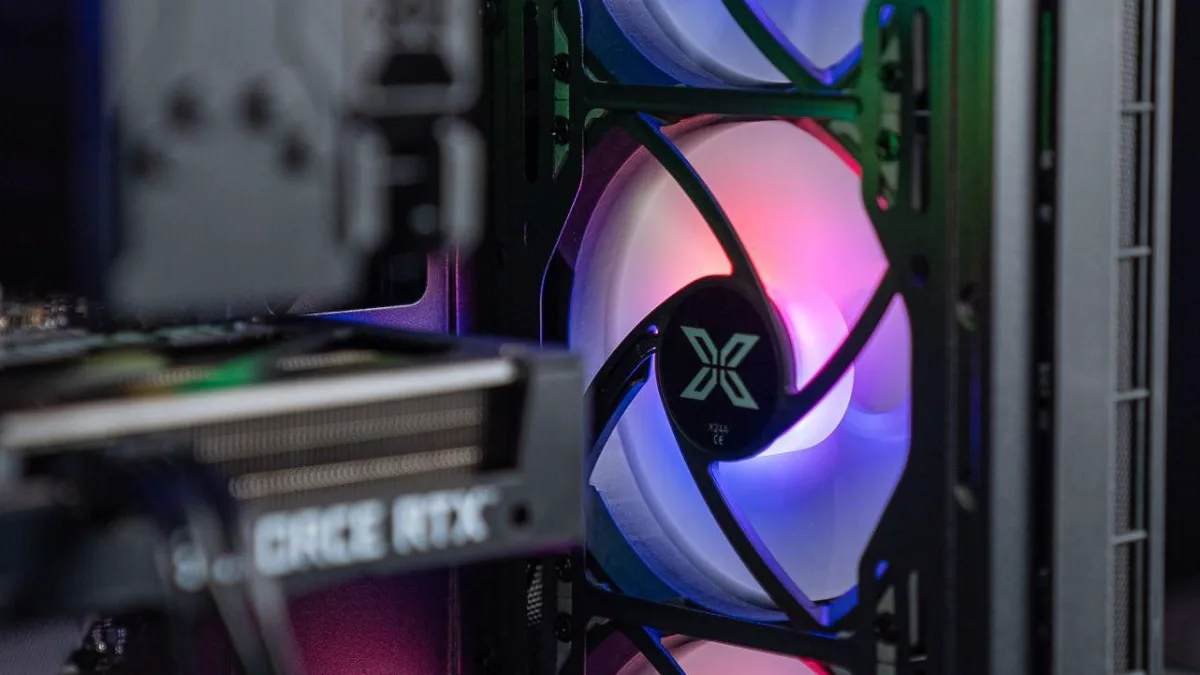
First identify which fan is stopped: graphics card, processor, or case.
Graphics card fan not spinning: often normal
Most modern graphics cards, from NVIDIA and from AMD, have a 0 dB mode (Zero RPM, Zero Frozr, Fan Stop depending on the brand): as long as the card stays cool, on the desktop, on YouTube or in a light game, its fans completely stop for silence. They automatically restart as soon as the temperature rises.
To check, run a demanding game or a benchmark for a few minutes and watch the fans: if they start spinning, everything is fine. You can also track their speed (RPM) with MSI Afterburner or the manufacturer’s software, and force a fan curve if you’d prefer them to run constantly.
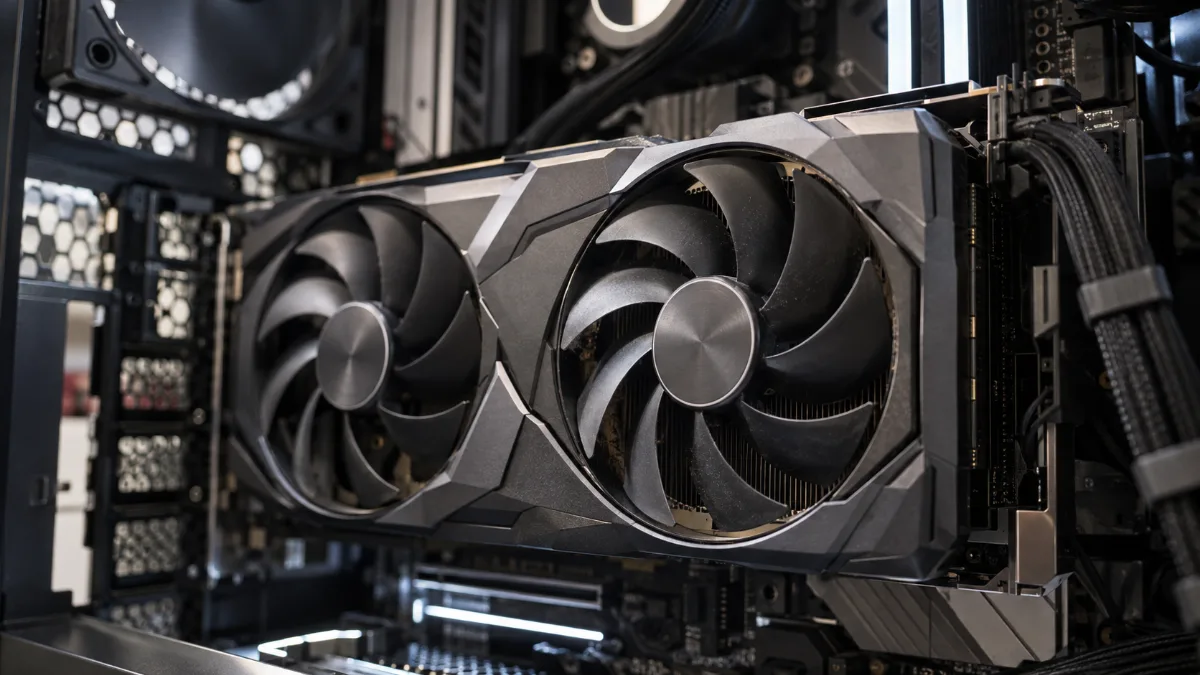
At idle, a graphics card in 0 dB mode keeps its fans off: that’s intended.
The real problem is a card that heats up while gaming without its fans starting. Then check that the PCIe power cables (8-pin or 12V-2x6) are firmly seated until the click, update the graphics driver, and then test with another game. If nothing changes, the card is covered by warranty: don’t keep testing in-game.
CPU fan not spinning
The heatsink fan (or the pump and fans of an AIO watercooler) must be connected to the CPU_FAN header on the motherboard, sometimes to AIO_PUMP for the pump. If it’s off, the BIOS often shows a message like “CPU Fan Error” on startup.
Switch off the PC, open the side panel, and check that the cable is firmly seated on the correct connector. Never let a PC run when the CPU fan is stopped: the processor protects itself by reducing its frequency, and then the PC shuts down.
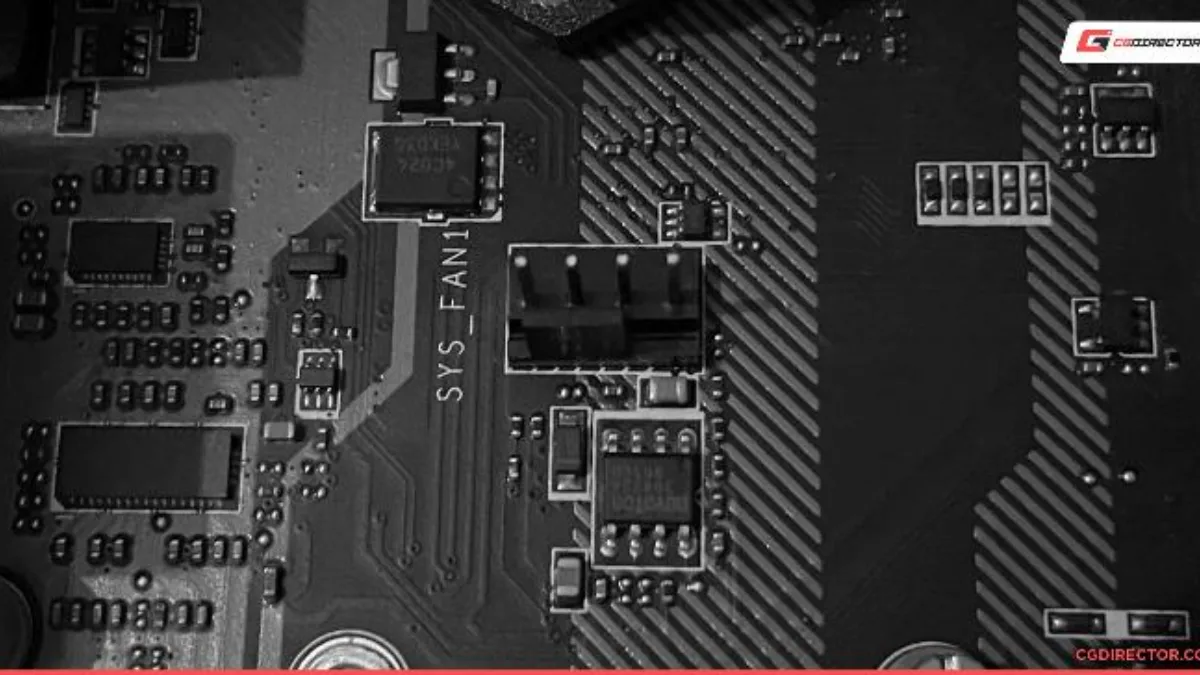
The CPU_FAN and SYS_FAN headers are labelled in plain text on the motherboard.
Case fans (rear, front) that won’t spin
Case fans plug into the SYS_FAN or CHA_FAN headers on the motherboard, or into a hub (often combined with the RGB controller) that is connected to the motherboard and power supply itself. Follow the cable of the fan that isn’t spinning behind the case panel: a connector that slipped during transport is very common.
Check also the connector type: a 3-pin (DC) fan plugged into a connector set to PWM mode may stay off or spin at full speed. The setting is done in the BIOS, connector by connector.
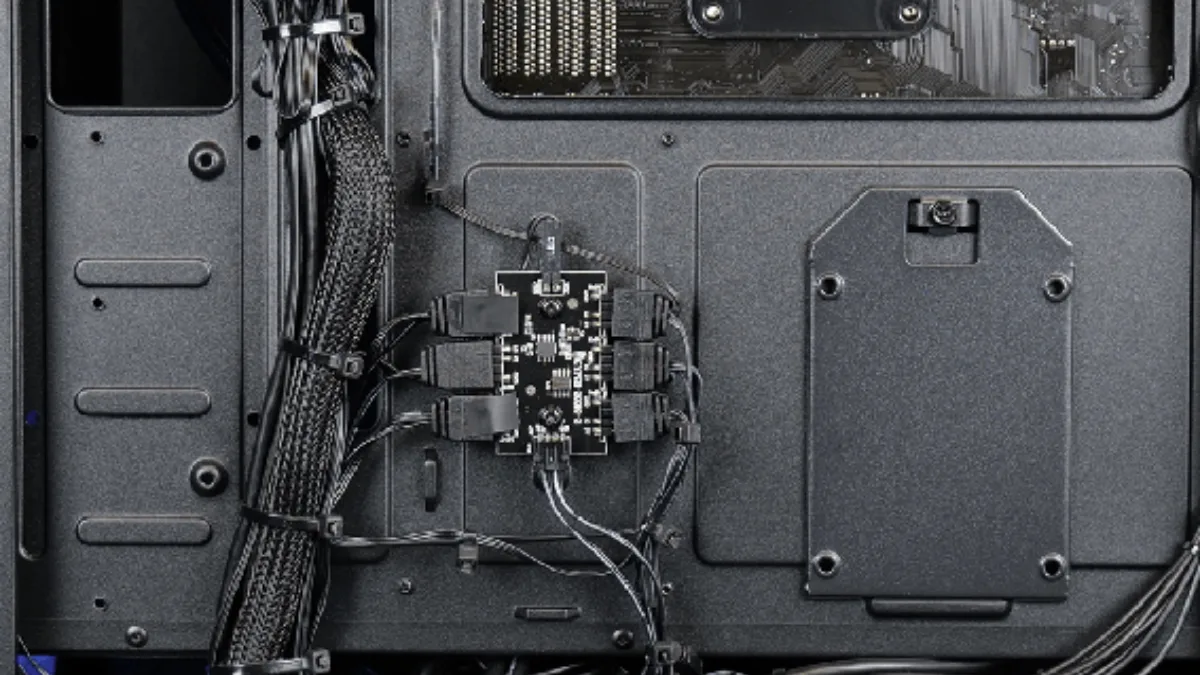
Behind the case panel: that’s where the unplugged connectors hide.
BIOS settings can stop the fans
In the BIOS (Delete key or F2 at startup), the fan section is named differently depending on the brand: Q-Fan, Smart Fan, or Fan Xpert. For each connector, you’ll find:
- the mode DC (3-pin) or PWM (4-pin);
- the speed curve based on temperature: a very quiet profile may stop the fans at low temperatures;
- sometimes an all-stop option under a threshold.
If you’re unsure, load the default settings, then redo your curves. If you don’t know how to enter the BIOS, follow our guide how to access the BIOS.
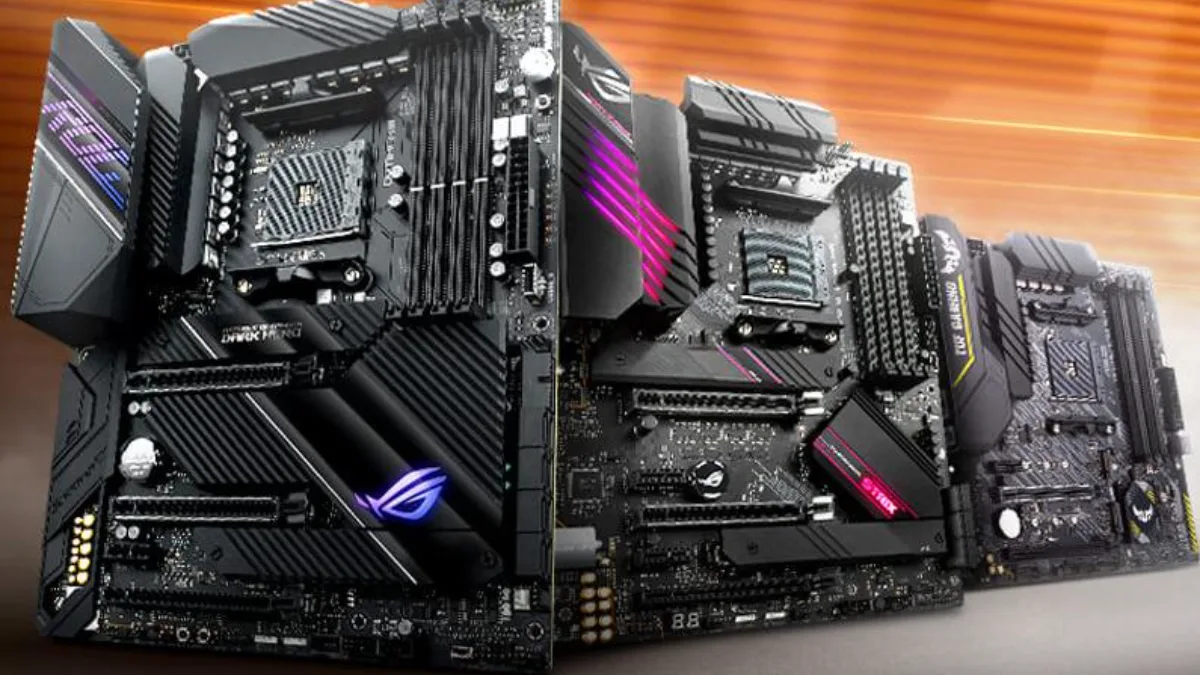
Each fan connector has its own setting in the BIOS.
A stuck, dusty or faulty fan
If the connection and BIOS settings are correct, check the fan itself with the PC turned off. A cable touching the blades, an overly tight mounting screw that bends the frame, or a thick layer of dust can be enough to block it. Spin the blades by hand: they should turn freely and without noise.
To check whether the fan is dead, plug it into another working connector. If it stays still, replace it. For cleaning, our FrenchHardware channel shows the right method in a video:
FrenchHardware, “How to properly clean your PC?!”
No fan spins: the power supply unit or the motherboard
If no fan spins and the PC won’t really power on, the problem is probably the power supply unit or the motherboard, not the fans. Check the mains cable, the switch at the back of the power supply, and the 24-pin and 8-pin cables for the processor.
Our guides test your PC power supply and my computer won’t start will help you continue the diagnosis.
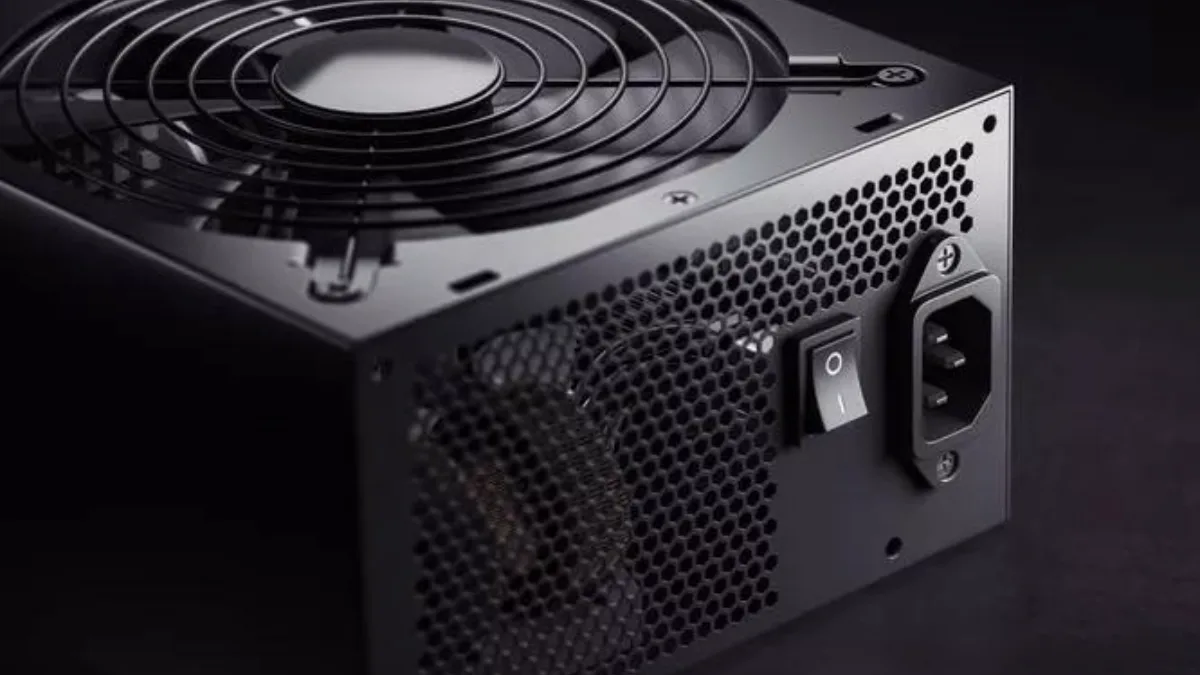
No fan spins? Start by looking at the power supply.
Our gaming PCs, assembled and tested
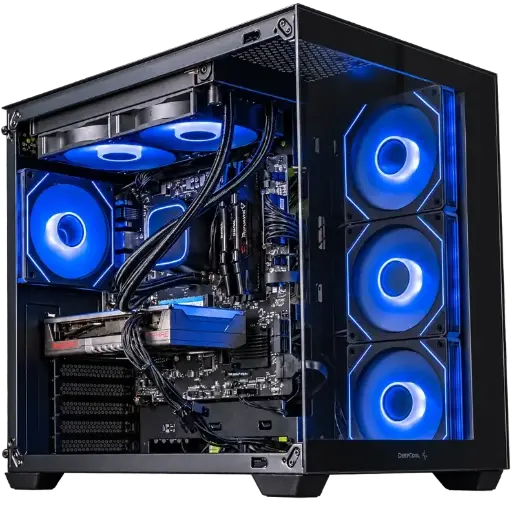
Spike PC, Radeon RX 9060 XT
Ryzen 7 5700X, Radeon RX 9060 XT and 16GB of DDR4, assembled and tested: enough to play in 1080p at high settings.
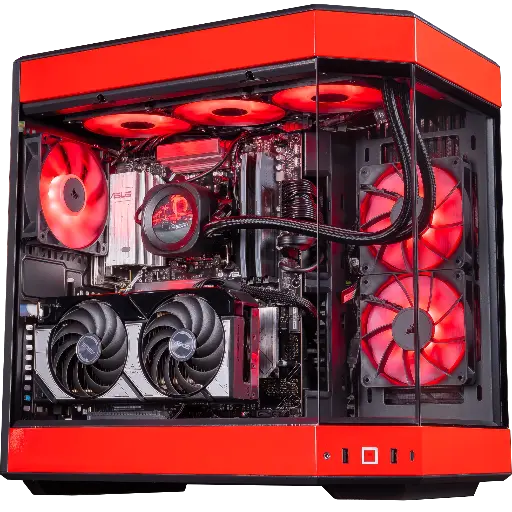
Rivals PC, GeForce RTX 5070
RTX 5070, Ryzen 7 9800X3D and 32GB of DDR5: built for 1440p at high refresh rates.
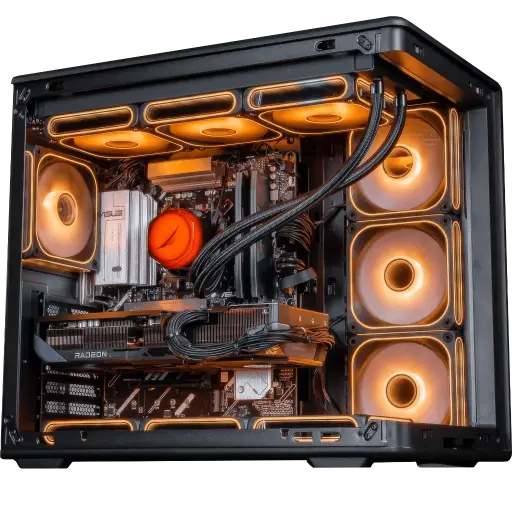
Apex V2 PC, Radeon RX 9070 XT
RX 9070 XT 16GB, Ryzen 7 7800X3D and 32GB of DDR5: for demanding 1440p and big AAA titles.
FAQ: PC fan not spinning
Why isn’t the fan on my graphics card spinning?
Most often because of 0 dB mode: the card stops its fans as long as it stays cool. Start a demanding game: they should spin up as the temperature rises.
Is it bad if the fan on my graphics card isn’t spinning?
No when idle. Yes if the card gets hot in games without its fans spinning: check the PCIe power cables and the driver, then contact the warranty if the issue persists.
My CPU fan isn’t spinning, what should I do?
Turn off the PC, check that the fan is plugged into CPU_FAN and that nothing is blocking the blades. Don’t run the PC until the issue is fixed.
My PC’s rear fan isn’t spinning, why?
It’s often unplugged or connected to a badly connected hub, or its connector is set to the wrong mode (DC or PWM) in the BIOS. A very quiet fan profile can also stop it at low temperatures.
How do you know if a fan is dead?
Plug it into another working connector. If it still doesn’t spin, while its blades turn freely by hand, then it needs to be replaced.
Can you use a PC with a stopped fan?
Not if it’s the CPU fan. For a case fan, it’s possible temporarily by monitoring temperatures, but fix it quickly: the airflow of the entire PC depends on it.
