
By the FlowUP team, gaming PC builder in Genappe (Belgium) · Updated 28 September 2026
Does your game stutter, do opponents teleport, or does the mouse respond with a delay? These three situations are all called “lag”, but they don’t have the same cause. A lagging PC isn’t always the culprit. Here’s how to identify your lag in two minutes, then fix it in the order we follow in FlowUP’s support department.
In brief
- Show ping and FPS in-game: rising ping means it’s the connection; dropping FPS means it’s the PC.
- Network lag: switch to an Ethernet cable and stop background downloads.
- PC lag: check that the monitor is plugged into the graphics card, update drivers, lower settings and monitor temperatures.
- Input lag: turn off V-Sync, enable NVIDIA Reflex or AMD Anti-Lag, and enable Game Mode on your display.
- Nothing helps? Run a UserDiag diagnostic and send us the link if your PC is a FlowUP.
Contents
- Network lag, PC lag or input lag: identify yours
- Network lag: high ping and an unstable connection
- My PC lags in-game: low FPS and stutters
- Input lag: when the mouse responds late
- Does the lag persist? Run a UserDiag diagnostic
- FAQ about lag in-game
Network lag, PC lag or input lag: identify yours
Before you change anything, display two counters during a match: ping (often in the game’s display options) and frames per second (FPS), with the NVIDIA, AMD or Steam overlay. The table below then tells you where to look.
| What you see | Type of lag | What moves | Where to look |
|---|---|---|---|
| Players teleport, your shots don’t count, the game feels smooth but “late” | Network lag | Ping rises or spikes | Connection, Wi‑Fi, downloads |
| The image stutters and freezes for a fraction of a second, even in solo play | PC lag | FPS drop | Settings, drivers, temperatures, background activity |
| Everything is smooth, but aiming feels heavy and off | Input lag | Neither ping nor FPS | V-Sync, display, mouse |
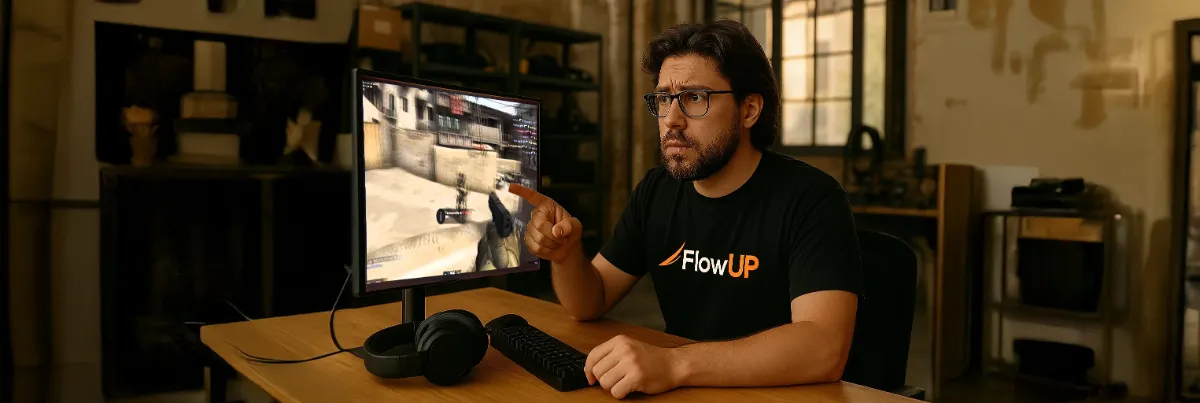
Ping or FPS: watch which counter moves before touching the settings.
Network lag: high ping and an unstable connection
Ping measures the round-trip time between your PC and the game server. It’s not the bandwidth that matters here: even a very fast fibre connection can still lag if your Wi‑Fi is saturated.
- This is the most effective fix: Wi‑Fi adds latency and spikes, especially through walls.
- Stop whatever is downloading. Steam or Windows updates, OneDrive, streaming on another machine at home: all of that shares your connection.
- Restart the router and the PC. Simple, but it fixes a good part of unstable connections.
- Choose the right server. In online games, select the closest region (Western Europe for France and Belgium).
- Test your line with Fast.com, also looking at the latency shown, then compare with another device.
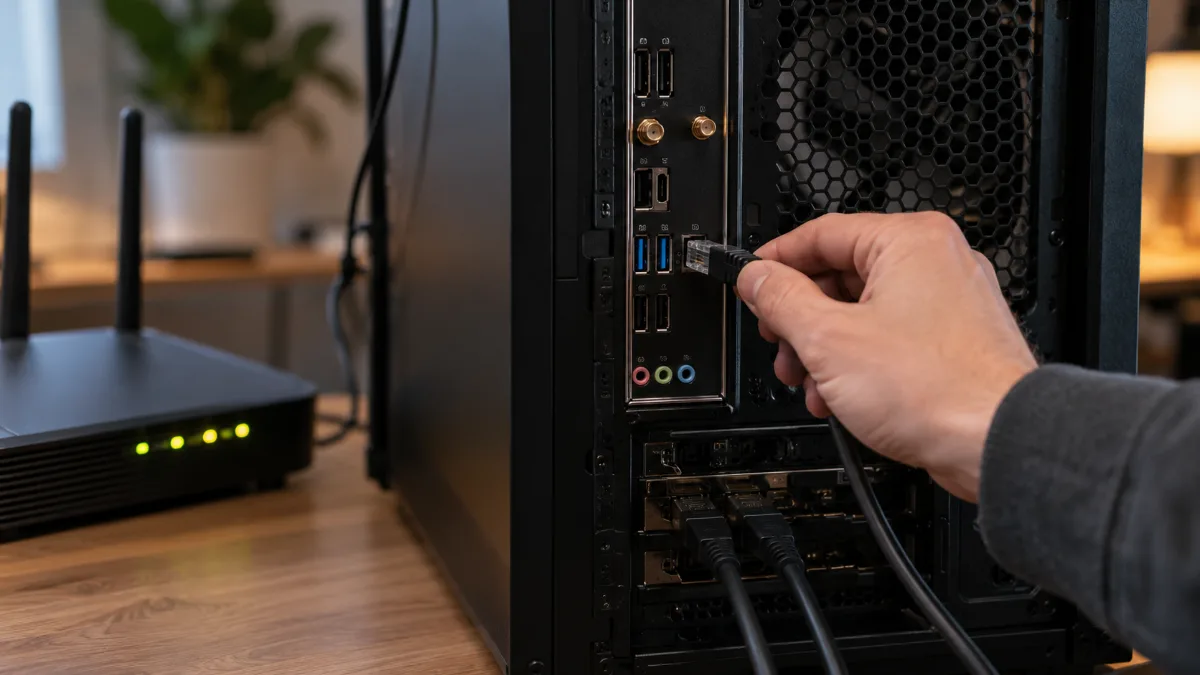
An Ethernet cable remains your best weapon against network lag.
My PC lags in-game: low FPS and stutters
If FPS drop, the issue is with the machine. Here are the checks we do in support, from the quickest to the longest.
1. Is the monitor plugged into the graphics card? This is the most common mistake we see: the HDMI or DisplayPort cable plugged into the motherboard, at the top of the case, makes games run on the processor’s integrated graphics (or on nothing at all). Connect it to the graphics card’s ports, further down.
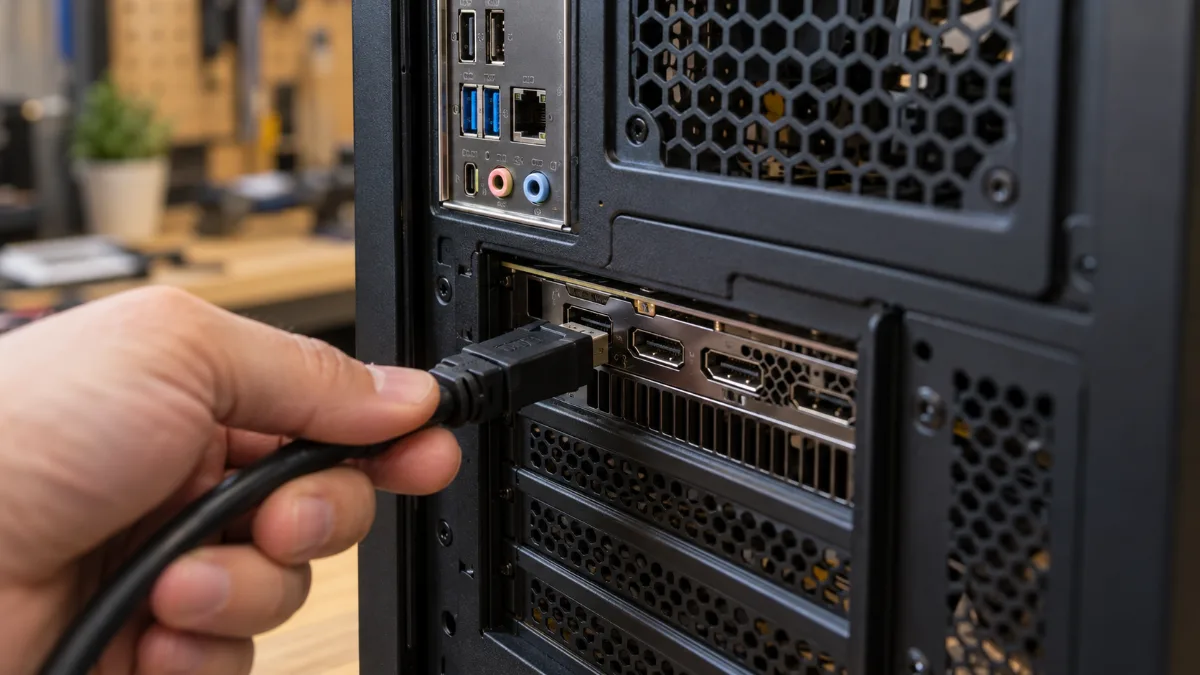
The monitor cable plugs into the graphics card, not into the motherboard ports above.
2. Close programs running in the background. Browser with twenty tabs, recording software, launchers: open Task Manager (Ctrl + Shift + Esc) and check what’s using the processor and memory. In Windows, you can also limit the apps allowed to run in the background (Microsoft support).
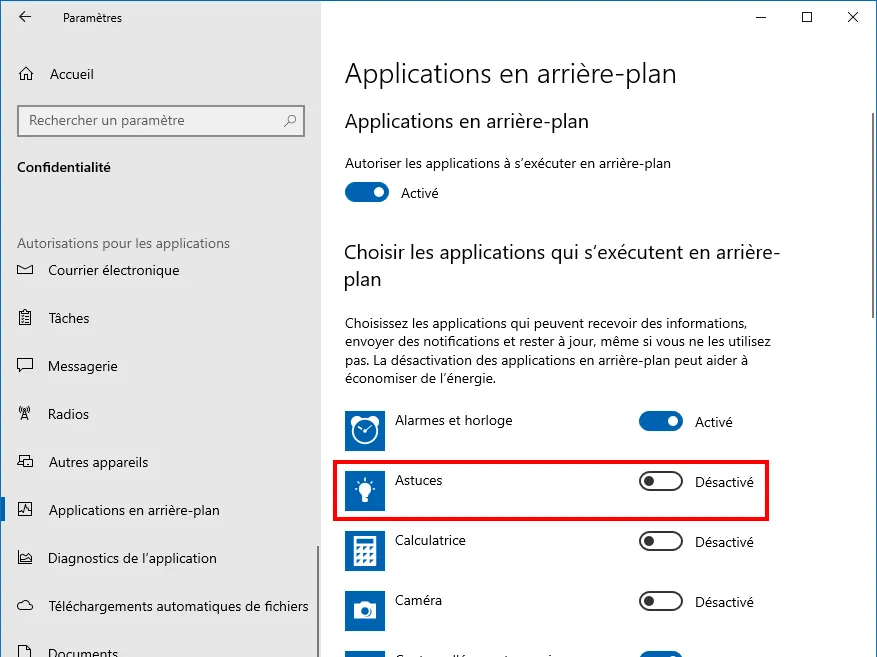
On Windows 10, background apps are switched off one by one in the privacy settings.
3. Compare your PC to the game’s requirements. A PC below the minimum specification will lag no matter what you do. Check your processor, graphics card and memory, then compare them with the game’s page on Steam. Our guide how to evaluate my computer’s performance shows you where to find this information.
4. Update your graphics drivers. A recent driver update often fixes stuttering in new games. Everything is explained in how to update your drivers.
5. Lower the graphics settings. Start with the most demanding options: ray tracing, shadows and volumetric quality. Then enable DLSS or FSR if the game offers it.

In a demanding game like Cyberpunk 2077, ray tracing is the first setting you should lower.
6. Put Windows into performance mode. Enable Game Mode (Settings, Games) and choose the power plan “Best performance” under Settings, System, Power. On a laptop, always plug in the charger when you play.
7. Monitor temperatures. A processor or graphics card that gets too hot will lower its frequency to protect itself, and FPS will plummet after a few minutes of gameplay. Dust, fans that aren’t spinning, dry thermal paste: see our guide PC that’s overheating and our method for cleaning your PC.
8. Free up disk space. An almost full SSD slows down the entire system. Keep some headroom and delete temporary files using Windows’ Storage Assistant.
To go further with FPS drops, read also why my PC lags when I play and what the FPS number is.
Input lag: when the mouse responds late
Input lag is the delay between your click and the action on screen. The game can display lots of FPS and still look “laggy”. The settings that matter most are:
- Turn off V-Sync in the game: it adds latency. If your monitor supports G-Sync or FreeSync, keep using this adaptive sync instead.
- Enable NVIDIA Reflex or AMD Anti-Lag when the game offers it.
- Enable the game mode on your monitor and use its maximum refresh rate (144 Hz or higher) in Windows’ display settings.
- Check the mouse: low battery or a wireless receiver that’s too far away is enough to cause stuttering.
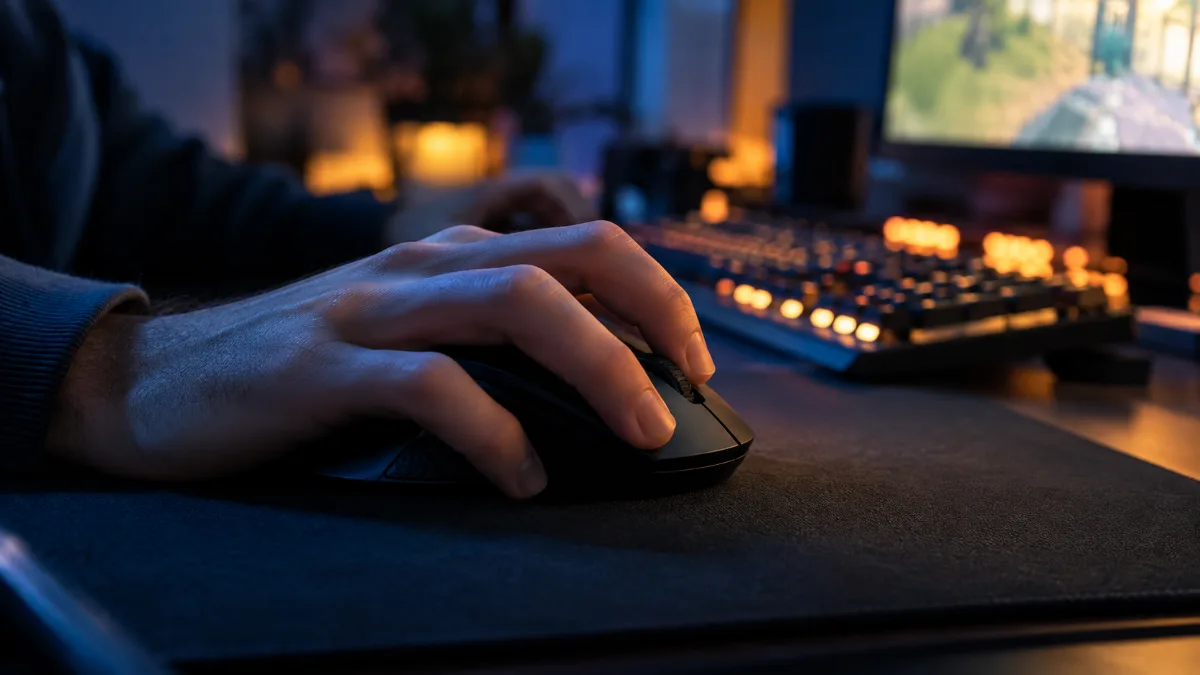
Mouse, screen and V-Sync are what matters most for input lag.
A fast monitor also reduces the perceived latency: see our guide which PC monitor to choose.
To see these settings in practice, The Pikafather channel shows how to fix lag, stuttering and slowdowns in Windows:
Does the lag persist? Run a UserDiag diagnostic
If nothing worked, you need to take a closer look at the hardware. UserDiag is a free tool that checks your PC configuration (BIOS, Windows, components) and then tests the components by measuring temperatures and CPU, memory and graphics card frequencies.
- Download UserDiag from its official website and run it.
- Choose the long or extreme diagnostic: these are the ones that heat the components enough to reveal a problem.
- In the end, the report opens in your browser, with blue tips to follow.
- Keep the report link.
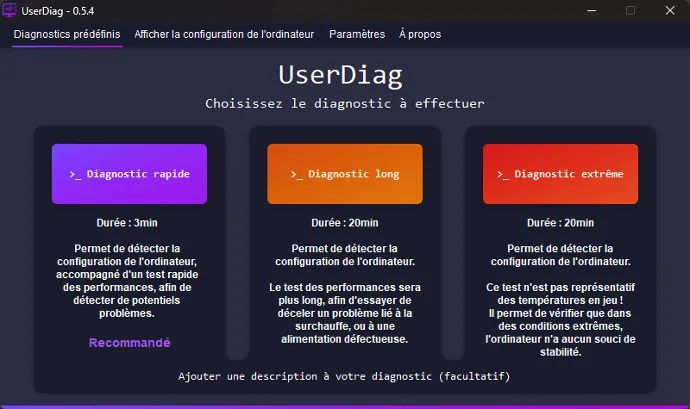
Choose the long or extreme diagnostic.
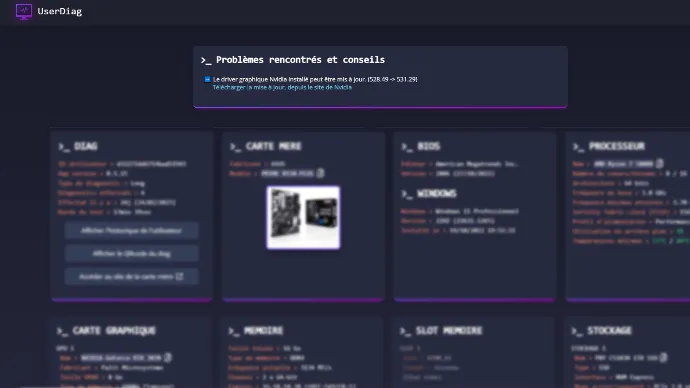
The report lists the issues found and the advice, component by component.
Is your PC a FlowUP? Send the diagnostic link to our technical team via the contact form: with this information, we find the cause much faster.
And if your PC has simply reached the end of its life, here are two configurations we build in Genappe so you can play without lag:
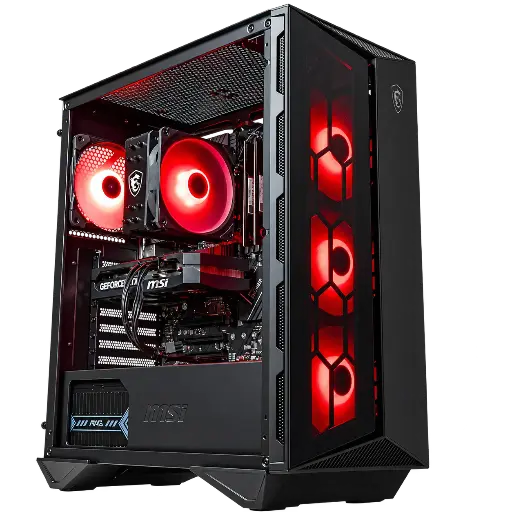
PC Banger GeForce RTX 5060
RTX 5060, Intel Core i5-12400F and 16 GB of RAM: enough to play in Full HD without stutter, with DLSS 4.
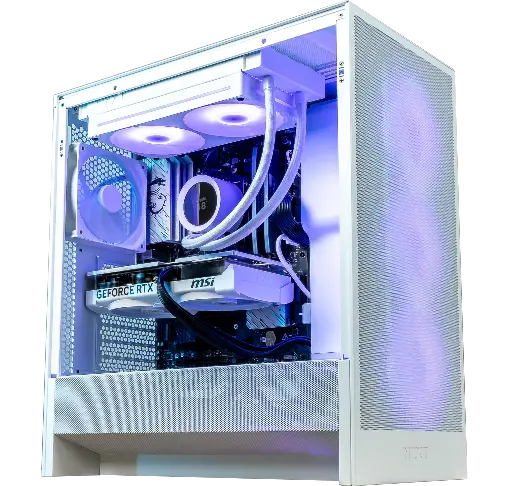
PC Novara GeForce RTX 5070 12GB
RTX 5070 12 GB, Ryzen 5 7500X3D, 16 GB DDR5 and 240 mm water cooling for 1440p.
FAQ about lag in-game
Why does my PC lag even though it’s powerful?
Most of the time, the screen is plugged into the motherboard instead of the graphics card, or the lag comes from the connection and not the PC. Display the ping and FPS to see which of the two is moving.
What’s the difference between lag and low FPS?
Low FPS are lag from the PC: the image stutters. Network lag, on the other hand, keeps the image smooth but shifts players’ actions, because the ping is too high or unstable.
Can Wi‑Fi cause lag in games?
Yes. Wi‑Fi adds latency and spikes, especially far from the router. An Ethernet cable remains the most reliable solution for playing online.
How can I reduce lag on a laptop?
Plug in the charger, switch Windows to "Best performance", check that the game is actually using the dedicated graphics card, and lift the back of the laptop so it can breathe.
Does a new PC fix lag?
Only if it’s a PC lag (low FPS). Network lag will follow your new machine as long as the connection isn’t fixed.
