
By the FlowUP team, PC gaming builder in Genappe (Belgium) · Updated 28 September 2026
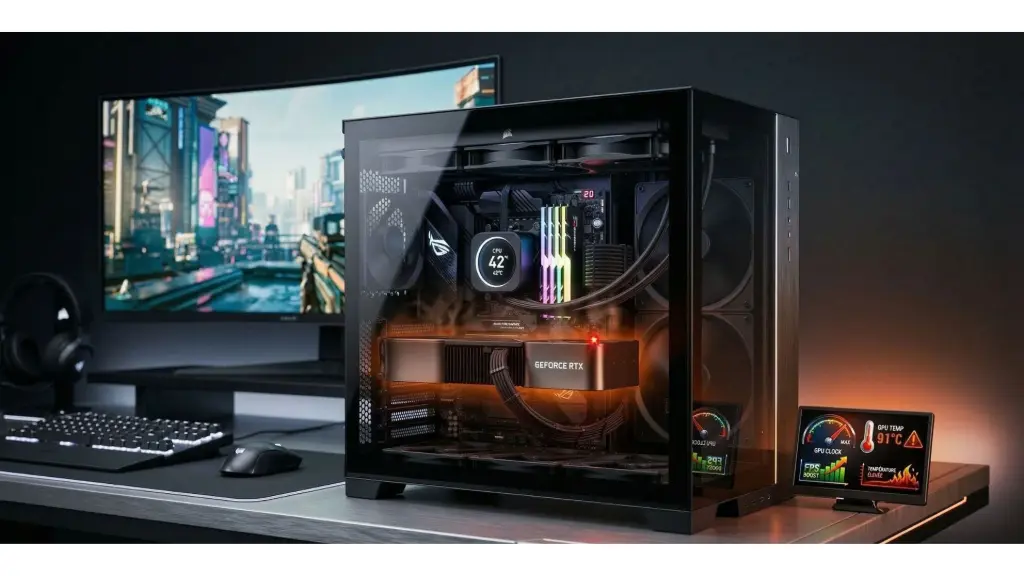
In brief: a gaming PC that gets hot while you’re playing is normal, the processor and graphics card are working at full load. As long as the processor stays below 85 to 90 °C and the graphics card stays under 80 to 85 °C, with no drops in FPS or crashing, everything is fine. If it gets higher, the causes are almost always concrete: dust, airflow, cooling that’s not quite up to the job, tired thermal paste, overly aggressive settings, or a room that’s too warm.
Your PC blows out a lot of air as soon as you start a match, and the case is hot to the touch? Before you worry, ask yourself just one question: is it getting hot because it’s working, or because it’s not venting its heat properly?
In the first case, there’s nothing to do. In the second, the solution is often simple and free. This guide helps you spot the difference, and then fix the problem.
A gaming PC that gets hot while playing, does that always mean there’s a problem?
No. While gaming, the processor and graphics card consume far more than when idle, so they heat up more too. That’s expected: each chip has a maximum temperature beyond which it protects itself by lowering its clock speeds. AMD, for example, lists a limit (Tjmax) of 95 °C for the Ryzen 5 7500F and 89 °C for the Ryzen 7 7800X3D. At Intel, the limit (Tjunction) is generally between 100 and 110 °C depending on the model.
What should alert you isn’t just a single number, but one of these symptoms:
- a drop in FPS after a few minutes of playing;
- stutters (microstutters) that didn’t happen before;
- fans running at full speed all the time, even when you’re not playing;
- crashes or restarts while you’re in the middle of a match;
- a case that’s scorching hot to the touch.
What temperatures are normal while gaming?
Here are benchmarks to judge your readings. These are ballpark figures: the exact limit depends on each model.
| Component | Normal while gaming | Keep an eye on | Manufacturer limit |
|---|---|---|---|
| AMD Ryzen processor | 60 to 85 °C | Over 90 °C continuously | 95 °C (89 °C for the 7800X3D) |
| Intel Core processor | 60 to 85 °C | Over 95 °C continuously | 100 to 110 °C depending on the model |
| Graphics card (chip) | 60 to 80 °C | Over 85 °C continuously | Around 90 °C depending on the model |
| Radeon hotspot | Up to 95 °C | Over 100 °C | 110 °C according to AMD |
To read these temperatures, a free tool such as HWiNFO or MSI Afterburner is enough. Run a 20-minute game session and check whether the temperature rises then stabilises (normal), or whether it keeps climbing to the limit and the clock speeds drop (a problem).
The most common causes when a gaming PC overheats too much
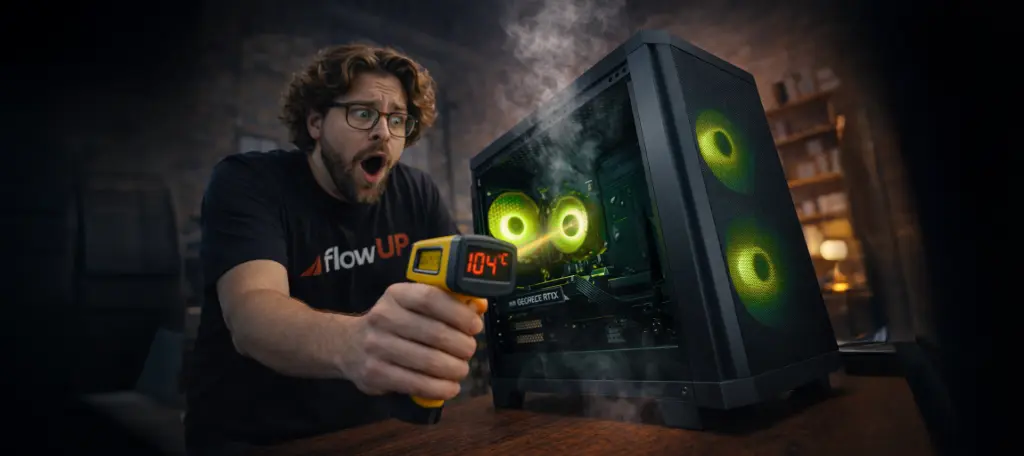
A PC that gets too hot almost never suffers from some mysterious issue. The most common causes are:
- Dust in the fans, filters, or radiators.
- Insufficient airflow inside the case. See our guide for choosing a PC case.
- Too light a CPU cooling setup for the chip.
- Thermal paste that’s getting old.
- Overly aggressive settings (overclocking, raised power limits).
- A room that’s too hot: in the middle of summer, 10 °C extra in the room is just as much for your components.
Dust and airflow: the two usual culprits
By far, this is the most common case. Dust clogs the filters and the radiator fins, the fans spin faster to compensate, and the PC becomes loud. That’s also why a PC blows hard when you play even though it was silent when you bought it.
Airflow matters just as much: too few fans, fans mounted the wrong way around, a front panel that’s too closed, or cables that block airflow are enough to push temperatures up. The right setup: cool air entering at the front, hot air exhausting at the back and at the top. Our guide for choosing your PC fans details the settings.
For step-by-step cleaning, follow our guide to clean your PC.
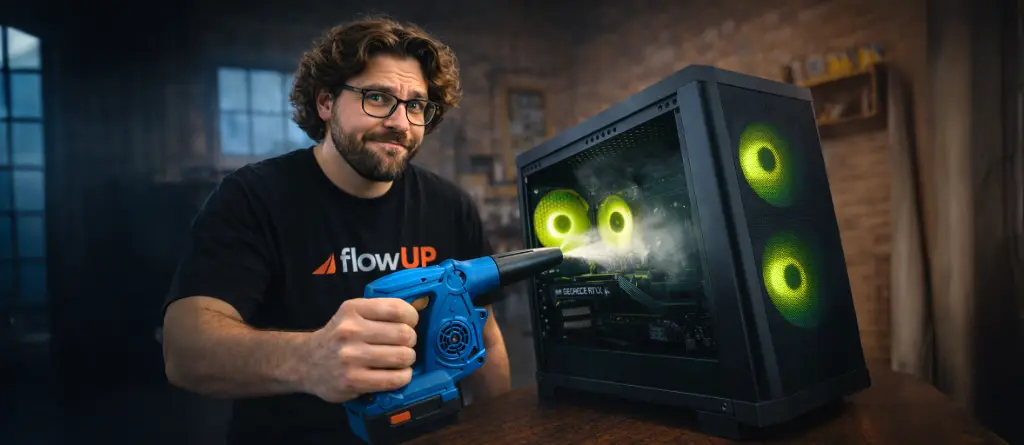
A PC that runs hot is often a dirty PC: FrenchHardware shows you how to clean it properly, step by step.
If your problem is more of a general overheating, even when you’re not playing, our complete guide Overheating PC: causes, diagnostics and solutions goes further.
FrenchHardware, “How to clean your PC properly”.
Is the CPU cooling sufficient?
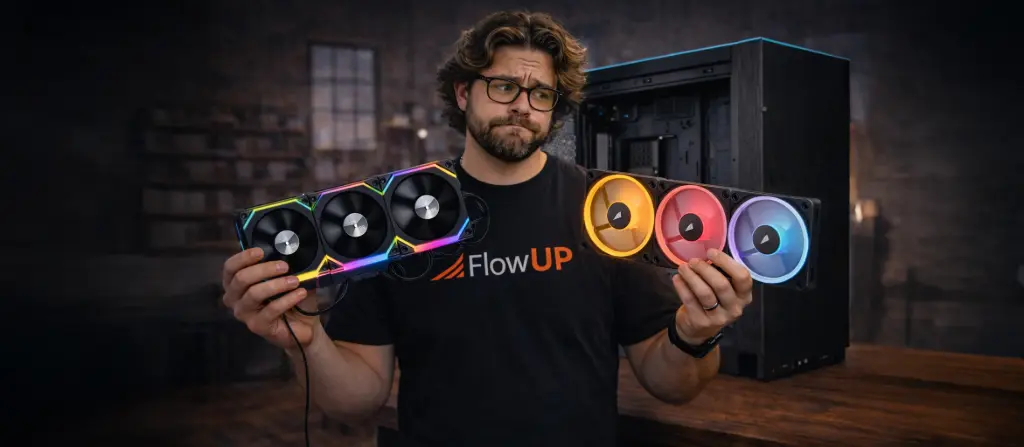
Another common situation: a heatsink (air cooler) that’s too small for the processor. AMD reminds you to use cooling that matches the chip’s power draw (TDP), properly installed, with thermal paste in good condition. A Ryzen 7 or a Core i7 that’s pushed in games deserves at least a good heatsink with four or six heat pipes, or a 240 mm AIO liquid cooler.
To choose, read our comparison heatsink air cooling versus watercooling.
Can background applications make the PC run hot?
Yes. If your processor gets hot even when you’re doing nothing, a background software process can keep it occupied: an RGB management tool, a game launcher that updates, or a browser with dozens of tabs. Microsoft recommends closing non-essential applications. Open the Task Manager (Ctrl + Shift + Esc) and sort by CPU usage to find the culprit. If your PC has also become sluggish, our article Why is my PC performing less well? will help you.
And what about overclocking?
If you’ve adjusted your processor, memory, or graphics card settings, that’s the first thing to check. AMD states that custom settings directly affect the processor temperature. An aggressive profile, a raised power limit, or an increased voltage can be enough to make the PC run hot. Go back to the default settings and compare.
On the other hand, a well-done undervolt often lowers the temperature by several degrees without any visible loss in-game.
What you can do right now
- Clean the filters and the air fans with dry air.
- Check the direction of the fans and clear the cables.
- Leave space around the case, away from a radiator or a closed cupboard.
- Close unnecessary background software.
- Go back to the default settings if you’ve overclocked.
- If nothing changes, have the thermal paste replaced or consider better cooling.
A properly cooled gaming PC from the start
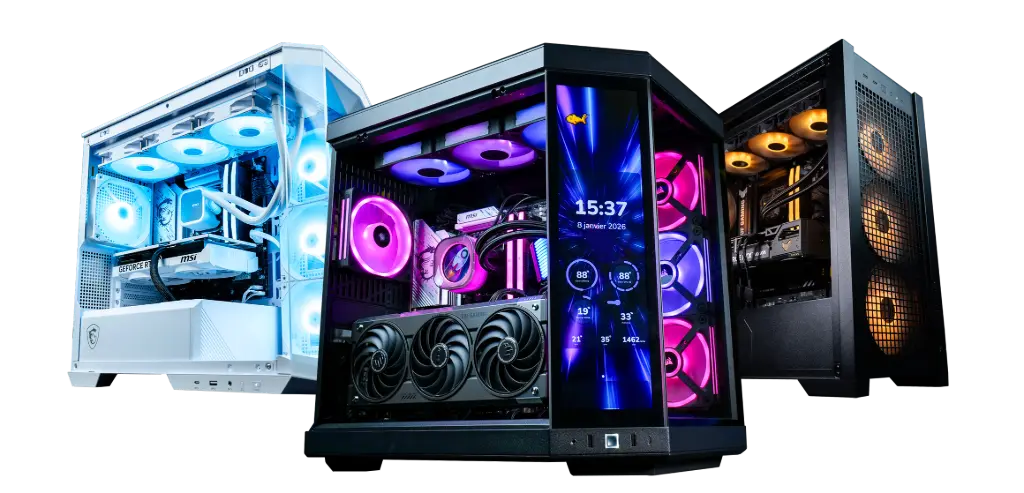
A PC that gets hot isn’t necessarily a PC in danger. But a PC that’s thermally thought through right from the build saves you from most of these issues: a case that can breathe, a CPU cooler sized for the processor, neatly routed cables, and a load test before shipping.
That’s the logic behind our assembled gaming PCs in Genappe. Two consistent examples using the processors mentioned in this article:
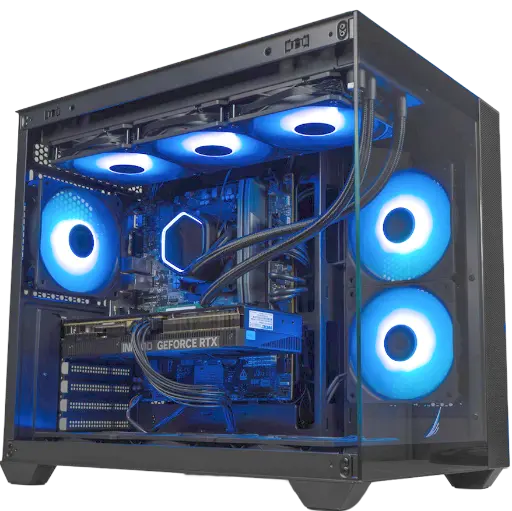
PC Umbra: Ryzen 5 7500F + RTX 5070
A balanced configuration for 1440p, with a low-power 6-core processor that stays well away from its thermal limits during gaming.
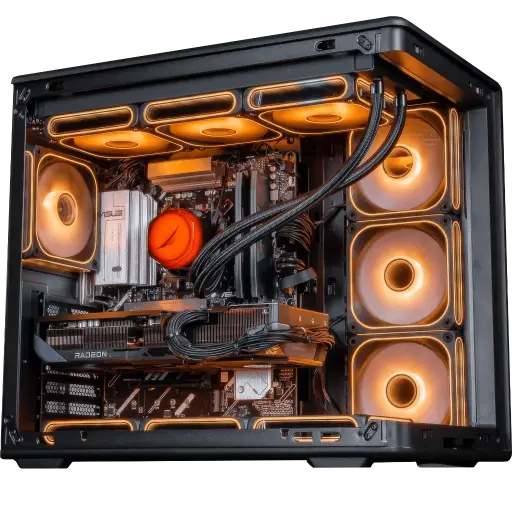
PC Apex V2: Ryzen 7 7800X3D + RX 9070 XT
The 7800X3D uses little power while gaming for the performance it delivers: an ideal choice for a powerful PC that stays calm.
FAQ: why does my gaming PC get hot when I play?
Is it normal for a gaming PC to get hot during gameplay?
Yes. While gaming, the processor and graphics card consume more and therefore heat up more. The real problem is when the heat comes with drops in frames per second, stuttering, or crashes.
Why does my PC blow hard when I play?
The fans speed up to expel the heat generated while gaming, it’s normal. If it’s much louder than before, it’s often dust or a reduced airflow that forces the fans to spin faster.
Why does my PC get hotter than before?
Dust, reduced airflow, ageing thermal paste, background software, or more aggressive settings: these are the most common causes. Summer and a warmer room also play a role.
At what temperature should I start to worry?
There’s no universal number. As a guideline, a processor above 90°C and a graphics card above 85°C running continuously are enough reason to clean and check the airflow. The manufacturer’s limit is 95°C for the Ryzen 5 7500F, 89°C for the Ryzen 7 7800X3D, and 100 to 110°C for Intel.
Can overclocking make the PC run hot?
Yes. Custom settings (frequency, voltage, power limit) directly affect the temperature. Go back to the default settings to compare.
What should I do if my PC gets too hot when I play?
Clean the machine, check the airflow and the fans, close unnecessary software, and undo aggressive settings. If the heat problem persists, have the thermal paste or cooling checked.
