 Your PC in instalments (up to 12x)
By the FlowUP team, gaming PC builder in Genappe (Belgium) · Updated 30 September 2026
In a nutshell: a video editing PC comes down to four components: a processor with lots of cores, a recent NVIDIA or AMD graphics card for encoding and effects, 32 GB of RAM as soon as you move up to 4K, and two SSDs (one for the system, one for the rushes/clips). Adobe recommends 16 GB of RAM for HD and 32 GB or more for 4K, with 8 GB of video memory. A high-end gaming PC checks all these boxes, and it plays games too.
A gaming PC: a solid base for video editing
Editing and gaming demand almost the same things from a PC: a fast processor, a powerful graphics card, plenty of memory, and storage that keeps up. That’s why many video creators build their setups on gaming PCs, and why so many gamers end up editing their own videos.
The differences come down to the details. For editing, the processor’s cores truly matter, RAM fills up fast with 4K rushes, and a second SSD prevents the system and media from fighting over the same drive. Here’s how to choose each component, and then the FlowUP PCs we recommend based on your level.
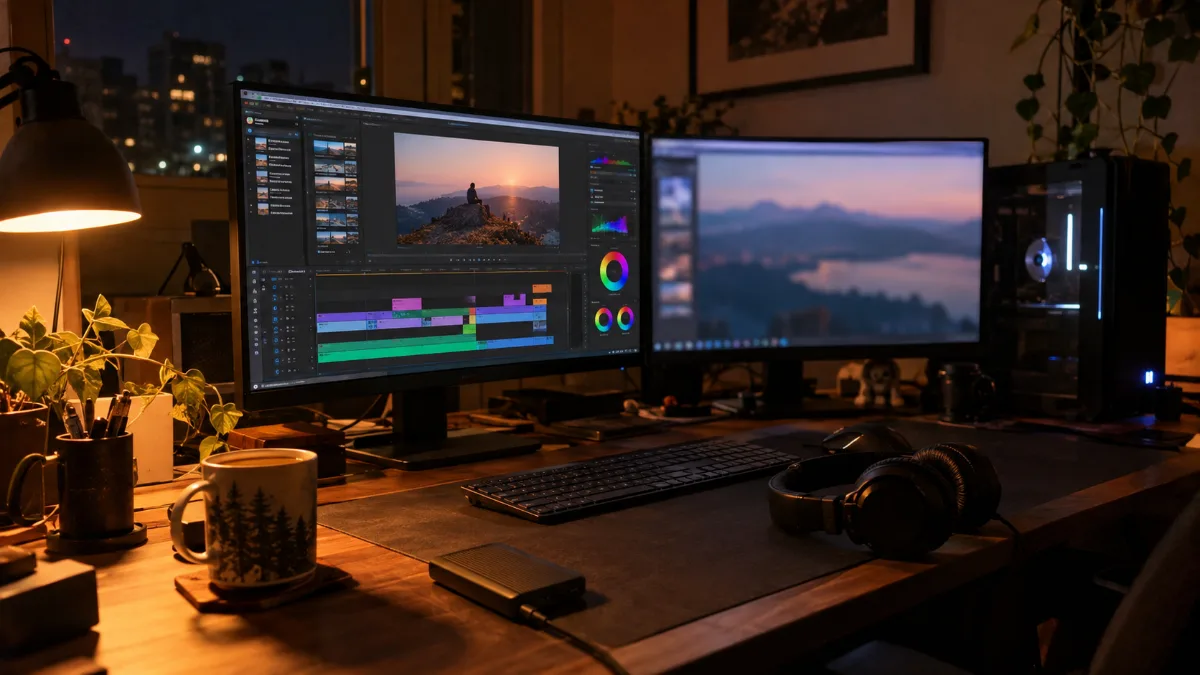
Two screens, a busy timeline: the PC has to keep up without slowing down.
Configuration recommended by Adobe for Premiere Pro
| Component | Minimum | Recommended |
|---|---|---|
| Processor | Intel 6th generation or AMD Ryzen 1000, with AVX2 | Intel 11th generation or higher with Quick Sync, or AMD Ryzen 3000 or higher |
| RAM | 8 GB | 16 GB for HD, 32 GB or more for 4K |
| Graphics card | 4 GB of video memory | 8 GB of video memory |
| Storage | 8 GB of free space for installation | Fast internal SSD for the software and cache, separate fast drive for media |
| System | Windows 11 24H2 | Windows 11 24H2 |
Source: Adobe, Premiere technical requirements (version 26.0, page updated on 21 January 2026).
These figures allow you to launch the software. For comfortable editing, especially in 4K, aim higher. Puget Systems, which assembles editing workstations in the United States, even recommends 64 GB of RAM for Premiere Pro from 1080p on heavy projects. For DaVinci Resolve, the same manufacturer focuses above all on the graphics card, which does most of the work in this software.
The processor: the editing engine
In Premiere Pro, the processor remains the most important component, according to Puget Systems. The more cores it has, the faster the exports and previews. Two points make the difference:
- Number of cores: a Ryzen 9 9950X3D (16 cores) or a Core Ultra 9 285K (24 cores) exports far faster than a 6-core processor.
- Quick Sync: this is the video engine built into Intel processors that include a graphics chip. Adobe recommends an Intel processor with Quick Sync, which accelerates playback of H.264 and HEVC files. Note that the “F” and “KF” models do not have a graphics chip, so there’s no Quick Sync.
Our builder’s take: for regular editing, go for 16 cores or more. The Core Ultra 9 285K in the Carbon X PC combines 24 cores and Quick Sync, so it’s the best compromise for Premiere Pro. The Ryzen 9 9950X3D in the Kraken, on the other hand, performs just as well for exports as it does for editing. To understand Intel processor naming, read how to understand the name of Intel processors.
The graphics card: encoding and effects
The graphics card accelerates effects, color grading and export thanks to its hardware encoder. All RTX 50 models encode in AV1 and decode HEVC and 10-bit H.264 4:2:2, the format used by many hybrid codecs and recent cameras. High-end models have multiple NVENC encoders, which speeds up exports even further.
| Graphics card | NVENC encoders | Video memory |
|---|---|---|
| GeForce RTX 5060 and 5060 Ti | 1 | 8 or 16 GB |
| GeForce RTX 5070 | 1 | 12 GB |
| GeForce RTX 5070 Ti | 2 | 16 GB |
| GeForce RTX 5080 | 2 | 16 GB |
| GeForce RTX 5090 | 3 | 32 GB |
Sources: NVIDIA, technical specs for the GeForce RTX 50 and NVIDIA Studio blog (April 2025).
For 4K, an RTX 5070 Ti or an RTX 5080 with 16 GB of video memory is the right level. The RTX 5090 and its 32 GB are mainly for 6K and 8K, or with DaVinci Resolve with lots of effects. Mathis and Gauthier tested our Orion PC, equipped with an RTX 5080:
Mathis and Gauthier, test of the FlowUP Orion PC (RTX 5080).
RAM and storage: 32 GB and two SSDs
RAM fills up quickly when editing: the timeline, previews, effects, and the browser open next to it. With 16 GB, a 4K project starts to lag. 32 GB is the right starting point, and 64 GB becomes useful for long projects or very effect-heavy edits.
When it comes to storage, Adobe recommends a fast SSD for the software and cache, plus a second drive for media. Several of our high-end configurations include a 2 TB NVMe SSD, and their motherboards have additional free M.2 slots for a second dedicated SSD for rushes. Everything is detailed in how to choose your SSD in 2026.
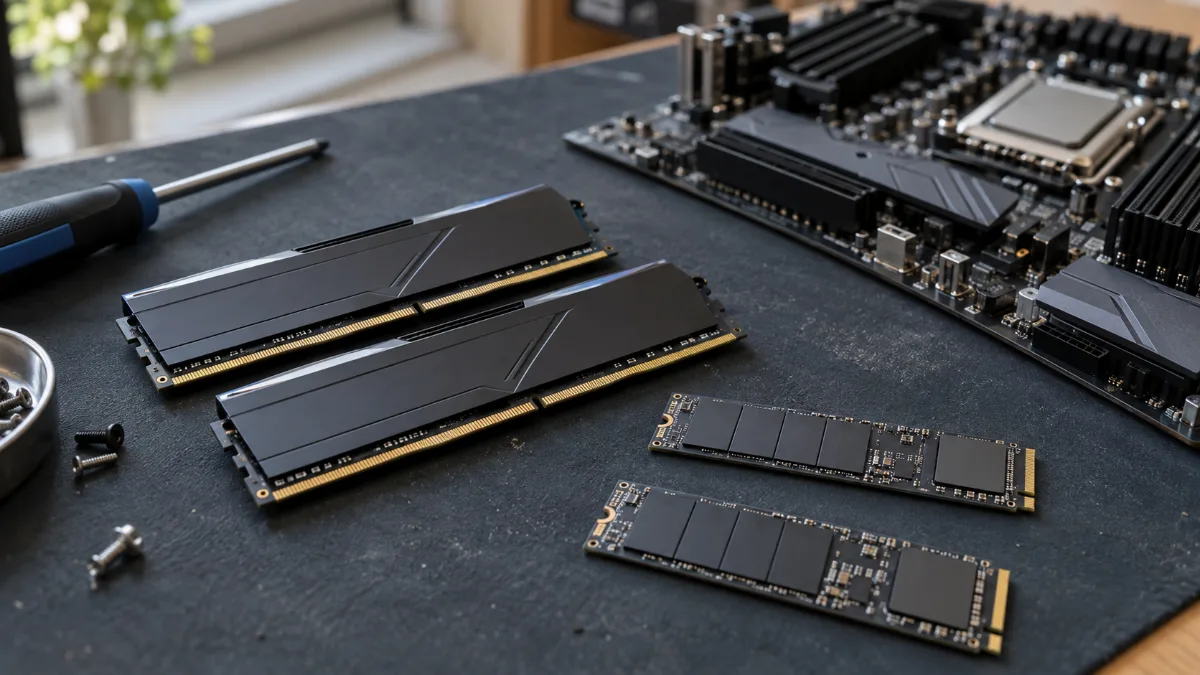
RAM and SSD: the two components that prevent slowdowns during editing.
Do you mostly edit videos for your live streams? Our guide what setup for streaming complements this one.
Which FlowUP PC for video editing?
All four of these PCs come with 32 GB of DDR5, a graphics card of 16 GB or more, and a fast NVMe SSD. Discover our desktop PCs and workstations as well.
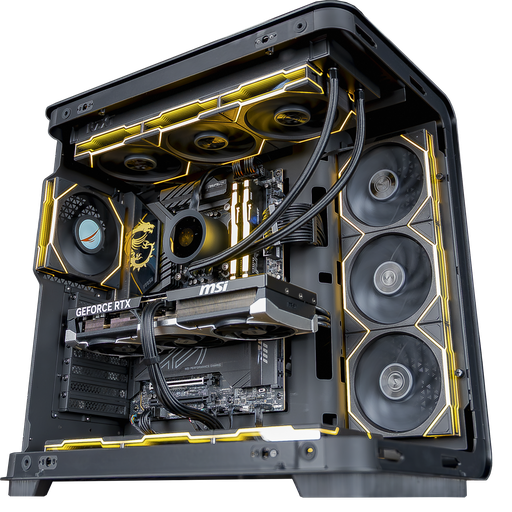
Carbon X PC: the choice for Premiere Pro
Core Ultra 9 285K with 24 cores and Quick Sync, RTX 5080 16 GB, 32 GB DDR5, and a 2 TB Samsung 990 Pro SSD.
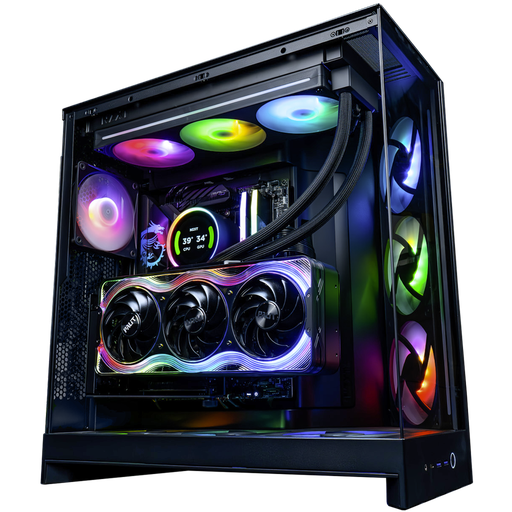
Kraken PC: for 6K and DaVinci Resolve
Ryzen 9 9950X3D with 16 cores, RTX 5090 32 GB with three NVENC encoders, 32 GB DDR5, and a 2 TB SSD.
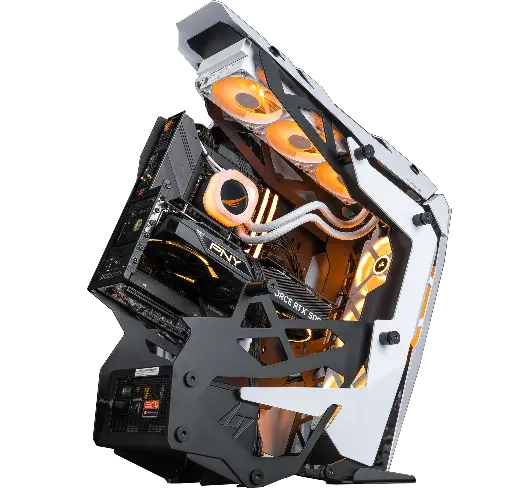
Optimus PC: 24 cores and RTX 5080
Core i9 14900KF with 24 cores, RTX 5080 16 GB, 32 GB DDR5, and a 2 TB Samsung 990 Pro SSD.
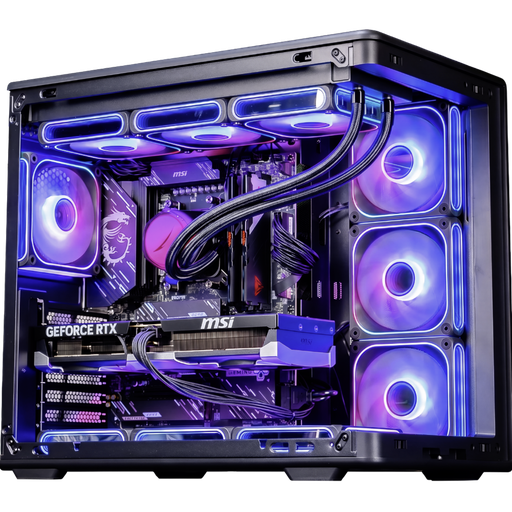
Ascent X3D PC: play and edit
Ryzen 7 9800X3D, RTX 5080 16 GB and 32 GB DDR5: best-in-class for gaming, and enough for editing in 4K.
FAQ: PC for video editing
What PC setup for video editing in 4K?
A 16-core processor or higher, a graphics card with 16 GB of video memory (RTX 5070 Ti or RTX 5080), 32 GB of RAM, and two NVMe SSDs.
How much RAM for video editing?
Adobe recommends 16 GB for HD and 32 GB or more for 4K. For long or effects-heavy projects, 64 GB offers more comfort.
Is a gaming PC suitable for video editing?
Yes. A high-end gaming PC already has what you need: a fast processor, a powerful graphics card, and an NVMe SSD. Just aim for 32 GB of RAM and enough cores.
Intel or AMD for video editing?
Both are suitable. Intel processors with a graphics chip benefit from Quick Sync in Premiere Pro; Ryzen 9 with 16 cores export very quickly and remain excellent for gaming.
Which graphics card for DaVinci Resolve?
Resolve relies heavily on the graphics card. An RTX 5080 is enough for 4K; the RTX 5090 and its 32 GB of video memory are used for 6K, 8K, or heavy effects.
Sources
- Adobe, Premiere Pro technical requirements (January 2026)
- Puget Systems, hardware recommendations for Premiere Pro (August 2026)
- Puget Systems, hardware recommendations for DaVinci Resolve (March 2026)
- NVIDIA, RTX 50 and Premiere Pro (April 2025)
- NVIDIA, fact sheet for the GeForce RTX 5080
