Your PC in instalments (up to 12x)
By the FlowUP team, gaming PC builder in Genappe (Belgium) · Updated 28 September 2026
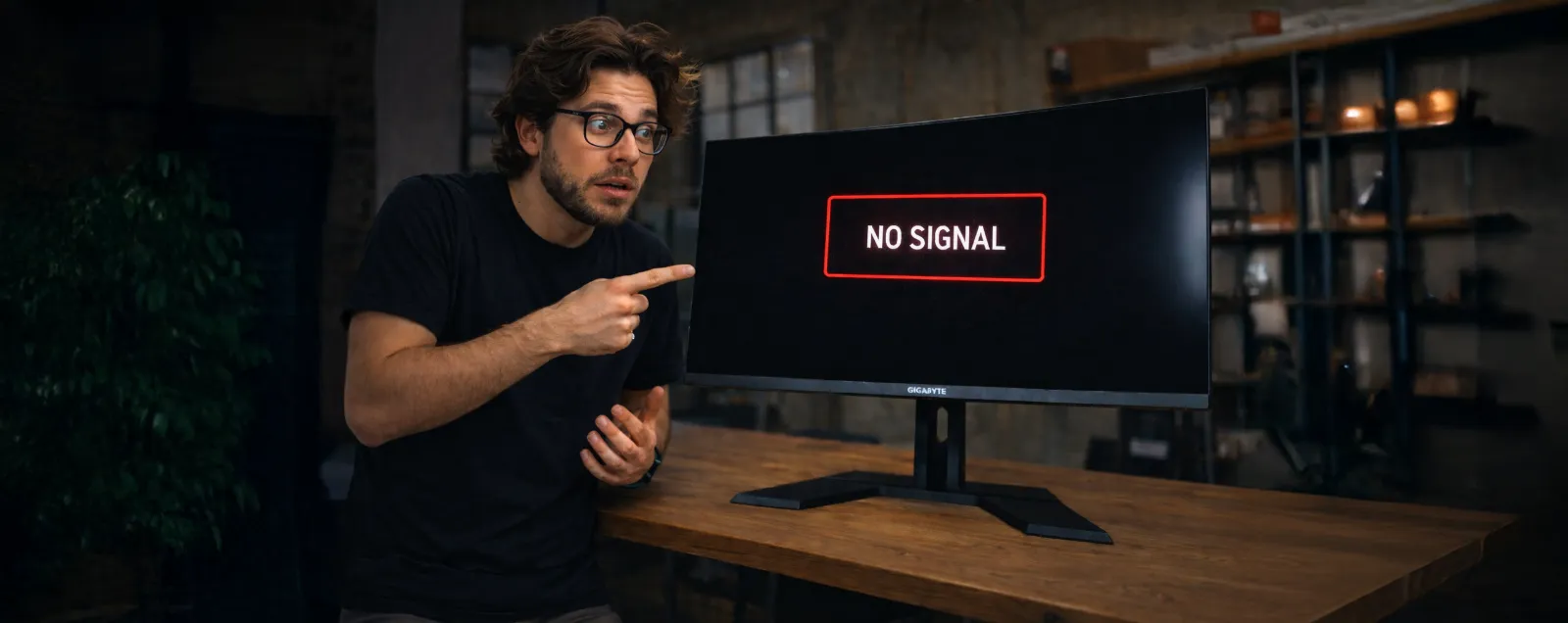
You press the button: the fans spin, the LEDs light up, and yet the screen stays black, sometimes with a “No signal” message. A black PC screen on startup is scary, but it rarely hides a serious failure: most often, the cable is plugged into the wrong port, the monitor isn’t set to the right input, or a component isn’t seated properly.
This guide follows a simple logic: first what takes thirty seconds, then the hardware, and Windows last. Each step tells you what to look at and what to conclude.
In short
- Black screen with “no signal”: first check that the HDMI or DisplayPort cable is plugged into the graphics card, not into the motherboard.
- The PC turns on but there’s no display, even in the BIOS: look at the motherboard’s diagnostic LEDs (CPU, DRAM, VGA, BOOT) and test with just one RAM stick.
- The image disappears after the Windows logo: try the Windows + Ctrl + Shift + B shortcut, which reinitialises the graphics driver according to Microsoft.
- Still nothing after these steps: note what lights up and what you’ve tested before contacting a technician.
Contents
- PC black screen: the 4 checks to do first
- No signal over HDMI or DisplayPort: the wrong port
- PC turns on but no display: read the motherboard LEDs
- Test the RAM stick by stick
- Graphics card: properly seated and properly powered
- Reset the BIOS (Clear CMOS)
- Black screen after the Windows logo: the shortcuts to know
- Symptom, likely cause, solution: the summary table
- When to ask for help
- FAQ: black screen on a PC
PC black screen: the 4 checks to do first
Start with the screen and the cable: that’s where the cause most often is. Four checks, in this order:
- The monitor is on and comes out of standby properly. Press its power button and check whether its indicator changes colour.
- The input source is correct. Manually select HDMI 1, HDMI 2 or DisplayPort in the monitor’s menu.
- The cable is fully pushed in on both sides. A DisplayPort plug that’s only half seated is enough to cut the image.
- The cable is plugged into the graphics card, not the motherboard (see the next section).
If the image comes back, you can stop there. Otherwise, move on to the next step.
No signal over HDMI or DisplayPort: the wrong port
This is the most common cause of a black screen on a gaming PC. At the back of the case, there are two sets of video outputs: the motherboard ones, at the top next to the USB ports, and the graphics card ones, lower down and aligned with the expansion slot bracket.
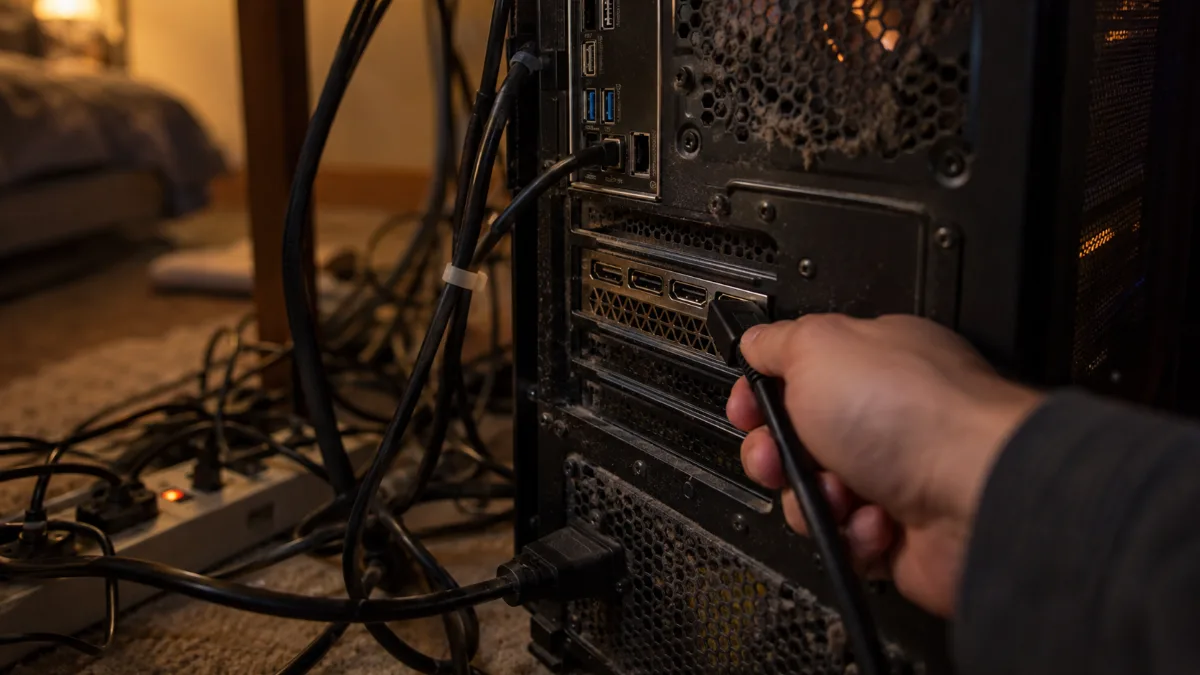
The graphics card outputs are lower than the motherboard ports.
When a graphics card is installed, it’s the one that outputs the image. A cable plugged into the motherboard then gives nothing, or a “no signal” message. Besides, many gaming PC processors don’t have integrated graphics (Intel “F” models, for example): their outputs on the motherboard can’t display anything.
Unplug the cable, plug it into a graphics card output, then restart.
Test the screen and the cable separately
To find out who’s responsible, cross-check the tests. Connect the monitor to another device (laptop, console): if you see the image, the monitor is fine. Then connect another monitor or a TV to the PC: if the image appears, it’s either the cable or the first monitor that’s the problem. Also try another cable, or switch from HDMI to DisplayPort.
If it’s the monitor that has failed, our gaming monitors take over, in HDMI as well as DisplayPort.
PC turns on but no display: read the motherboard LEDs
Most recent motherboards have four small diagnostic LEDs, marked CPU, DRAM, VGA and BOOT (EZ Debug LED on MSI, Q-LED on ASUS). At startup, they light up one after the other while the board checks each component. If one of them stays on, that’s where the boot process is getting stuck.
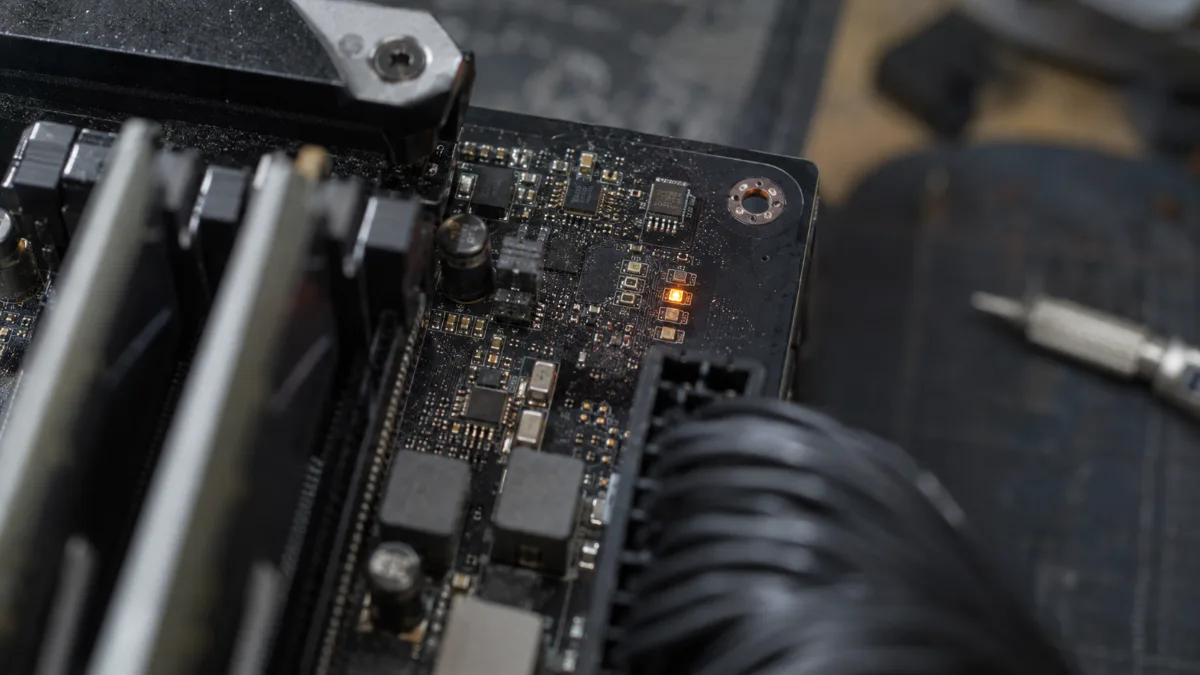
A light that stays on indicates the part blocking startup.
- CPU: processor not recognised, or the processor power cable (4+4 pins, at the top of the motherboard) is unplugged or not seated properly.
- DRAM: RAM is not properly seated, incompatible, or an XMP/EXPO profile is unstable.
- VGA: graphics card not properly inserted or not properly powered.
- BOOT: the hardware is passing, but no boot drive is found. The issue comes from the SSD or from Windows.
MSI reminds you in its support page for PCs with no display: the LED that stays on continuously indicates which part to check. Does your board not have these LEDs? Some emit beeps, others display a two-character code. The motherboard manual explains what each code means.
If the manufacturer’s logo appears for a few seconds, try entering the BIOS with the Delete key or F2 (how to access your PC’s BIOS). If the BIOS shows, the screen, the cable and the graphics card are working: the issue is on the Windows side, so go straight to the Windows section.
Test the RAM stick by stick
A RAM stick that isn’t seated properly often causes the display to fail. The method MSI recommends: start by booting with just one RAM stick, then add the others one by one.
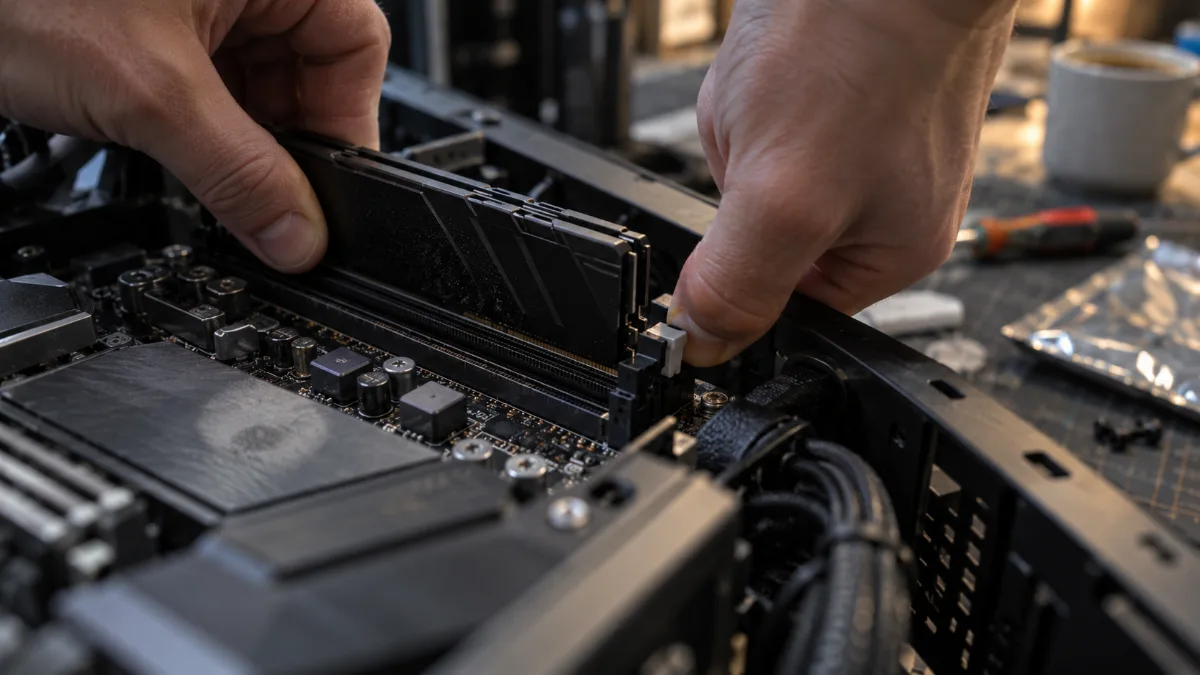
Push the RAM module in until the clips close.
- Switch off the PC and cut power at the mains switch.
- Remove all the RAM sticks, then reinstall just one in the slot recommended by the manual (often the second slot from the CPU).
- Press until you hear the clips click into place at both ends.
- Turn it back on. If the picture comes back, add the next stick and repeat the process.
After a RAM change or a BIOS reset, the first boot can stay on a black screen for several tens of seconds, while the motherboard configures the memory (especially DDR5). Wait one to two minutes before concluding there’s a fault. If the black screen appeared right after enabling a memory profile, reset the BIOS and then read our guide to enable the RAM XMP profile.
Graphics card: properly seated and properly powered
A graphics card that’s not properly seated in its PCI Express port, or one that isn’t getting power, won’t send any display signal. Check that the PCIe port clip is firmly closed, then ensure that each power cable from the graphics card is pushed all the way in: 6+2-pin on most cards, and a 12V-2x6 to 16-pin connector on newer cards. On the latter, there should be no gap between the plug and the card.
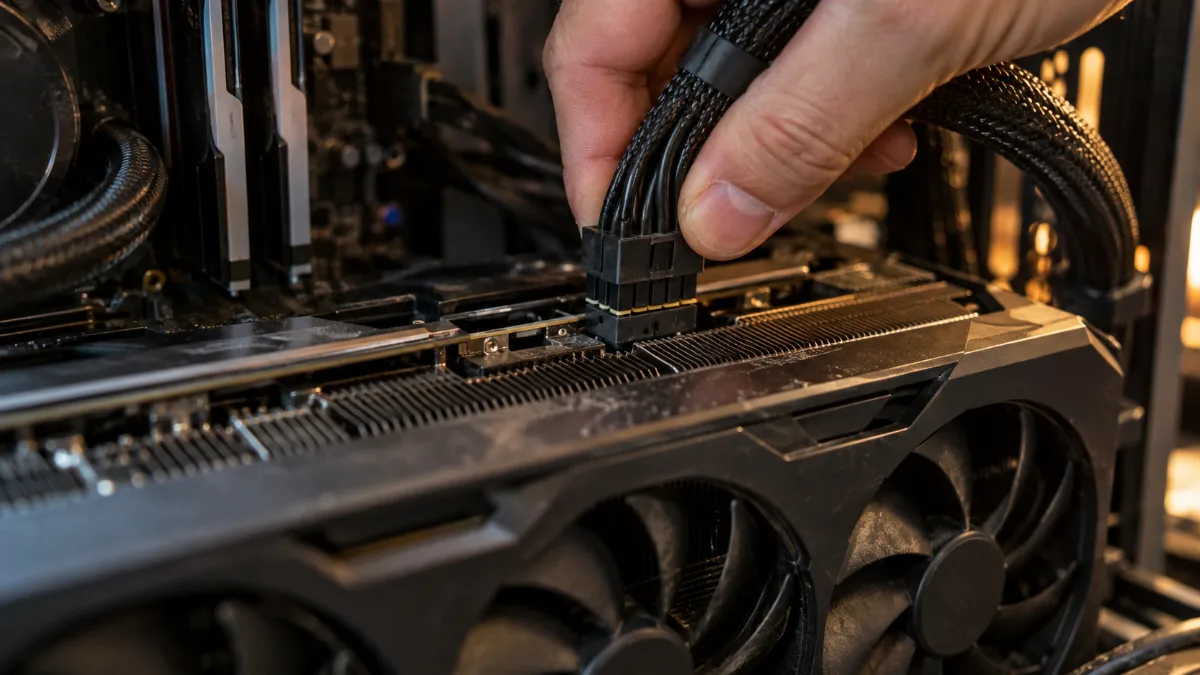
No day should be left between the plug and the card.
The power supply itself may also be the cause. A unit that’s too small can start the PC, then cut the display as soon as the graphics card requests more power. Our article on how to tell whether your PC power supply is sufficient helps you calculate it.
If your processor has integrated graphics, one last test is very telling: remove the graphics card and connect the monitor to the motherboard. If the picture returns, the graphics card or its power supply is the problem. Coloured lines or blocks on the screen point to another issue, covered in our article on graphical artefacts.
Reset the BIOS (Clear CMOS)
A BIOS setting that wasn’t applied correctly (overclocking, memory profile, forced video output on the motherboard) is sometimes enough to keep the screen black. Resetting restores the factory settings.
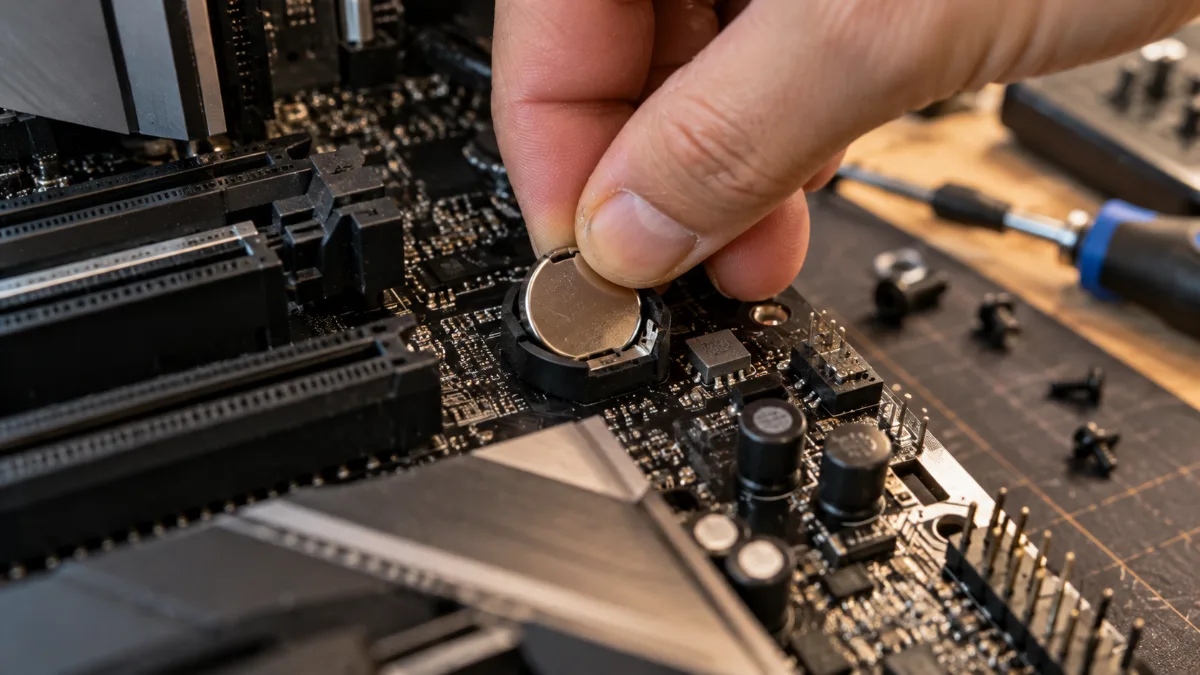
Removing the battery for a few minutes resets the BIOS to zero.
The procedure MSI provides: switch off the power completely, then short-circuit the CMOS jumper (JBAT1 on its boards) or remove the CMOS battery from the motherboard for 5 minutes before putting it back. Many newer boards also have a Clear CMOS button on the back. All the details are in our guide Clear CMOS: what it is and how to do it.
Black screen after the Windows logo: the shortcuts to know
If the manufacturer’s logo or Windows appears and then the screen turns black, the hardware is working: it’s Windows or the graphics driver. Microsoft recommends these shortcuts, to try in this order:
- Windows + Ctrl + Shift + B: resets the graphics driver.
- Windows + P: changes the display mode. Useful if Windows sends the image to a second, switched-off screen.
- Ctrl + Alt + Delete: if the security screen appears, Windows is running and it’s the Explorer that crashed. Restart it from Task Manager (Ctrl + Shift + Escape).
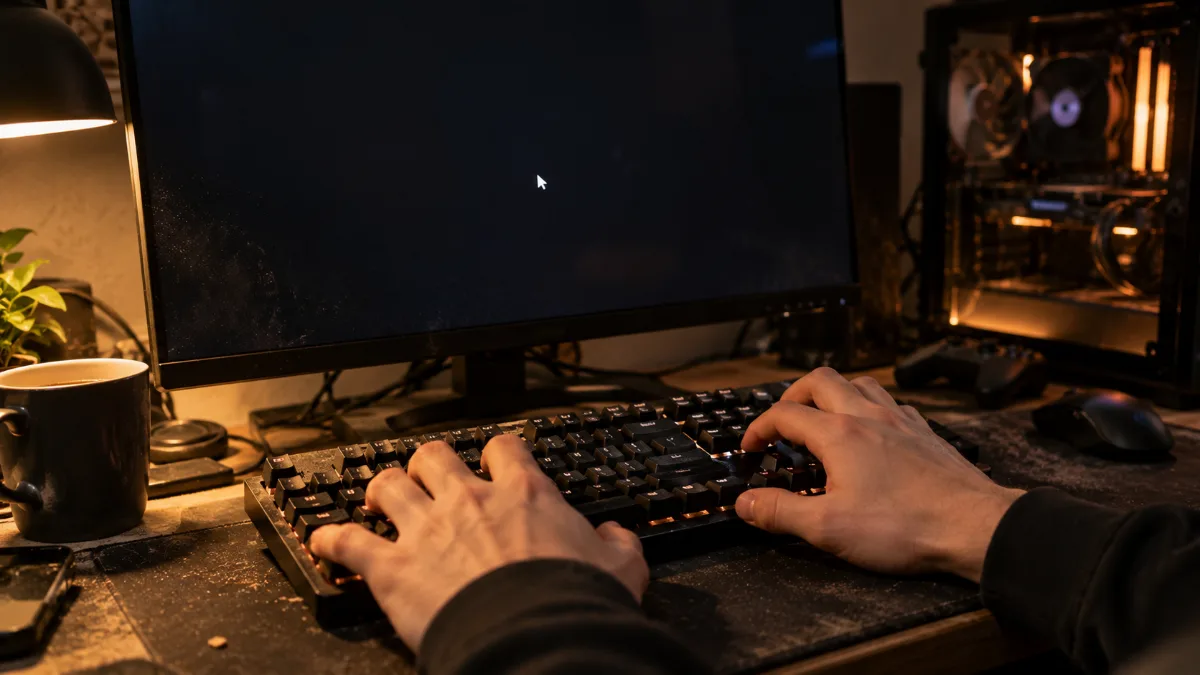
Windows + Ctrl + Shift + B restarts the graphics driver without rebooting.
Boot into Safe Mode
If nothing comes back, force a shutdown by holding the power button for 10 seconds, then turn it back on. Repeat this 2 to 3 times: Windows will then open its recovery mode. Go to Troubleshoot, Advanced options, Startup Settings, then press F5 for Safe Mode with Networking. From there, you can restore or uninstall the graphics driver in Device Manager, or go back to a restore point.
Resolution or refresh rate that the screen doesn’t support
After a driver update or a change of settings, the graphics card may send a resolution or refresh rate that the monitor refuses: it stays black or shows “out of range”. In safe mode, switch back to 1920 x 1080 at 60 Hz, restart, then increase the refresh rate again in the display settings. These steps apply to both Windows 10 and a black screen issue under Windows 11. To get back to clean drivers, follow our guide to update your drivers.
Symptom, likely cause, solution: the summary table
| What you see | Likely cause | What to do |
|---|---|---|
| Fans spinning, “no signal” message | Cable to the motherboard or wrong input | Plug into the graphics card, select the input manually |
| DRAM light stays on | RAM not seated correctly or unstable memory profile | Start with one RAM stick, then Clear CMOS |
| VGA light stays on | Graphics card not inserted properly or not powered correctly | Re-seat the card, check the power-supply cables |
| CPU light stays on | CPU power | Check the 4+4-pin cable at the top of the motherboard |
| Logo shows, then black screen | Windows or graphics driver | Windows + Ctrl + Shift + B, then safe mode |
| Black screen right after a driver update | Unsupported resolution or refresh rate | 1920 x 1080 at 60 Hz in safe mode |
| Nothing turns on, no fans | Power supply, button, or socket | See our article My computer won’t start |
In a video, the YouTuber Ryan TM reviews the causes of a PC that won’t turn on or shows nothing—and their solutions.
When to ask for help
If the screen stays black after all these steps, with two monitors and two different cables, the problem is hardware. Before calling a technician or after-sales support, note three things: what lights up (fans, LEDs, motherboard indicator lights), the diagnostic light that stays on, and the tests you’ve already run and their results.
With this information, the diagnosis will be much faster. Do you have a FlowUP PC? Send it to our customer service team by describing what you’ve already tested.
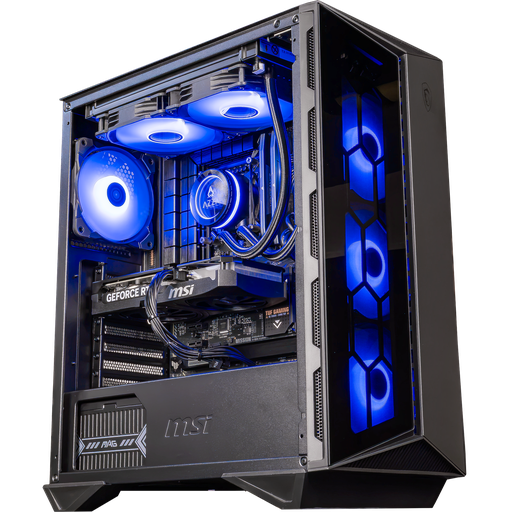
Swift GeForce RTX 5060 Ti 16GB PC
A gaming PC assembled by us to play in Full HD and 1440p—ready to plug in.
FAQ: black screen on a PC
Why does my PC turn on but the screen stays black?
In order of likelihood: the cable is plugged into the motherboard instead of the graphics card, the monitor is on the wrong input, a RAM stick isn’t seated properly, or the graphics card isn’t getting power correctly. The motherboard’s CPU, DRAM, VGA and BOOT LEDs indicate which component is blocking startup.
How to fix a black screen on startup in Windows 11?
If the logo appears before the black screen, try Windows + Ctrl + Shift + B to restart the graphics driver, then Windows + P. Otherwise, force 2 to 3 shutdowns in a row to open recovery mode, boot into safe mode (F5), and restore the graphics driver.
What does “no signal” mean on my screen?
The monitor is not receiving any image on the selected input. Either the chosen source is wrong, or the cable is not connected properly or is damaged, or the PC is sending nothing, e.g. because the cable is connected to the motherboard and not to the graphics card.
Can a black screen come from the power supply?
Yes. A graphics card or processor power cable that isn’t fully seated will prevent any display, and a power supply that’s too weak can cut the image when the graphics card ramps up. Check the connectors before suspecting the component itself.
Do I need to replace the PC after a black screen?
Rarely: most black screens are fixed with a cable, a setting, or by reseating a component. If the diagnosis points to the motherboard or graphics card of an already quite old PC, compare the cost of the repair with that of a newer configuration before deciding.
Sources
- Microsoft Support, troubleshooting black or blank screens in Windows (accessed September 2026)
- MSI, what to do in case of no display at startup (accessed September 2026)
A PC that stays black and is already a few years old? Here are our gaming PCs, assembled and wired by us, ready to plug in: