
By the FlowUP team, gaming PC builder in Genappe (Belgium) · Updated 29 September 2026
In brief: a PC that loses performance is almost always suffering from one of these causes: too many programs at startup or running in the background, a nearly full drive, overheating (dust, tired thermal paste), outdated drivers or an out-of-date Windows, a saturated RAM or malware. Open the Task Manager (Ctrl + Shift + Esc): it tells you within two minutes whether it’s the processor, memory or the drive that’s blocking things. If nothing stands out and the PC is simply too tight for your current software, it’s time to upgrade.
A PC doesn’t "wear out", it just gets clogged up
A PC’s components don’t slow down with age. A processor from 2020 calculates at exactly the same speed today as when it was released. What changes is everything else: the programs that get installed and start up automatically, the drive that fills up, the dust that chokes the fans, and games or software that are becoming increasingly demanding.
The good news is that most of these causes can be fixed without buying anything. Here’s how to find yours, in the order we’d check them.
Endless startup, windows that take ages to open, games that stutter: the causes are often the same.
The 5-minute diagnosis
Before touching anything, look at the symptoms. They immediately point you to the right lead:
| What you notice | Most likely cause | Where to check |
|---|---|---|
| Very long startup, PC is slow just after turning it on | Too many programs at startup | Task Manager, Startup Apps tab |
| Disk at 100% in Task Manager | Nearly full drive, mechanical hard drive nearing end of life, update in progress | Settings > System > Storage |
| Noisy fans, slowdowns after a few minutes of gaming | Overheating: the processor or graphics card lowers its frequency | Temperatures with HWiNFO or the software from your motherboard |
| Everything bogs down as soon as you open multiple tabs or apps | Saturated RAM | Task Manager, Performance > Memory tab |
| Sudden lag, ads or unknown pop-up windows | Malware | Windows Security, full scan |
| Only slow in games; everything else is fine | Graphics settings, drivers, screen connected to the motherboard | Our guide to a gaming PC that lags |
1. Too many programs at startup and running in the background
It’s the number one cause. Every installed program (game launcher, messaging app, RGB tool, printer software, trial antivirus) wants to start with Windows and stay open. Taken one by one, they weigh almost nothing. But with fifteen of them, they permanently eat up memory and the processor.
Open the Task Manager with Ctrl + Shift + Esc, then the Startup Apps tab: disable everything you don’t need as soon as you turn on the PC. In the Processes tab, sort by processor and then by memory to spot what’s consuming resources. And uninstall the software you no longer use altogether.
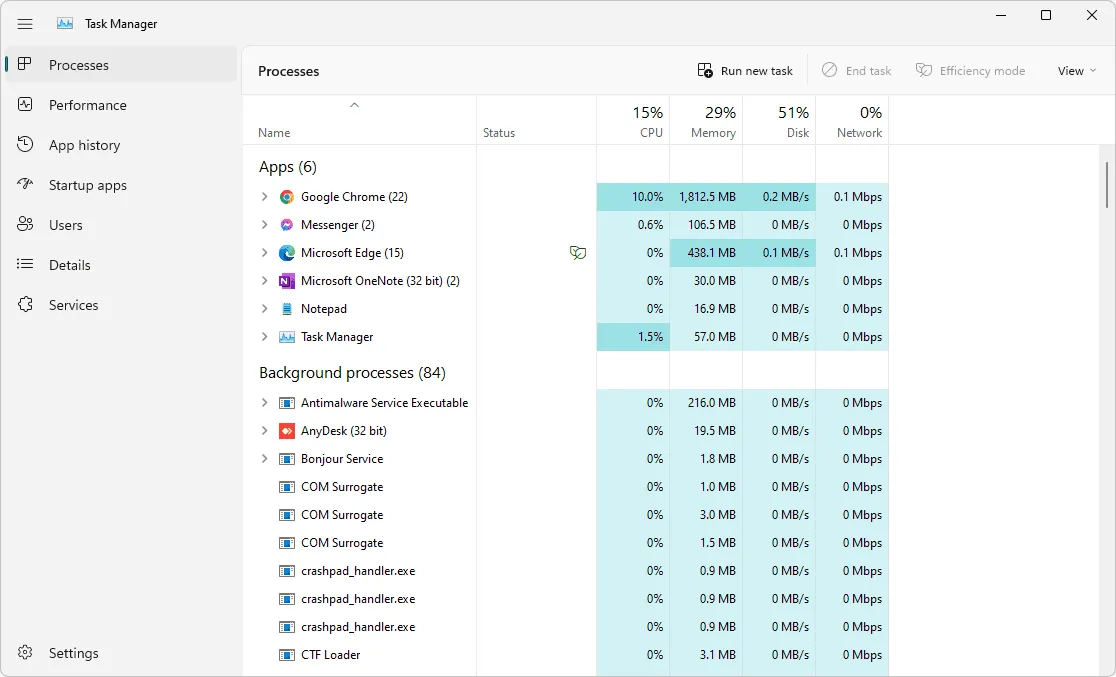
Task Manager: the first thing to try when a PC slows down.
On Windows 11, Task Manager also offers an efficiency mode that lowers the priority of a background app without closing it. Québec Test shows how to use it, and when to avoid it (for your game, for example):
Québec Test, "Slow PC? This hidden Windows 11 option can make all the difference!" (September 2026).
2. An almost-full drive (or an old hard drive)
Windows needs free space for its temporary files, updates and virtual memory. An SSD filled to the brim slows down, and a mechanical hard drive quickly becomes the bottleneck for the entire PC. Keep some breathing room, and enable the Storage Sense (Settings > System > Storage) so it automatically clears temporary files and the recycle bin. To see what you can safely delete, read our guide to unnecessary files on Windows 10 and 11.
If Windows is still installed on a mechanical hard drive, switching to an SSD is the upgrade that changes the speed feel the most on a daily basis. And on an SSD, there’s no need for manual defragmentation or third-party software: the Windows tool "Defragment and optimize drives" takes care of the right maintenance automatically.
3. Overheating and dust
A processor or graphics card that overheats reduces its frequency to protect itself. Your PC doesn’t crash, it simply gets slower, especially after a few minutes under load. The usual culprits: clogged filters and heatsinks packed with dust, a fan that’s no longer spinning, and thermal paste that has dried out after a few years.
Check your in-game temperatures with HWiNFO and compare them with the values in our guide PC that overheats too much: normal temperatures and solutions. If they’re too high, start with a thorough clean-out of the dust : it’s free and often enough.
Illustration: overheating doesn’t always cause the PC to crash, it slows it down first.
4. Drivers, Windows and BIOS not up to date
Microsoft prioritises Windows updates and optional driver updates in its performance recommendations. For a gaming PC, the driver that matters most is the graphics card driver: install it from NVIDIA, AMD or Intel’s website, not from a download site. Everything is detailed in how to update your drivers in 2026.
Two settings are also worth checking. The power mode in Windows (Settings > System > Power): in power-saving mode, the processor doesn’t deliver everything. And the EXPO or XMP profile for memory in the BIOS: if it’s disabled, for example after a BIOS update that reset the default settings, your RAM runs below its advertised speed. If you have an Intel processor from the 13th or 14th generation, also read our guide to BIOS update for Intel 13th- and 14th-gen processors.
5. Saturated or faulty RAM
In Task Manager, tab Performance > Memory: if you’re regularly above 90% usage, Windows starts using the drive as backup memory, and everything slows down. Closing the browser and its 40 tabs during a game already helps a lot. If that’s not enough, you need more RAM: our article 16 GB or 32 GB of RAM in 2026 helps you choose. Preferably add an identical kit to the one you already have, or replace both sticks with a complete kit.
Random crashes in addition to slowdowns can come from a faulty stick. Windows includes a test tool, the Windows Memory Diagnostic; MemTest86 runs a more thorough test from a USB stick.
6. Malicious software
A virus, a cryptocurrency miner or an adware program can keep the processor and disk busy all the time. On Windows 10 and 11, Microsoft’s built-in antivirus Defender is enough for normal use: run a full scan from Windows Security > Virus & threat protection > Scan options, and run an offline scan if you’re unsure. Beware of “optimisers” and “antivirus” found in ads: they’re often the very cause of the problem.
7. The PC hasn’t slowed down, it's the games that have grown bigger
If everything above is clean and the PC is still struggling, it may simply be too underpowered for what you’re asking of it today. 2026 games require more video memory and processor power than games from five years ago. To be sure, a stability and load test like OCCT shows whether a component overheats, throttles or hits its limit.
Next, two questions: which component to upgrade first, and should you upgrade your PC or just buy a new one.
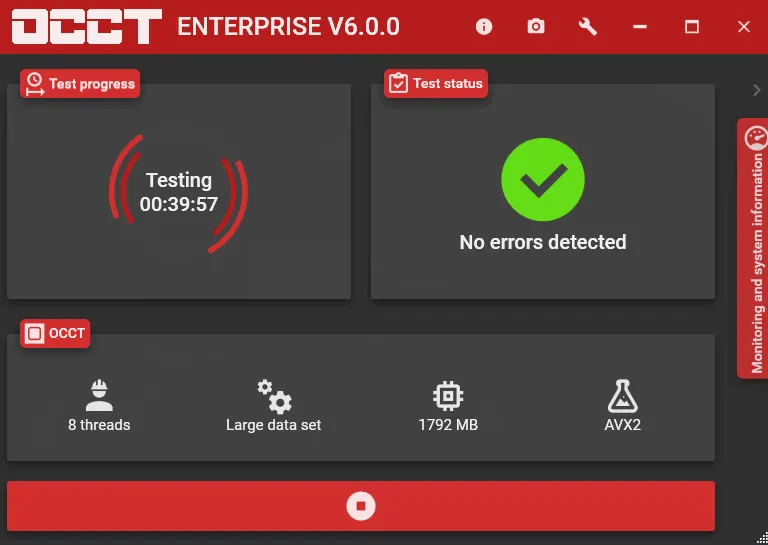
OCCT: a load test reveals overheating or instability that normal use can hide.
Does the PC only stutter during games?
If the desktop, browser and apps are fine but your games stutter, the problem is elsewhere: overly ambitious graphics settings, the screen connected to the motherboard instead of the graphics card, a poorly configured refresh rate, graphics driver issues. We have a dedicated guide: why does my PC stutter in games.
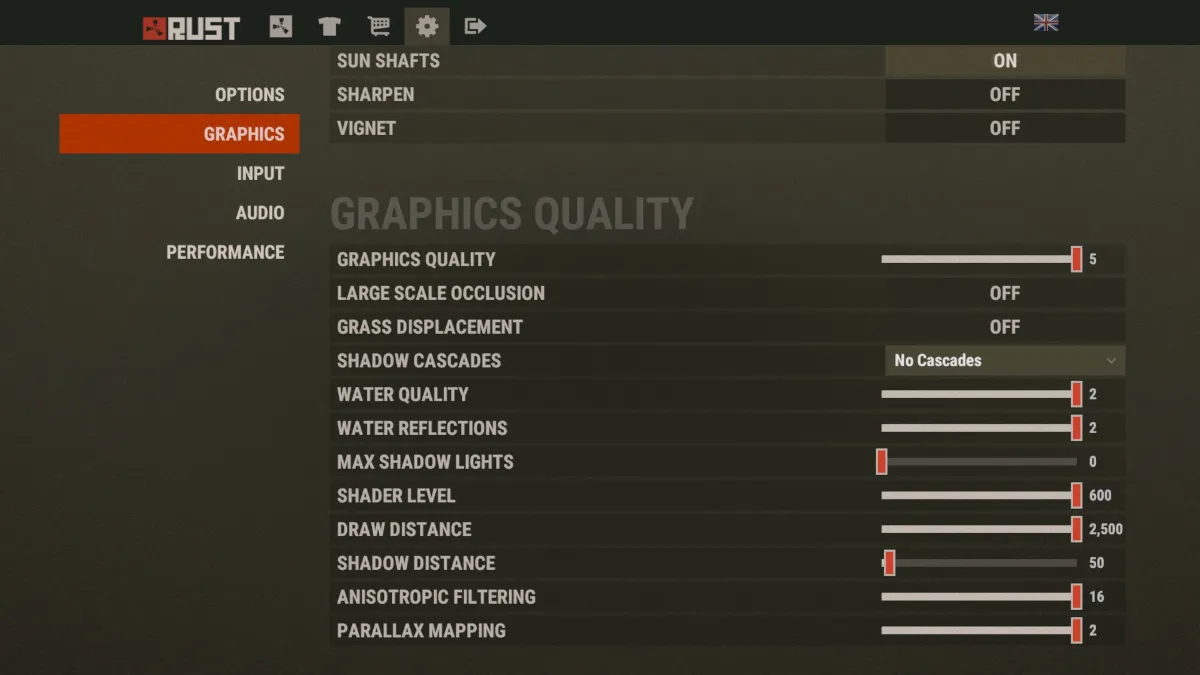
Lowering two or three well-chosen settings often delivers more FPS than cleaning Windows.
What we don’t recommend
- “Registry cleaners”: the performance gain is barely noticeable, and a bad deletion can break a program.
- Defragment an SSD with third-party software: unnecessary, Windows handles SSD maintenance itself.
- Paid optimisers that promise to “boost” your PC: anything they do usefully, Windows does for free.
- Disable your antivirus to gain a few FPS: the risk is in no way comparable to the gain.
When should you change your PC?
Once the cleaning is done, the temperatures are right, and the PC is still too slow for your games with reasonable settings. If several parts need to be replaced at the same time (graphics card, processor, motherboard, memory), a brand-new PC is often more logical than a string of upgrades. Here are three configurations we’ve assembled and tested, available to order:
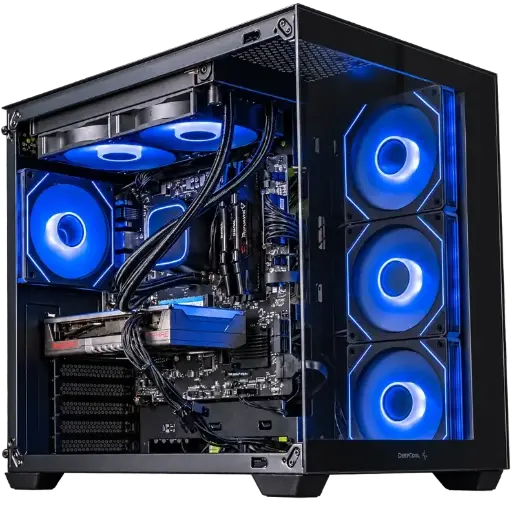
Spike PC: for gaming in Full HD
A Radeon RX 9060 XT to play comfortably in 1080p on today’s games.
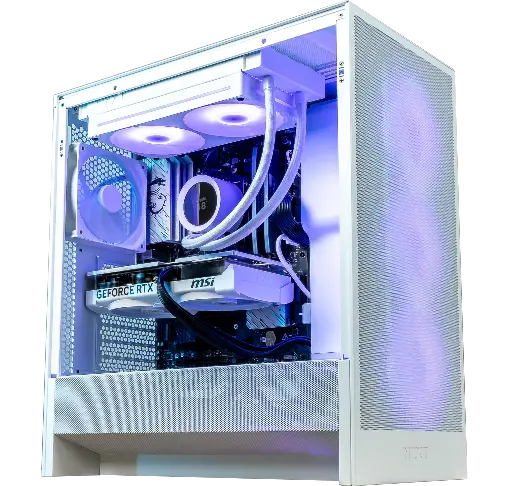
PC Novara GeForce RTX 5070 12GB
Ryzen 5 7500X3D, RTX 5070 12GB, 16GB DDR5 RAM and a 1TB M.2 SSD: a ready-to-play setup straight out of the box.
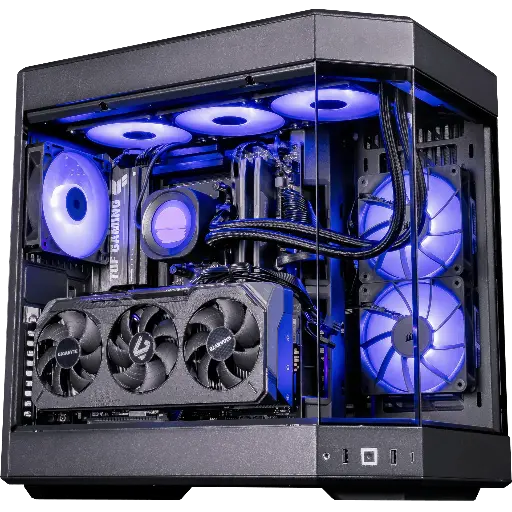
Shadow V2 PC: QHD and 4K
RX 9070 XT 16 GB, Ryzen 7 9800X3D, 32 GB of DDR5 and a 1 TB SSD in a HYTE Y60 case.
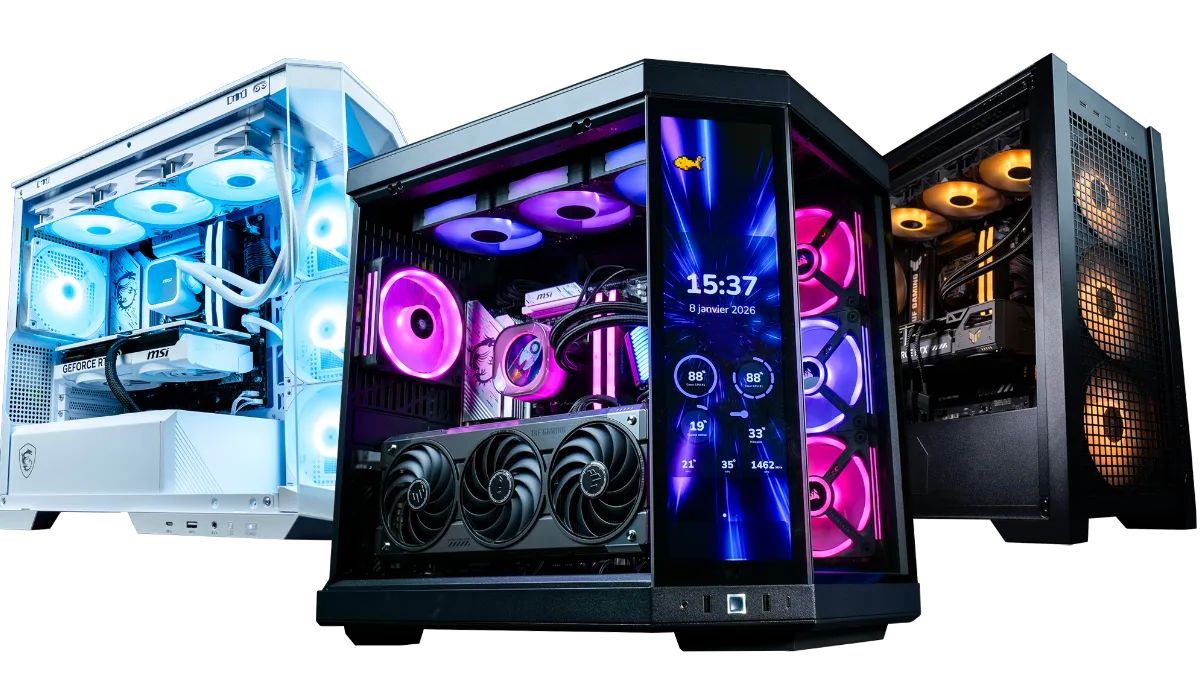
All our configurations are in the category FlowUP gaming PC, with the indicative FPS per game on each page.
FAQ: PC performance loss
Why has my PC suddenly become slow?
Sudden slowness is most often caused by an update running in the background, a new programme you’ve installed, malicious software, or overheating. Check in Task Manager which process is using the CPU or the disk.
Why is my PC slow after a Windows update?
Right after a big update, Windows finishes background tasks (indexing, optimisation) for a while. Restart, leave the PC on for a moment, then check that the graphics card driver is still up to date.
Is having the disk at 100% in Task Manager serious?
Occasionally, no. If it’s constant, it’s a sign of a saturated or worn-out mechanical hard drive, or a programme that’s constantly writing. Switching to an SSD fixes most cases.
How can I improve my PC’s performance without spending any money?
Disable startup apps, uninstall what you no longer need, free up disk space, update Windows and the graphics driver, choose a performance-oriented power mode, and clean out the dust.
Are cleaning software tools useful?
For temporary files, Windows Storage Sense does the job for free. Registry cleaners don’t provide a measurable gain and they carry a risk: we don’t recommend them.
Does a PC lose performance as it gets older?
The components themselves don’t. It’s the dust, the thermal paste, the accumulation of software, and more demanding games that give that impression.
